


Accessibility
ComponentOne MVC provides features that can be used to build accessible ASP.NET MVC applications. When developing applications to meet Web Content Accessibility Guidelines (WCAG) AA requirements, accessibility depends on both the behavior of the controls and the markup, styling, and interaction patterns implemented in the application.
Semantic HTML, appropriate Accessible Rich Internet Applications (ARIA) attributes, keyboard-accessible interactions, sufficient visual contrast, and support for assistive technologies help make MVC applications accessible to users with disabilities.
Accessibility testing tools such as Axe DevTools can help identify accessibility issues, while screen readers such as NVDA can be used to evaluate how page content and interactions are communicated to users.
This topic introduces general accessibility practices for C1 MVC applications. Additional control-specific accessibility guidance can be provided where individual controls require particular configuration or implementation.
Accessibility considerations for an ASP.NET MVC application include the following practices:
Use semantic HTML and appropriate ARIA attributes. Use attributes such as role, aria-label, aria-labelledby, aria-describedby, and aria-disabled where required to communicate the purpose, state, or relationship of page elements to assistive technologies.
Provide accessible labels for form controls. Ensure that input elements have labels that clearly identify their purpose and are programmatically associated with the corresponding controls.
Provide sufficient color contrast. Ensure that text, interactive components, and visual states provide sufficient contrast in accordance with applicable WCAG requirements.
Support high contrast presentation. Ensure that page content and interactive elements remain understandable and usable when system or browser contrast settings change.
Provide keyboard access. Ensure that interactive functionality can be operated without requiring mouse input.
Depending on the application, additional accessibility behavior can be configured through MVC views, HTML helpers, tag helpers, CSS, and client-side scripts.
Adding the Autocomplete Attribute
The HTML autocomplete attribute identifies the type of information expected in supported form fields. User agents can use this information to provide automated assistance when users enter form values.
The following example adds autocomplete="email" to an email input field in an ASP.NET MVC view.
// ASP.NET MVC view: create an email input with autocomplete enabled
@Html.LabelFor(model => model.Email)
@Html.TextBoxFor(model => model.Email, new { type = "email", autocomplete = "email", aria_describedby = "emailHelp" })
<span id="emailHelp">Enter the email address where you want to receive updates.</span>
Reference: HTML autocomplete attribute
Dynamic Status Messages
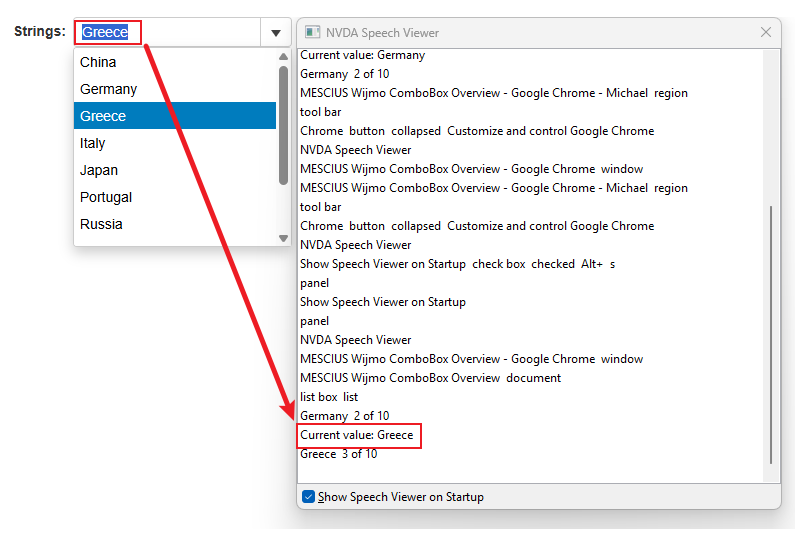
Dynamic status messages communicate important content changes to assistive technologies without requiring the user's focus to move to the updated content. Screen readers can announce the message when the associated live region changes.
The implementation depends on the application and the type of information being communicated. The following example provides a reference implementation that announces the current value of a form field when the value changes.
// 1. ASP.NET MVC view: create a text input and announcer element
@Html.LabelFor(model => model.SearchText)
@Html.TextBoxFor(model => model.SearchText, new { id = "searchText", aria_describedby = "valueAnnouncer" })
<div id="valueAnnouncer" role="status" aria-live="polite" aria-atomic="true"></div>
// 2. CSS: visually hide the announcer so that it does not affect layout
<style>
#valueAnnouncer {
    position: absolute;
    width: 1px;
    height: 1px;
    padding: 0;
    margin: -1px;
    overflow: hidden;
    clip: rect(0, 0, 0, 0);
    white-space: nowrap;
    border: 0;
}
</style>
// 3. Client-side script: update the announcer when the field value changes
const input = document.getElementById("searchText");
const announcer = document.getElementById("valueAnnouncer");
input.addEventListener("input", () => {
    announcer.textContent = `Current value: ${input.value}`;
});