


Quick Start
In tabular reports, the data is organized along the rows and columns of a Table data region. The data in the form of fields and entities is fetched from the data set added to the report.
This tutorial guides you through the steps to create a tabular report in ActiveReports WebDesigner.
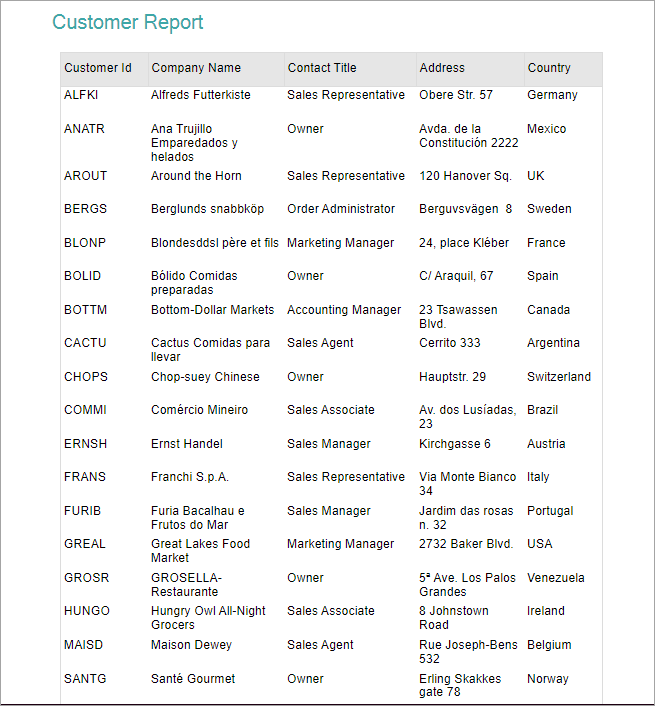
After you complete this tutorial, you will have a report that looks similar to the following.
Access the ActiveReports WebDesigner
Run the WebDesigner sample (WebDesigner_MVC(Core)) that you can download from the following link:
https://github.com/activereports/WebSamples20/tree/main/
The WebDesigner is opened in the browser and is ready to create your reports. By default, you have a blank RDLX Report.
Bind Data to Report
Connect to a data source.
Go to Data tab and click Add next to Data Sources.
In the Data Source Editor dialog, fill-in the Name field as 'Customers'.
Select Provider as 'JSON Provider'.
Select Type as 'External'.
Enter the following URL in Path: https://demodata.mescius.io/northwind/api/v1/Customers
Test the data source connection and click Add.
Add a dataset.
Click Add Data Set next to the added data source.
In the New Data Set dialog, fill-in a dataset name and enter the Query:
$.[*]Validate the query to obtain the bound fields and select OK to add the dataset.
Create Data-bound Table
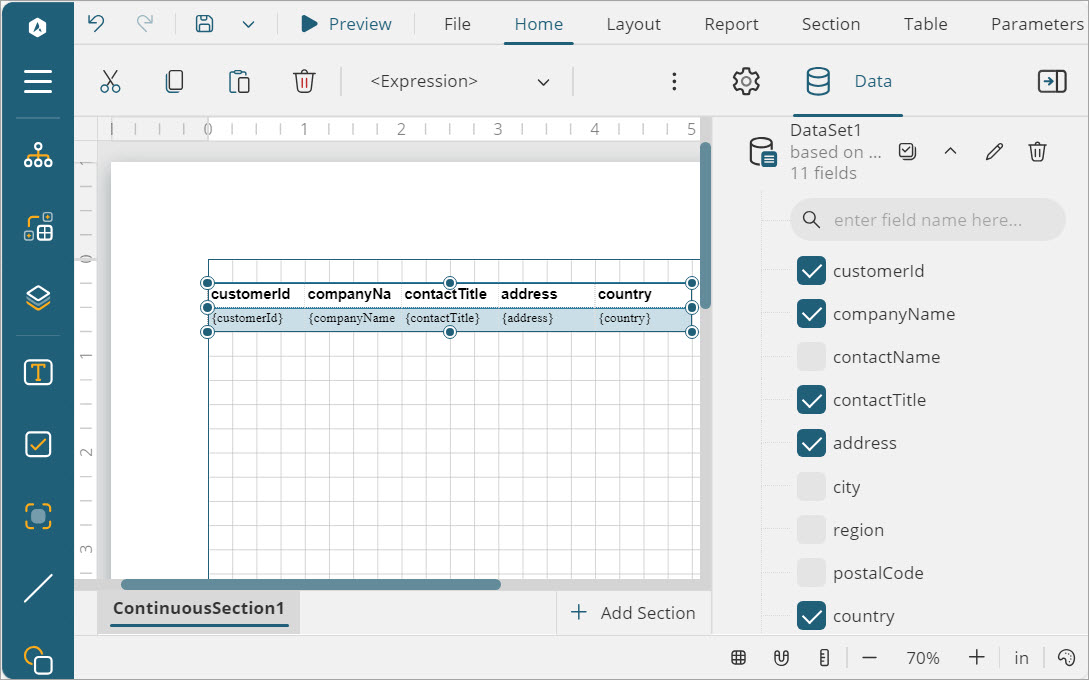
Expand the dataset fields and enable Select Fields...
Select the required fields and drag and drop them onto the design area.
A table with its columns bound to the fields is created. The Header row above the Details row is automatically filled with labels.
Alternatively, you can first drag and drop the Table data region  onto the design area of the report and then drag and drop fields onto the details row.
Sort Table Data
Apply sort on any field in the table data in ascending or descending order. Let us sort our table data by the customerId field in descending order.
From the adorner on the right side of the table, select <Details Group> and go to the Sort Expressions property.

Select Add Item.
Click the radio button to display the fields and select the 'customerId' field.
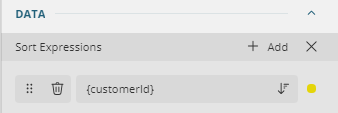
Note: You can also enter a sort expression in the Expression Editor: Data - Sort Expressions dialog by selecting Expression...
Click descending
 icon to sort the 'customerId field' in descending order. You can change the sort order to ascending by clicking the ascending
  icon (default).
Group Table Data
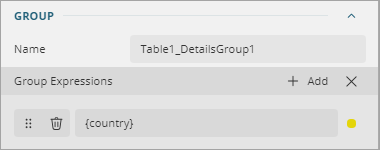
You can organize the table data in groups to add more meaning to the table. Let us group the table with respect to the country field, so that our table displays unique country values.
From the adorner on the right side of the Table data region, select <Details Group>, and go to the Properties pane.
Next to the Group Expressions property, click Add Item.
Click the radio button to display the fields and select the 'country' field.
Add Report Title
Drag and drop a TextBox control
 above Table data region.
Click inside the text box and enter the text 'Customer Report'.
Customize Appearance of Tabular Report
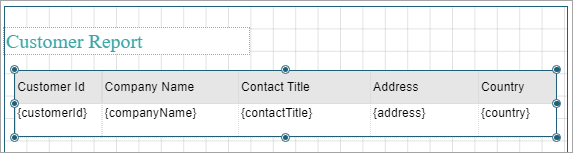
Note: You may need to resize and reposition the controls on the report to accommodate data, and for a cleaner look.
To customize the Page Header, set the BACKGROUND - Color property to '#f1f1f1'.
Select the text box containing the text 'Customer Report' and set the following properties.
Property
Value
TEXT - Color
#3da7a8
TEXT - Font Size
16pt
TEXT - Text Align
Left
TEXT - Vertical Align
Middle
To customize Header row of the table, set the following properties for all text boxes in the row.
Property
Value
BORDER - Width
0.25pt
BORDER - Style
Solid
BORDER - Color
Gainsboro
TEXT - Text Align
Left
TEXT - Vertical Align
Middle
Similarly, customize the text boxes in the Details row of the table.
Preview and Save Report
Click Preview
 to view the final output of your report.
Exit the preview mode by clicking Back on the left side of the designer.
Click Save to open the Save dialog box. Enter the report name and click Save Report.