


ODBC Provider
This article explains connecting a Section report to an ODBC data source.
Connect to an ODBC Data Source
In the designer, select the Data Source icon on the Detail section of the report or click the gray area around the design surface and select the Edit Data Source link in the Properties pane.
In the Report Data Source dialog that appears, select the ODBC tab to connect to an ODBC data source.
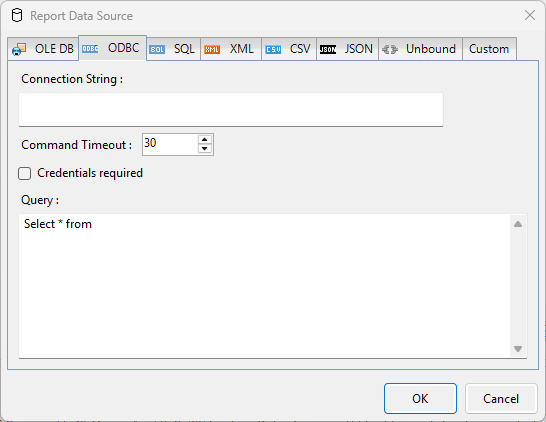
Under the Connection section, enter the connection string to connect to an ODBC data source. The following sample connection string specifies the type of the ODBC Driver along with location of the file required for an ODBC data source connection.
For example, you can connect to the NWIND.mdb sample data source which can be downloaded from GitHub.
Driver=Microsoft Access Driver (*.mdb);Dbq=C:\NWIND.mdb;In the Command Timeout, specify the wait time (in seconds) for a command to execute. The default value is 30 seconds.
The Credentials Required checkbox controls whether the user is prompted to log in when the report runs.
Checked: The user will see a popup dialog requesting a username and password before the report renders.
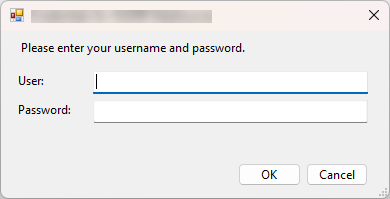
Unchecked: The report engine attempts to connect to the data source immediately without prompting the user. Use this setting for data sources that do not require credentials or use Integrated Security.
On the same page under the Query section, enter a SQL query to retrieve the data from the connected data source. For example,
SELECT * FROM OrdersClick the OK button to save the changes and close the Report Data Source dialog box.