


Creating Report From Image
Overview
ActiveReports utilizes Azure Document Intelligence to generate report layouts directly from images.
If you selected the Report from Image option in the Choose Report Type screen, the Report Wizard will guide you through a series of intuitive steps outlined below.
To enable the "Report from Image" option, you must first configure your AI credentials. See Configure ActiveReports using Config file for instructions.
Selecting an Image
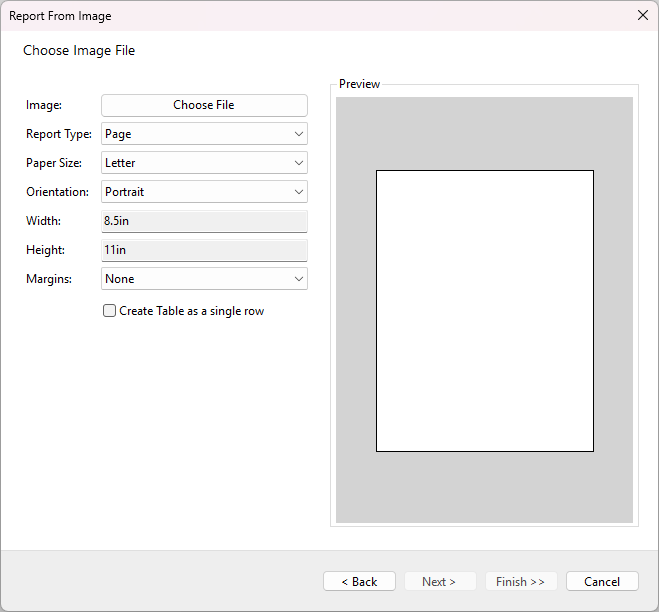
Click the Choose File button to locate and select the source image you want to convert into a report.
Configuring Report Settings
On the same screen, you can fine-tune the final report layout by configuring the following properties:
Report Type: Determines the fundamental layout structure of the created report.
RDLX: The default option. Choose this if you are unsure; it is suitable for most general-purpose reporting needs.Page: Ideal for "pixel-perfect" reports where precise layout control is required (e.g., forms, legal documents, or pre-printed stationery).
Paper Size: Select a standard pre-defined paper size, or choose
(Custom)to manually specify the Width and Height.Orientation: Sets the page orientation (Portrait or Landscape).
Margins: Defines the margin sizes for the report page.
Create Table as a single row: When enabled, the AI analyzer identifies table structures in the image but generates only the header rows and a single "Details" row with empty cells, rather than attempting to reproduce every row of data visible in the image.
Once you have configured these parameters, click the Next > button.
Generating Report Layout
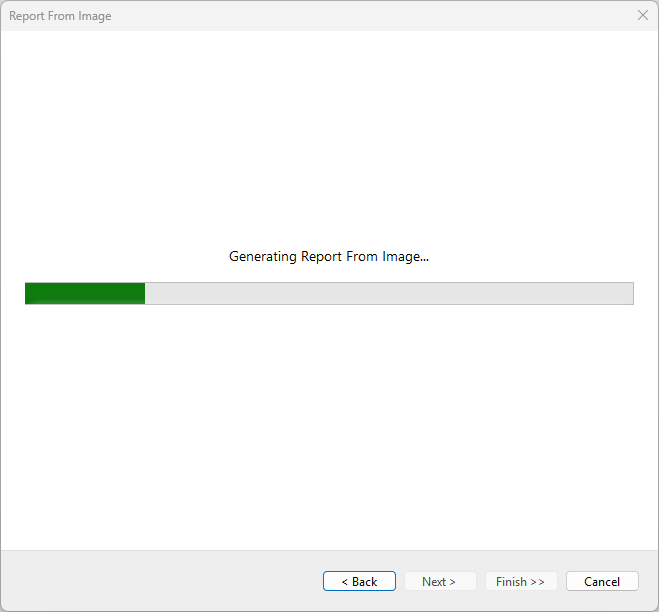
The next screen displays a waiting indicator while the AI processes your image and generates the layout. If an error occurs, the wizard will display a corresponding error message. You can interrupt the process or return to the previous step using the Cancel or Back buttons.
Next Steps
Once the report layout is generated, you can proceed to Configure Data Source and Data Queries to populate your new report with data.