


Overview
Before You Start
Use an AI client that supports MCP servers.
Use the product-specific MESCIUS MCP endpoint for your product.
Use the MESCIUS MCP token provided for your product. MCP tokens are product-specific and can only be used with the corresponding MCP endpoint. For example, a SpreadJS MCP token cannot be used to access Wijmo MCP services.
Keep your AI client, IDE extension, or CLI updated to the latest version.
Common Configuration
This documentation uses the SpreadJS MCP in its configuration examples. Other MESCIUS products follow the same general configuration process. Use the MCP server name, endpoint, and product-specific token that correspond to your product, as shown below.:
MCP server name: spreadjs-mcp
Transport: HTTP or Streamable HTTP
Endpoint: https://developer.mescius.com/mcp/spreadjs
Authorization header:
Authorization: Bearer <YOUR_MCP_TOKEN>
Product Endpoints
MESCIUS MCP servers cover only the latest versions of the supported products and editions listed below. Earlier product versions and maintenance-only or legacy ComponentOne editions are not included.
Product | MCP name | Supported Versions & Editions | Endpoint |
|---|---|---|---|
SpreadJS | spreadjs-mcp | Latest version | https://developer.mescius.com/mcp/spreadjs |
ActiveReportsJS | arjs-mcp | Latest version | https://developer.mescius.com/mcp/activereportsjs |
Wijmo | wijmo-mcp | Latest version | https://developer.mescius.com/mcp/wijmo |
ComponentOne | componentone-mcp | Latest version of each supported edition: WinForms, WPF, WinUI, Blazor, .NET MAUI, ASP.NET MVC, and Data Services | https://developer.mescius.com/mcp/componentone |
ActiveReports.NET | arnet-mcp | Latest version | https://developer.mescius.com/mcp/activereportsnet |
Document Solutions | docsol-mcp | Latest version | https://developer.mescius.com/mcp/document-solutions |
Obtain an MCP Token
There are two ways to obtain an MCP token.
Existing Customers
If you are an existing MESCIUS customer with either an active subscription license or a perpetual license covered by active maintenance, you can obtain your MCP token from your My Account > My Licenses page.
Sign in to your MESCIUS account and navigate to My Account > My Licenses.
Scroll to the license for the product you want to use with MCP.
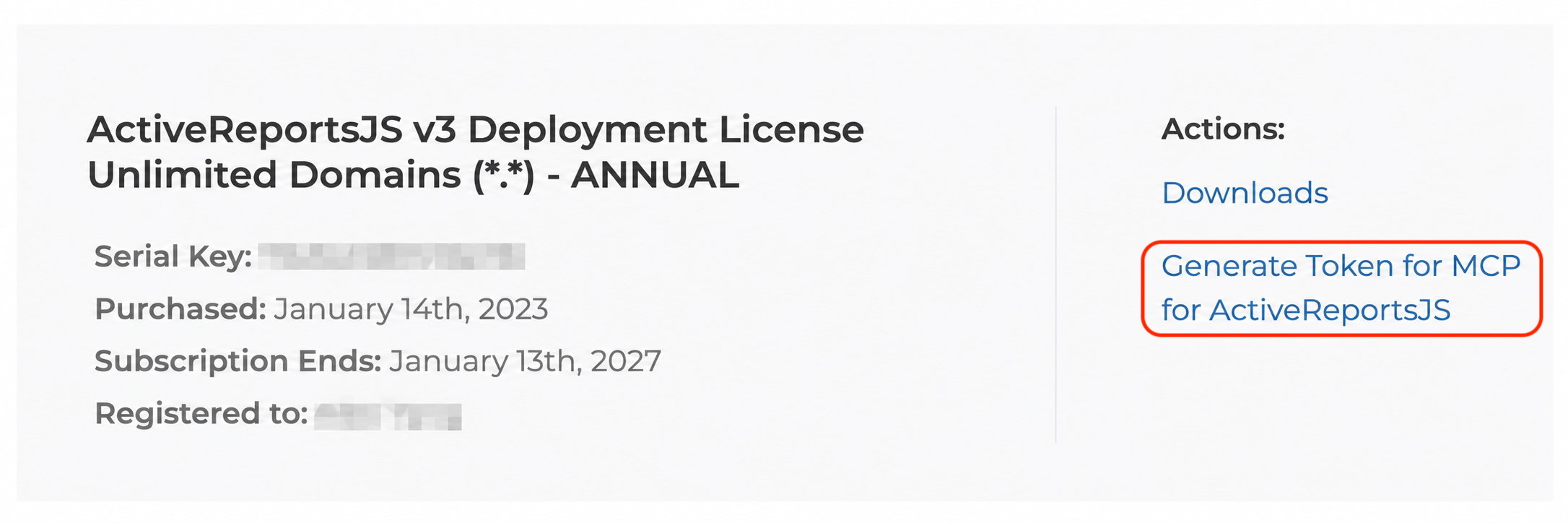
If the license is active and eligible for MCP access, a Generate Token for MCP link will appear in the Actions section next to the license.
Click Generate Token for MCP.
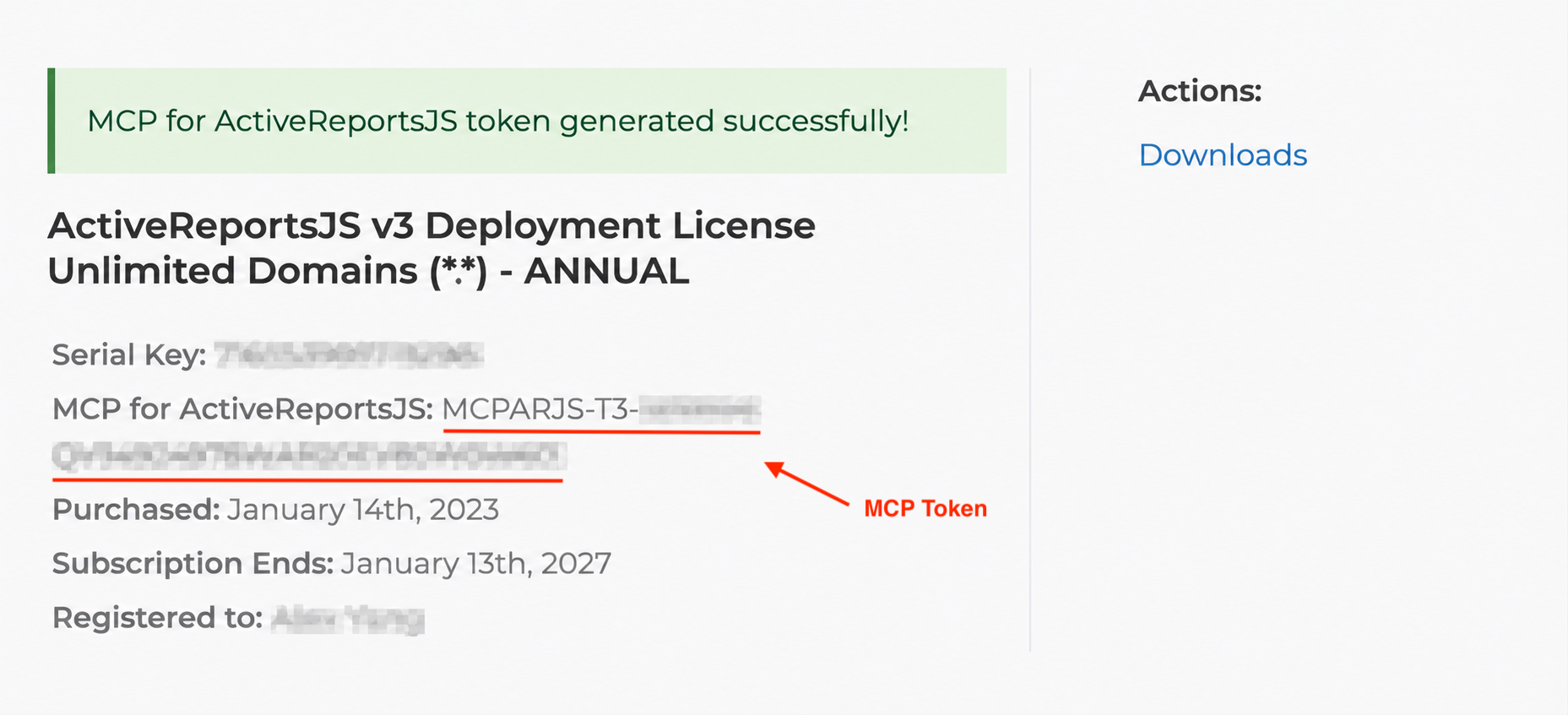
Your MCP token will be generated immediately and displayed in the license details. Copy the token and use it to configure your MCP client or AI agent.
Note: If you do not see the Generate Token for MCP link, your license may not be eligible for MCP access. Verify that your subscription or maintenance is active. If you are not eligible, you can request a 30-day trial MCP token as described below.
Trial Users
If you are a trial user or an existing MESCIUS customer without an active subscription or maintenance plan, you can request a 30-day trial MCP token before continuing.
What's Next
Now that you have:
✓ The Product MCP endpoint
✓ The MCP token
you are ready to configure your AI client.
Select your preferred AI client from the navigation pane on the left to continue.
Note: For a given product, the MCP endpoint and authentication token remain the same regardless of which AI client you use. Only the client-specific configuration steps vary.
Usage Tips
Ask product-specific questions.
Include the framework, runtime, or product version when relevant.
Mention MCP name (for example, spreadjs-mcp) if your AI client does not automatically select the MCP server.
Start a new chat when earlier context causes unrelated or outdated answers.
Review AI-generated code before using it in production.