


- Document Solutions for Excel .NET Overview
- Key Features
- Getting Started
- Features
- Templates
- Formula Reference
- File Operations
- Tutorials
- Document Solutions Data Viewer
- API Reference
- Release Notes
Export Shapes
DsExcel provides extensive support for loading, saving, printing and exporting Excel files that contain shapes and other drawing objects embedded in the worksheets.
The IsPrintable property of the IShape interface can be used to get or set whether the object will be printed in the exported PDF document. By default, this value is TRUE and hence the shapes embedded in the Excel files are printed. If you do not want to export shapes to the exported PDF files, this value must be set to FALSE.
The Export Shapes to PDF feature allows users to print and export different types of shapes such as callouts, lines, rectangles, basic shapes, block arrows, flowcharts, equation shapes, stars and banners, etc. This feature is useful especially when the following scenarios are encountered while working with spreadsheets:
When users have Excel files with graphs, reports and dashboards containing various shapes that they want to export to a PDF file.
When users need to export spreadsheets that contain preset shapes, basic shapes, custom shapes and grouped shapes with different operations like rotation, flipping, connector arrows and text, etc., into a PDF file.
When users need to export Excel template files and spreadsheets containing shapes with different types of fills (like Solid fill, Gradient fill, etc.) while saving to a PDF file.
Refer to the following example code in order to export shapes to PDF.
// Create a new workbook
var workbook = new GrapeCity.Documents.Excel.Workbook();

IWorksheet sheet = workbook.Worksheets[0];

// Add a rectangle
sheet.Shapes.AddShape(AutoShapeType.Rectangle, 20, 10, 100, 100);

// Add an oval
sheet.Shapes.AddShape(AutoShapeType.Oval, 20, 160, 100, 100);

// Add a trangle
sheet.Shapes.AddShape(AutoShapeType.IsoscelesTriangle, 20, 310, 100, 100);

// Add a "Not Allowed" symbol
sheet.Shapes.AddShape(AutoShapeType.NoSymbol, 20, 460, 100, 100);

// Add a "Smile Face" symbol
sheet.Shapes.AddShape(AutoShapeType.SmileyFace, 20, 600, 100, 100);

// Add a "Heart" symbol
sheet.Shapes.AddShape(AutoShapeType.Heart, 170, 10, 100, 100);

// Add a "Sun" symbol
sheet.Shapes.AddShape(AutoShapeType.Sun, 170, 160, 100, 100);

// Add a RightArrow
sheet.Shapes.AddShape(AutoShapeType.RightArrow, 170, 310, 100, 100);

// Add a CurvedRightArrow
sheet.Shapes.AddShape(AutoShapeType.CurvedRightArrow, 170, 460, 100, 100);

// Add a QuadArrow
sheet.Shapes.AddShape(AutoShapeType.QuadArrow, 170, 600, 100, 100);

// Add a MathNotEqual
sheet.Shapes.AddShape(AutoShapeType.MathNotEqual, 320, 10, 100, 100);

// Add a FlowchartMultidocument
sheet.Shapes.AddShape(AutoShapeType.FlowchartMultidocument, 320, 160, 100, 100);

// Add a five points star
sheet.Shapes.AddShape(AutoShapeType.Shape5pointStar, 320, 310, 100, 100);

// Add a CurvedUpRibbon
sheet.Shapes.AddShape(AutoShapeType.CurvedUpRibbon, 320, 460, 100, 100);

// Add a OvalCallout
sheet.Shapes.AddShape(AutoShapeType.OvalCallout, 320, 580, 100, 100);

// Save to a pdf file
workbook.Save("BasicShapes.pdf");
The output is shown in the figure below:

Note: While exporting Excel files containing shapes into PDF format, some of the exported shapes may not look exactly the same as in Excel, such as shapes with rectangular gradient fill and path gradient fill, shapes with multiple lines and gradient lines, shape effects like text distribution, etc.
Export Shape Text with Bullets
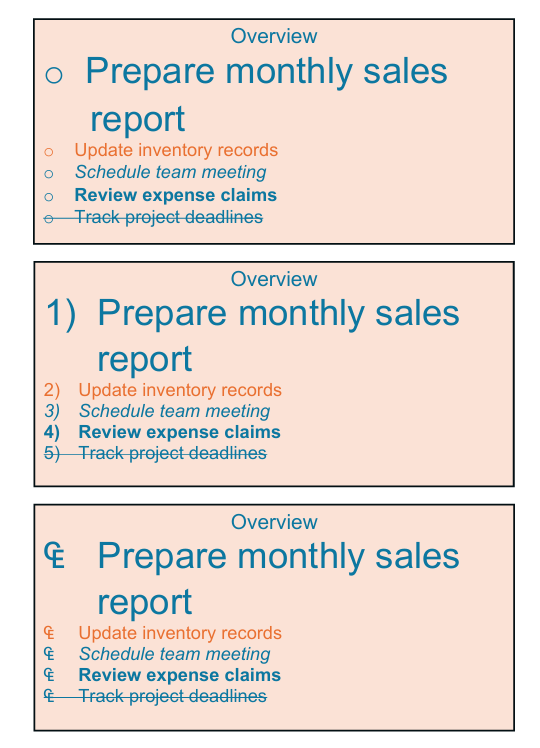
DsExcel supports preserving bullet formatting in shape text when exporting to PDF. The exported PDF file will correctly display bullet types, colors, sizes, and other properties, ensuring the visual appearance matches Excel as closely as possible.
When exporting an Excel file containing shapes with bulleted text, DsExcel automatically parses and renders the bullet definitions from the source file.
DsExcel supports exporting the following three types of bullets:
Bullet Type | Description |
|---|---|
Symbol bullet | Uses special symbols (•, ○, ■, etc.) as bullet markers |
Automatic numbering bullet | Uses numeric or alphabetic sequences (1, 2, 3 or a, b, c, etc.) |
Customize bullet | User-defined custom symbols |
When exporting to PDF, DsExcel preserves the following bullet properties:
Color: The bullet color is determined by the following priority:
Bullet's own color (if set)
Paragraph text color (fallback if bullet color is not set)
Size: The bullet size is proportional to the paragraph font size. This proportion can be configured in Excel's bullet settings and will be preserved during export.
Styles: The following styles are supported for bullets:
Strikethrough: Applies to all bullet types (symbol, automatic numbering, and customize bullets)
Bold/Italic: Only applies to automatic numbering bullets
The following example demonstrates how to export an Excel file containing shapes with bullets to PDF. The bullet formatting is automatically preserved during export.
// Create a new workbook.
var workbook = new GrapeCity.Documents.Excel.Workbook();

// Open an Excel file that contains shapes with bullets.
workbook.Open("Bullet.xlsx");

// Export to PDF.
workbook.Save("BulletToPDF.pdf");
The output is shown in the figure below:
Limitations
The following is not supported while exporting shapes to PDF documents:
Image-based bullet markers in bulleted text. These bullets will not be displayed in the exported PDF.