- Document Solutions for Excel, .NET Edition Overview
- Key Features
- Getting Started
-
Features
- Worksheet
- Workbook
- Comments
- Hyperlinks
- Sort
- Filter
- Group
- Conditional Formatting
- Data Validations
- Data Binding
- Import Data
- Digital Signatures
- Formulas
- Custom Functions
- Shapes
- Document Properties
- Styles
- Form Controls
- Barcodes
- Themes and Colors
- Chart
- Table
- Pivot Table
- Pivot Chart
- Sparkline
- Slicer
- Logging
- Defined Names
- AI Assistant
- Templates
- Formula Reference
- File Operations
- Document Solutions Data Viewer
- API Reference
- Release Notes
AI.QUERY
Users can pass specified parameters to the AI.QUERY function to obtain query results from the AI model.
Syntax
AI.QUERY(prompt1, [data1], [prompt2], [data2] ...)
Arguments
The AI.QUERY function can accept any number of prompts and data, which will be organized into a single text block and sent to the AI model for processing.
This function has these arguments:
Argument | Description |
|---|---|
prompt1 | [Required] Text describing the task or asking a question to the AI model. Each prompt parameter is merged with the context in order to form a complete prompt message. |
data1 | [Optional] Table reference providing context or data for the AI model; can be a single cell or a range. |
prompt2, data2, … | [Optional] Additional text and table references for further context to the AI model. Unlimited in number; they can be used in pairs or just specify prompt. |
Remarks
The prompt sent to the AI model is generated by concatenating all prompt and data parameters. For example, when using the formula =COPILOT("Classify", B1:B10, "into one of the following categories ", A1:A4), the final content sent to the AI model is: "Classify [the values from B1:B10] into the following categories [the values from A1:A4]".
Examples
Example 1
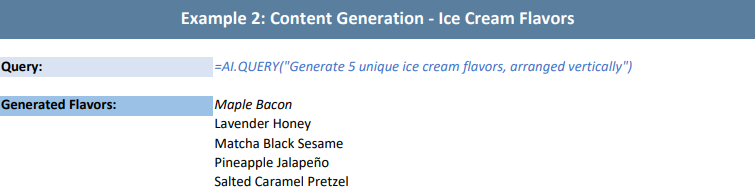
The example below demonstrates how to pass multiple prompt parameters to the AI.QUERY function so that the AI can intelligently analyze the given text based on the prompts.
// To use this example, install the OpenAI dependency via NuGet Package Manager in your project.
// Configure the model request handler and choose different large model providers as needed. Here the example uses OpenAI GPT-4.1; replace with your API key when using.
Workbook.AIModelRequestHandler = new OpenAIModelRequestHandler("https://api.openai.com/v1", "sk-xxxx", "gpt-4.1");
// DeepSeek model.
// Workbook.AIModelRequestHandler = new OpenAIModelRequestHandler("https://api.deepseek.com/v1", "sk-xxxx", "deepseek-chat");
// Qwen model.
// Workbook.AIModelRequestHandler = new OpenAIModelRequestHandler("https://dashscope.aliyuncs.com/compatible-mode/v1", "sk-xxxx", "qwen-plus");

// Initialize the workbook and set data.
var workbook = new Workbook();
IWorksheet sheet = workbook.Worksheets[0];
sheet.Columns[0].ColumnWidth = 57;
sheet.Columns[1].ColumnWidth = 55;
sheet.Columns[2].ColumnWidth = 42;
sheet.Range["A1:C1"].Merge();
sheet.Range["A1"].Value = "Example1: Customer Product Reviews and Classification";
sheet.Range["A1"].Font.Bold = true;
sheet.Range["A1"].Font.Size = 16;
sheet.Range["A1"].Font.Color = Color.White;
sheet.Range["A1"].Interior.Color = Color.FromArgb(90, 126, 158);
sheet.Range["A1"].HorizontalAlignment = HorizontalAlignment.Center;
sheet.Range["A1"].VerticalAlignment = VerticalAlignment.Center;
sheet.Range["A1"].RowHeight = 35;
sheet.Range["A3"].Value = "Formula:";
sheet.Range["A3"].Font.Bold = true;
sheet.Range["A3"].Font.Size = 11;
sheet.Range["A3"].Interior.Color = Color.FromArgb(217, 225, 242);
sheet.Range["B3"].Value = "=AI.QUERY(\"evaluate these reviews\", A6:A13, \"based on these categories\",B5:C5)";
sheet.Range["B3"].Font.Italic = true;
sheet.Range["B3"].Font.Color = Color.FromArgb(68, 114, 196);
sheet.Range["B3"].WrapText = true;
sheet.Range["B3:C3"].Merge();
sheet.Range["A5:C5"].Value = new object[,] {
    { "Taco Truck Reviews", "Positive or negative", "Topics"}
};
sheet.Range["A5:C5"].Font.Bold = true;
sheet.Range["A5:C5"].Interior.Color = Color.FromArgb(155, 194, 230);
sheet.Range["A5:C5"].HorizontalAlignment = HorizontalAlignment.Center;
sheet.Range["A6:A13"].Value = new object[,] {
    { "Great tacos with fresh ingredients! Definitely coming back for more." },
    { "The service was slow, but the food was worth the wait." },
    { "Not impressed. The tacos were bland and lacked flavor." },
    { "Amazing variety of salsas and toppings. Loved it!" },
    { "The truck was clean and the staff was friendly." },
    { "Overpriced for the portion size. Won't be returning." },
    { "The tortillas were soggy and the meat was dry." },
    { "Best taco truck in town! Highly recommend the carne asada." }
};

// Define AI formula; the concatenated prompt is: "Evaluate these reviews [values in A6:A13], based on these categories [values in B5:C5]"
sheet.Range["B6"].Formula2 = "=AI.QUERY(\"evaluate these reviews\", A6:A13, \"based on these categories\",B5:C5)";
sheet.Range["A6:C13"].Font.Size = 11;
sheet.Range["A6:C13"].HorizontalAlignment = HorizontalAlignment.Center;
sheet.Range["A6:C13"].Borders.LineStyle = BorderLineStyle.Medium;
sheet.Range["A6:C13"].Borders.Color = Color.FromArgb(200, 200, 200);

// The AI function works as an asynchronous calculation function; you need to wait for its calculation to complete.
workbook.Calculate();
workbook.WaitForCalculationToFinish();

// Set the page to print as a single page.
sheet.PageSetup.FitToPagesTall = 1;
sheet.PageSetup.FitToPagesWide = 1;
sheet.PageSetup.IsPercentScale = false;

// Save as PDF file.
workbook.Save("AIQueryDataAnalysis.pdf");
/// <summary>
/// Implementation of IAIModelRequestHandler for OpenAI API.
/// This class handles HTTP communication with OpenAI-compatible APIs.
/// </summary>
public class OpenAIModelRequestHandler : IAIModelRequestHandler
{
private readonly string _apiEndpoint;
private readonly string _apiKey;
private readonly string _model;
private readonly OpenAIClient _openAIClient;
/// <summary>
/// Initializes a new instance of the <see cref="OpenAIModelRequestHandler"/> class.
/// </summary>
/// <param name="apiEndpoint">The API endpoint URL for OpenAI-compatible API.</param>
/// <param name="apiKey">The API key for authentication.</param>
/// <param name="model">The model name to use for requests.</param>
public OpenAIModelRequestHandler(string apiEndpoint, string apiKey, string model)
{
if (string.IsNullOrWhiteSpace(apiEndpoint))
throw new ArgumentException("API endpoint cannot be null or empty.", nameof(apiEndpoint));
if (string.IsNullOrWhiteSpace(apiKey))
throw new ArgumentException("API key cannot be null or empty.", nameof(apiKey));
_apiEndpoint = apiEndpoint.TrimEnd('/');
_apiKey = apiKey;
_model = model;
// Create OpenAI client with custom endpoint if not using default OpenAI endpoint
var clientOptions = new OpenAIClientOptions();
if (!_apiEndpoint.Contains("api.openai.com"))
{
clientOptions.Endpoint = new Uri(_apiEndpoint);
}
var apiCredentials = new ApiKeyCredential(_apiKey);
_openAIClient = new OpenAIClient(apiCredentials, clientOptions);
}
/// <summary>
/// Sends a model request to the OpenAI API asynchronously.
/// </summary>
/// <param name="request">The model request containing messages and options.</param>
/// <returns>A <see cref="Task{ModelResponse}"/> representing the asynchronous operation.</returns>
public async Task<AIModelResponse> SendRequestAsync(AIModelRequest request)
{
if (request == null)
{
Console.Error.WriteLine("Request cannot be null");
return new AIModelResponse
{
IsSuccess = false,
};
}
try
{
var chatMessages = new List<ChatMessage>();
foreach (var item in request.Messages)
{
ChatMessage message;
switch (item.Role.ToLowerInvariant())
{
case "system":
message = ChatMessage.CreateSystemMessage(item.Content);
break;
case "user":
message = ChatMessage.CreateUserMessage(item.Content);
break;
default:
throw new InvalidOperationException($"Unknown message role: {item.Role}");
}
chatMessages.Add(message);
}
if (chatMessages.Count == 0)
{
throw new InvalidOperationException("The request must contain at least one message.");
}
// Get chat client and make the request
var chatClient = _openAIClient.GetChatClient(_model);
var response = await chatClient.CompleteChatAsync(chatMessages);
if (response?.Value?.Content?.Count > 0)
{
var content = string.Join("", response.Value.Content.Select((ChatMessageContentPart c) => c.Text));
return new AIModelResponse
{
Content = content,
IsSuccess = true
};
}
else
{
Console.Error.WriteLine("No content received from the model.");
return new AIModelResponse
{
IsSuccess = false,
};
}
}
catch (HttpRequestException httpEx)
{
Console.Error.WriteLine($"HTTP request failed: {httpEx.Message}");
return new AIModelResponse
{
IsSuccess = false,
};
}
catch (TaskCanceledException tcEx) when (tcEx.InnerException is TimeoutException)
{
Console.Error.WriteLine("Request timed out.");
return new AIModelResponse
{
IsSuccess = false,
};
}
catch (Exception ex)
{
Console.Error.WriteLine($"An error occurred: {ex.Message}");
return new AIModelResponse
{
IsSuccess = false,
};
}
}
}The output is shown below:
Example 2
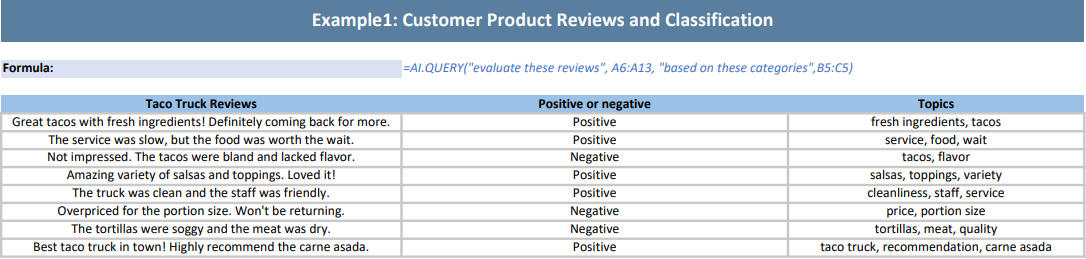
The following example shows how to automatically generate text content in the spreadsheet using the AI.QUERY function.
// To use this example, install the OpenAI dependency via NuGet Package Manager in your project.
// The implementation of IAIModelRequestHandler used here is the same as in Example 1.
// Configure the model request handler and choose different large model providers as needed. Here the example uses OpenAI GPT-4.1; replace with your API key when using.
Workbook.AIModelRequestHandler = new OpenAIModelRequestHandler("https://api.openai.com/v1", "sk-xxxx", "gpt-4.1");
// DeepSeek model.
// Workbook.AIModelRequestHandler = new OpenAIModelRequestHandler("https://api.deepseek.com/v1", "sk-xxxx", "deepseek-chat");
// Qwen model.
// Workbook.AIModelRequestHandler = new OpenAIModelRequestHandler("https://dashscope.aliyuncs.com/compatible-mode/v1", "sk-xxxx", "qwen-plus");

// Initialize the workbook and set data.
var workbook = new Workbook();
IWorksheet sheet = workbook.Worksheets[0];
sheet.Columns[0].ColumnWidth = 28;
sheet.Columns[1].ColumnWidth = 35;
sheet.Columns[2].ColumnWidth = 18;
sheet.Columns[3].ColumnWidth = 18;
sheet.Columns[4].ColumnWidth = 25;
sheet.Range["A1:D1"].Merge();
sheet.Range["A1"].Value = "Example 2: Content Generation - Ice Cream Flavors";
sheet.Range["A1"].Font.Bold = true;
sheet.Range["A1"].Font.Size = 14;
sheet.Range["A1"].Font.Color = Color.White;
sheet.Range["A1"].Interior.Color = Color.FromArgb(90, 126, 158);
sheet.Range["A1"].HorizontalAlignment = HorizontalAlignment.Center;
sheet.Range["A1"].VerticalAlignment = VerticalAlignment.Center;
sheet.Range["A1"].RowHeight = 30;

// Define AI formula to generate 5 unique ice cream flavors.
string QueryFormula3 = "=AI.QUERY(\"Generate 5 unique ice cream flavors, arranged vertically\")";
sheet.Range["A3"].Value = "Query:";
sheet.Range["A3"].Font.Bold = true;
sheet.Range["A3"].Font.Size = 11;
sheet.Range["A3"].Interior.Color = Color.FromArgb(217, 227, 242);
sheet.Range["B3:D3"].Merge();
sheet.Range["B3"].Value = QueryFormula3;
sheet.Range["B3"].Font.Italic = true;
sheet.Range["B3"].Font.Color = Color.FromArgb(68, 114, 196);
sheet.Range["A5"].Value = "Generated Flavors:";
sheet.Range["A5"].Font.Bold = true;
sheet.Range["A5"].Font.Size = 11;
sheet.Range["A5"].Interior.Color = Color.FromArgb(155, 194, 230);
sheet.Range["B5"].Formula2 = QueryFormula3;
sheet.Range["B5:B5"].Font.Italic = true;

// The AI function works as an asynchronous calculation function; you need to wait for its calculation to complete.
workbook.Calculate();
workbook.WaitForCalculationToFinish();

// Set the page to print as a single page.
sheet.PageSetup.FitToPagesTall = 1;
sheet.PageSetup.FitToPagesWide = 1;
sheet.PageSetup.IsPercentScale = false;

// Save as PDF file.
workbook.Save("AIQueryTextGeneration.pdf");
The output is shown below: