


Getting Started
Once you've installed ComponentOne IntelliSpell, use any one of the following methods to start spell checking your projects in Visual Studio:
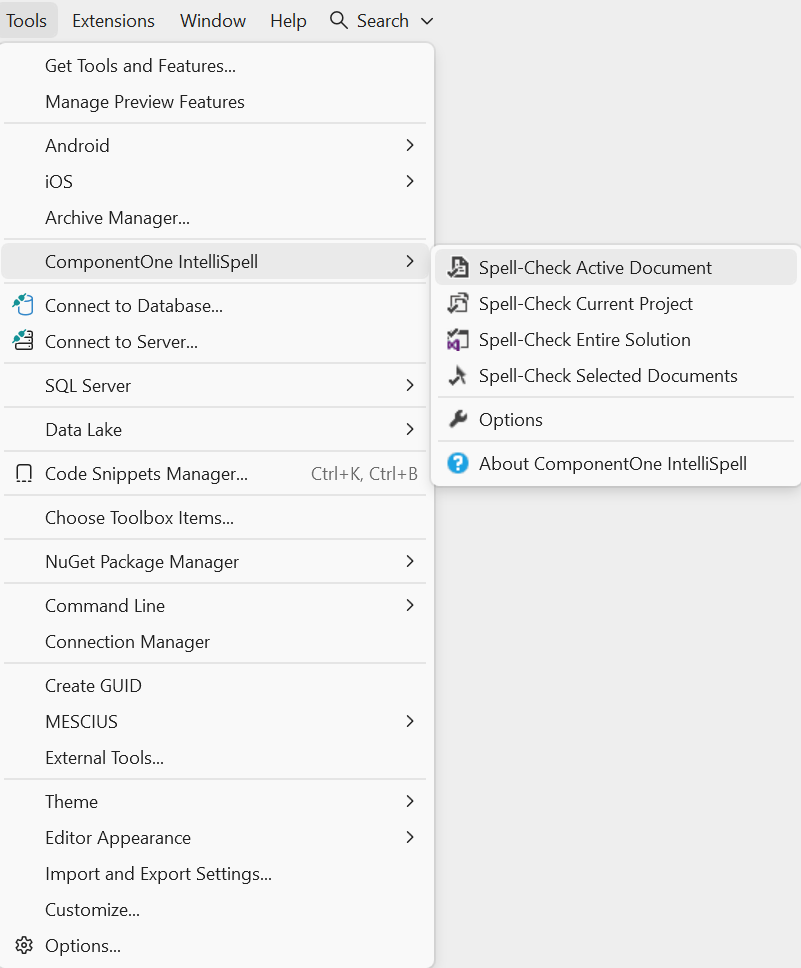
From the Visual Studio menu:
Select Tools | ComponentOne IntelliSpell.
From the ComponentOne IntelliSpell Visual Studio toolbar:
Right-click an empty part of the Visual Studio toolbar area and make sure the ComponentOne IntelliSpell toolbar is checked. Then select a command from the toolbar to begin spell checking.
From the Visual Studio Task List:
Select View | Task List and make sure the ComponentOne IntelliSpell item is selected on the list.

All spell-checking options offer the same commands:
Stop Spell Checking – Stops spell checking.
Spell-Check Active Document – Spell-checks the document that is currently open in the editor. If the document is a code file, any associated files (such as designer and resource files) are also spell-checked.
Spell-Check Current Project – Spell-checks all files in the current project.
Spell-Check Entire Solution – Spell-checks all files in the current solution.
Spell-Check Selected Documents – Spell-checks all documents that are selected in the Project Explorer window.
Show C1IntelliSpell Window – Shows a dialog box that enables you to view each mispelled word one at a time and lists suggestions for the mispelled words. A Previous, Next, Ignore All, Add, Change, and Change All command buttons are provided in the dialog box.
Options – Shows a dialog box that allows you to select several spell-checking options.
About ComponentOne IntelliSpell – Shows the About ComponentOne IntelliSpell dialog box that contains information about the current version of the Professional Edition, whether to upgrade and update options.