


- Document Solutions for Excel Java Overview
- Key Features
- Getting Started
-
Features
- Worksheet
- Workbook
- Comments
- Hyperlinks
- Sort
- Filter
- Group
- Conditional Formatting
- Data Validations
- Data Binding
- Import Data
- Digital Signatures
- Formulas
- Custom Functions
- Shapes
- Document Properties
- Styles
- Form Controls
- Barcodes
- Themes and Colors
- Chart
- Table
- Pivot Table
- Pivot Chart
- Sparkline
- Slicer
- Print Settings
- Logging
- Defined Names
- AI Assistant
- Templates
- Formula Reference
- File Operations
- Tutorials
- Use JDK 8 Date Time API
- Document Solutions Data Viewer
- API Reference
- Release Notes
Create Pivot Table
DsExcel provides functionality to create and add pivot tables in a spreadsheet using either a specified range or a table. create method of IPivotCaches interface initializes the pivot cache for the pivot table, while add method of IPivotTables interface uses this cache to insert the new pivot table into the spreadsheet.
Create Pivot Table with Range-Based Data Source
Refer to the following example code to create a pivot table in a worksheet with a range:
// Create a new workbook.
Workbook workbook = new Workbook();

// Source data for PivotCache.
Object sourceData = new Object[][]{
        {"Order ID", "Product", "Category", "Amount", "Date", "Country"},
        {1, "Bose 785593-0050", "Consumer Electronics", 4270, new GregorianCalendar(2018, 0, 6), "United States"},
        {2, "Canon EOS 1500D", "Consumer Electronics", 8239, new GregorianCalendar(2018, 0, 7), "United Kingdom"},
        {3, "Haier 394L 4Star", "Consumer Electronics", 617, new GregorianCalendar(2018, 0, 8), "United States"},
        {4, "IFB 6.5 Kg FullyAuto", "Consumer Electronics", 8384, new GregorianCalendar(2018, 0, 10), "Canada"},
        {5, "Mi LED 40inch", "Consumer Electronics", 2626, new GregorianCalendar(2018, 0, 10), "Germany"},
        {6, "Sennheiser HD 4.40-BT", "Consumer Electronics", 3610, new GregorianCalendar(2018, 0, 11), "United States"},
        {7, "Iphone XR", "Mobile", 9062, new GregorianCalendar(2018, 0, 11), "Australia"},
        {8, "OnePlus 7Pro", "Mobile", 6906, new GregorianCalendar(2018, 0, 16), "New Zealand"},
        {9, "Redmi 7", "Mobile", 2417, new GregorianCalendar(2018, 0, 16), "France"},
        {10, "Samsung S9", "Mobile", 7431, new GregorianCalendar(2018, 0, 16), "Canada"},
        {11, "OnePlus 7Pro", "Mobile", 8250, new GregorianCalendar(2018, 0, 16), "Germany"},
        {12, "Redmi 7", "Mobile", 7012, new GregorianCalendar(2018, 0, 18), "United States"},
        {13, "Bose 785593-0050", "Consumer Electronics", 1903, new GregorianCalendar(2018, 0, 20), "Germany"},
        {14, "Canon EOS 1500D", "Consumer Electronics", 2824, new GregorianCalendar(2018, 0, 22), "Canada"},
        {15, "Haier 394L 4Star", "Consumer Electronics", 6946, new GregorianCalendar(2018, 0, 24), "France"},
};

// Fetch the first workSheet.
IWorksheet worksheet = workbook.getWorksheets().get(0);

// Assigning data to the range.
worksheet.getRange("G1:L16").setValue(sourceData);
worksheet.getRange("G:L").setColumnWidth(15);

// Create pivot table.
IPivotCache pivotcache = workbook.getPivotCaches().create(worksheet.getRange("G1:L16"));
IPivotTable pivottable = worksheet.getPivotTables().add(pivotcache, worksheet.getRange("A1"), "pivottable1");
worksheet.getRange("J1:J16").setNumberFormat("$#,##0.00");

// Configure pivot table fields.
IPivotField field_Category = pivottable.getPivotFields().get("Category");
field_Category.setOrientation(PivotFieldOrientation.ColumnField);

IPivotField field_Product = pivottable.getPivotFields().get("Product");
field_Product.setOrientation(PivotFieldOrientation.RowField);

IPivotField field_Amount = pivottable.getPivotFields().get("Amount");
field_Amount.setOrientation(PivotFieldOrientation.DataField);
field_Amount.setNumberFormat("$#,##0.00");

IPivotField field_Country = pivottable.getPivotFields().get("Country");
field_Country.setOrientation(PivotFieldOrientation.PageField);

worksheet.getRange("A:D").getEntireColumn().autoFit();

// Save to an excel file.
workbook.save("CreatePivotTable.xlsx");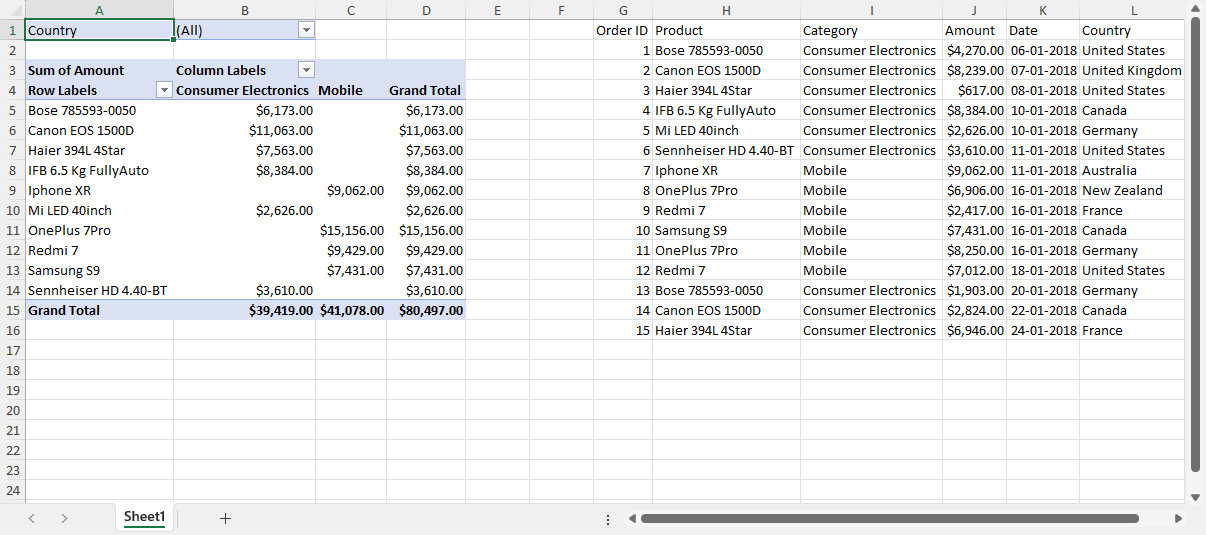
Create Pivot Table with Table-Based Data Source
Refer to the following example code to create a pivot table in a worksheet with a table:
// Create a new workbook.
var workbook = new Workbook();

// Create source for the table.
Object[][] sourceData = new Object[][]{
    {"Order ID", "Product", "Category", "Amount", "Date", "Country"},
    {1, "Bose 785593-0050", "Consumer Electronics", 4270, new GregorianCalendar(2018, 0, 6), "United States"},
    {2, "Canon EOS 1500D", "Consumer Electronics", 8239, new GregorianCalendar(2018, 0, 7), "United Kingdom"},
    {3, "Haier 394L 4Star", "Consumer Electronics", 617, new GregorianCalendar(2018, 0, 8), "United States"},
    {4, "IFB 6.5 Kg FullyAuto", "Consumer Electronics", 8384, new GregorianCalendar(2018, 0, 10), "Canada"},
    {5, "Mi LED 40inch", "Consumer Electronics", 2626, new GregorianCalendar(2018, 0, 10), "Germany"},
    {6, "Sennheiser HD 4.40-BT", "Consumer Electronics", 3610, new GregorianCalendar(2018, 0, 11), "United States"},
    {7, "Iphone XR", "Mobile", 9062, new GregorianCalendar(2018, 0, 11), "Australia"},
    {8, "OnePlus 7Pro", "Mobile", 6906, new GregorianCalendar(2018, 0, 16), "New Zealand"},
    {9, "Redmi 7", "Mobile", 2417, new GregorianCalendar(2018, 0, 16), "France"},
    {10, "Samsung S9", "Mobile", 7431, new GregorianCalendar(2018, 0, 16), "Canada"},
    {11, "OnePlus 7Pro", "Mobile", 8250, new GregorianCalendar(2018, 0, 16), "Germany"},
    {12, "Redmi 7", "Mobile", 7012, new GregorianCalendar(2018, 0, 18), "United States"},
    {13, "Bose 785593-0050", "Consumer Electronics", 1903, new GregorianCalendar(2018, 0, 20), "Germany"},
    {14, "Canon EOS 1500D", "Consumer Electronics", 2824, new GregorianCalendar(2018, 0, 22), "Canada"},
    {15, "Haier 394L 4Star", "Consumer Electronics", 6946, new GregorianCalendar(2018, 0, 24), "France"},
};

// Assigning data to the range.
IWorksheet worksheet = workbook.getWorksheets().get(0);
worksheet.getRange("G1:L16").setValue(sourceData);
worksheet.getRange("G:L").setColumnWidth(15);

// Create table with range G1:L16.
ITable table = worksheet.getTables().add(worksheet.getRange("G1:L16"), true);

// Create pivot table using table as data source.
IPivotCache pivotcache = workbook.getPivotCaches().create(table);
IPivotTable pivottable = worksheet.getPivotTables().add(pivotcache, worksheet.getRange("A1"), "pivottable1");
worksheet.getRange("J1:J16").setNumberFormat("$#,##0.00");

// Configure pivot table's fields.
IPivotField field_Category = pivottable.getPivotFields().get("Category");
field_Category.setOrientation(PivotFieldOrientation.ColumnField);

IPivotField field_Product = pivottable.getPivotFields().get("Product");
field_Product.setOrientation(PivotFieldOrientation.RowField);

IPivotField field_Amount = pivottable.getPivotFields().get("Amount");
field_Amount.setOrientation(PivotFieldOrientation.DataField);
field_Amount.setNumberFormat("$#,##0.00");

IPivotField field_Country = pivottable.getPivotFields().get("Country");
field_Country.setOrientation(PivotFieldOrientation.PageField);

worksheet.getRange("A:D").getEntireColumn().autoFit();

// Save the workbook.
workbook.save("CreatePivotTableUsingTable.xlsx");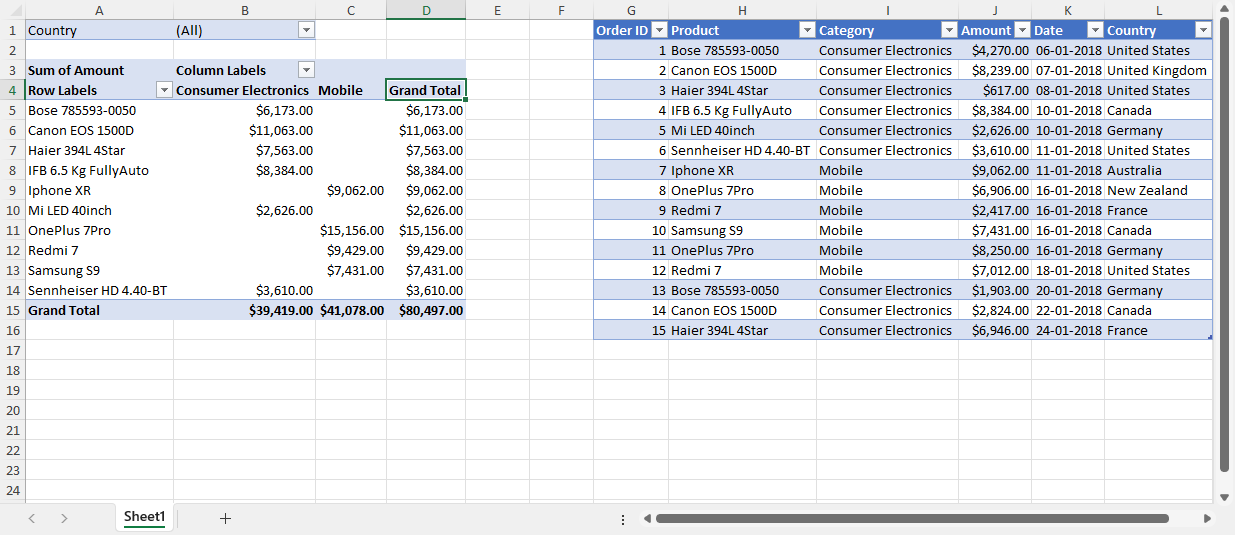
Use Picture in Cell as Pivot Table Data Source
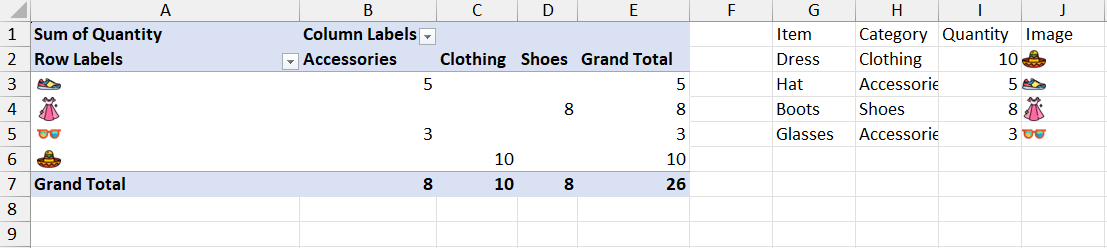
Pivot tables support using ranges that contain in-cell pictures as the data source. When sorting or filtering pivot fields that are based on in-cell pictures, the picture's alt text is used for comparison and filtering.
Refer to the following example code to create a pivot table with in-cell pictures as a source.
// Create a new workbook.
Workbook workbook = new Workbook();
IWorksheet sheet = workbook.getActiveSheet();

try {
    // Set data.
    Object[][] data = new Object[][]{
            {"Item", "Category", "Quantity", "Image"},
            {"Dress", "Clothing", 10, null},
            {"Hat", "Accessories", 5, null},
            {"Boots", "Shoes", 8, null},
            {"Glasses", "Accessories", 3, null}
    };
    sheet.getRange("G1:J5").setValue(data);

    // Set pictures in cells with alt text.
    String[] imageFiles = {"Hat.png", "Boots.png", "Dress.png", "Glasses.png"};
    for (int i = 0; i < imageFiles.length; i++) {
        byte[] imageData = Files.readAllBytes(Paths.get(imageFiles[i]));
        String fileNameWithoutExtension = Paths.get(imageFiles[i]).getFileName().toString().replace(".png", "");
        sheet.getRange("J" + (i + 2)).setCellPicture(new CellPicture(imageData, fileNameWithoutExtension));
    }

    // Configure pivot table's fields.
    IPivotCache pivotcache = workbook.getPivotCaches().create(sheet.getRange("G1:J5"));
    IPivotTable pivottable = sheet.getPivotTables().add(pivotcache, sheet.getRange("A1"), "pivottable");
    pivottable.getPivotFields().get("Category").setOrientation(PivotFieldOrientation.ColumnField);
    pivottable.getPivotFields().get("Image").setOrientation(PivotFieldOrientation.RowField);
    pivottable.getPivotFields().get("Quantity").setOrientation(PivotFieldOrientation.DataField);

    // Save to an Excel file.
    workbook.save("PivotTablewithPicture.xlsx");
} catch (IOException e) {
    throw new RuntimeException("Error loading image resource", e);
}
The output is shown in the figure below:
Limitation
DsExcel does not support referencing partial table area, such as 'Table1[[Column1]:[Column3]]'.