# Drag and Drop
Learn how about drag and drop features of Wijmo's TreeView component in this documentation topic
## Content
### Within a Tree
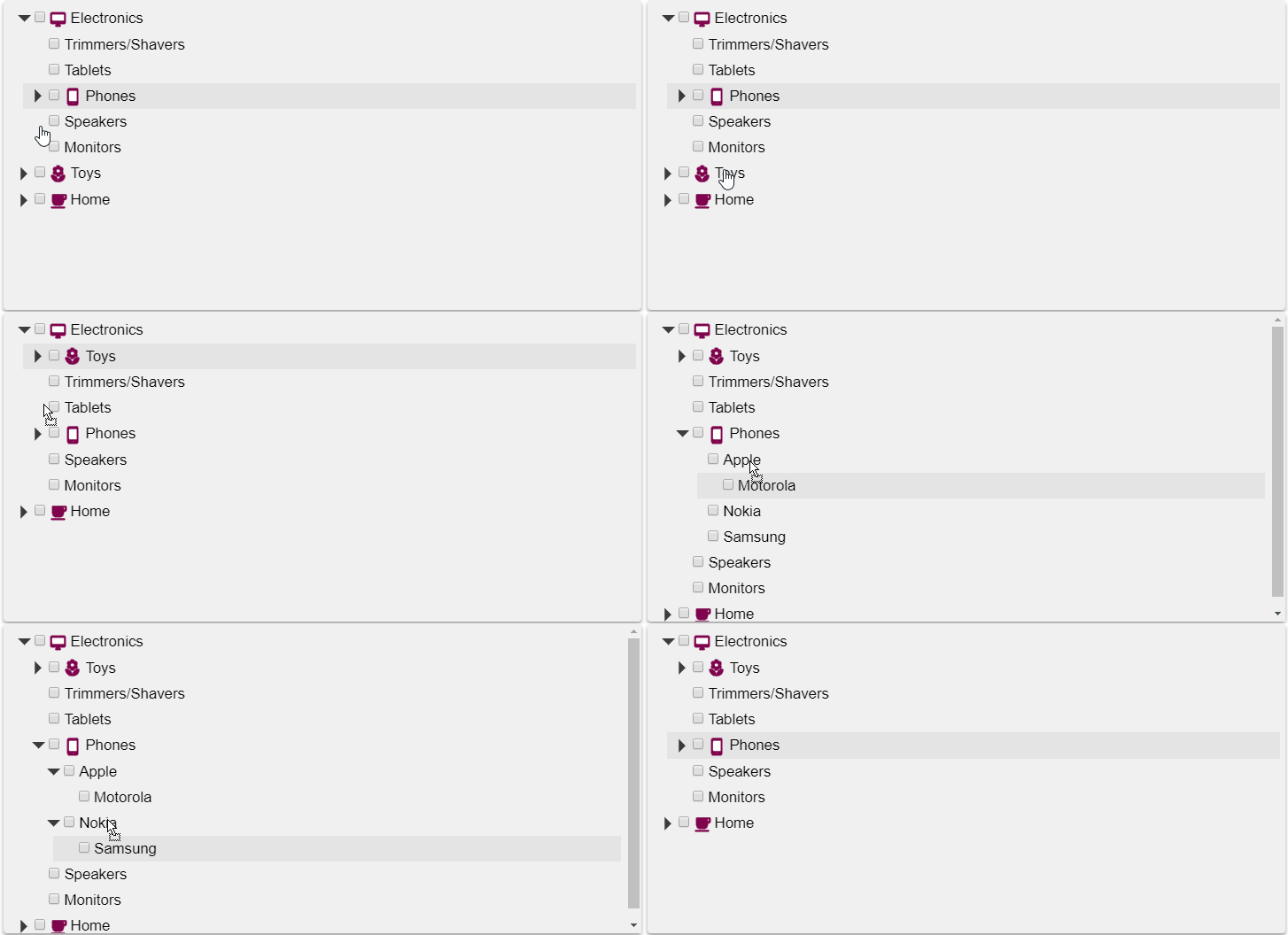
Set the **allowDragging** property to true to allow users to drag nodes to new positions within the **TreeView**.
When dragging is allowed, users may drag any node to any position within the tree. Specifically, nodes can be dragged to a position above, below, or into (as a child of) other nodes.
You can customize this behavior by handling the **TreeView** drag/drop events:
* **dragStart**: Occurs when a drag/drop operation is about to start. You may examine the node about to be dragged and cancel the operation by setting the event's **cancel** parameter to *true*.
* **dragOver**: Occurs while the user drags the node over other nodes on the tree. You may examine the current target node and drop position and prevent the drop or modify its location setting the event's **cancel** and **position** parameters.
* **drop**: Occurs when the user drops the node into its new location. You may examine the current target node and drop position and prevent the drop or modify its location setting the event's **cancel** and **position** parameters.
* **dragEnd**: Occurs after the drag/drop operation is finished, even if it was canceled and the source node was not moved.
For more information on usage of these events, see the [Drag and Drop](/wijmo/demos/Nav/TreeView/Nodes/DragandDrop) demo.
##### HTML
```html
```
##### Javascript
```javascript
onload = function() {
// create the tree
var tree = new wjNav.TreeView('#theTree', {
itemsSource: getData(),
displayMemberPath: 'header',
childItemsPath: 'items',
showCheckboxes: true,
imageMemberPath: 'img',
allowDragging: true
});
// get the tree data
function getData() {
var imgUrl = 'https://demos.wijmo.com/5/PureJS/TreeViewIntro/TreeViewIntro/resources/';
return [
{ header: 'Electronics', img: imgUrl + 'electronics.png', items: [
{ header: 'Trimmers/Shavers' },
{ header: 'Tablets' },
{ header: 'Phones', img: imgUrl + 'phones.png', items: [
{ header: 'Apple' },
{ header: 'Motorola', newItem: true },
{ header: 'Nokia' },
{ header: 'Samsung' }]
},
{ header: 'Speakers', newItem: true },
{ header: 'Monitors' }]
},
{ header: 'Toys', img: imgUrl + '/toys.png', items: [
{ header: 'Shopkins' },
{ header: 'Train Sets' },
{ header: 'Science Kit', newItem: true },
{ header: 'Play-Doh' },
{ header: 'Crayola' } ]
},
{ header: 'Home', img: imgUrl + 'home.png', items: [
{ header: 'Coffeee Maker' },
{ header: 'Breadmaker', newItem: true },
{ header: 'Solar Panel', newItem: true },
{ header: 'Work Table' },
{ header: 'Propane Grill' }]
}
];
}
}
```
### Multi-Select Functionality
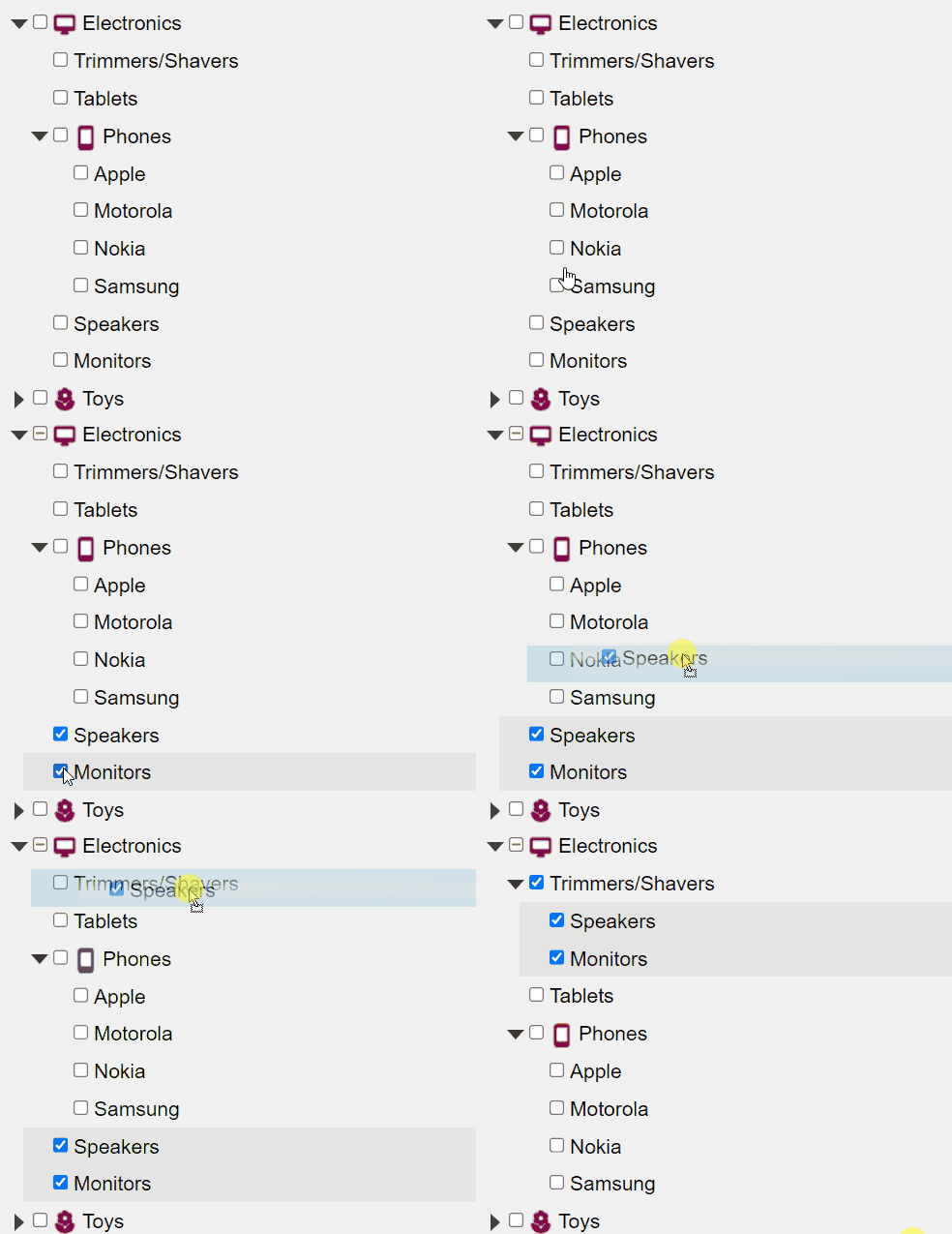
The TreeView also supports multi-select functionality:
* Set the **allowMultiSelect** property to true to enable selection of multiple nodes. The default value is false, which maintains single-node selection behavior.
* Use the **selectedNodes** property to retrieve the list of all currently selected nodes when multi-select is enabled.
Here's an example of how to create a TreeView with both drag-and-drop and multi-select enabled:
```javascript
var tree = new wjNav.TreeView('#theTree', {
itemsSource: getData(),
displayMemberPath: 'header',
childItemsPath: 'items',
showCheckboxes: true,
imageMemberPath: 'img',
allowDragging: true,
allowMultiSelect: true,
});
function getSelectedNodes() {
var selectedNodes = tree.selectedNodes;
console.log('Selected nodes:', selectedNodes);
}
```
### Between trees
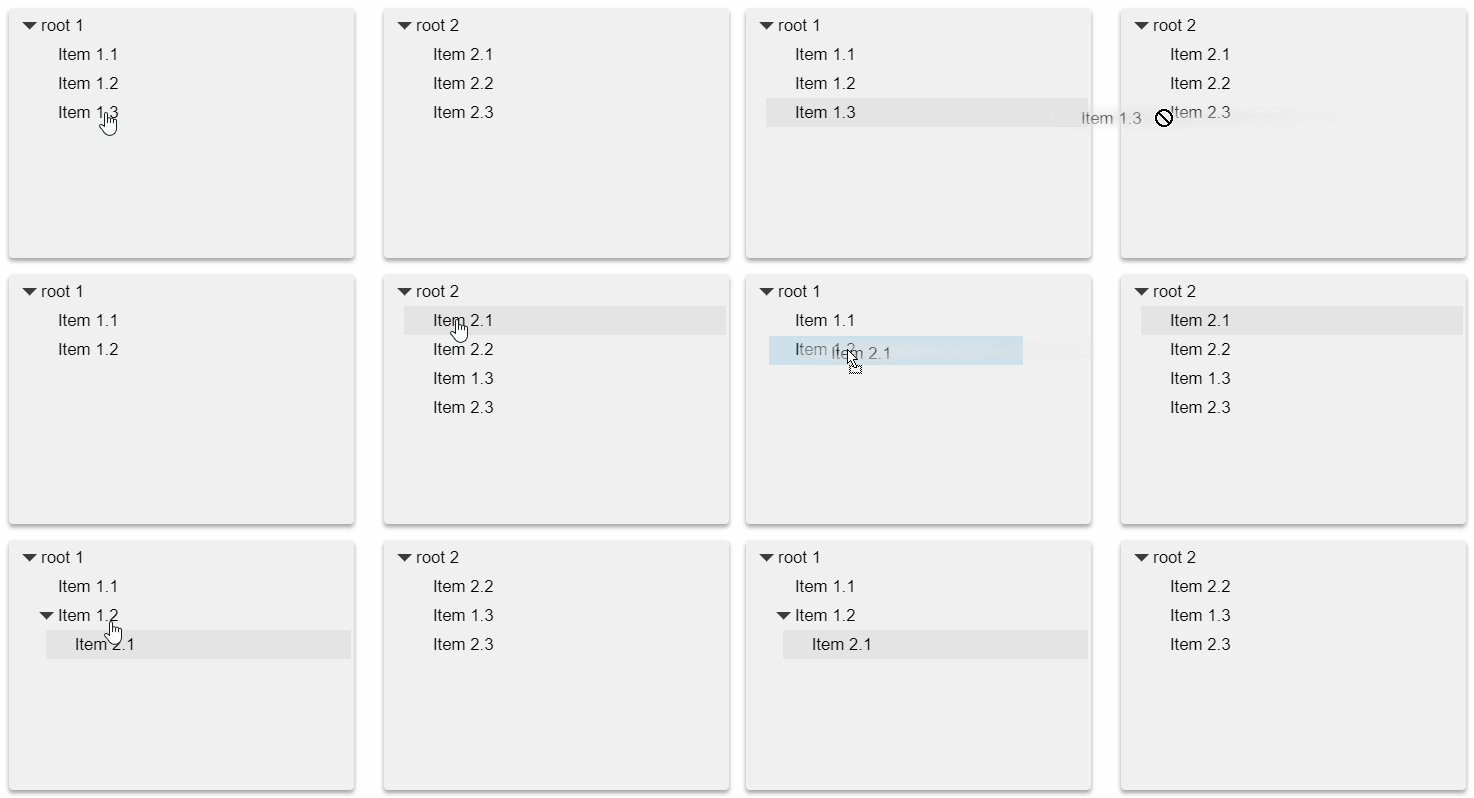
Setting the **allowDrag** property to true allows users to drag and drop nodes within the same TreeView.
To allow dragging and dropping nodes between different TreeView controls, you must handle the **dragOver** event and set the cancel parameter to true if the operation is invalid, or to false if it is valid.
##### CSS
```css
.wj-treeview {
height: 250px;
font-size: 120%;
margin-top: 8px;
margin-bottom: 8px;
padding: 3px;
background: #f0f0f0;
box-shadow: 0 3px 6px rgba(0,0,0,0.16), 0 3px 6px rgba(0,0,0,0.23);
}
body
{
margin-bottom: 24pt;
}
```
##### HTML
```html
```
##### Javascript
```javascript
onload = function() {
// create the trees
var firstTree = new wjNav.TreeView('#firstTree', {
itemsSource: [
{ header: 'root 1', items: [
{ header: 'Item 1.1' },
{ header: 'Item 1.2' },
{ header: 'Item 1.3' }]
}
],
displayMemberPath: 'header',
childItemsPath: 'items',
allowDragging: true,
dragOver: dragOverBetweenTrees
});
var secondTree = new wjNav.TreeView('#secondTree', {
itemsSource: [
{ header: 'root 2', items: [
{ header: 'Item 2.1' },
{ header: 'Item 2.2' },
{ header: 'Item 2.3' }]
}
],
displayMemberPath: 'header',
childItemsPath: 'items',
allowDragging: true,
dragOver: dragOverBetweenTrees
});
// handle drag-drop within or between trees
function dragOverBetweenTrees(s, e) {
var t1 = e.dragSource.treeView;
var t2 = e.dropTarget.treeView;
// prevent dragging within trees
if (t1 == t2) {
e.cancel = true;
}
// allow dragging between trees
if (t1 != t2) {
e.cancel = false;
}
}
}
```