# Menu as Split Buttons
Learn how to use Wijmo's Menu as split buttons in this tutorial
## Content
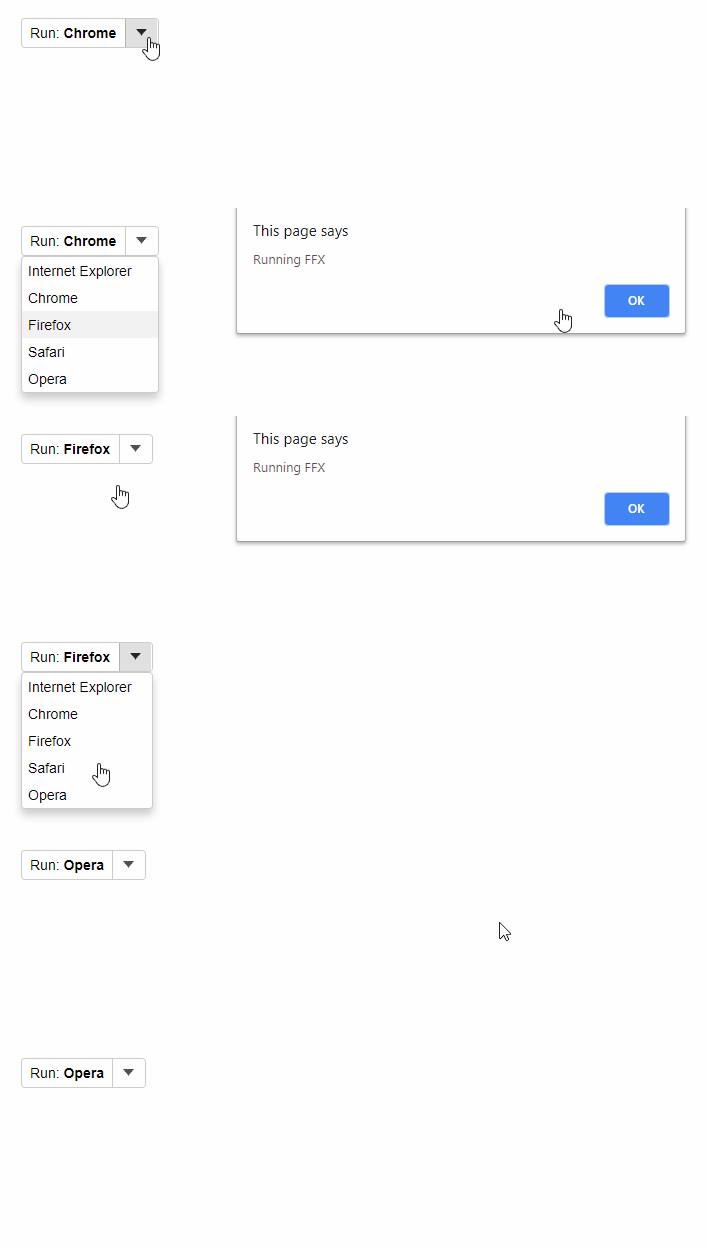
__Split Buttons__ allow users to select a value by clicking a primary button, or select from a list of mutually exclusive values displayed in a drop-down list.
To use Wijmo __Menu__ controls as split buttons, all you have to do is set the __isButton__ property to true. Once you do that, clicking the menu header will raise the __itemClicked__ event instead of showing the drop-down list.
Example: The __Menu__ control has been implemented as a SplitButton:
##### HTML
```html
```
##### Javascript
```javascript
import * as input from '@mescius/wijmo.input';
function init() {
// create the split-button menu
var theSplitButton = new input.Menu('#theSplitButton', {
// item clicked fires when you select an option or click the header
isButton: true,
itemClicked: (sender) => {
alert('Running ' + sender.selectedValue);
},
// update header to show current selection
selectedIndexChanged: (sender) => {
if (sender.selectedIndex > -1) {
sender.header = `Run: ${sender.selectedItem.header}`;
}
},
// populate menu after hooking up the selectedIndexChanged event
displayMemberPath: 'header',
selectedValuePath: 'value',
itemsSource: [
{ header: 'Internet Explorer', value: 'IE' },
{ header: 'Chrome', value: 'CHR' },
{ header: 'Firefox', value: 'FFX' },
{ header: 'Safari', value: 'IOS' },
{ header: 'Opera', value: 'OPR' }
],
selectedValue: 'FFX'
});
}
```