# Sort
Describes how to sort data to analyze information quickly and effectively in Spread for WPF.
## Content
Spread for WPF supports sorting data within the worksheet. You can use this feature to organize data efficiently and analyze data quickly.
Sorting is performed based on the data type of the cell values. For instance, when sorting cells with the DateTime data type, the data is arranged by date. Similarly, cells with string data are sorted in alphabetical order.
## Sort by Column
You can sort data in one or more columns within a worksheet using the [Apply](/spreadnet/api/latest/online-wpf/GrapeCity.Spreadsheet/GrapeCity.Spreadsheet.ISort.Apply.html) method of the **ISort** interface. The sort order can be specified as either in ascending (A to Z, 0 to 9) or descending (Z to A, 9 to 0) order using the [SortOrder](/spreadnet/api/latest/online-wpf/GrapeCity.Spreadsheet/GrapeCity.Spreadsheet.SortOrder.html) enumeration.
You can define the sort fields using the **Add** method and clear all of them using the **Clear** method of the [ISortFields](/spreadnet/api/latest/online-wpf/GrapeCity.Spreadsheet/GrapeCity.Spreadsheet.ISortFields.html) interface
Sorting can be performed based on cell values (e.g., text, numbers), font color, cell color, or conditional formatting icons. To set these criteria, use the [SortOn](/spreadnet/api/latest/online-wpf/GrapeCity.Spreadsheet/GrapeCity.Spreadsheet.ISortField.SortOn.html) property of the **ISortField** interface. Additionally, custom sorting can also be applied to the data. For example, use the **TextAsNumbers** field of the [SortDataOption](/spreadnet/api/latest/online-wpf/GrapeCity.Spreadsheet/GrapeCity.Spreadsheet.SortDataOption.html) enumeration to sort the text as a number.
The following image illustrates the 'Name' column sorted in ascending order.
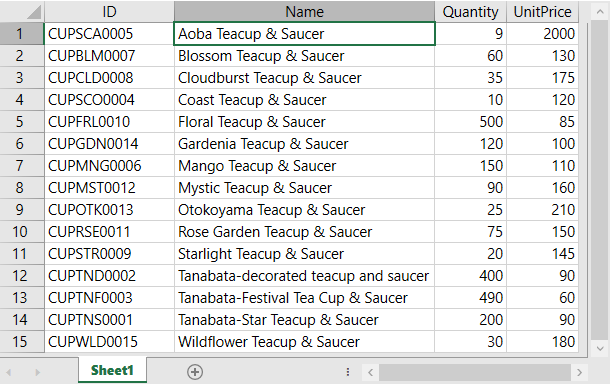
Refer to the following example code to sort the 'Name' column in ascending order.
**C#**
```csharp
// Sort by column.
spreadSheet1.Workbook.Worksheets[0].Sort.SortFields.Add("B", SortOn.Value, SortOrder.Ascending);
spreadSheet1.Workbook.Worksheets[0].Sort.Apply();
```
**VB**
```auto
' Sort by column.
spreadSheet1.Workbook.Worksheets(0).Sort.SortFields.Add("B", SortOn.Value, SortOrder.Ascending)
spreadSheet1.Workbook.Worksheets(0).Sort.Apply()
```
## Sort by Range
You can use the [SetRange](/spreadnet/api/latest/online-wpf/GrapeCity.Spreadsheet/GrapeCity.Spreadsheet.ISort.SetRange.html) method of the **ISort** interface to sort the data within a specified range of cell, rows, and elements. By specifying the range, you can narrow down the scope of the sorting action to focus on specific portions of data, rather than applying it to the entire dataset.
The following GIF illustrates the ‘Quantity’ column being sorted for the first 10 products in ascending order.
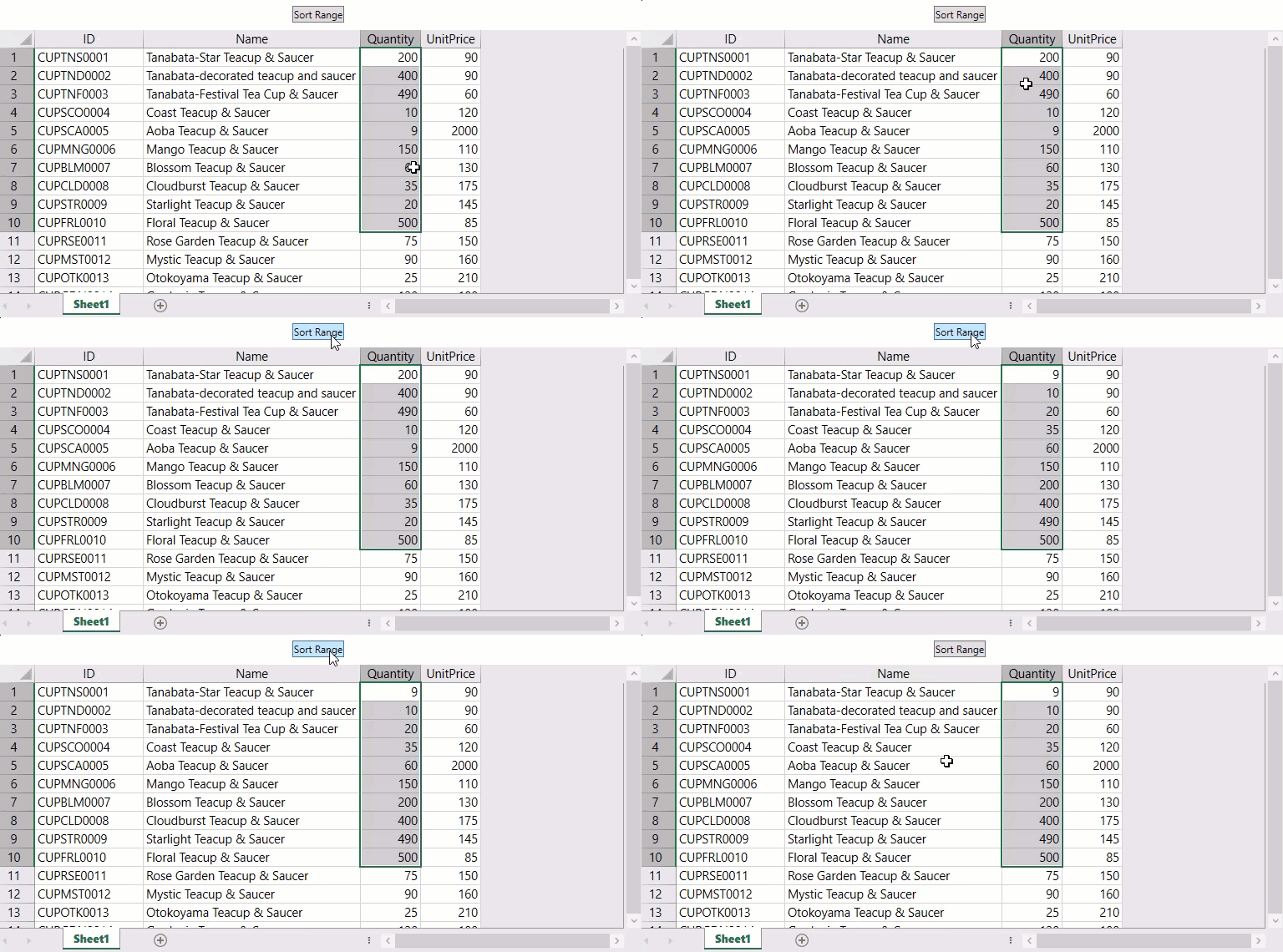
Refer to the following example code to apply sort to a particular cell range of the ‘Quantity’ column.
**C#**
```csharp
// Sort by range.
spreadSheet1.Workbook.ActiveSheet.Sort.SetRange("C1:C10");
spreadSheet1.Workbook.ActiveSheet.Sort.SortFields.Add(0, SortOn.Value, SortOrder.Ascending);
spreadSheet1.Workbook.ActiveSheet.Sort.Apply();
```
**VB**
```auto
' Sort by range.
spreadSheet1.Workbook.ActiveSheet.Sort.SetRange("C1:C10")
spreadSheet1.Workbook.ActiveSheet.Sort.SortFields.Add(0, SortOn.Value, SortOrder.Ascending)
spreadSheet1.Workbook.ActiveSheet.Sort.Apply()
```
## Sort By Code
You can programmatically change the display order of a list in Spread for WPF, not just by user interaction. To perform sorting, configure the properties of the [ISort](/spreadnet/api/latest/online-wpf/GrapeCity.Spreadsheet/GrapeCity.Spreadsheet.ISort.html) interface, add sort fields to specify the columns to sort, and then execute the sorting operation. The following settings are available for sorting:
| **Property** | **Description** |
| -------- | ----------- |
| [Header](/spreadnet/api/latest/online-wpf/GrapeCity.Spreadsheet/GrapeCity.Spreadsheet.ISort.Header.html) | Indicates whether the first row of the sort range is a header. If set to `Yes`, the first row is treated as a header and excluded from sorting; if set to `No`, the first row is sorted as regular data. |
| [MatchCase](/spreadnet/api/latest/online-wpf/GrapeCity.Spreadsheet/GrapeCity.Spreadsheet.ISort.MatchCase.html) | Determines whether the sorting is case-sensitive. When set to `true`, uppercase and lowercase letters are distinguished during sorting; when set to `false`, the sorting is case-insensitive. |
| [Orientation](/spreadnet/api/latest/online-wpf/GrapeCity.Spreadsheet/GrapeCity.Spreadsheet.ISort.Orientation.html) | Specifies the direction of sorting, either by rows or by columns. |
| [Rng](/spreadnet/api/latest/online-wpf/GrapeCity.Spreadsheet/GrapeCity.Spreadsheet.ISort.Rng.html) | Gets or sets the data range to be sorted. This property cannot be modified if the sort range is within a table. |
| [SortFields](/spreadnet/api/latest/online-wpf/GrapeCity.Spreadsheet/GrapeCity.Spreadsheet.ISort.SortFields.html) | Gets the collection of sort fields. |
| [SortMethod](/spreadnet/api/latest/online-wpf/GrapeCity.Spreadsheet/GrapeCity.Spreadsheet.ISort.SortMethod.html) | Specifies the sorting method for Chinese, such as by Pinyin or by Stroke order. |
```csharp
// Set cell values for the name list.
spreadSheet1.Workbook.ActiveSheet.Cells[0, 0].Value = "Name";
spreadSheet1.Workbook.ActiveSheet.Cells[1, 0].Value = "Bill";
spreadSheet1.Workbook.ActiveSheet.Cells[2, 0].Value = "Rod";
spreadSheet1.Workbook.ActiveSheet.Cells[3, 0].Value = "John";
spreadSheet1.Workbook.ActiveSheet.Cells[4, 0].Value = "Paddy";
spreadSheet1.Workbook.ActiveSheet.Cells[5, 0].Value = "Kelly";
spreadSheet1.Workbook.ActiveSheet.Cells[6, 0].Value = "William";
spreadSheet1.Workbook.ActiveSheet.Cells[7, 0].Value = "Janet";
spreadSheet1.Workbook.ActiveSheet.Cells[8, 0].Value = "Florence";
spreadSheet1.Workbook.ActiveSheet.Cells[9, 0].Value = "Albert";
spreadSheet1.Workbook.ActiveSheet.Cells[10, 0].Value = "Mary";
// Show a message box to notify the user that the list is unordered.
MessageBox.Show("The list is out of order. Hit Ok to continue...", "Information");
ISort sort = spreadSheet1.Workbook.ActiveSheet.Sort;
// Set the sorting range.
sort.SetRange("A1:A11");
// Clear previous sort fields (if any).
sort.SortFields.Clear();
// Add a new sort field.
sort.SortFields.Add(0, SortOn.Value, SortOrder.Ascending);
// The first row is the header.
sort.Header = YesNoGuess.Yes;
// Ignore case when sorting.
sort.MatchCase = false;
// Sort by rows.
sort.Orientation = SortOrientation.Rows;
// Use PinYin sorting method (for Chinese).
sort.SortMethod = SortMethod.PinYin;
// Apply the sort.
sort.Apply();
```
```vbnet
' Set cell values for the name list.
spreadSheet1.Workbook.ActiveSheet.Cells(0, 0).Value = "Name"
spreadSheet1.Workbook.ActiveSheet.Cells(1, 0).Value = "Bill"
spreadSheet1.Workbook.ActiveSheet.Cells(2, 0).Value = "Rod"
spreadSheet1.Workbook.ActiveSheet.Cells(3, 0).Value = "John"
spreadSheet1.Workbook.ActiveSheet.Cells(4, 0).Value = "Paddy"
spreadSheet1.Workbook.ActiveSheet.Cells(5, 0).Value = "Kelly"
spreadSheet1.Workbook.ActiveSheet.Cells(6, 0).Value = "William"
spreadSheet1.Workbook.ActiveSheet.Cells(7, 0).Value = "Janet"
spreadSheet1.Workbook.ActiveSheet.Cells(8, 0).Value = "Florence"
spreadSheet1.Workbook.ActiveSheet.Cells(9, 0).Value = "Albert"
spreadSheet1.Workbook.ActiveSheet.Cells(10, 0).Value = "Mary"
' Show a message box to notify the user that the list is unordered.
MessageBox.Show("The list is out of order. Hit Ok to continue...", "Information")
Dim sort As ISort = spreadSheet1.Workbook.ActiveSheet.Sort
' Set the sorting range.
sort.SetRange("A1:A11")
' Clear previous sort fields (if any).
sort.SortFields.Clear()
' Add a new sort field.
sort.SortFields.Add(0, SortOn.Value, SortOrder.Ascending)
' The first row is the header.
sort.Header = YesNoGuess.Yes
' Ignore case when sorting.
sort.MatchCase = False
' Sort by rows.
sort.Orientation = SortOrientation.Rows
' Use PinYin sorting method (for Chinese).
sort.SortMethod = SortMethod.PinYin
' Apply the sort.
sort.Apply()
```
## Sort Without Frozen Rows
To exclude frozen rows from being sorted, set the value of the [Behaviors](/spreadnet/api/latest/online-wpf/GrapeCity.Spreadsheet/GrapeCity.Spreadsheet.IWorksheet.Behaviors.html) enumeration to None. By configuring the following values of the [Behaviors](/spreadnet/api/latest/online-wpf/GrapeCity.Spreadsheet/GrapeCity.Spreadsheet.IWorksheet.Behaviors.html) enumeration, you can specify whether frozen rows are included in sorting and filtering operations.
| **Value** | **Description** |
| ----- | ----------- |
| Default | Frozen rows are included in both filtering and sorting. This is the default value. |
| None | Frozen rows are excluded from both filtering and sorting. |
| FilterFrozenRows | Frozen rows are included in filtering. |
| SortFrozenRows | Frozen rows are included in sorting. |
The following code examples demonstrate how to exclude frozen rows from filtering and sorting.
```xml
```
**C#**
```csharp
spreadSheet1.Workbook.Worksheets[0].Behaviors = Behaviors.None;
// Set the filter.
spreadSheet1.Workbook.Worksheets[0].Sort.Apply();
```
**VB**
```vbnet
spreadSheet1.Workbook.Worksheets[0].Behaviors = Behaviors.None
' Set the filter.
spreadSheet1.Workbook.Worksheets[0].Sort.Apply()
```
## Cancel Sorting
To clear the sorting state, remove all sort fields added to the SortFields collection. You can remove all sorting conditions by calling the Clear method.
The following example demonstrates how to reset (clear) the sorting state by calling the Clear method:
```csharp
// Clear all sort fields.
spreadSheet1.Workbook.ActiveSheet.Sort.SortFields.Clear();
```
```vbnet
' Clear all sort fields.
spreadSheet1.Workbook.ActiveSheet.Sort.SortFields.Clear()
```