# Mask Cell
Learn how to create and customize mask cells in your worksheet with Spread for WPF.
## Content
A masked cell restricts the format of data that a user can enter by using an input mask, allowing developers to specify the input mask format through certain settings.
To configure the mask cell type in a worksheet, use the methods and properties of the **MaskCellType** class in the **GrapeCity.Wpf.SpreadSheet.CellType** namespace.
## Basic Formatting
Masked cell format is a function that limits the type of data users can input based on the defined mask. There are two primary methods for establishing this format: using keywords and using field objects, each of which is explained below.
* **Keyword Formatting**: To format using keywords, define the **MaskFieldSet**, which represents the format in the **FieldSet** property. You can specify the format by using keywords in the constructor of the **MaskFieldSet** class. The following example code sets the postal code format with a keyword for a masked cell.
**C#**
```csharp
MaskCellType msk = new MaskCellType();
msk.FieldSet = new MaskFieldSet(@"#\D{3}-\D{4}");
spreadSheet1.Workbook.ActiveSheet.Cells[1, 2].CellType = msk;
```
**VB**
```auto
Dim msk As MaskCellType = New MaskCellType()
msk.FieldSet = New MaskFieldSet("#\D{3}-\D4}")
spreadSheet1.Workbook.ActiveSheet.Cells(1, 2).CellType = msk
```
* **Formatting with Field Objects**: For formatting with field objects, use the **FieldSet** property to get the **MaskFieldSet** that represents the format, and use the **Fields** property to access the collection of field objects. Then, using the **Add** method of the collection, you can add a field object. The following example code sets the zip code format for a masked cell in a field object.
**C#**
```csharp
MaskCellType msk = new MaskCellType();
msk.FieldSet = new MaskFieldSet();
msk.FieldSet.Fields.Add(new MaskLiteralField() { Text = "#" });
msk.FieldSet.Fields.Add(new MaskPatternField() { Pattern = @"\D", MinLength = 3, MaxLength = 3 });
msk.FieldSet.Fields.Add(new MaskLiteralField() { Text = "-" });
msk.FieldSet.Fields.Add(new MaskPatternField() { Pattern = @"\D", MinLength = 4, MaxLength = 4 });
spreadSheet1.Workbook.ActiveSheet.Cells[3, 3].CellType = msk;
```
**VB**
```auto
Dim msk As MaskCellType = New MaskCellType()
msk.FieldSet = New MaskFieldSet()
msk.FieldSet.Fields.Add(New MaskLiteralField() With {
.Text = "#"
})
msk.FieldSet.Fields.Add(New MaskPatternField() With {
.Pattern = "\D",
.MinLength = 3,
.MaxLength = 3
})
msk.FieldSet.Fields.Add(New MaskLiteralField() With {
.Text = "-"
})
msk.FieldSet.Fields.Add(New MaskPatternField() With {
.Pattern = "\D",
.MinLength = 4,
.MaxLength = 4
})
spreadSheet1.Workbook.ActiveSheet.Cells(3, 3).CellType = msk
```
## Enumeration Fields
An enumeration field allows users to enter values that matches one of the predefined collection of strings. These fields are configured using the **MaskEnumerationField** class. The collection of strings that can be entered is set in the **Items** property.
There are two ways to enable users to select items from the collection of strings: through a spinner or a drop-down list.
* **Enabling the Spin Feature**: Users can send or receive items through the spin feature in several ways:
\- By clicking the spin button
\- By pressing the up and down arrow keys
\- By operating the mouse wheel

You can control how the spin buttons are displayed using the **SpinButtonVisibility** property. The following example code demonstrates how to display a spin button within a masked cell.
**C#**
```csharp
MaskCellType msk = new MaskCellType();
msk.FieldSet = new MaskFieldSet("Location: (US Head Office|California Branch Office|New Jersey Branch Office|Washington Sales Office)");
msk.SpinButtonVisibility = CellButtonVisibility.AlwaysShow;
spreadSheet1.Workbook.ActiveSheet.Cells[1, 2].CellType = msk;
```
**VB**
```auto
Dim msk As MaskCellType = New MaskCellType()
msk.FieldSet = New MaskFieldSet("Location: (US Head Office|California Branch Office|New Jersey Branch Office|Washington Sales Office)")
msk.SpinButtonVisibility = CellButtonVisibility.AlwaysShow
spreadSheet1.Workbook.ActiveSheet.Cells(1, 2).CellType = msk
```
You can also set the **SpinAllowWrap** property to determine if the spin function should advance or rewind items, returning to the first item when the last item is reached, or to the last item when the first item is reached.
* **Displaying a Drop-Down List**: To display a drop-down list, users can press the **Alt + Down** arrow. You can display the drop-down list as shown in the following image:
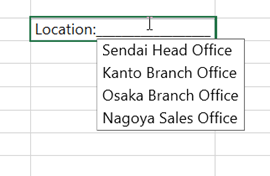
To enable the display of the drop-down list, set the **AllowDropDownOpen** property of the enumeration field to True. The following example code enables a drop-down list for an enumeration field in a masked cell.
**C#**
```csharp
MaskCellType msk = new MaskCellType();
msk.FieldSet = new MaskFieldSet();
msk.FieldSet.Fields.Add(new MaskLiteralField() { Text = "Location:" });
msk.FieldSet.Fields.Add(new MaskEnumerationField()
{
Items = new ObservableCollection() { "Sendai Head Office", "Kanto Branch Office", "Osaka Branch Office", "Nagoya Sales Office" },
AllowDropDownOpen = true
});
spreadSheet1.Workbook.ActiveSheet.Cells[1, 2].CellType = msk;
```
**VB**
```auto
Dim msk As MaskCellType = New MaskCellType()
msk.FieldSet = New MaskFieldSet()
msk.FieldSet.Fields.Add(New MaskLiteralField() With {
.Text = "Location:"
})
msk.FieldSet.Fields.Add(New MaskEnumerationField() With {
.Items = New ObservableCollection(Of StringItem)() From {
"Sendai Head Office",
"Kanto Branch Office",
"Osaka Branch Office",
"Nagoya Sales Office"
},
.AllowDropDownOpen = True
})
spreadSheet1.Workbook.ActiveSheet.Cells(1, 2).CellType = msk
```