# Sort Dialog
Explains how to sort data in rows and columns using the Sort dialog in the Spread Designer for WPF.
## Content
The **Sort** dialog allows you to organize rows or columns of data. To access this dialog, click the **Sort** button located in the **Sort** group under the **Data** tab. You can sort based on cell values, cell colors, font colors, or conditional formatting icons.
The following GIF shows the sorting of data by cell value in multiple columns.
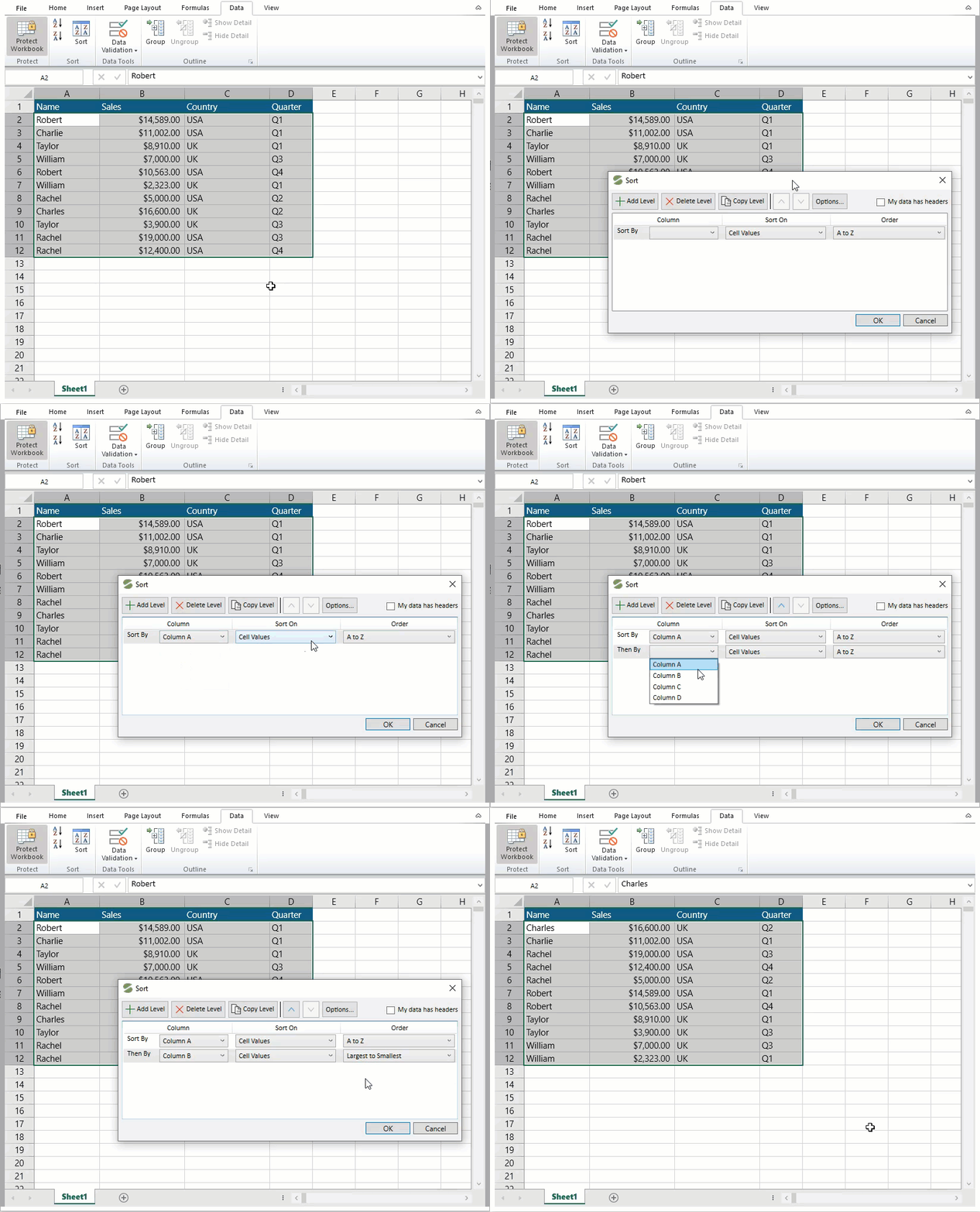
This Sort dialog consists of the following items.
| **Item** | **Description** |
| ---- | ----------- |
| Add Level | Adds new sorting criteria. |
| Delete Level | Deletes the selected sorting criteria. |
| Copy Level | Creates a duplicate of the selected sorting criteria. |
| Options | Provides additional settings like case sensitive and orientation settings. |
| Column | Specify the column or row that you want to sort. You can add different criteria for the columns or rows. |
| Sort On | Specifies what aspect of the data within a selected column or row will be used as the basis of sorting. You can select any of the following options: \* Cell Values \* Cell Color \* Font Color \* Conditional Formatting Icon |
| Order | Specifies the direction and custom sequence for sorting, depending on the type of data and the Sort On selection.
To sort Text: To sort Numbers: - Smallest to Largest
- Largest to Smallest
To sort Date and Time: - Oldest to Newest
- Newest to Oldest
To sort by cell color, font color, or icon: |