# Copying and Inserting a Sheet
Learn how to copy and insert sheets in Spread component using the Copy and Insert method for easy management and organization of data.
## Content
You can copy and insert a sheet to the same Spread component or another Spread component. Spread allows you to create copies of sheets using the [Copy](/spreadnet/api/latest/online-win/GrapeCity.Spreadsheet/GrapeCity.Spreadsheet.IWorksheets.Copy.html) method of the **IWorksheets** interface.
Alternatively, you can also create your own custom **CopySheet** method to copy a sheet. In this scenario, to insert a copied sheet into the control, use the [Add](/spreadnet/api/latest/online-win/FarPoint.Win.Spread/FarPoint.Win.Spread.SheetViewCollection.Add.html) or [Insert](/spreadnet/api/latest/online-win/FarPoint.Win.Spread/FarPoint.Win.Spread.SheetViewCollection.Insert.html) method of the [SheetViewCollection](/spreadnet/api/latest/online-win/FarPoint.Win.Spread/FarPoint.Win.Spread.SheetViewCollection.html) class referenced by the [Sheets](/spreadnet/api/latest/online-win/FarPoint.Win.Spread/FarPoint.Win.Spread.FpSpread.Sheets.html) property of the **FpSpread** class after calling the **CopySheet** method.
Here is the example code for the **CopySheet** method.
```csharp
public FarPoint.Win.Spread.SheetView CopySheet(FarPoint.Win.Spread.SheetView sheet)
{
FarPoint.Win.Spread.SheetView newSheet = null;
if (sheet != null )
{
newSheet = FarPoint.Win.Serializer.LoadObjectXml(GetType(FarPoint.Win.Spread.SheetView), FarPoint.Win.Serializer.GetObjectXml(sheet, "CopySheet"), "CopySheet");
}
return newSheet;
}
```
```vbnet
Public Function CopySheet(sheet As FarPoint.Win.Spread.SheetView) As FarPoint.Win.Spread.SheetView
Dim newSheet as FarPoint.Win.Spread.SheetView = Nothing
If Not IsNothing(sheet) Then
newSheet = FarPoint.Win.Serializer.LoadObjectXml(GetType(FarPoint.Win.Spread.SheetView), FarPoint.Win.Serializer.GetObjectXml(sheet, "CopySheet"), "CopySheet")
End If
Return newSheet
```
> !type=note
> **Note:**
>
> * The CopySheet method also copies all shapes on that sheet.
> * Copying a sheet using the CopySheet method also copies the [NamedStyleCollection](/spreadnet/api/latest/online-win/FarPoint.Win.Spread/FarPoint.Win.Spread.NamedStyleCollection.html) in the sheet, and creates separate copies of any [NamedStyle](/spreadnet/api/latest/online-win/FarPoint.Win.Spread/FarPoint.Win.Spread.NamedStyle.html) objects in the collection that are private to the copy and not shared with the original NamedStyleCollection in the copied sheet.
> * If you want to share the named styles instead of creating separate copies, you can assign the NamedStyleCollection you want to share to the [NamedStyles](/spreadnet/api/latest/online-win/FarPoint.Win.Spread/FarPoint.Win.Spread.FpSpread.NamedStyles.html) property of the copy. You might also want to temporarily remove the NamedStyleCollection from the sheet being copied, so that it is not copied unnecessarily. This can be done by assigning the NamedStyleCollection to a variable, then setting the NamedStyles property to Nothing (null in C#), then making the copy, then assigning the variable back to the NamedStyles property.
> * The [SpreadActions](/spreadnet/api/latest/online-win/FarPoint.Win.Spread/FarPoint.Win.Spread.SpreadActions.html) class has options for the clipboard copy, cut, and paste of a sheet.You can assign copy, cut, and paste operations to any key input.For more information, kindly refer to "[Managing Keyboard Interaction](/spreadnet/docs/latest/online-win/overview/spwin-devguide/spwin-mappingkeys)".
**Using Spread Designer**
The Spread Designer can be used to copy and paste a sheet at design time. Right-click on the sheet tab icon in the designer to bring up the Copy, Cut, and Paste context menu.
## Copying Sheets with Formula References
Spread allows you to create copies of sheets having cell formulas. To do this, you can use the [Copy](/spreadnet/api/latest/online-win/GrapeCity.Spreadsheet/GrapeCity.Spreadsheet.IWorksheets.Copy.html) method of the **IWorksheets** interface. This method allows you to copy both the cell’s destination and reference sheets at the same time, which then creates a reference state within the multiple copied sheets.
**Using code**
The following example code shows how to copy sheets with formula references.
```csharp
var sheet2 = fpSpread1.AsWorkbook().Worksheets.Add();
sheet2.ColumnHeader.RowCount = 2;
sheet2.ColumnHeader.Cells["A1"].Value = 5;
sheet2.Cells["A1"].Value = 4;
IWorksheet TestActiveSheet = fpSpread1.AsWorkbook().ActiveSheet;
TestActiveSheet.Cells[0, 0].Formula = "Sum(Sheet2!A1,A2)";
TestActiveSheet.Cells[0, 1].Formula = "Sheet1[#Headers,[A1]]";
fpSpread1.AsWorkbook().Worksheets[0, 1].Copy(0);
```
```vbnet
Dim sheet2 = FpSpread1.AsWorkbook().Worksheets.Add()
sheet2.ColumnHeader.RowCount = 2
sheet2.ColumnHeader.Cells("A1").Value = 5
sheet2.Cells("A1").Value = 4
Dim TestActiveSheet As IWorksheet = FpSpread1.AsWorkbook().ActiveSheet
TestActiveSheet.Cells(0, 0).Formula = "Sum(Sheet2!A1,A2)"
TestActiveSheet.Cells(0, 1).Formula = "Sheet1[#Headers,[A1]]"
FpSpread1.AsWorkbook().Worksheets(0, 1).Copy(0)
```
**At Runtime**
Follow the below steps to copy the sheets having cell formulas and referenced sheet:
1. Run the code below to load a spread control with TabStrip editing enabled to copy the sheets at runtime.
```csharp
fpSpread1.Width = 800;
fpSpread1.TabStripRatio = 0.8f;
fpSpread1.TabStrip.Editable = true;
var sheet2 = fpSpread1.AsWorkbook().Worksheets.Add();
sheet2.ColumnHeader.RowCount = 2;
sheet2.ColumnHeader.Cells["A1"].Value = 5;
sheet2.Cells["A1"].Value = 4;
IWorksheet TestActiveSheet = fpSpread1.AsWorkbook().ActiveSheet;
TestActiveSheet.Cells[0, 0].Formula = "Sum(Sheet2!A1,A2)";
TestActiveSheet.Cells[0, 1].Formula = "Sheet2[#Headers,[A1]]";
```
```vbnet
FpSpread1.Width = 800
FpSpread1.TabStripRatio = 0.8F
FpSpread1.TabStrip.Editable = True
Dim sheet2 = FpSpread1.AsWorkbook().Worksheets.Add()
sheet2.ColumnHeader.RowCount = 2
sheet2.ColumnHeader.Cells("A1").Value = 5
sheet2.Cells("A1").Value = 4
Dim TestActiveSheet As IWorksheet = FpSpread1.AsWorkbook().ActiveSheet
TestActiveSheet.Cells(0, 0).Formula = "Sum(Sheet2!A1,A2)"
TestActiveSheet.Cells(0, 1).Formula = "Sheet2[#Headers,[A1]]"
```
2. In the TabStrip, hold the **Ctrl** or **Shift** key to select **Sheet1** and **Sheet2**.
Now copy the sheets by performing any of the following procedures.
* **Drag the selected sheets tab**
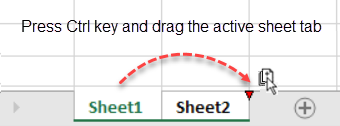
1. Press the **Ctrl** key and drag the sheets tabs with the mouse to the desired location.
* **Use the Move or Copy dialog**
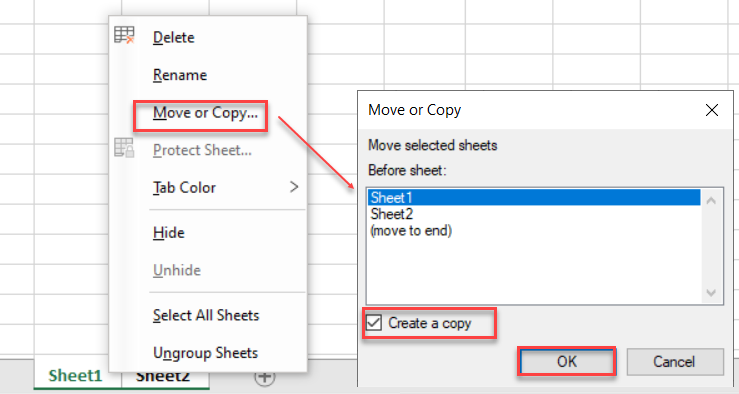
1. Right-click on the selected sheet tab(s) to open the context menu.
2. Open the **Move or Copy** dialog box.
3. Select the **Create a copy** checkbox and click **OK**, to create copies of selected sheets.
## See Also
[Sheets](/spreadnet/docs/latest/online-win/overview/spwin-devguide/spwin-ssobject-sheet)
[Working with the Active Sheet](/spreadnet/docs/latest/online-win/overview/spwin-devguide/spwin-ssobject-sheet/spwin-sheetactive)
[Working with Multiple Sheets](/spreadnet/docs/latest/online-win/overview/spwin-devguide/spwin-ssobject-sheet/spwin-sheetmulti)
[Adding a Sheet](/spreadnet/docs/latest/online-win/overview/spwin-devguide/spwin-ssobject-sheet/spwin-sheetadd)
[Removing a Sheet](/spreadnet/docs/latest/online-win/overview/spwin-devguide/spwin-ssobject-sheet/spwin-sheetremove)
[Showing or Hiding a Sheet](/spreadnet/docs/latest/online-win/overview/spwin-devguide/spwin-ssobject-sheet/spwin-sheethide)
[Moving a Sheet](/spreadnet/docs/latest/online-win/overview/spwin-devguide/spwin-ssobject-sheet/spwin-sheet-move)
[Adding a Title and Subtitle to a Sheet](/spreadnet/docs/latest/online-win/overview/spwin-devguide/spwin-ssobject-sheet/spwin-sheettitle)
[Placing Child Controls on a Sheet](/spreadnet/docs/latest/online-win/overview/spwin-devguide/spwin-ssobject-sheet/spwin-sheet-childcontrols)
[Displaying a Footer for Columns or Groups](/spreadnet/docs/latest/online-win/overview/spwin-devguide/spwin-ssobject-sheet/spwin-columnfooter)
[Adding a Tag to a Sheet](/spreadnet/docs/latest/online-win/overview/spwin-devguide/spwin-ssobject-sheet/spwin-tags-sheet)
[Working with 1-Based Indexing](/spreadnet/docs/latest/online-win/overview/spwin-devguide/spwin-ssobject-sheet/working-with-1based-indexing)