# Customizing Clipboard Operation Options
Learn how to customize Clipboard operations for your spreadsheet applications with Spread, including deactivating, excluding headers, obtaining contents, and more.
## Content
There are several Clipboard operations (such as copy, cut, and paste) that are automatically set for a sheet with default settings; they are built-in to Spread. But Spread also gives you the ability to customize these operations on actual applications that you develop, depending on your specific needs. You can customize how the user can interact with the contents of the Clipboard when users perform copying and pasting actions in cells in the spreadsheet. You can implement those operations at your discretion in code.
The following members are used to determine Clipboard-related interaction:
* [ClipboardOptions](/spreadnet/api/latest/online-win/FarPoint.Win.Spread/FarPoint.Win.Spread.FpSpread.ClipboardOptions.html) property (and [ClipboardOptions](/spreadnet/api/latest/online-win/FarPoint.Win.Spread/FarPoint.Win.Spread.ClipboardOptions.html) enumeration)
* [AutoClipboard](/spreadnet/api/latest/online-win/FarPoint.Win.Spread/FarPoint.Win.Spread.FpSpread.AutoClipboard.html) property
* [ClipboardCopyOptions](/spreadnet/api/latest/online-win/FarPoint.Win.Spread/FarPoint.Win.Spread.ClipboardCopyOptions.html) enumeration
* [ClipboardPasteOptions](/spreadnet/api/latest/online-win/FarPoint.Win.Spread/FarPoint.Win.Spread.ClipboardPasteOptions.html) enumeration
The spreadsheet methods in the [SheetView](/spreadnet/api/latest/online-win/FarPoint.Win.Spread/FarPoint.Win.Spread.SheetView.html) class that involve Clipboard operation are:
* [ClipboardCopy](/spreadnet/api/latest/online-win/FarPoint.Win.Spread/FarPoint.Win.Spread.SheetView.ClipboardCopy.html), which copies the contents from the sheet to the Clipboard
* [ClipboardCut](/spreadnet/api/latest/online-win/FarPoint.Win.Spread/FarPoint.Win.Spread.SheetView.ClipboardCut.html), which cuts the contents from the sheet to the Clipboard
* [ClipboardPaste](/spreadnet/api/latest/online-win/FarPoint.Win.Spread/FarPoint.Win.Spread.SheetView.ClipboardPaste.html), which pastes the contents from the Clipboard to the sheet
The corresponding shape methods in the [SheetView](/spreadnet/api/latest/online-win/FarPoint.Win.Spread/FarPoint.Win.Spread.SheetView.html) class that involve Clipboard operation are:
* [ClipboardCopyShape](/spreadnet/api/latest/online-win/FarPoint.Win.Spread/FarPoint.Win.Spread.SheetView.ClipboardCopyShape.html), which copies the active shape to the Clipboard
* [ClipboardCutShape](/spreadnet/api/latest/online-win/FarPoint.Win.Spread/FarPoint.Win.Spread.SheetView.ClipboardCutShape.html), which cuts the active shape to the Clipboard
* [ClipboardPasteShape](/spreadnet/api/latest/online-win/FarPoint.Win.Spread/FarPoint.Win.Spread.SheetView.ClipboardPasteShape.html), which pastes the shape from the Clipboard
If there are locked cells in the range to cut or paste then the Clipboard operation is not performed.
>type=note
> **Note:** The .NET version of the product handles Clipboard operations differently from the way that the COM version does.
You can also set how some Clipboard-related features perform when the user is in edit mode in a cell on the Spread. You can set whether the pop-up menu appears while in edit mode within a cell using the **AutoMenu** property in **SuperEditBase** class and whether the user can perform Clipboard operations with the shortcut keys with the **AllowClipboardKeys** property in **SuperEditBase** class.
For more information about copying and pasting, see [Copying Data on a Sheet](/spreadnet/docs/latest/online-win/overview/spwin-devguide/spwin-ssobject-cell/spwin-usedata/spwin-datacopy).
## Deactivating Clipboard Operations
You can set whether the shortcut keys are available to the end user for them to use to perform Clipboard operations by setting the **AutoClipboard** property in the [FpSpread](/spreadnet/api/latest/online-win/FarPoint.Win.Spread/FarPoint.Win.Spread.FpSpread.html) class. You can deactivate all the Clipboard operations with components by setting the **AutoClipboard** property to False in the [FpSpread](/spreadnet/api/latest/online-win/FarPoint.Win.Spread/FarPoint.Win.Spread.FpSpread.html) class. The default setting is True. You can deactivate some Clipboard operations such as pasting (Ctrl+V) by deactivating the input map definition for short-cut keys and Clipboard operations (Ctrl+C, Ctrl+V, and Ctrl+X).
## Excluding Headers from Clipboard Operations
You can set whether to include headers when using Clipboard operations by setting the **ClipboardOptions** property in the [FpSpread](/spreadnet/api/latest/online-win/FarPoint.Win.Spread/FarPoint.Win.Spread.FpSpread.html) class and the **ClipboardOptions** enumeration. The default setting, **AllHeaders**, allows all headers to be included.
## Obtaining the Clipboard Contents
Values which are copied on sheets are controlled by the **Clipboard** class which is provided from the .NET Framework. You can obtain Clipboard contents by using respective operations in this **Clipboard** class.
Cell data is copied onto the Clipboard in advance by calling **ClipboardCopy** method in the [SheetView](/spreadnet/api/latest/online-win/FarPoint.Win.Spread/FarPoint.Win.Spread.SheetView.html) class at the **Load** event. Then, calling **GetDataObject** method enables you to obtain those Clipboard contents for use, such as for text format determination.
## Deactivating Pasting
The **ClipboardPasting** event occurs when pasting is performed (Ctrl+V) on sheets. You can deactivate pasting by canceling this event under certain circumstances. You can prevent pasting by obtaining the timing when pasting is performed, and canceling the action.
## Changing the Scope of Pasting
When cells are copied or cut to the Clipboard, all the data aspects including values, formats, and formulas, are available by default for pasting. You can configure to paste values only, for example, by changing the input map definitions. The default setting is **ClipboardPasteAll**, which enables pasting all the aspects of the data. The **ClipboardPasteOptions** enumeration allows you to set the scope of what is pasted when a Clipboard paste is performed by the user.
## Disabling Copying in Invisible Cells
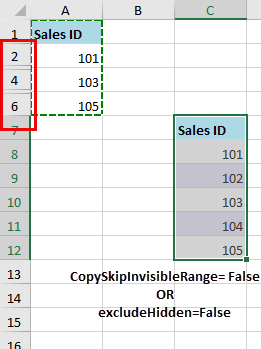
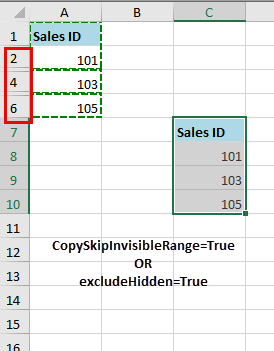
Spread enables you to skip invisible/hidden cells while copying a cell range along with their styles. This can be done in two ways:
* Using the [CopySkipInvisibleRange](/spreadnet/api/latest/online-win/GrapeCity.Spreadsheet/GrapeCity.Spreadsheet.Features.CopySkipInvisibleRange.html) option of the [Features](/spreadnet/api/latest/online-win/GrapeCity.Spreadsheet/GrapeCity.Spreadsheet.Features.html) class.
* Using an overload of [Copy](/spreadnet/api/latest/online-win/GrapeCity.Spreadsheet/GrapeCity.Spreadsheet.IRange.Copy.html) method which accepts the excludeHidden parameter.
By default, both the [CopySkipInvisibleRange](/spreadnet/api/latest/online-win/GrapeCity.Spreadsheet/GrapeCity.Spreadsheet.Features.CopySkipInvisibleRange.html) option and the **excludeHidden** parameter are false. The skipping of invisible cells while copying range only takes effect when the [RichClipboard](/spreadnet/api/latest/online-win/FarPoint.Win.Spread/FarPoint.Win.Spread.IFeatures.RichClipboard.html) is set to true and **LegacyBehaviors.Style** is excluded from [LegacyBehaviors](/spreadnet/api/latest/online-win/FarPoint.Win.Spread/FarPoint.Win.Spread.LegacyBehaviors.html) enum.
The image below illustrates the behavior of skipping invisible cells while copying.
|  |  |
| --- | --- |
|
The following code allows you to skip copying invisible cells by setting the CopySkipInvisibleRange option to true:
```csharp
// Disable the LegacyBehaviors
fpSpread1.LegacyBehaviors = FarPoint.Win.Spread.LegacyBehaviors.None;
// Sets the RichClipboard property to true
fpSpread1.Features.RichClipboard = true;
SheetView sheet1 = fpSpread1.ActiveSheet;
IWorksheet sheet = fpSpread1.AsWorkbook().ActiveSheet;
// Skip copying invisible range using CopySkipInvisibleRange option
fpSpread1.AsWorkbook().Features.CopySkipInvisibleRange = true;
sheet1.Rows[2].Visible = false;
sheet1.Rows[4].Visible = false;
```
```vbnet
' Disable the LegacyBehaviors
FpSpread1.LegacyBehaviors = FarPoint.Win.Spread.LegacyBehaviors.None
' Sets the RichClipboard property to true
FpSpread1.Features.RichClipboard = True
Dim sheet1 As SheetView = FpSpread1.ActiveSheet
Dim sheet As IWorksheet = FpSpread1.AsWorkbook().ActiveSheet
' Skip copying invisible range using CopySkipInvisibleRange option
FpSpread1.AsWorkbook().Features.CopySkipInvisibleRange = True
sheet1.Rows(2).Visible = False
sheet1.Rows(4).Visible = False
```
The following code allows you to skip copying invisible cells by setting the excludeHidden parameter of the Copy method to true:
```csharp
// Disable the LegacyBehaviors
fpSpread1.LegacyBehaviors = FarPoint.Win.Spread.LegacyBehaviors.None;
// Sets the RichClipboard property to true
fpSpread1.Features.RichClipboard = true;
SheetView sheet1 = fpSpread1.ActiveSheet;
IWorksheet sheet = fpSpread1.AsWorkbook().ActiveSheet;
sheet1.Rows[2].Visible = false;
sheet1.Rows[4].Visible = false;
// Copy method returns true
sheet.Range("A1:A6").Copy(true, true);
```
```vbnet
' Disable the Legacy Behaviors
FpSpread1.LegacyBehaviors = FarPoint.Win.Spread.LegacyBehaviors.None
' Sets the RichClipboard property to true
FpSpread1.Features.RichClipboard = True
Dim sheet1 As SheetView = FpSpread1.ActiveSheet
Dim sheet As IWorksheet = FpSpread1.AsWorkbook().ActiveSheet
sheet1.Rows(2).Visible = False
sheet1.Rows(4).Visible = False
' Copy method returns true
sheet.Range("A1:A6").Copy(True, True)
```
## Disabling Pasting in Invisible Cells
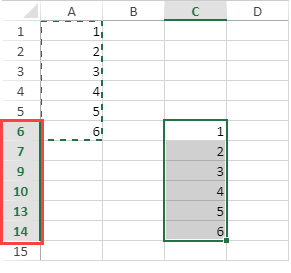
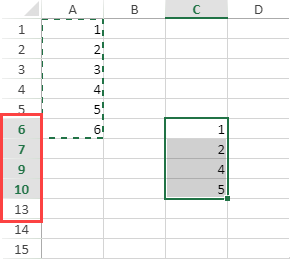
You can set whether to paste the clipboard values in invisible cells, rows, and columns by using the [PasteSkipInvisibleRange](/spreadnet/api/latest/online-win/GrapeCity.Spreadsheet/GrapeCity.Spreadsheet.Features.PasteSkipInvisibleRange.html) option from the [Features](/spreadnet/api/latest/online-win/GrapeCity.Spreadsheet/GrapeCity.Spreadsheet.Features.html) class. It accepts a boolean value and is False by default.
This option only takes effect when [RichClipboard](/spreadnet/api/latest/online-win/FarPoint.Win.Spread/FarPoint.Win.Spread.IFeatures.RichClipboard.html) is set to True.
| When **PasteSkipInvisibleRange** **=** True | When **PasteSkipInvisibleRange** **=** False (default value) |
| ----------------------------------- | ---------------------------------------------------- |
|  |  |
The following example allows you to skip pasting the data in an invisible range.
```csharp
fpSpread1.LegacyBehaviors = LegacyBehaviors.None;
fpSpread1.Features.RichClipboard = true;
fpSpread1.ActiveSheet.Rows[7].Visible = false;
fpSpread1.ActiveSheet.Rows[10, 11].Visible = false;
fpSpread1.AsWorkbook().Features.PasteSkipInvisibleRange = true;
```
```vbnet
FpSpread1.LegacyBehaviors = LegacyBehaviors.None
FpSpread1.Features.RichClipboard = true
FpSpread1.ActiveSheet.Rows(7).Visible = false
FpSpread1.ActiveSheet.Rows(10, 11).Visible = false
FpSpread1.AsWorkbook().Features.PasteSkipInvisibleRange = true
```
## Performing the Clipboard Operations in Code
Various methods are provided in the [SheetView](/spreadnet/api/latest/online-win/FarPoint.Win.Spread/FarPoint.Win.Spread.SheetView.html) class for Clipboard processes. You can run them when you want. These include:
* [ClipboardCopy](/spreadnet/api/latest/online-win/FarPoint.Win.Spread/FarPoint.Win.Spread.SheetView.ClipboardCopy.html)
* [ClipboardCopyShape](/spreadnet/api/latest/online-win/FarPoint.Win.Spread/FarPoint.Win.Spread.SheetView.ClipboardCopyShape.html)
* [ClipboardCut](/spreadnet/api/latest/online-win/FarPoint.Win.Spread/FarPoint.Win.Spread.SheetView.ClipboardCut.html)
* [ClipboardCutShape](/spreadnet/api/latest/online-win/FarPoint.Win.Spread/FarPoint.Win.Spread.SheetView.ClipboardCutShape.html)
* [ClipboardPaste](/spreadnet/api/latest/online-win/FarPoint.Win.Spread/FarPoint.Win.Spread.SheetView.ClipboardPaste.html)
* [ClipboardPasteShape](/spreadnet/api/latest/online-win/FarPoint.Win.Spread/FarPoint.Win.Spread.SheetView.ClipboardPasteShape.html)
## Enabling Multi-Range Selection for Copy/Paste
The **RichClipboard** property in the **IFeatures** interface indicates whether you can copy/paste data across multi-ranges. This property can be implemented with flat style mode only.

This multi-range selection for copy/paste option only takes effect when the **RichClipboard** property is set to true.
```csharp
// Flat style
fpSpread1.LegacyBehaviors &= ~LegacyBehaviors.Style;
// Setting RichClipboard property
fpSpread1.Features.RichClipboard= true;
```
```vbnet
' Flat style
FpSpread1.LegacyBehaviors = FpSpread1.LegacyBehaviors And Not LegacyBehaviors.Style
' Setting RichClipboard property
FpSpread1.Features.RichClipboard = True
```
## Pasting Special Cell Content
Spread allows you to copy and paste cell contents into a worksheet. When you use the **Copy** and **Paste** options, all attributes are copied by default.
Instead of a simple direct paste, you can also use the **Paste Special** to paste the contents of the clipboard in a specific way. It is particularly useful when you want to control how data is transferred from the clipboard into your worksheet. For example, you can use **Paste Special** to paste only values without formulas, to transpose data, or to include conditional formatting during the paste process.
**Using code**
The following example code shows how to paste cell content and formatting using the **IRange.PasteSpecial** API. Note that the **RichClipboard** feature must be set to True to select various pasting operations.
```csharp
// Add cell content
fpSpread1.Features.RichClipboard = true;
fpSpread1.Features.EnhancedShapeEngine = true;
IWorksheet TestActiveSheet = fpSpread1.AsWorkbook().ActiveSheet;
TestActiveSheet.SetValue(0, 0, new object[,] { { 1, 2, 3, null, 5 } });
var rangeA1C1 = TestActiveSheet.Cells["A1:C1"];
rangeA1C1.FormatConditions.AddIconSetCondition();
var cmt = TestActiveSheet.Cells["E2"].AddComment("visible comment");
cmt.Visible = true;
var thread = TestActiveSheet.Cells["D2"].AddCommentThreaded("thread");
thread.AddReply("reply1");
thread.AddReply("reply2");
var cellB2 = TestActiveSheet.Cells["B2"];
cellB2.Borders.LineStyle = GrapeCity.Spreadsheet.BorderLineStyle.Thick;
cellB2.Borders.Color = GrapeCity.Spreadsheet.Color.FromKnownColor(GrapeCity.Core.KnownColor.Red);
// Copy and paste specific cell content
TestActiveSheet.Cells["A1:E2"].Copy(true);
TestActiveSheet.Cells["E8"].PasteSpecial(GrapeCity.Spreadsheet.PasteType.AllExceptBorders, GrapeCity.Spreadsheet.PasteSpecialOperation.None, false, false);
```
```vbnet
' Add cell content
FpSpread1.Features.RichClipboard = True
FpSpread1.Features.EnhancedShapeEngine = True
Dim TestActiveSheet As IWorksheet = FpSpread1.AsWorkbook().ActiveSheet
TestActiveSheet.SetValue(0, 0, New Object(,) {
{1, 2, 3, Nothing, 5}})
Dim rangeA1C1 = TestActiveSheet.Cells("A1:C1")
rangeA1C1.FormatConditions.AddIconSetCondition()
Dim cmt = TestActiveSheet.Cells("E2").AddComment("visible comment")
cmt.Visible = True
Dim thread = TestActiveSheet.Cells("D2").AddCommentThreaded("thread")
thread.AddReply("reply1")
thread.AddReply("reply2")
Dim cellB2 = TestActiveSheet.Cells("B2")
cellB2.Borders.LineStyle = GrapeCity.Spreadsheet.BorderLineStyle.Thick
cellB2.Borders.Color = GrapeCity.Spreadsheet.Color.FromKnownColor(GrapeCity.Core.KnownColor.Red)
' Copy and paste specific cell content
TestActiveSheet.Cells("A1:E2").Copy(True)
TestActiveSheet.Cells("E8").PasteSpecial(GrapeCity.Spreadsheet.Past eType.AllExceptBorders, GrapeCity.Spreadsheet.PasteSpecialOperation.None, False, False)
```
**At Runtime**
The following steps show how to use the **Paste Special** functionality at runtime.
1. Run the code below to load a spread control with the ribbonBar having RichClipboard property as True.
```csharp
fpSpread1.Features.RichClipboard = true;
ribbonBar1.Attach(fpSpread1);
```
```vbnet
FpSpread1.Features.RichClipboard = True
ribbonBar1.Attach(FpSpread1)
```
2. Select the cell range that contains the data or other attributes that you want to copy.
3. On the **Home** tab of the ribbonBar, click **Copy** or press **Ctrl** + **C** key.
4. Right-click on the cell where you want to paste the copied data and select the paste options.
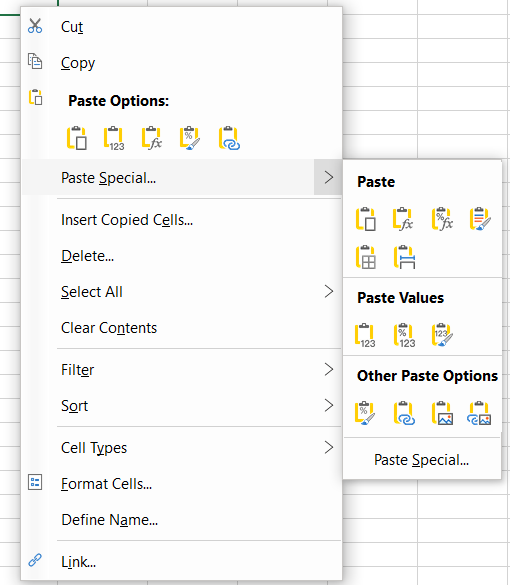
5. Select paste options by directly selecting the icons or by using the settings from the **Paste Special** dialog.
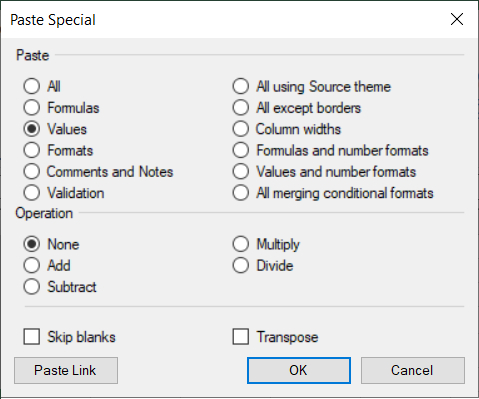
>type=note
> **Note**: The options on the Paste menu will depend on the type of selected data. For example, if the target sheet has no conditional formatting, the option “Merge Conditional Formats” is not visible and is disabled on the **Paste** **Special** dialog.
## Pasting Data Beyond Sheet Boundaries
By default, when using the rich clipboard (RichClipboard = True), Spread WinForms does not allow pasting data if the pasted data exceeds the worksheet boundaries. This behavior differs from the legacy clipboard, which allows partial pasting and silently skips exceeded values.
Starting from Spread WinForms v19.1, you can use the [PastingExceededValues](/spreadnet/api/latest/online-win/GrapeCity.Spreadsheet/GrapeCity.Spreadsheet.Features.PastingExceededValues.html) property to control the behavior when pasted data exceeds the boundaries of the worksheet. When this property is enabled, data within the worksheet will be pasted and values outside the boundaries will be skipped, providing flexibility similar to the legacy clipboard while retaining the enhanced features of the rich clipboard.
Additionally, the [ClipboardPastingEventArgs](/spreadnet/api/latest/online-win/FarPoint.Win.Spread/FarPoint.Win.Spread.ClipboardPastingEventArgs.html) event has been introduced, allowing you to obtain the paste range through the [CellRange](/spreadnet/api/latest/online-win/FarPoint.Win.Spread/FarPoint.Win.Spread.ClipboardPastingEventArgs.CellRange.html) property and customize whether rows and columns can be pasted when the paste range exceeds the worksheet boundaries.
**Option 1**: Prevent pasting if the paste range exceeds worksheet boundaries (row or column).
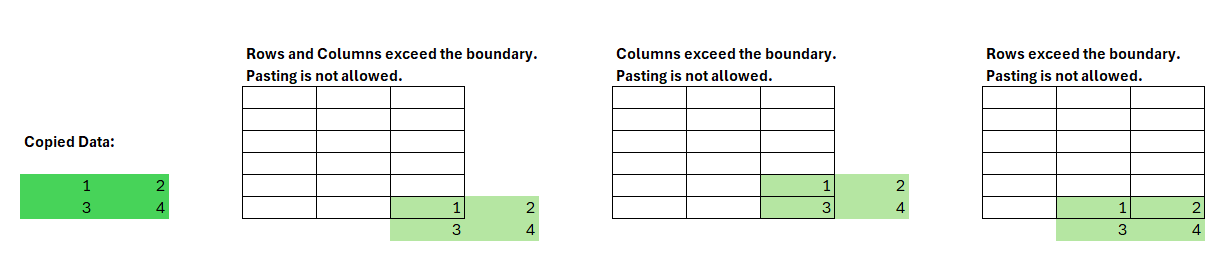
**Option 2**: Prevent pasting only if columns exceed worksheet boundaries.
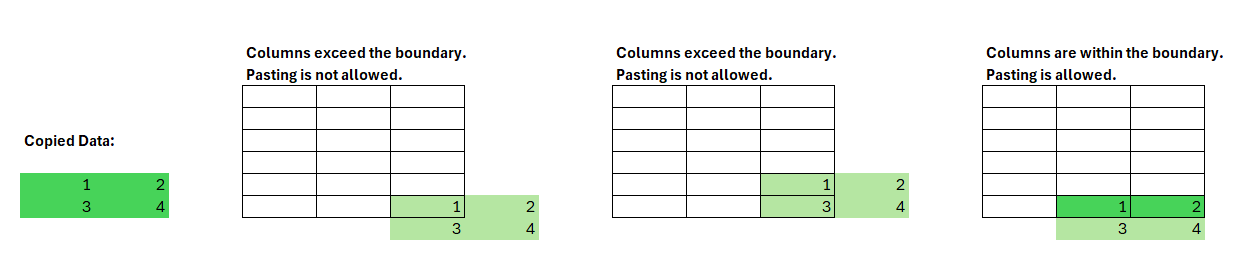
**Option 3**: Prevent pasting only if rows exceed worksheet boundaries.

**Using Code**
Refer to the following sample code to enable the [PastingExceededValues](/spreadnet/api/latest/online-win/GrapeCity.Spreadsheet/GrapeCity.Spreadsheet.Features.PastingExceededValues.html) property, which allows data to be pasted beyond worksheet boundaries when using the rich clipboard.
```csharp
fpSpread1.Features.RichClipboard = true;
fpSpread1.AsWorkbook().Features.PastingExceededValues = PastingExceededValues.Enabled;
```
```vbnet
fpSpread1.Features.RichClipboard = True
fpSpread1.AsWorkbook().Features.PastingExceededValues = PastingExceededValues.Enabled
```
Refer to the following code to handle the [ClipboardPastingEventArgs](/spreadnet/api/latest/online-win/FarPoint.Win.Spread/FarPoint.Win.Spread.ClipboardPastingEventArgs.html) event and prevent paste operations when the target range exceeds the worksheet boundaries, with optional conditions to control row and/or column boundary checks.
```csharp
fpSpread1.ClipboardPasting += OnClipboardPasting;
void OnClipboardPasting(object sender, ClipboardPastingEventArgs e)
{
SheetView sv = (SheetView)e.TargetObject;
CellRange pasteRange = e.CellRange;
// Option 1: Prevent pasting if the paste range exceeds worksheet boundaries (row or column).
if(pasteRange.Row + pasteRange.RowCount > sv.RowCount ||
pasteRange.Column + pasteRange.ColumnCount > sv.ColumnCount)
{
e.Handled = true;
}
// Option 2: Prevent pasting only if columns exceed worksheet boundaries.
// Uncomment this block if you want to block pasting only when columns exceed the worksheet limits.
// if(pasteRange.Column + pasteRange.ColumnCount > sv.ColumnCount) {
// e.Handled = true; //skip default pasting behavior
// }
// Option 3: Prevent pasting only if rows exceed worksheet boundaries.
// Uncomment this block if you want to block pasting only when rows exceed the worksheet limits.
// if(pasteRange.Row + pasteRange.RowCount > sv.RowCount) {
// e.Handled = true; //skip default pasting behavior
// }
}
```
```vbnet
AddHandler fpSpread1.ClipboardPasting, AddressOf OnClipboardPasting
Sub OnClipboardPasting(sender As Object, e As ClipboardPastingEventArgs)
Dim sv As SheetView = CType(e.TargetObject, SheetView)
Dim pasteRange As CellRange = e.CellRange
' Option 1: Prevent pasting if the paste range exceeds worksheet boundaries (row or column).
' Uncomment this block if you want to block pasting when either rows or columns exceed the worksheet limits.
If pasteRange.Row + pasteRange.RowCount > sv.RowCount OrElse _
pasteRange.Column + pasteRange.ColumnCount > sv.ColumnCount Then
e.Handled = True
End If
' Option 2: Prevent pasting only if columns exceed worksheet boundaries.
' Uncomment this block if you want to block pasting only when columns exceed the worksheet limits.
'If pasteRange.Column + pasteRange.ColumnCount > sv.ColumnCount Then
' e.Handled = True
'End If
' Option 3: Prevent pasting only if rows exceed worksheet boundaries.
' Uncomment this block if you want to block pasting only when rows exceed the worksheet limits.
'If pasteRange.Row + pasteRange.RowCount > sv.RowCount Then
' e.Handled = True
'End If
End Sub
```
## Paste Menu Options
There are numerous options to paste copied cell data. The following are available paste menu options in Spread.
| **Select** | **To paste** |
| ------ | -------- |
| Paste | All cell contents and formatting, including linked data. |
| Formulas | Only the formulas. |
| Formulas & Number Formatting | Only formulas and number formatting options. |
| Keep Source Formatting | All cell contents and formatting using the theme that was applied to the source data. |
| No Borders | All cell contents and formatting except cell borders. |
| Keep Source Column Widths | All cell contents and formatting and column widths. |
| Transpose | Reorients the content of copied cells when pasting. Data in rows is pasted into columns and vice versa. |
| Paste Values | Only the values as displayed in the cells. |
| Values Number Formatting | Only the values and number formatting. |
| Values Source Formatting | Only the values and number color and font size formatting. |
| Formatting | All cell formatting, including number and source formatting. |
| Paste Link | Link the pasted data to the original data.
When you paste a link to the data that you copied, Excel enters an absolute reference to the copied cell or range of cells in the new location. |
| Paste as Picture | A copy of the image. |
| Linked Picture | A copy of the image with a link to the original cells (if you make any changes to the original cells those changes are reflected in the pasted image). |
| Column widths | Paste the width of one column or range of columns to another column or range of columns. |
| Merge Conditional Formatting | Combine conditional formatting from the copied cells with conditional formatting present in the paste area. |
## Paste Special Options
Spread provides the following advanced Paste Special options.
| **Select** | **To paste** |
| ------ | -------- |
| All | All cell contents and formatting, including linked data. |
| Formulas | Only the formulas. |
| Values | Only the values as displayed in the cells. |
| Formats | Cell formatting. |
| Comments | Only comments attached to the cell. |
| Validation | Only data validation rules. |
| All using source theme | All cell contents and formatting using the theme that was applied to the source data. |
| All except borders | Cell contents and formatting, except cell borders. |
| Column widths | Width of one column or range of columns to another column or range of columns. |
| Formulas and number formats | Only formulas and number formatting. |
| Values and number formats | Only values and number formatting. |
| All merging conditional formats | All cell contents and formatting. Combine conditional formatting from the copied cells with conditional formatting present in the paste area. |
## Operation Options
The operation options mathematically combine values between the copy and paste areas. Note that Operations will be disabled when selected **Paste Type** is Formats, Comments and Notes, Validation.
| **Select** | **To paste** |
| ------ | -------- |
| None | Paste the contents of the copy area without a mathematical operation. |
| Add | Add the values in the copy area to the values in the paste area. |
| Subtract | Subtract the values in the copy area from the values in the paste area. |
| Multiply | Multiply the values in the paste area by the values in the copy area. |
| Divide | Divide the values in the paste area by the values in the copy area. |
## Other options
The table below describes additional Paste Special options.
| **Select** | **To paste** |
| ------ | -------- |
| Skip Blanks | Avoid replacing values or attributes in your paste area when blank cells occur in the copy area. |
| Transpose | Reorients the content of copied cells when pasting. Data in rows is pasted into columns and vice versa. Transpose is disabled if the copied range contains a sparkline. |
| Paste Link | If the data is a picture, links to the source picture. If the source picture is changed, this one will change too. Note that the **Paste Link** button is enabled only if the following conditions are fulfilled: - **Paste Type** is All or All except borders.
- **Operation** is None.
- **Transpose** and **Skip Blanks** are unchecked.
|
## Limitations
* Paste Transpose, Column Widths, Operation, and Paste Link do not support the [PasteSkipInvisibleRange](/spreadnet/api/latest/online-win/GrapeCity.Spreadsheet/GrapeCity.Spreadsheet.Features.PasteSkipInvisibleRange.html) property of the Features class.
* The Paste menu on ribbonBar does not support Paste Special.
## See Also
[Copying Data on a Sheet](/spreadnet/docs/latest/online-win/overview/spwin-devguide/spwin-ssobject-cell/spwin-usedata/spwin-datacopy)
[Repeatedly Filling a Range of Cells with Copied Cells](/spreadnet/docs/latest/online-win/overview/spwin-devguide/spwin-ssobject-cell/spwin-usedata/spwin-datafillrange)
[Copying Data on a Sheet](/spreadnet/docs/latest/online-win/overview/spwin-devguide/spwin-ssobject-cell/spwin-usedata/spwin-datacopy)
[Repeatedly Filling a Range of Cells with Copied Cells](/spreadnet/docs/latest/online-win/overview/spwin-devguide/spwin-ssobject-cell/spwin-usedata/spwin-datafillrange)