# Selecting Multiple Sheets
Learn how to select multiple worksheets at once, enabling various operations like delete, hide, move, and copy with Spread for WinForms.
## Content
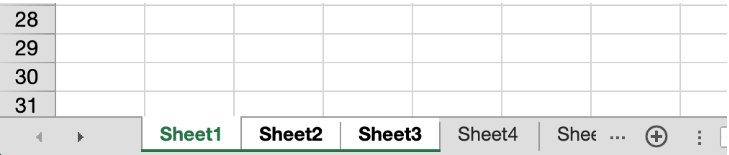
Spread for WinForms allows you to select multiple worksheets at once. This feature is enabled by default and lets you perform various operations on selected sheets, like delete, hide, move, copy, set tab color etc. The below image shows the selected worksheets (Sheet1, 2 and 3) of a workbook.
You can change the selected state of a worksheet by using keyboard and mouse click behavior. However, the active sheet is always selected and cannot be deselected.
| **UI Operation** | **Selected Sheet Tab** | **Unselected Sheet Tab** |
| ------------ | ------------------ | -------------------- |
| Click | Sets the clicked sheet as active sheet. | Sets the clicked sheet as active sheet and deselects all the selected sheets.
If all the sheets are selected and non active sheet is clicked, the clicked sheet becomes the active sheet and all other sheets are deselected. |
| Ctrl or Cmd + Click | Deselects the selected sheet (not in case of active sheet). | The clicked sheet is added as one of the selected sheets. |
| Shift + Click | @cols=2:In the cases of a selected or unselected sheet, this operation:- Selects all the sheets between the active sheet and clicked sheet.
- Deselects all the worksheets that are beyond the above range.
|
You can also perform custom operations on multiple selected worksheets. For example:
* Select one or more sheet tabs and drag them to a new location to move them. In below image, Sheet1 and 3 are moved after Sheet4.
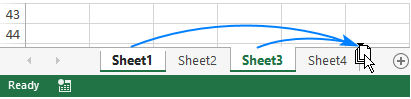
* Hold the Ctrl key and drag the sheet tab where you want to copy it. In below image, a copy of Sheet1 is created after Sheet2.

## Method to set
Use the **Select** (bool replace = true) method of IWorksheets interface. The method takes an optional parameter replace, which:
* Replaces the current selection with the specified object when set to True (default value).
* Extends the current selection to include any previously selected objects and the specified object when set to False.
Use the **SelectedSheets** property of **IWorkbook** interface to get the selected sheets in a workbook.
## Example
This example code initializes six sheets in a workbook, selects multiple sheets by retaining or replacing them and gets the count of selected sheets.
```csharp
fpSpread1.Sheets.Count = 6;
//To select one sheet, you must specify the array string
fpSpread1.AsWorkbook().Worksheets[new string[] { "Sheet2" }].Select();
//select multiple sheets - replacing old sheet selection
fpSpread1.AsWorkbook().Worksheets["Sheet3", "Sheet4"].Select(true);
//select multiple sheets - keeping old sheet selection
fpSpread1.AsWorkbook().Worksheets["Sheet5", "Sheet6"].Select(false);
//get the count of selected sheets
MessageBox.Show(fpSpread1.AsWorkbook().SelectedSheets.Count.ToString());
```
```vbnet
fpSpread1.Sheets.Count = 6
'To select one sheet, you must specify the array string
fpSpread1.AsWorkbook().Worksheets((New String() {"Sheet2"})).[Select](/spreadnet/docs/latest/online-win/overview/spwin-devguide/spwin-ssobject-sheet/selecting_multiple_sheets)
'select multiple sheets - replacing old sheet selection
fpSpread1.AsWorkbook().Worksheets("Sheet3", "Sheet4").[Select](True)
'select multiple sheets - keeping old sheet selection
fpSpread1.AsWorkbook().Worksheets("Sheet5", "Sheet6").[Select](False)
'get the count of selected sheets
MessageBox.Show(fpSpread1.AsWorkbook().SelectedSheets.Count.ToString())
```