# Protecting a Worksheet
Learn how to protect a worksheet with a password using the Protect method in Spread for WinForms. Explore various password protection and lock options available in the Protect Sheet dialog box.
## Content
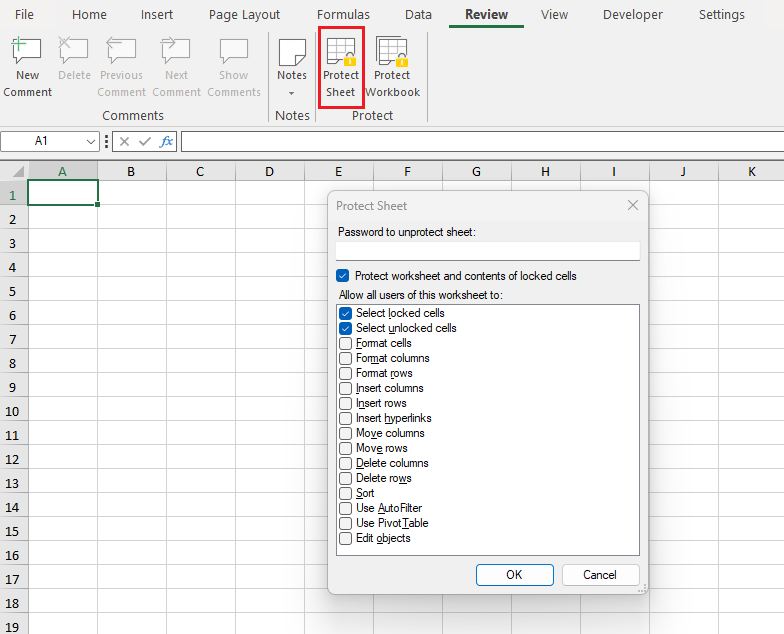
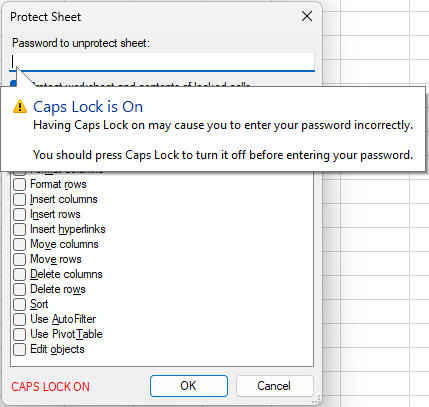
You can protect a worksheet with a password in order to prevent other users from accidentally or deliberately changing, moving, or deleting data. In Spread for WinForms, the **Protect** method provides a variety of password protection and lock options that are available in the **Protect Sheet** dialog box.
**Using PivotTable Protection**
The **Use PivotTable** option allows users to interact with PivotTables on a protected worksheet without unprotecting it. You can enable Use PivotTable in the Designer, or use the [AllowUsingPivotTables](/spreadnet/api/latest/online-win/GrapeCity.Spreadsheet/GrapeCity.Spreadsheet.IProtection.AllowUsingPivotTables.html) property of the [IProtection](/spreadnet/api/latest/online-win/GrapeCity.Spreadsheet/GrapeCity.Spreadsheet.IProtection.html) interface to achieve this.
>type=note
> **Note**: This option affects pivot table only. Other worksheet protection settings (such as formatting, editing, inserting rows/columns) are separate and independent. Pivot table formatting, editing, and structural changes are supported only when explicitly enabled by other worksheet protection options.
When [AllowUsingPivotTables](/spreadnet/api/latest/online-win/GrapeCity.Spreadsheet/GrapeCity.Spreadsheet.IProtection.AllowUsingPivotTables.html) is enabled, users can perform the following layout-level PivotTable interactions that do not modify data or calculations:
* Expand and collapse row and column fields
* Reorder fields within the PivotTable
* Move fields between Rows, Columns, and Filters
* Change report filters (page fields)
* Sort and filter items by labels only
The following actions are not allowed even when [AllowUsingPivotTables](/spreadnet/api/latest/online-win/GrapeCity.Spreadsheet/GrapeCity.Spreadsheet.IProtection.AllowUsingPivotTables.html) is enabled:
* Refresh PivotTables
* Change aggregation functions
* Sort by values
* Modify PivotTable styles
* Add or edit calculated fields or calculated items
## Using Code
You can choose to protect or unprotect a worksheet using the **Protect** method which passes the [WorksheetLocks](/spreadnet/api/latest/online-win/GrapeCity.Spreadsheet/GrapeCity.Spreadsheet.WorksheetLocks.html) enumeration as the parameter.
**C#**
```csharp
fpSpread1.LegacyBehaviors = LegacyBehaviors.None;
activeSheet.Cells["A1:A4"].Value = 1;
activeSheet.Cells["B1:B4"].Value = 3;
activeSheet.Cells["C1:C4"].Value = 5;
fpSpread1.AsWorkbook().ActiveSheet.Protect(WorksheetLocks.DeleteColumns | WorksheetLocks.DeleteRows | WorksheetLocks.PivotTables);
```
**VB**
```vbnet
fpSpread1.LegacyBehaviors = LegacyBehaviors.None
activeSheet.Cells("A1:A4").Value = 1
activeSheet.Cells("B1:B4").Value = 3
activeSheet.Cells("C1:C4").Value = 5
fpSpread1.AsWorkbook().ActiveSheet.Protect(WorksheetLocks.DeleteColumns Or WorksheetLocks.DeleteRows Or WorksheetLocks.PivotTables)
```
You can also set various types of protection options available for a worksheet using the [IProtection](/spreadnet/api/latest/online-win/GrapeCity.Spreadsheet/GrapeCity.Spreadsheet.IProtection.html) interface. Each property from this interface gets a Boolean value, true or false indicating whether a particular action is allowed on a protected worksheet. For example, you can set the [AllowDeletingColumns](/spreadnet/api/latest/online-win/GrapeCity.Spreadsheet/GrapeCity.Spreadsheet.IProtection.AllowDeletingColumns.html) property as shown below:
**C#**
```csharp
fpSpread1.AsWorkbook().ActiveSheet.Protect(WorksheetLocks.DeleteColumns);
GrapeCity.Spreadsheet.IProtection protection = fpSpread1.AsWorkbook().ActiveSheet.Protection;
var value = protection.AllowDeletingColumns;
MessageBox.Show(value.ToString());
```
**VB**
```vbnet
fpSpread1.AsWorkbook().ActiveSheet.Protect(WorksheetLocks.DeleteColumns)
Dim protection As GrapeCity.Spreadsheet.IProtection = fpSpread1.AsWorkbook().ActiveSheet.Protection
Dim value = protection.AllowDeletingColumns
MessageBox.Show(value.ToString())
```
In the above example, the MessageBox will show a false value as the worksheet has already been locked and protected to prevent column deletion.
## Using Runtime UI
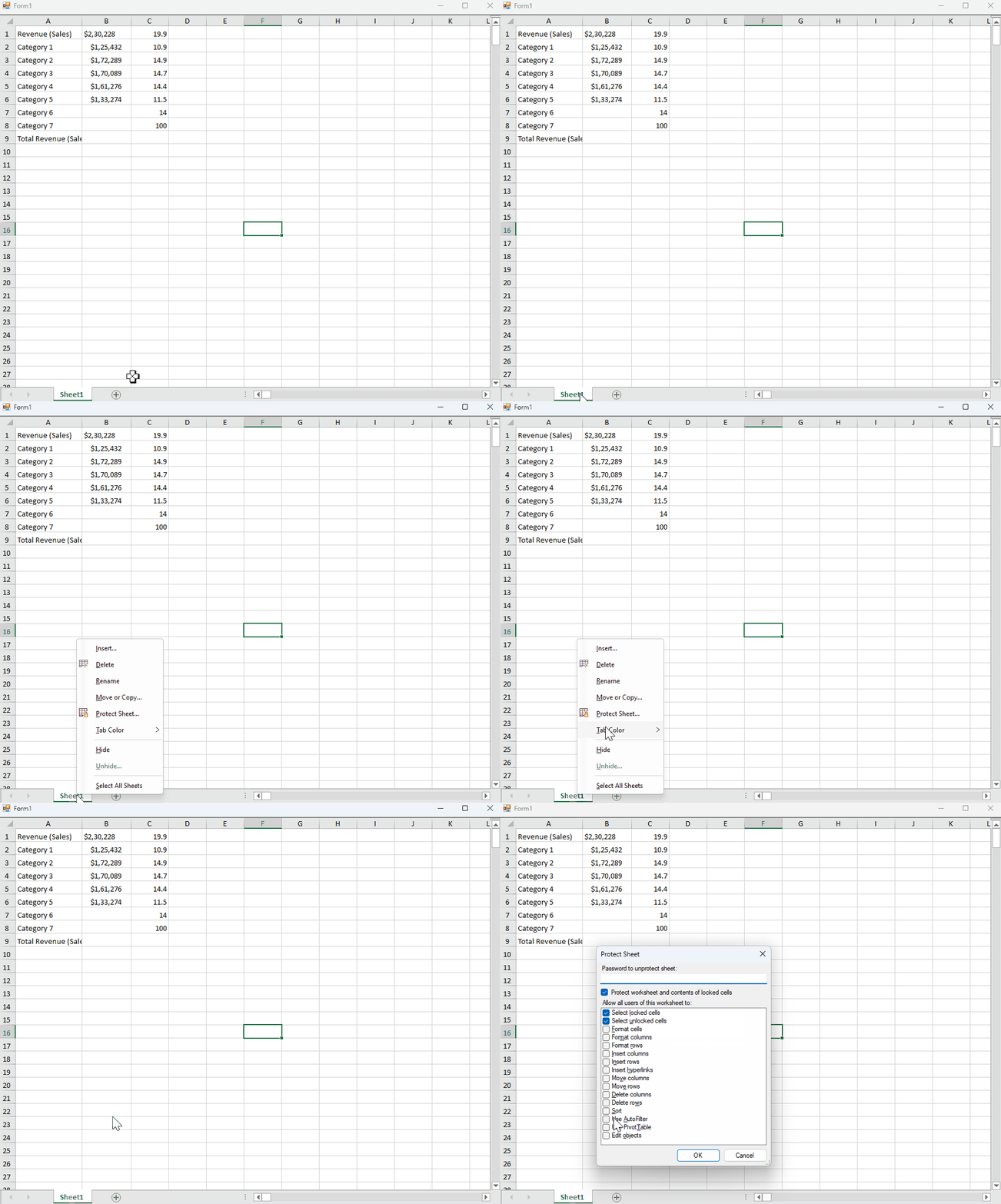
You can implement the **Protect** method in the runtime UI by setting the tab strip as editable. This allows you to open the **Protect Sheet** dialog.
**C#**
```csharp
fpSpread1.TabStrip.Editable = true;
```
**VB**
```vbnet
fpSpread1.TabStrip.Editable = True
```
The following GIF illustrates opening protect sheet dialog box at runtime.
## Using Spread Designer
To access the **Protect Sheet** dialog, navigate to the **Protect Sheet** button in the **Protect** group under the **Review** tab of the Spread ribbon.
## Steps to activate or deactivate protect sheets options
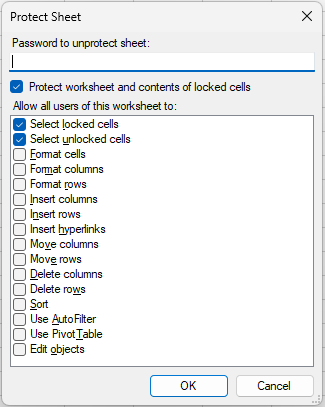
1. Select the multiple options you want to implement while protecting the worksheet from the Protect Sheet dialog box. Enter the password to protect the worksheet.
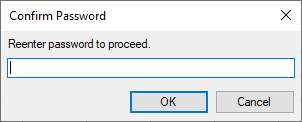
2. When you enter password to protect the worksheet, another dialog appears to confirm the password.
3. If the caps lock is on, a label indicator **"CAPS LOCK ON"** appears on the left side of the dialog box.
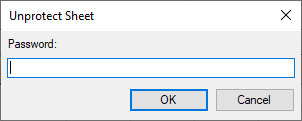
Once a password is successfully set, you can access the protected worksheet, but cannot make any changes to the sheet. To unprotect the worksheet enter the set password using the **Unprotect Sheet** dialog.
## Limitations
Currently worksheet protection options do not include protection of PivotChart and Edit Scenarios, but still support import/export for those options. The worksheet protection options work only when LegacyBehaviors.Protect is not set, otherwise the old behavior is applied.