# Working with the Formula Text Box
Learn how to set up and use the Formula Text Box in Spread Winforms to add and manipulate formulas visually with the help of a floating formula bar.
## Content
## Setting up the Formula Text Box
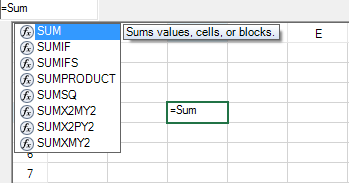
You can set up a floating formula bar that can be used to add formulas. The formula bar is similar to the formula editor available to the developer and has the appearance of a text box. The formula bar not only renders a list of calculation functions but also provides a visual method of selecting cell ranges for the formula.
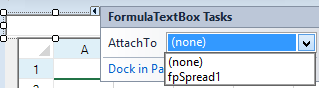
In order to set up the formula bar at run time, you can use the [FormulaTextBox](/spreadnet/api/latest/online-win/FarPoint.Win.Spread/FarPoint.Win.Spread.FormulaTextBox.html) class. You can also draw the formula text box on the form and assign it to Spread at design time. Select the formula text box icon in the **Toolbox** and drag it to the form. Select the formula text box verb and attach it to Spread.
The [AllowUserFormulas](/spreadnet/api/latest/online-win/FarPoint.Win.Spread/FarPoint.Win.Spread.FpSpread.AllowUserFormulas.html) property allows the user to type formulas in the cell in the Spread control.
If you set the [AllowUserFormulas](/spreadnet/api/latest/online-win/FarPoint.Win.Spread/FarPoint.Win.Spread.FpSpread.AllowUserFormulas.html) property to True, then the formulas that are typed in a cell will show up in the formula bar.
## Using the Formula Text Box
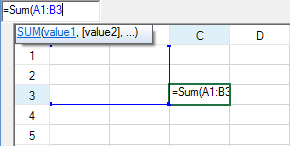
To use the formula text box, type the equal sign (=) and then start typing the name of the formula. This brings up a list of functions that start with that letter. You can then type the left parenthesis and either select a block of cells by dragging the mouse over that range or type cell values by absolute or relative reference. The figure below shows the selection of a range of cells from A1 to B3.
**Using Code**
Create the formula editor and attach it to the control.
**Example**
This example code creates the floating formula bar.
```csharp
FarPoint.Win.Spread.FormulaTextBox editor = new FarPoint.Win.Spread.FormulaTextBox();
editor.Location = new Point(0, 0);
editor.Size = new Size(80, 20);
this.Controls.Add(editor);
editor.Attach(fpSpread1);
// This line will disconnect the formula bar from the control
// editor.Detach();
```
```vbnet
Dim editor As New FarPoint.Win.Spread.FormulaTextBox
editor.Location = New Point(0, 0)
editor.Size = New Size(80, 20)
Controls.Add(editor)
editor.Attach(fpSpread1)
‘ This line will disconnect the formula bar from the control
‘ editor.Detach()
```
## Setting Indent for Formula Text Box
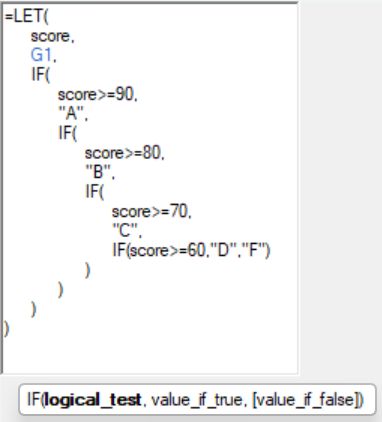
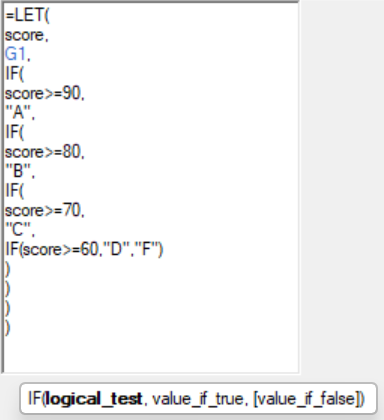
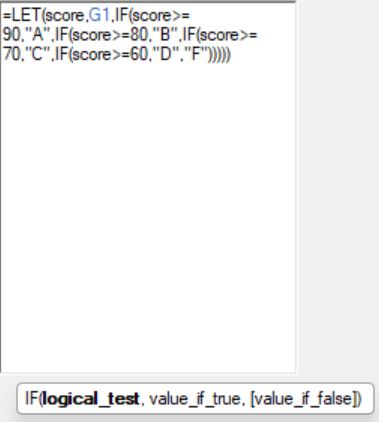
When the [FormulaTextBox.AutoIndent](/spreadnet/api/latest/online-win/FarPoint.Win.Spread/FarPoint.Win.Spread.FormulaTextBox.AutoIndent.html) property is set to true, the formula text box displays long and complex formulas across multiple lines with automatic indentation. The indentation of each new line is intelligently adjusted based on the expression tree structure, and its size can be defined by setting the [FormulaTextBox.IndentSize](/spreadnet/api/latest/online-win/FarPoint.Win.Spread/FarPoint.Win.Spread.FormulaTextBox.IndentSize.html) property.
The [FormulaTextBox.FormatWidthLimit](/spreadnet/api/latest/online-win/FarPoint.Win.Spread/FarPoint.Win.Spread.FormulaTextBox.FormatWidthLimit.html) property specifies the minimum width limit. When the formula text exceeds this limit, it will automatically wrap to the next line.
| **With Indentation**
**(FormulaTextBox.IndentSize=6)** | **With Indentation**
**(FormulaTextBox.IndentSize=0)** | **Without Indentation** |
| --------------------------------------------- | --------------------------------------------- | ------------------- |
|  |  |  |
**Example**
The following example demonstrates how to set indentation for a formula text box.
```csharp
// Create a new FormulaTextBox.
FormulaTextBox editor = new FarPoint.Win.Spread.FormulaTextBox();
editor.Location = new Point(0, 0);
editor.Size = new Size(200, 250);
this.Controls.Add(editor);
editor.Attach(fpSpread1);
// Setting Indent for Formula Text Box.
editor.AutoIndent = true;
// Set the indentation size
editor.IndentSize = 6;
// Set the minimum width before formula text wraps to the next line.
editor.FormatWidthLimit = 30;
// Assign a formula to cell A1.
fpSpread1.ActiveSheet.AsWorksheet().Cells[0, 0].Formula = "LET(score,G1,IF(score>=90,\"A\",IF(score>=80,\"B\",IF(score>=70,\"C\",IF(score>=60,\"D\",\"F\")))))";
```
```vbnet
' Create a new FormulaTextBox.
Dim editor As New FarPoint.Win.Spread.FormulaTextBox()
editor.Location = New Point(0, 0)
editor.Size = New Size(200, 250)
Me.Controls.Add(editor)
editor.Attach(fpSpread1)
' Setting Indent for Formula Text Box.
editor.AutoIndent = True
' Set the indentation size.
editor.IndentSize = 6
' Set the minimum width before formula text wraps to the next line.
editor.FormatWidthLimit = 30
' Assign a formula to cell A1.
fpSpread1.ActiveSheet.AsWorksheet().Cells(0, 0).Formula = "LET(score,G1,IF(score>=90,""A"",IF(score>=80,""B"",IF(score>=70,""C"",IF(score>=60,""D"",""F"")))))"
```
## Using Intersect Formula and Mixed Reference Formula
You can use the intersect formula and the mixed reference formula while working with formula text box in the spreadsheets.
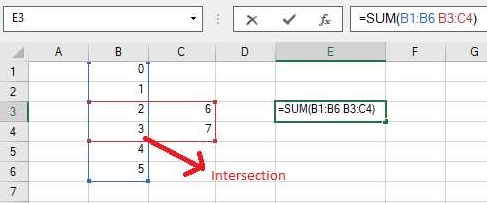
In order to create an intersect formula in a worksheet, users need to select or provide two cell ranges separated by spaces as parameters of the calculation function that is being used.
An example screenshot shared below depicts the intersection formula used in a formula text box for SUM function containing two cell ranges - B1:B6 and B3:C4 separated by the space character. When the formula is calculated, it returns the evaluated sum of all the values appearing in the intersection area (an area where rows and columns intersect as highlighted in the image) of the two cell ranges.
A mixed reference formula refers to the combination of relative and absolute cell references (absolute column and relative row or absolute row and relative column) used in a worksheet. The absolute cell references are also known as fixed references and are represented by the cells with the dollar symbol ($) placed in front of them. The relative cell references change when the formula is dragged or copied across rows and columns in the worksheet.
For more information on formulas, refer to [Managing Formulas in Cells](/spreadnet/docs/latest/online-win/overview/spwin-devguide/spwin-cell-formula) and the [Formula Reference](https://developer.mescius.com/spreadnet/docs/latest/online-formula/overview.html).
**Using Code**
You can use the intersect formula and the mixed reference formula in the formula text box in the spreadsheet.
**Example**
This example code shows how to work with intersect formula and mixed reference formula in the spreadsheet.
```csharp
// Using intersect formula
fpSpread1.Sheets[0].Cells[0, 1].Value = 0;
fpSpread1.Sheets[0].Cells[1, 1].Value = 1;
fpSpread1.Sheets[0].Cells[2, 1].Value = 2;
fpSpread1.Sheets[0].Cells[3, 1].Value = 3;
fpSpread1.Sheets[0].Cells[4, 1].Value = 4;
fpSpread1.Sheets[0].Cells[5, 1].Value = 5;
fpSpread1.Sheets[0].Cells[2, 2].Value = 6;
fpSpread1.Sheets[0].Cells[3, 2].Value = 7;
fpSpread1.Sheets[0].Cells[2, 4].Formula = "SUM(B1:B6 B3:C4)";
// Using mixed reference formula
fpSpread1.Sheets[0].Cells[5, 5].Formula = "SUM($B1, $B$2, B$3, B4)";
```
```vbnet
'Using intersect formula
fpSpread1.Sheets(0).Cells(0, 1).Value = 0
fpSpread1.Sheets(0).Cells(1, 1).Value = 1
fpSpread1.Sheets(0).Cells(2, 1).Value = 2
fpSpread1.Sheets(0).Cells(3, 1).Value = 3
fpSpread1.Sheets(0).Cells(4, 1).Value = 4
fpSpread1.Sheets(0).Cells(5, 1).Value = 5
fpSpread1.Sheets(0).Cells(2, 2).Value = 6
fpSpread1.Sheets(0).Cells(3, 2).Value = 7
fpSpread1.Sheets(0).Cells(2, 4).Formula = "SUM(B1:B6 B3:C4)
'Using mixed reference formula
fpSpread1.Sheets(0).Cells(5, 5).Formula = "SUM($B1, $B$2, B$3, B4)"
```
## Selecting Table Formula using Structured References
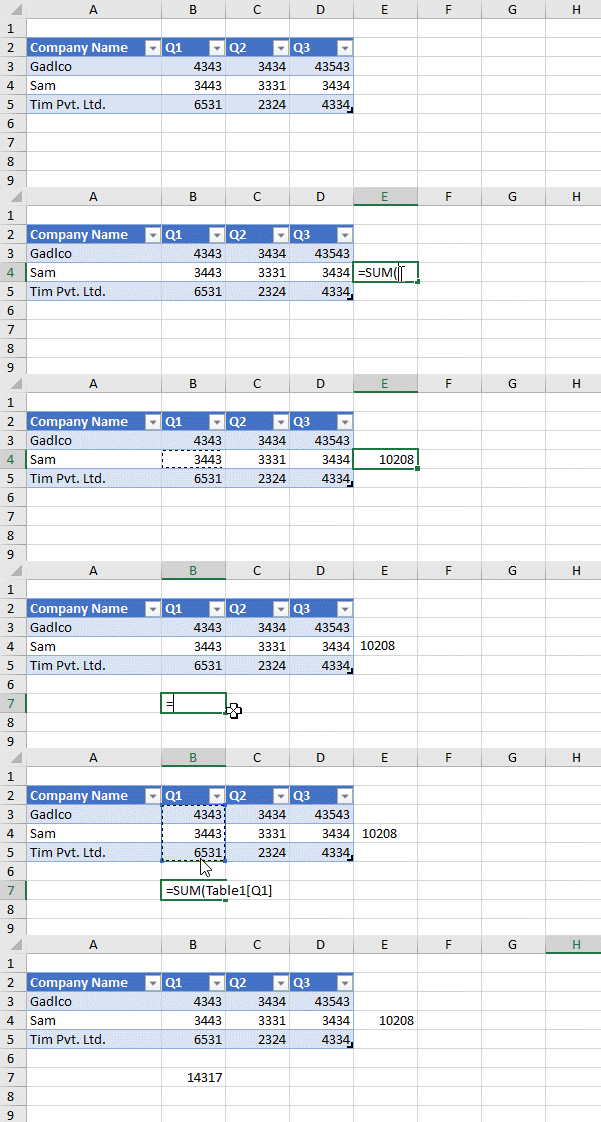
Spread Winforms provides support for inserting structured reference formulas in table cells. The structured reference formula uses keywords and the column name of the table to refer to cell ranges in the table.
The components of a structured reference in a table formula are as follows:
1. Table Name - A table name is a meaningful name that you provide to reference the actual table data (excluding the headers and totals row, if any).
2. Column Specifier - This is derived from the column header and is enclosed in brackets. The column specifier references the column data (excluding the column header and total, if any).
3. Special Item Specifier - This can be used to refer to specific portions of the table, such as the Totals row.
4. Table specifier - This is the outer portion of the structured reference that is enclosed in square brackets following the table name.
5. Structured Reference - A structured reference is the entire string beginning with the table name and ending with the table specifier.
The following image depicts how to select table formula using structured references while working in Spread Designer.
## See Also
[Formulas in Cells](/spreadnet/docs/latest/online-win/overview/spwin-devguide/spwin-cell-formula)
[Placing a Formula in Cells](/spreadnet/docs/latest/online-win/overview/spwin-devguide/spwin-cell-formula/spwin-formulaplace)
[Specifying a Cell Reference in a Formula](/spreadnet/docs/latest/online-win/overview/spwin-devguide/spwin-cell-formula/spwin-formulacellref)
[Specifying a Sheet Reference in a Formula](/spreadnet/docs/latest/online-win/overview/spwin-devguide/spwin-cell-formula/spwin-formulasheetref)
[Specifying an External Reference in a Formula](/spreadnet/docs/latest/online-win/overview/spwin-devguide/spwin-cell-formula/spwin-externalref)
[Using a Circular Reference in a Formula](/spreadnet/docs/latest/online-win/overview/spwin-devguide/spwin-cell-formula/spwin-formulacircref)
[Nesting Functions in a Formula](/spreadnet/docs/latest/online-win/overview/spwin-devguide/spwin-cell-formula/spwin-formulanested)
[Recalculating and Updating Formulas Automatically](/spreadnet/docs/latest/online-win/overview/spwin-devguide/spwin-cell-formula/spwin-formularecalc)
[Finding a Value Using GoalSeek](/spreadnet/docs/latest/online-win/overview/spwin-devguide/spwin-cell-formula/spwin-formula-goalseek)
[Allowing the User to Enter Formulas](/spreadnet/docs/latest/online-win/overview/spwin-devguide/spwin-cell-formula/spwin-formulaallowuser)
[Creating and Using a Custom Name](/spreadnet/docs/latest/online-win/overview/spwin-devguide/spwin-cell-formula/spwin-formulacustomname)
[Creating and Using a Custom Function](/spreadnet/docs/latest/online-win/overview/spwin-devguide/spwin-cell-formula/spwin-formulacustomfunc)
[Creating and Using External Variable](/spreadnet/docs/latest/online-win/overview/spwin-devguide/spwin-cell-formula/spwin-external-variable)
[Using the Array Formula](/spreadnet/docs/latest/online-win/overview/spwin-devguide/spwin-cell-formula/spwin-arrayformula)
[Setting up the Name Box](/spreadnet/docs/latest/online-win/overview/spwin-devguide/spwin-cell-formula/spwin-namebox)
[Using Language Package](/spreadnet/docs/latest/online-win/overview/spwin-devguide/spwin-cell-formula/UsingLanguagePackage)
[Accessing Data from Header or Footer](/spreadnet/docs/latest/online-win/overview/spwin-devguide/spwin-cell-formula/spwin-headerfooterformula)
[Managing External Reference](/spreadnet/docs/latest/online-win/overview/spwin-devguide/spwin-cell-formula/spwin-extrenalreference)
[Working With Dynamic Array Formulas](/spreadnet/docs/latest/online-win/overview/spwin-devguide/spwin-cell-formula/WorkingWithDynamicArrayFormulas)