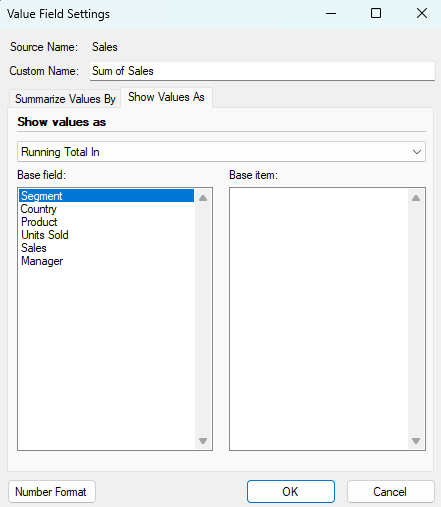
# Field Settings and Value Field Settings
## Content
The **Field Settings** and **Value Field Settings** dialogs in Designer allow you to fully customize how your pivot table fields are displayed, summarized, and calculated.
## Field Settings
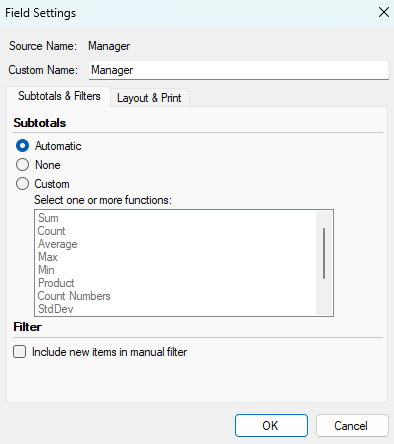
Field Settings is mainly used for row or column fields, letting you control subtotals, labels, layout, and grouping/display options.
**Subtotals and Filters Tab**
| @cols=1:**Options** | @cols=1:**Description** |
| ------- | ----------- |
| @cols=1:@rows=1:Subtotals | @cols=1:@rows=1:- To subtotal an outer row or column label using the default summary function, click **Automatic**.
- To remove subtotals, click **None**.
- To use a different function, to display more than one type of subtotal, or to subtotal an inner row or column label, click **Custom**, and then select a function.
|
| @cols=1:@rows=1: Filter | @cols=1:@rows=1:To include or exclude new items when applying a filter in which you have selected specific items in the **Filter** menu, select or clear the **Include new items in manual filter** check box. |
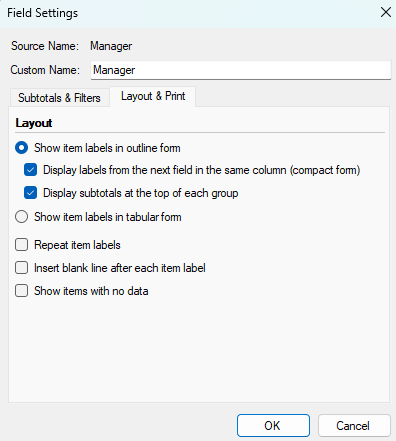
**Layout and Print Tab**
| @cols=1:**Options** | @cols=1:**Description** |
| ------- | ----------- |
| @cols=1:@rows=1:Show item labels in outline form | @cols=1:@rows=1:- Display labels from the next field in the same column (compact form) - Show labels from multiple fields in a single column for a condensed, compact view.
- Display subtotals at the top of each group - Place subtotals above each group of items.
|
| @cols=1:@rows=1:Show item labels in tabular form | @cols=1:@rows=1:Display each field in its own column, providing space for field headers and making the pivot table easier to read and print. |
| @cols=1:@rows=1:Repeat item labels | @cols=1:@rows=1:Repeat item labels for each row, making it easier to scan related items (useful when exporting for further analysis). |
| @cols=1:@rows=1:Insert blank line after each item label | @cols=1:@rows=1:Add a blank line after each group of items to improve readability. |
| @cols=1:@rows=1:Show items with no data | @cols=1:@rows=1:Show all items in the field, even if those items do not have data associated with them in the pivot table. |
## Value Field Settings
Value Field Settings focuses on how data values are calculated and shown (including summary methods and value display formats).
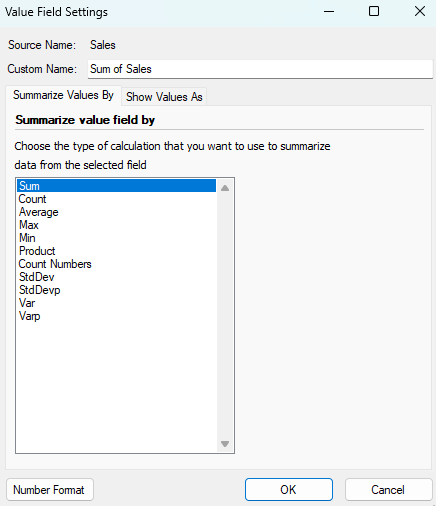
**Summarize value field by Tab**
In the **Summarize value field by** box, click the summary function that you want to use.
**Show Value As Tab**
Click the calculation option that you want to use.