# Context Menus

An explanation of the different context menus that appear when clicking on different parts of the SpreadJS Designer Component interface

## Content

You can display additional menus by right-clicking on various areas of the SpreadJS Designer interface:

|  |  |
| --- | --- |
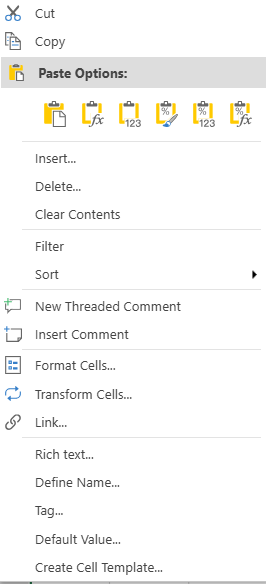
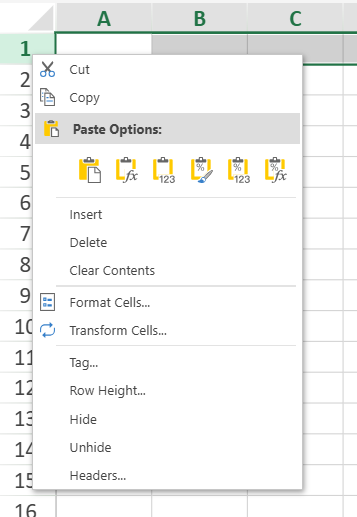
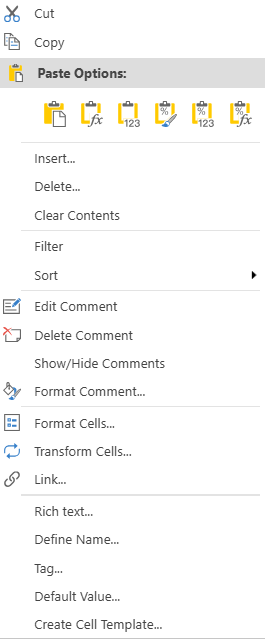
| Context menu for a cell. | ![image](https://cdn.mescius.io/document-site-files/images/b2223940-43c2-44cf-8eda-f5ab9acd84f0/image-20260331.47998b.png?width=260) |
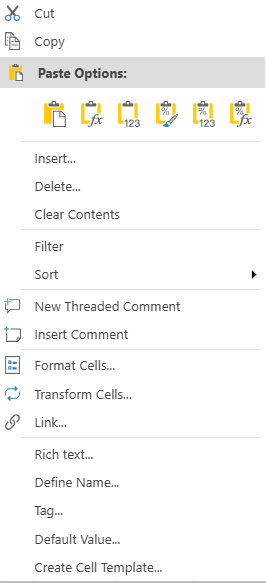
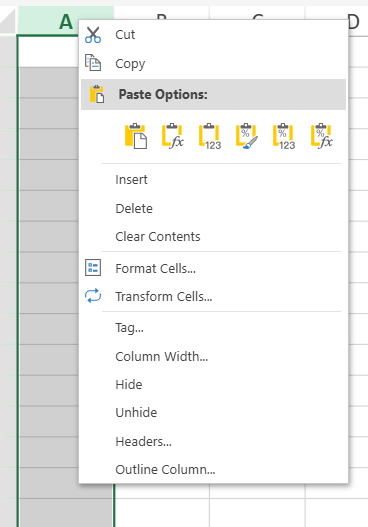
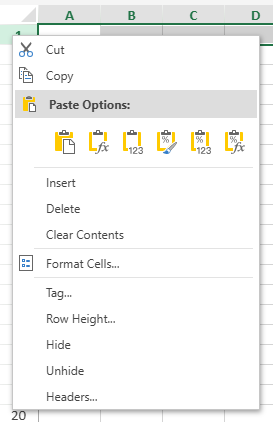
| Context menu for a column. | ![image](https://cdn.mescius.io/document-site-files/images/b2223940-43c2-44cf-8eda-f5ab9acd84f0/image-20260331.038649.png?width=260) |
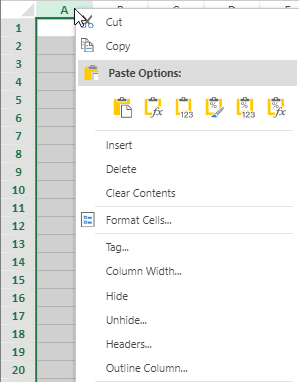
| Context menu for a column header. | worksheet:<br>![image](https://cdn.mescius.io/document-site-files/images/7719ad0a-f083-46d7-aff6-f63e2e187c15/image.765204.png?width=300)<br>others:<br>![](https://cdn.mescius.io/document-site-files/images/8d606653-16a0-474d-b9dc-e2b4d01c2446/images/designercolumnheader.png?width=300) |
| Context menu for a row. | ![image](https://cdn.mescius.io/document-site-files/images/b2223940-43c2-44cf-8eda-f5ab9acd84f0/image-20260331.43b6c9.png?width=260) |
| Context menu for a row header. | worksheet:<br>![image](https://cdn.mescius.io/document-site-files/images/7719ad0a-f083-46d7-aff6-f63e2e187c15/image.aef10a.png?width=300)<br>others:<br>![image](https://cdn.mescius.io/document-site-files/images/7719ad0a-f083-46d7-aff6-f63e2e187c15/image.946997.png?width=300) |
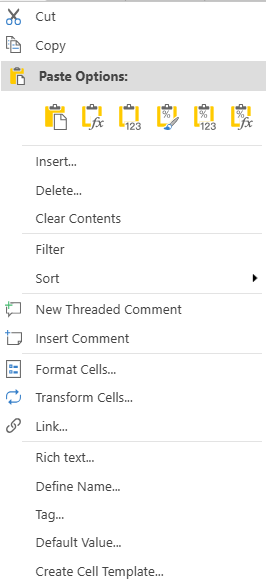
| Context menu for a comment. | ![image](https://cdn.mescius.io/document-site-files/images/b2223940-43c2-44cf-8eda-f5ab9acd84f0/image-20260331.f535db.png?width=260) |
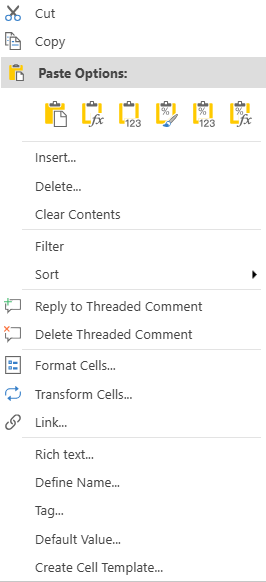
| Context menu for a threaded comment. | ![image](https://cdn.mescius.io/document-site-files/images/b2223940-43c2-44cf-8eda-f5ab9acd84f0/image-20260331.2def0b.png?width=260) |
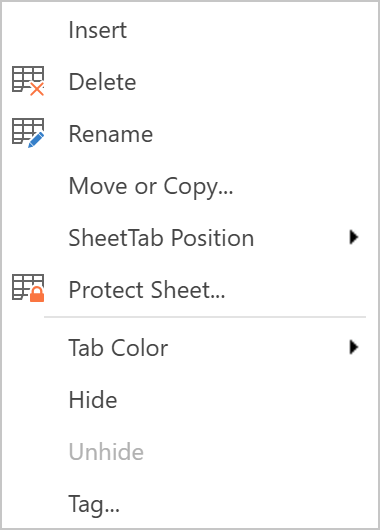
You can access various sheet-related operations in the sheet context menu by right-clicking a sheet name.

|  |  |
| --- | --- |
| Context menu for a sheet. | ![image](https://cdn.mescius.io/document-site-files/images/b2223940-43c2-44cf-8eda-f5ab9acd84f0/image-20260721.3de3b2.png?width=250) |
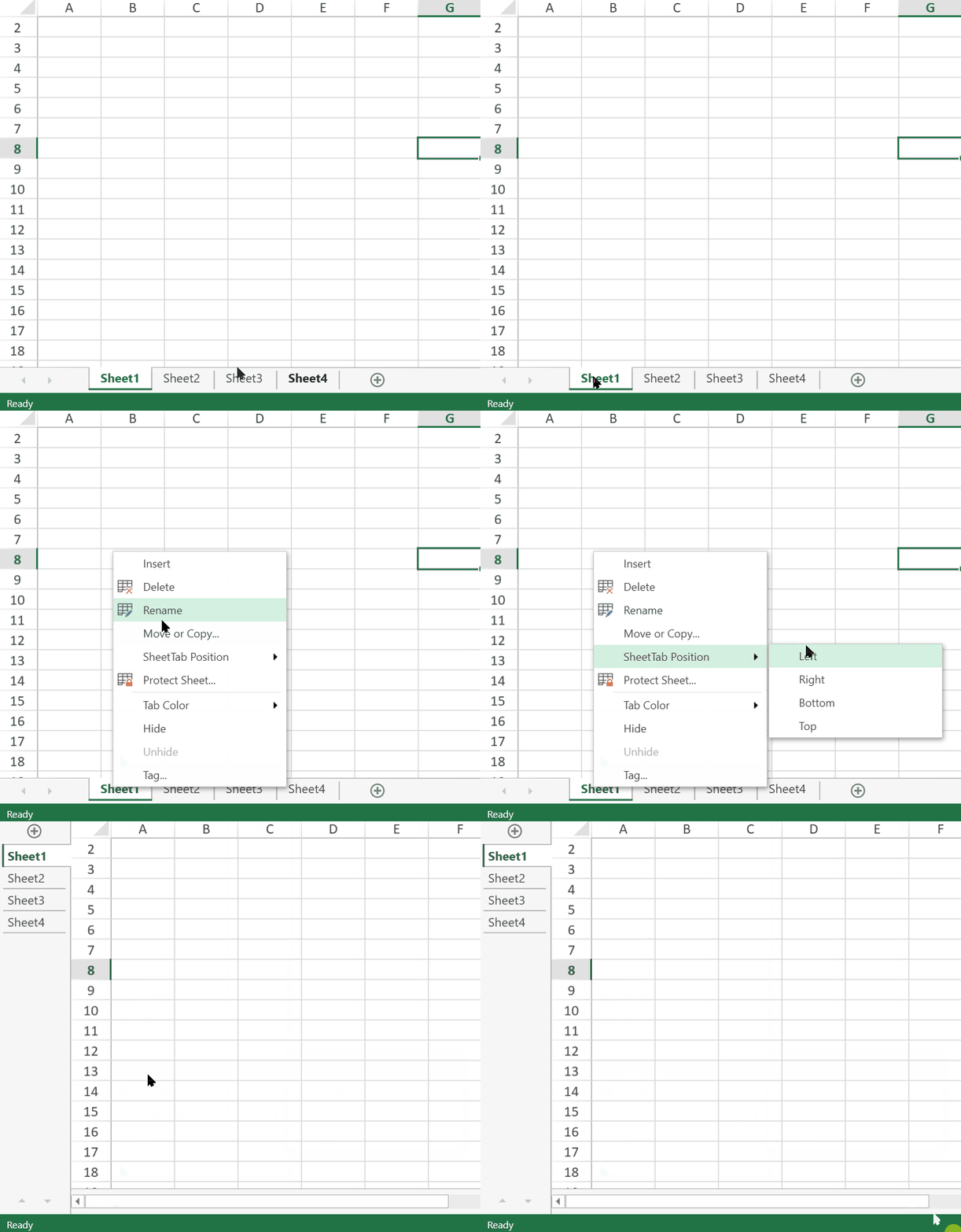
| "SheetTab position" operation in the sheet context menu | ![position.gif](https://cdn.mescius.io/document-site-files/images/b2223940-43c2-44cf-8eda-f5ab9acd84f0/position-20260721.14b483.gif?width=400) |
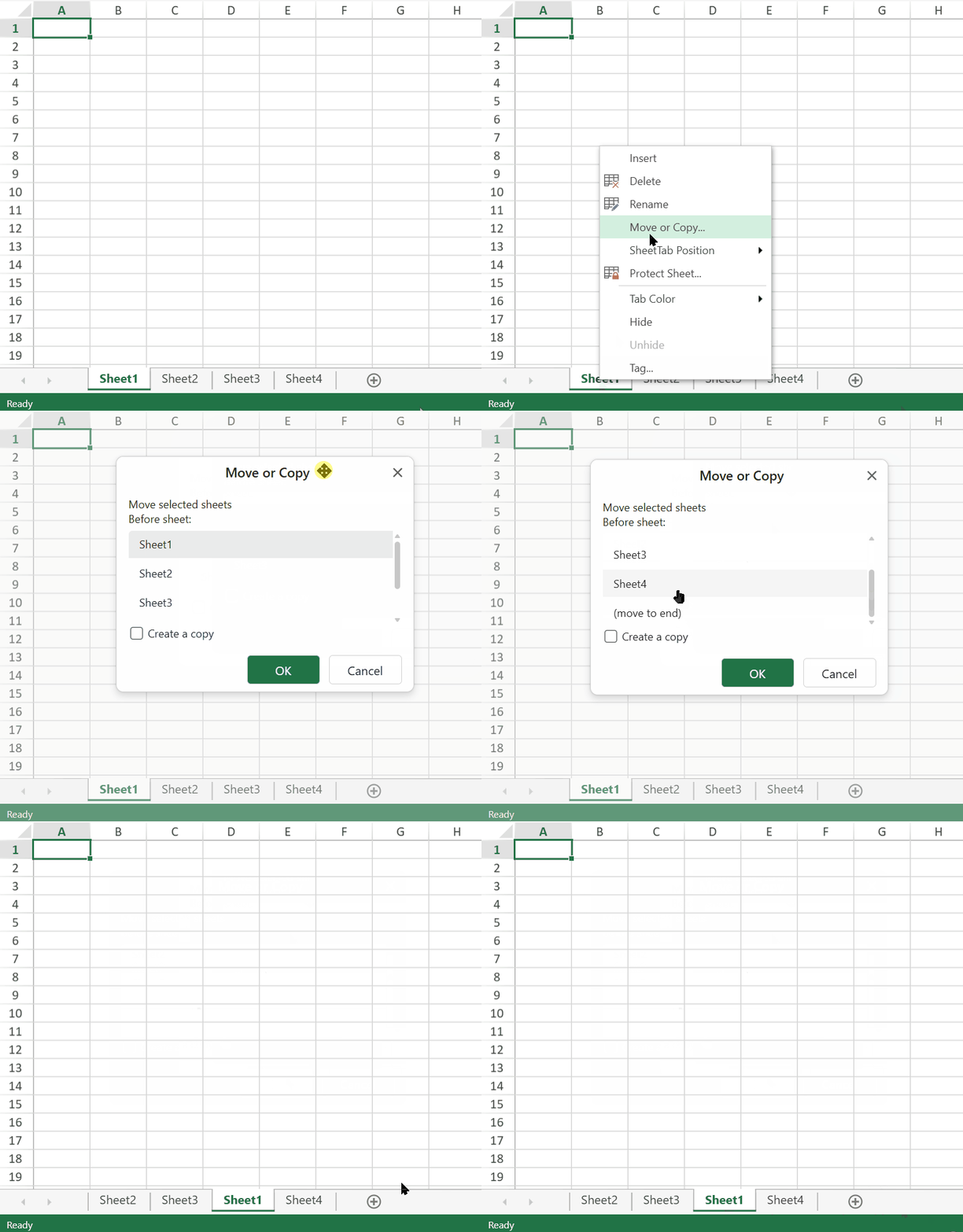
| "Move" operation in the sheet context menu. | ![move.gif](https://cdn.mescius.io/document-site-files/images/b2223940-43c2-44cf-8eda-f5ab9acd84f0/move-20260721.7579b9.gif?width=400) |
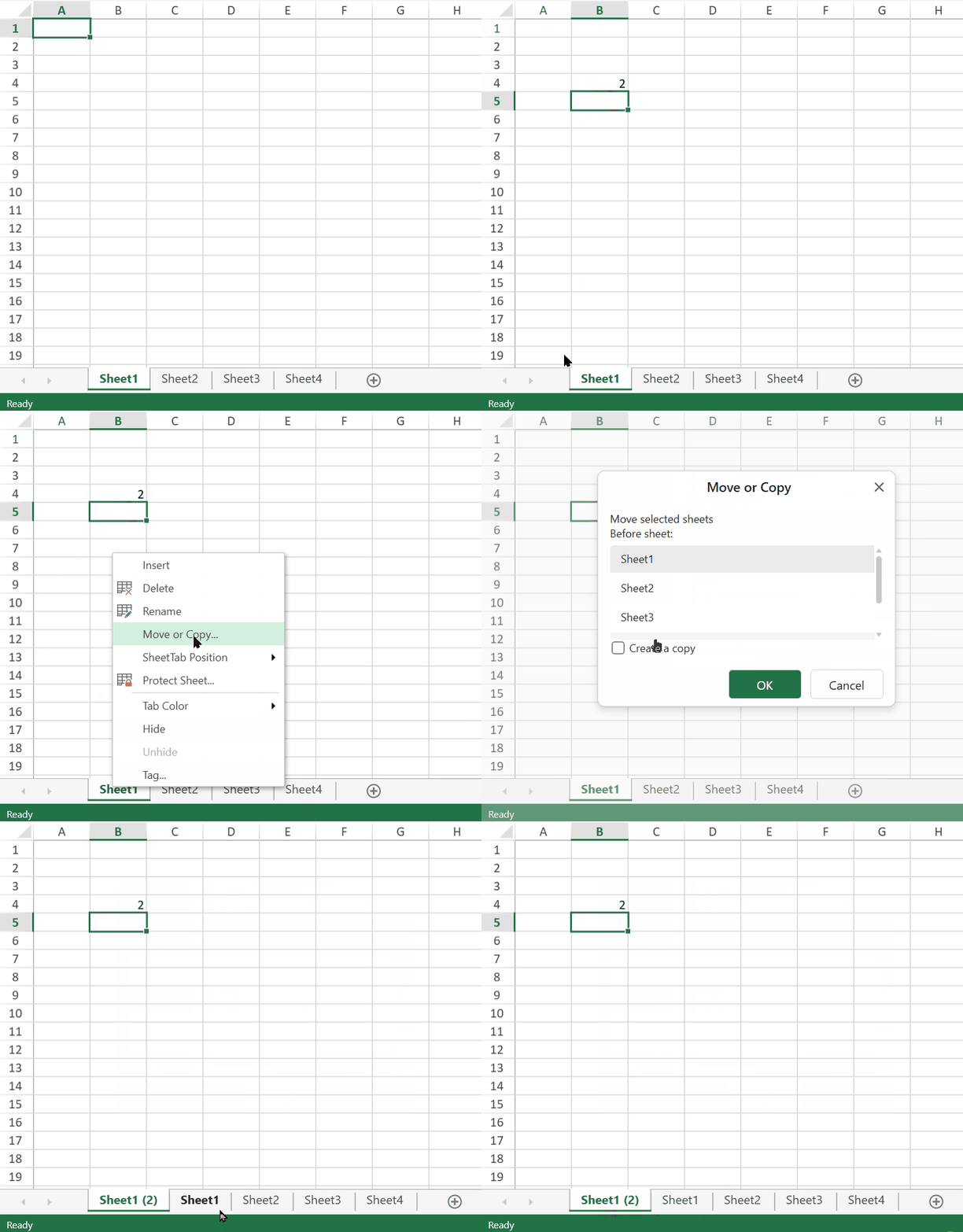
| "Copy" operation in the sheet context menu. | ![copy.gif](https://cdn.mescius.io/document-site-files/images/b2223940-43c2-44cf-8eda-f5ab9acd84f0/copy-20260721.d43a84.gif?width=400) |
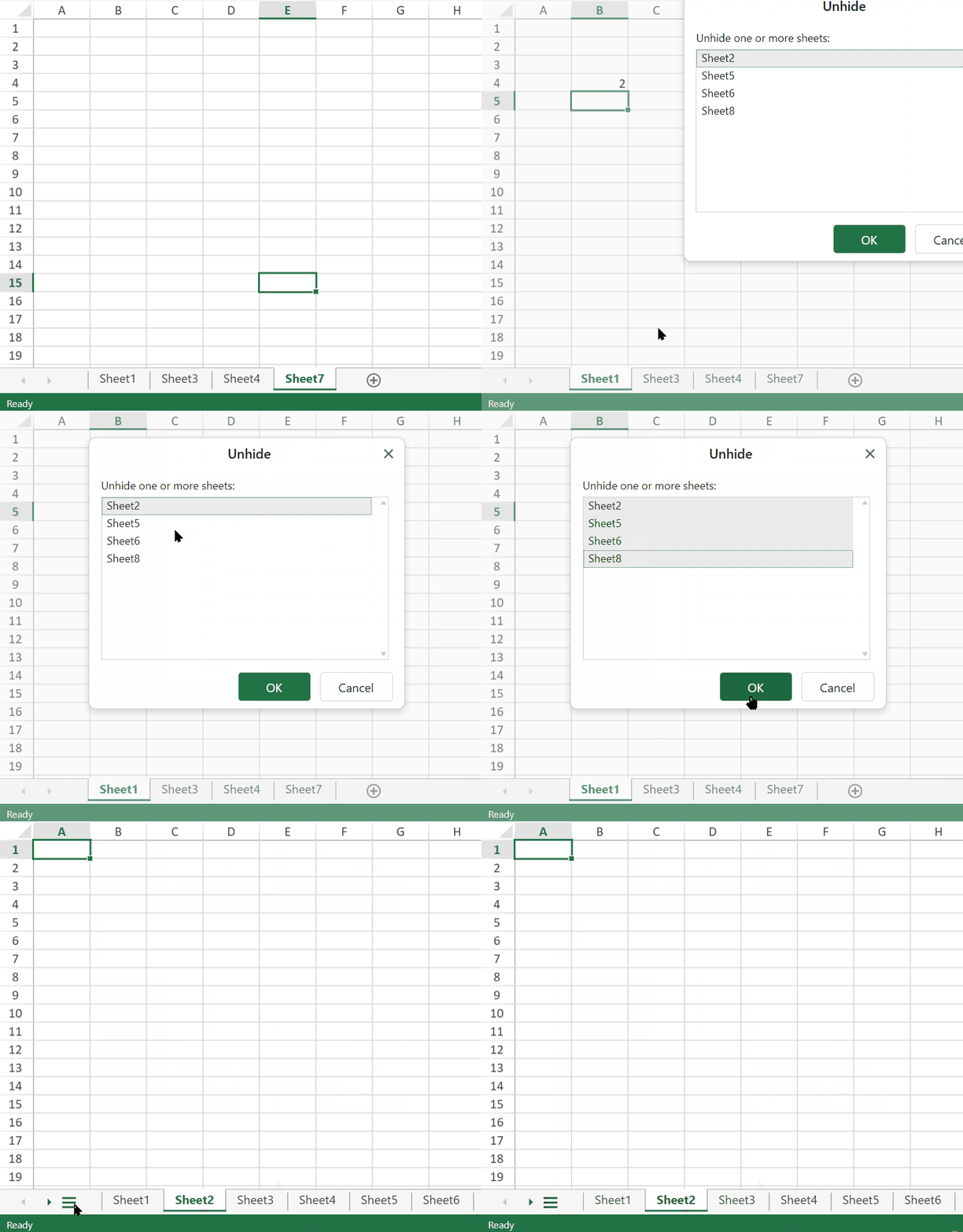
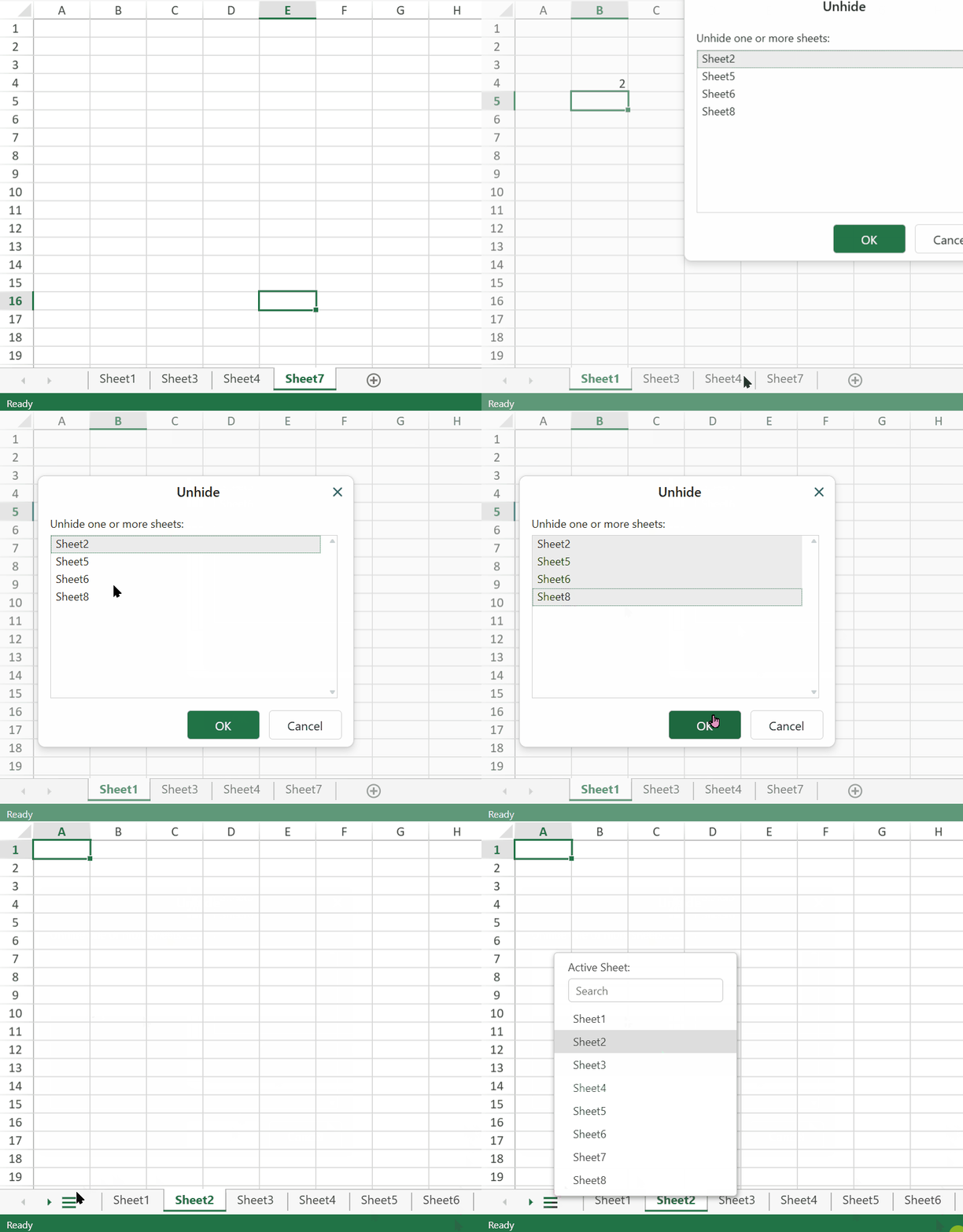
| "Unhide" operations in the sheet context menu. | Unhide multiple sheets using any of the following methods:<br>1\. Unhide multiple sheets using any of the following methods:Press and hold Ctrl and click on items to select them\.<br>![unhide1.gif](https://cdn.mescius.io/document-site-files/images/b2223940-43c2-44cf-8eda-f5ab9acd84f0/unhide1-20260721.71fbd6.gif?width=400)<br>2\. Press and hold Shift and click or use up/down arrows to select a range\.![unhide2.gif](https://cdn.mescius.io/document-site-files/images/b2223940-43c2-44cf-8eda-f5ab9acd84f0/unhide2-20260721.115b25.gif?width=400) |