# Sort
An explanation of the sorting functionality in SpreadJS Pivot Tables, including sorting by field item name, value, custom field item value, and custom callback, showing UI and code examples
## Content
The **PivotTable sorting** feature in SpreadJS enables developers to control the order of data items within PivotTables for clearer and more efficient data analysis.
Sorting can be configured **programmatically** through the `PivotTable.sort()` API and `sortInfo` object, or **interactively** within the Designer.
Developers can specify sort orders by field name, value, or custom logic, and optionally use advanced features such as **Custom Callback Function** sorting, **Custom List** sorting(“First key sort order” List) and **manual drag‑and‑drop reordering**.
These options provide a flexible way to define and maintain consistent sort behavior across PivotTables in a worksheet.
## Sorting Modes
Supports 4 main sorting modes:
| **Modes** | **Description** | **UI Indicator** |
| ----- | ----------- | ------------ |
| Ascending | Sort field items in alphabetical/ascending order. | - `autoSort = true`: 
- `autoSort = false`: 
|
| Descending | Sort field items in reverse/alphabetical descending order. | - `autoSort = true`: 
- `autoSort = false`: 
|
| Custom (Callback) | Use a custom comparison function for sorting logic. |  |
| Custom (List) | Define an explicit order using a predefined list of values. |  |
## Related API
| **Type** | **Name** | **Description** |
| ---- | ---- | ----------- |
| Enumeration | [SortType](/spreadjs/api/v19/enums/GC.Pivot.SortType) | Sorting modes: `asc`, `desc`, `custom`. |
| Interface | [IPivotViewSortInfo](/spreadjs/api/v19/modules/GC.Pivot#ipivotviewsortinfo) | Sorts configuration for a field.
Key fields: `sortType`, `sortValueFieldName`, `customSortList`, `customSortCallback`. |
| Method | [PivotTable.sort(fieldName, sortInfo)](/spreadjs/api/v19/classes/GC.Spread.Pivot.PivotTable-1#sort) | Gets or sets a field's sort configuration. |
| Method | [PivotTable.autoSortState(fieldName, enabled?)](/spreadjs/api/v19/classes/GC.Spread.Pivot.PivotTable-1#autosortstate) | Queries/toggles a field's auto-sort state (default: enabled).
When enabled, `PivotTableManager.customList` has no effect. |
| Method | [PivotTable.getItemsByField(fieldName, sorted?)](/spreadjs/api/v19/classes/GC.Spread.Pivot.PivotTable-1#getitemsbyfield) | Returns field items.- `sorted=true` returns current sorted order.
- otherwise returns unsorted list.
If sorted by value, returns the internal label order from the latest label sort. |
| Method | [PivotTableManager.customList(customList?)](/spreadjs/api/v19/classes/GC.Spread.Sheets.PivotTableManager#customlist) | Gets/sets the worksheet‑shared custom sort list.
Takes effect only when a field’s `autoSort` is disabled and `asc`/`desc`). |
>type=note
> **Notes:**
>
> * **Sorting precedence:** `autoSort` (enabled by default) overrides the worksheet‑shared `customList`. Only when `autoSort = false` and `sortType ∈ {asc, desc}` will the shared `customList` affect order.
> * **Scope:** `PivotTableManager.customList` applies to all PivotTables within the same worksheet; it is not workbook‑scope.
> * **Persistence:** the shared custom list is not saved to `Workbook.options.customList` and is not exported/imported to Excel.
>
> For detailed behavior explanations and design rationale, see **Design Notes and Restrictions**.
## Usage Examples
**Foundation Code**
All examples in this section are based on the foundational setup below, which creates a sample workbook and pivot table for demonstration purposes.
```javascript
// Initialize a workbook with sample data and create a base pivot table.
// The following setup is shared by all examples below.
var spread = new GC.Spread.Sheets.Workbook(document.getElementById("ss"),{sheetCount:3});
var sourceSheet = spread.getSheet(0);
var sheet = spread.getSheet(1);
var sourceData = [["Date","Buyer","Type","Amount"],
["01-Jan","Mom","Fuel",74],
["15-Jan","Mom","Food",235],
["17-Jan","Dad","Sports",20],
["21-Jan","Kelly","Books",125]];
sourceSheet.setArray(0, 0, sourceData );
sourceSheet.tables.add('sourceData', 0, 0, 5, 4);
var layout = GC.Spread.Pivot.PivotTableLayoutType.compact;
var theme = GC.Spread.Pivot.PivotTableThemes.medium2;
var options = {showRowHeader: true, showColumnHeader: true};
var pivotTable = sheet.pivotTables.add("pivotTable_1",'sourceData',1,1,layout,theme,options);
pivotTable.add("Buyer","Buyer",GC.Spread.Pivot.PivotTableFieldType.rowField);
pivotTable.add("Type","Type",GC.Spread.Pivot.PivotTableFieldType.columnField);
pivotTable.add("Amount","Amount",GC.Spread.Pivot.PivotTableFieldType.valueField);
pivotTable.autoFitColumn();
```
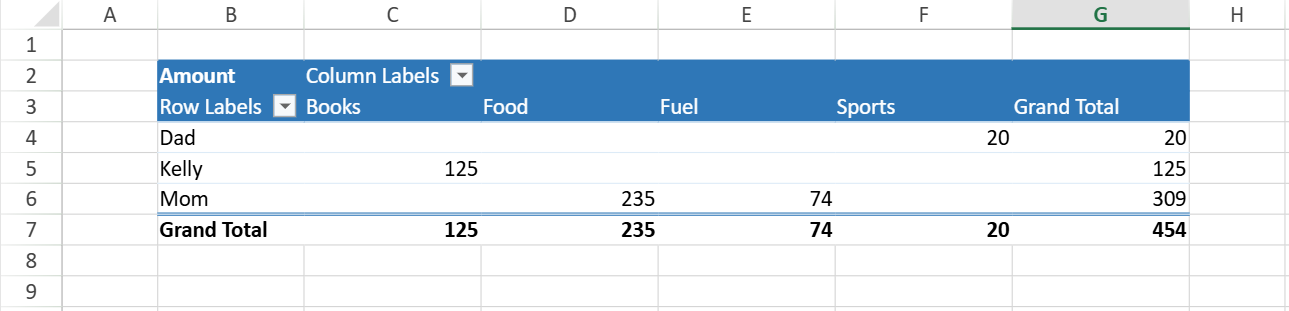
**Setting the Sorting Mode**
Set the sorting mode using the `sortType` property of `sortInfo`.
```javascript
// Ascending
pivotTable.sort("Buyer", { sortType: GC.Pivot.SortType.asc });
// Descending
pivotTable.sort("Buyer", { sortType: GC.Pivot.SortType.desc });
// Custom Order
pivotTable.sort("Buyer", {sortType: GC.Pivot.SortType.custom });
```
>type=note
> **Note**:
> When you choose the `custom` mode (`GC.Pivot.SortType.custom`), be sure to specify a sort rule using `customSortCallback` or `customSortList`.
**Sorting by Field Item Name**
To sort data in a pivot table by a specific field, call the `pivotTable.sort(fieldName, sortInfo)` method and set the `sortType` property in `sortInfo` to define the sorting order (ascending, descending, or custom).
```javascript
pivotTable.sort("Buyer", { sortType: GC.Pivot.SortType.desc });
// Result: [“Mom”, “Kelly”, “Dad”]
```
**Sorting by Value Field**
You can sort pivot fields based on the aggregated values of another field.
To do this, configure the following properties in the `sortInfo` object when calling `pivotTable.sort()`:
* `sortType` – defines the sort direction (ascending or descending).
* `sortValueFieldName` – specifies which value field to use as the basis for comparison.
* `sortByPivotReferences` – defines the pivot area (such as a specific column) whose aggregated value is used for sorting.
```javascript
pivotTable.sort("Buyer", {
sortType: GC.Pivot.SortType.asc,
sortValueFieldName: "Amount",
sortByPivotReferences: [
{
fieldName: "Type",
items: [
"Books"
]
}
]
});
// Result: [“Dad”, “Mom”, “Kelly”]
```
**Sorting by Custom Callback Function**
You can define a custom sorting logic for a field by setting the `sortType` to `GC.Pivot.SortType.custom` and providing a `customSortCallback` function.
The callback receives an array (`list`) containing all items of the target field and should return the reordered array. This allows you to implement any custom rule, such as sorting by string length, alphabetical pattern, or an external ranking.
```javascript
pivotTable.sort("Buyer", {
sortType: GC.Pivot.SortType.custom,
customSortCallback: function (list) {
return list.sort((a, b) => a.length - b.length);
}
});
// Result: [“Mom”, “Dad”, “Kelly”]
```
**Sorting by Custom Sort List**
You can specify a fixed sorting order for a field by setting the field’s `sortType` to `GC.Pivot.SortType.custom` and specifying a `customSortList`.
The items in `customSortList` define the exact order in which field items appear.
>type=note
> **Notes:**
>
> * Only items that exist in the pivot field are sorted; non‑existing items in the list are ignored.
> * Sorting is case‑insensitive.
> * Items not included in `customSortList` appear after the specified items, keeping their default order.
```javascript
pivotTable.sort("Type", {
sortType: GC.Pivot.SortType.custom,
customSortList: ["FOOD", "sports", "Books", "fUel" ]// Case-insensitive
});
// Result: [“Food”, “Sports”, “Books”, “Fuel”]
pivotTable.sort("Buyer", {
sortType: GC.Pivot.SortType.custom,
customSortList: ["Food", "Sports"]// Other items keep default order
});
// Result: [“Food”, “Sports”, “Books”, “Fuel”]
```
Both examples produce the same order.
The first demonstrates case‑insensitive matching, while the second shows that unlisted items retain their default order.
**Combining Custom List with AutoSort State**
You can combine a custom list with a pivot table's sort behavior.
To make the list order take effect, disable AutoSort first and then apply a `PivotManager.customList`:
```javascript
pivotTable.autoSortState("Type", false);
sheet.pivotTables.customList(["Food", "Sports"]);
// Ascending behavior
pivotTable.sort("Type", { sortType: GC.Pivot.SortType.asc });
// Result: [“Food”, “Sports”, “Books”, “Fuel”]
// Descending behavior
pivotTable.sort("Type", { sortType: GC.Pivot.SortType.desc });
// Result: [“Fuel”, “Books”, “Sports”, “Food”]
```
**Manual Reordering (Drag-and-Drop)**
Users can manually reorder Pivot field items by dragging them after a global sort.
The change takes effect immediately and is saved as a **custom sort** state.
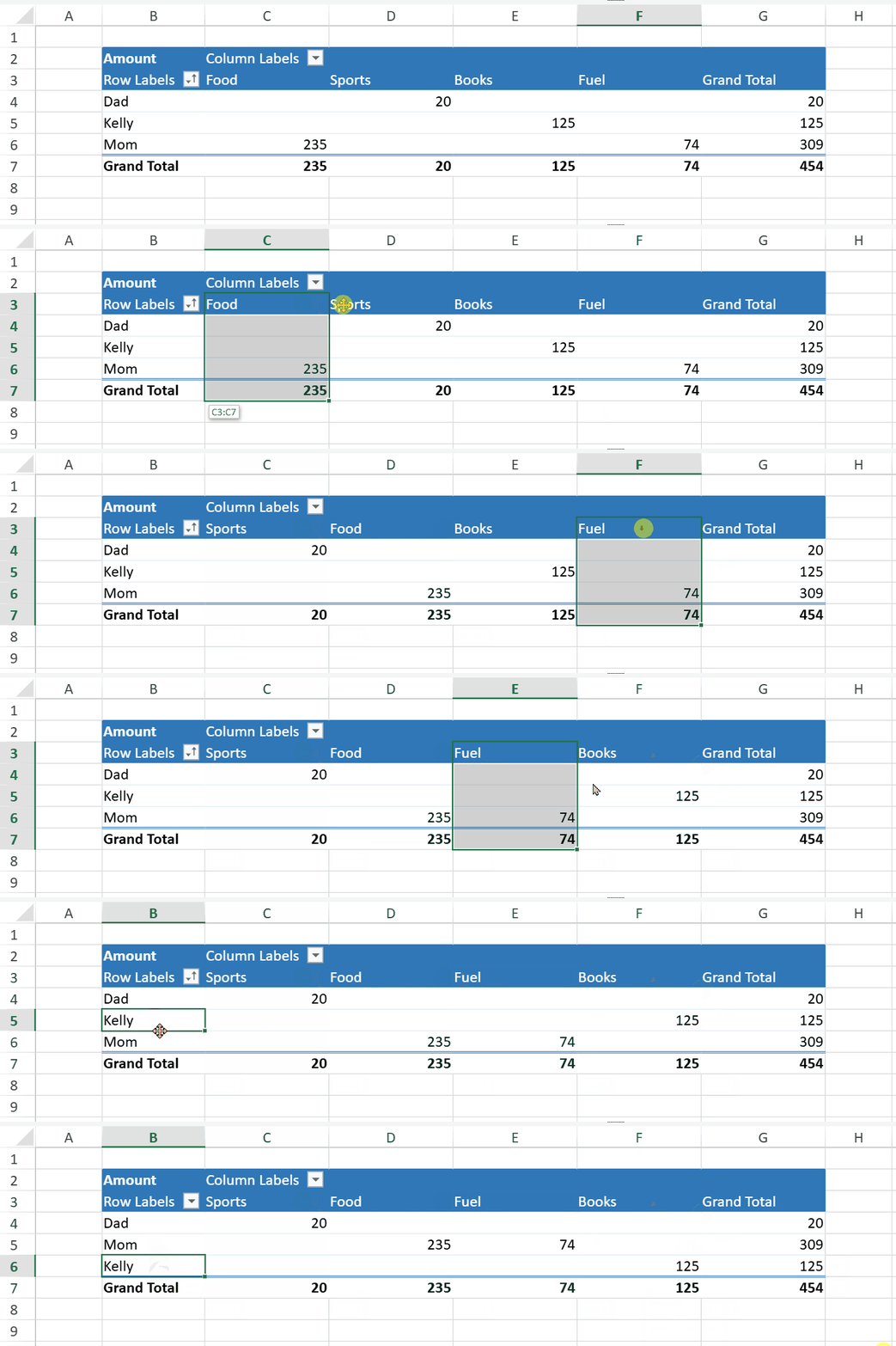
See **Drag-and-Drop** for more details.
**Getting and Clearing Sort Info**
You can get or clear the sort information of a field using the `pivotTable.sort()` method.
```javascript
// Get current sort info
let info = pivotTable.sort("Buyer");
// Clear sort
pivotTable.sort("Buyer", null);
```
## Using the Designer
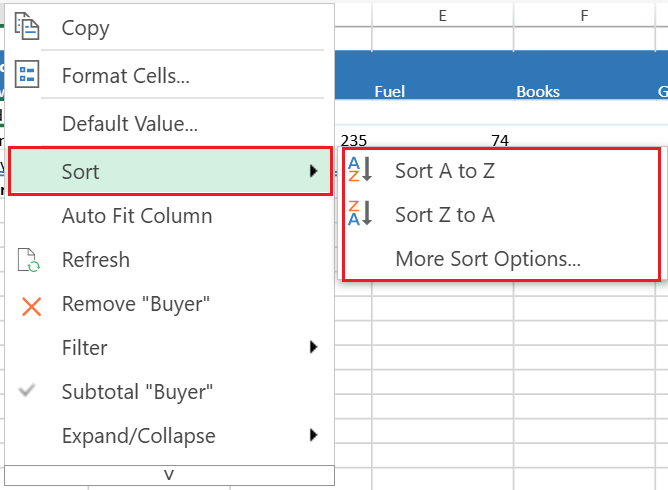
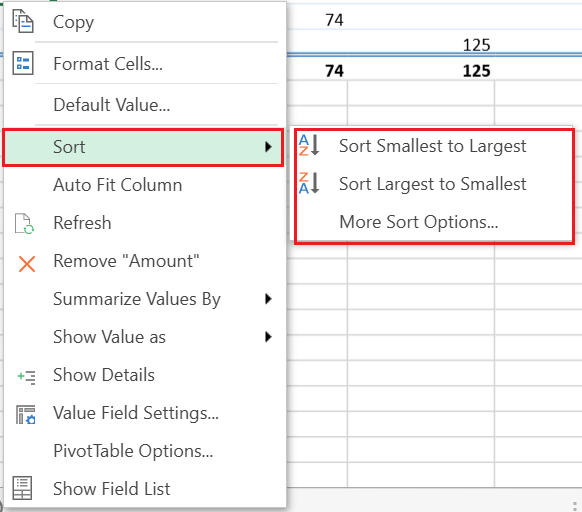
In the Designer, you can sort PivotTable data directly through the **context menu**.
When you right‑click an item in the pivot table (whether it belongs to a row, column, or value area), the context menu displays a **Sort** option.
The **Sort** option provides the following three sub‑options:
* **Sort Ascending** (A → Z / Smallest → Largest)
* **Sort Descending** (Z → A / Largest → Smallest)
* **More Sort Options…**
The first two sub‑options perform quick ascending or descending sorts based on the data type of the selected field.
Selecting **More Sort Options…** opens a corresponding dialog box that provides additional sorting controls.
The following table describes how the **More Sort Options…** command behaves when accessed from different areas of a pivot table.
| **Item Area** | **Dialog** | **Behavior** |
| --------- | ------ | -------- |
| Normal Value Area | 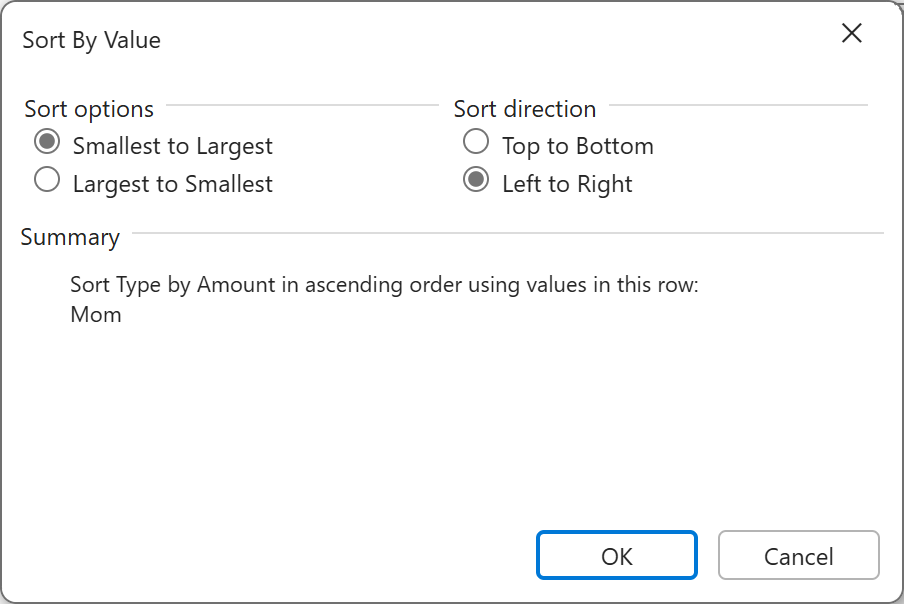 | The **Sort by Value** dialog appears. |
| Grand Total Area | 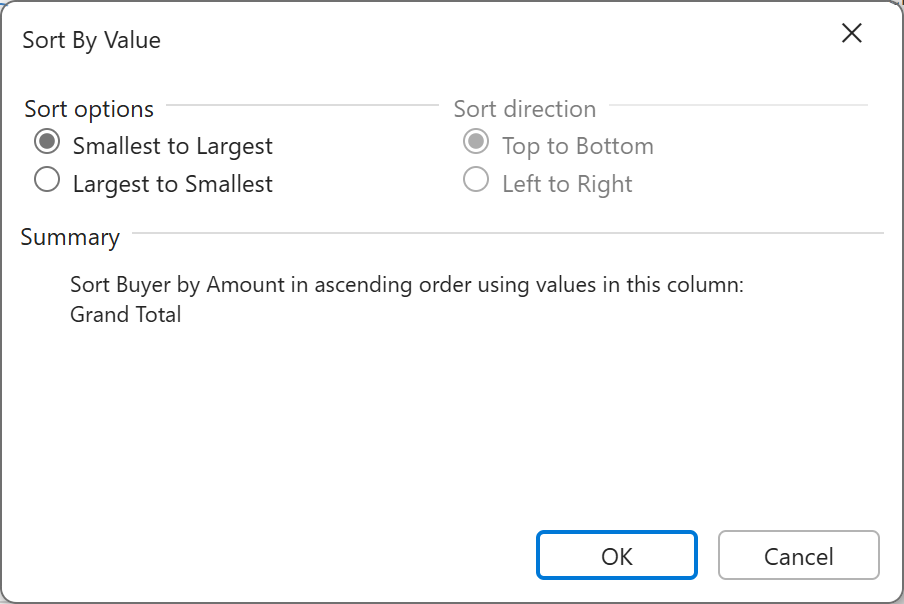 | The **Sort by Value** dialog appears. However, sort direction is disabled along with the following conditions:- In case of grand total column, the direction is top to bottom by default.
- In case of grand total row, the direction is left to right by default.
- In case of grand total row and column, the dialog does not appear.
|
| Row Header Area/Corner Area | 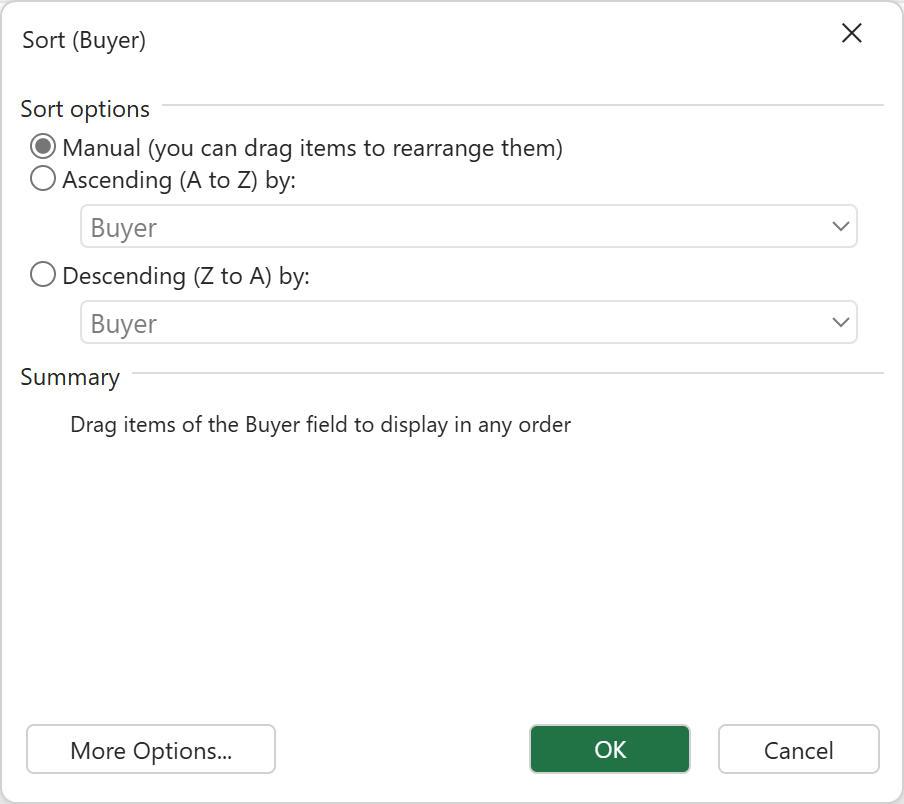 | Opens the **Sort Field** dialog along with the following conditions:- In the case of compact layout, the **Sort** option does not appear in the corner area.
- If the selected field is ΣValues field, the **Sort by Value** dialog appears.
- If the selected row area is ΣValues item, no dialog appears.
|
| Column Header Area | 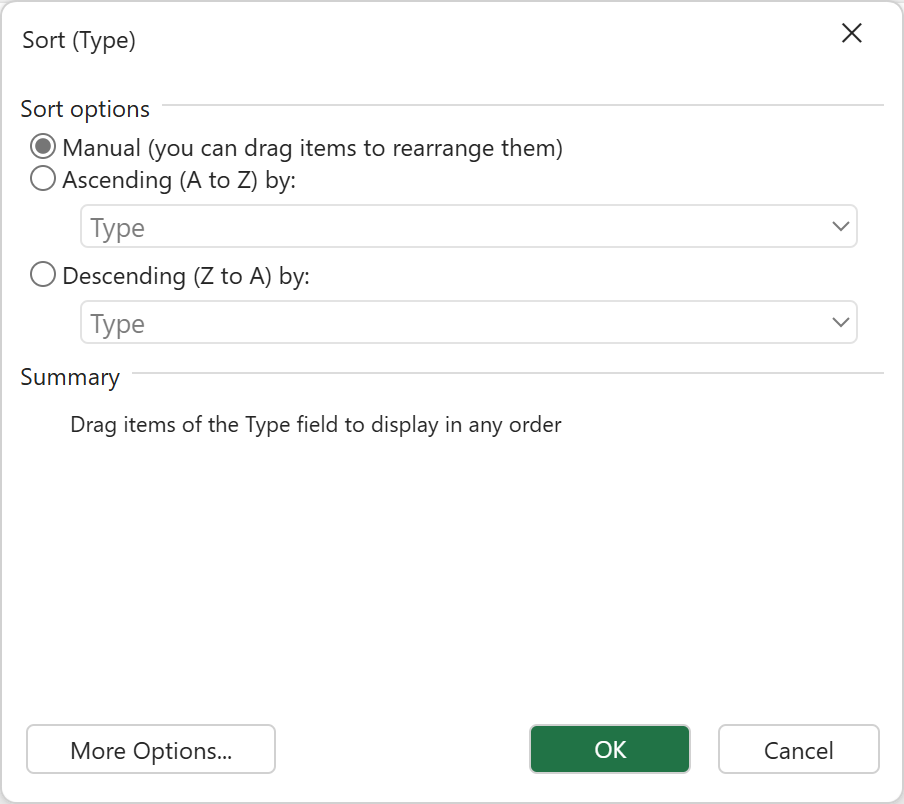 | Opens the **Sort Field** dialog along with the following conditions:- If the selected field is ΣValues field, the **Sort by Value** dialog appears.
- If the selected column area is ΣValues item, no dialog appears.
|
>type=note
> **Note:**
> When a custom sort is performed, the Sort Options dialog automatically switches to **Manual**.
Clicking **More Options...** opens an additional **Sort** dialog that provides advanced sorting controls.
In the **Sort** dialog, you can sort items based on the *Grand Total* values (the default option) or sort according to values from a specific field or item.
The following image shows an example of the **Sort (Type)** dialog as displayed in the Designer:
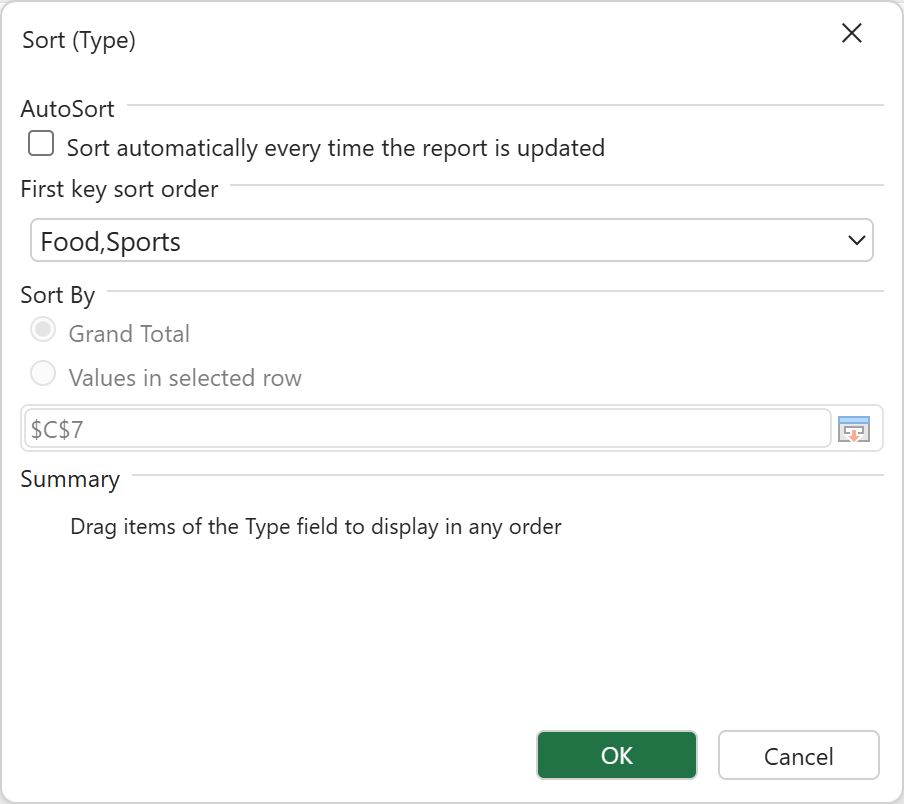
Fields without sort settings remain in AutoSort mode, and opening **More Sort Options** will show the **Auto** option selected **by default**.
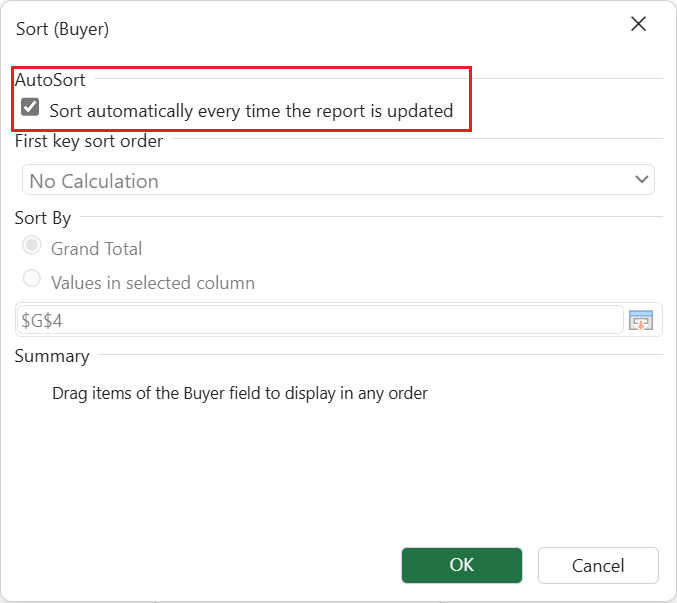
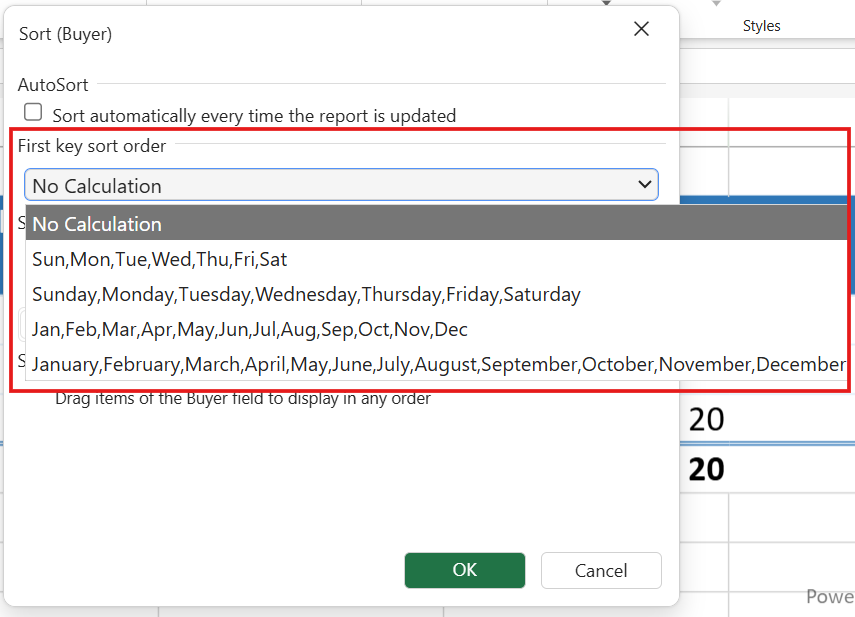
When you uncheck the **AutoSort** option, the Pivot Field enters **Manual** sort mode. You can then specify a First Key Sort Order, which defines how ascending and descending custom sorts are applied.
>type=note
> **Note:**
> The **More Options...** button may be disabled when it is accessed from a field placed in the **Row** or **Column** area.
### Drag-and-Drop
The **Drag‑and‑Drop** feature in the **Designer** allows you to rearrange PivotTable fields directly within the table by simply dragging and dropping them.
This functionality provides an intuitive and efficient way to customize the PivotTable layout without relying on dialogs or menus.
**Supported Areas**
Drag‑and‑drop is supported for both **Column Pivot Fields** and **Row Pivot Fields**, following the same basic interaction pattern.
**Selection Modes**
| **Selection Mode** | **Example View** |
| -------------- | ------------ |
| PivotField Header Only | 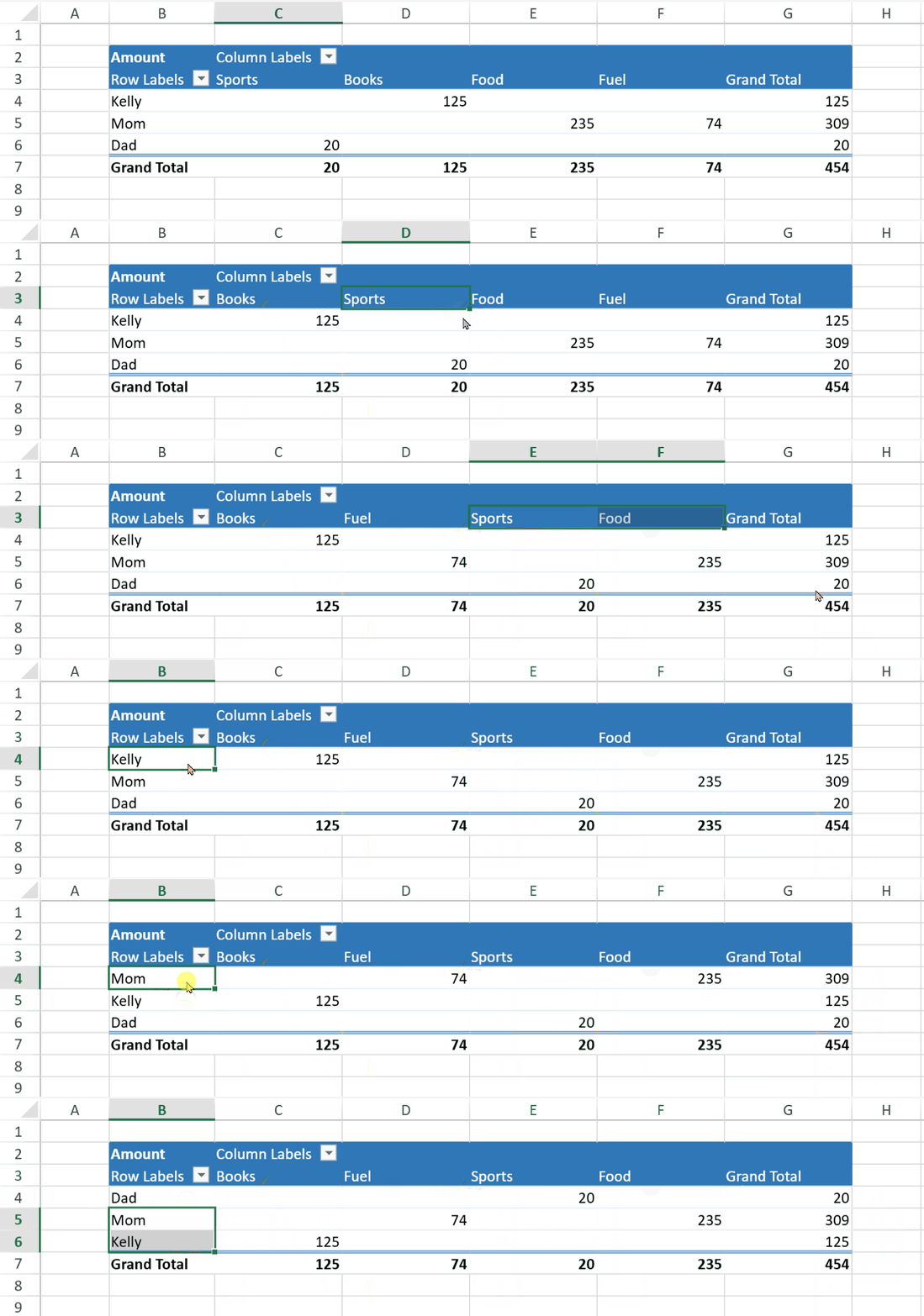 |
| Header with Partitioned Value Ranges | 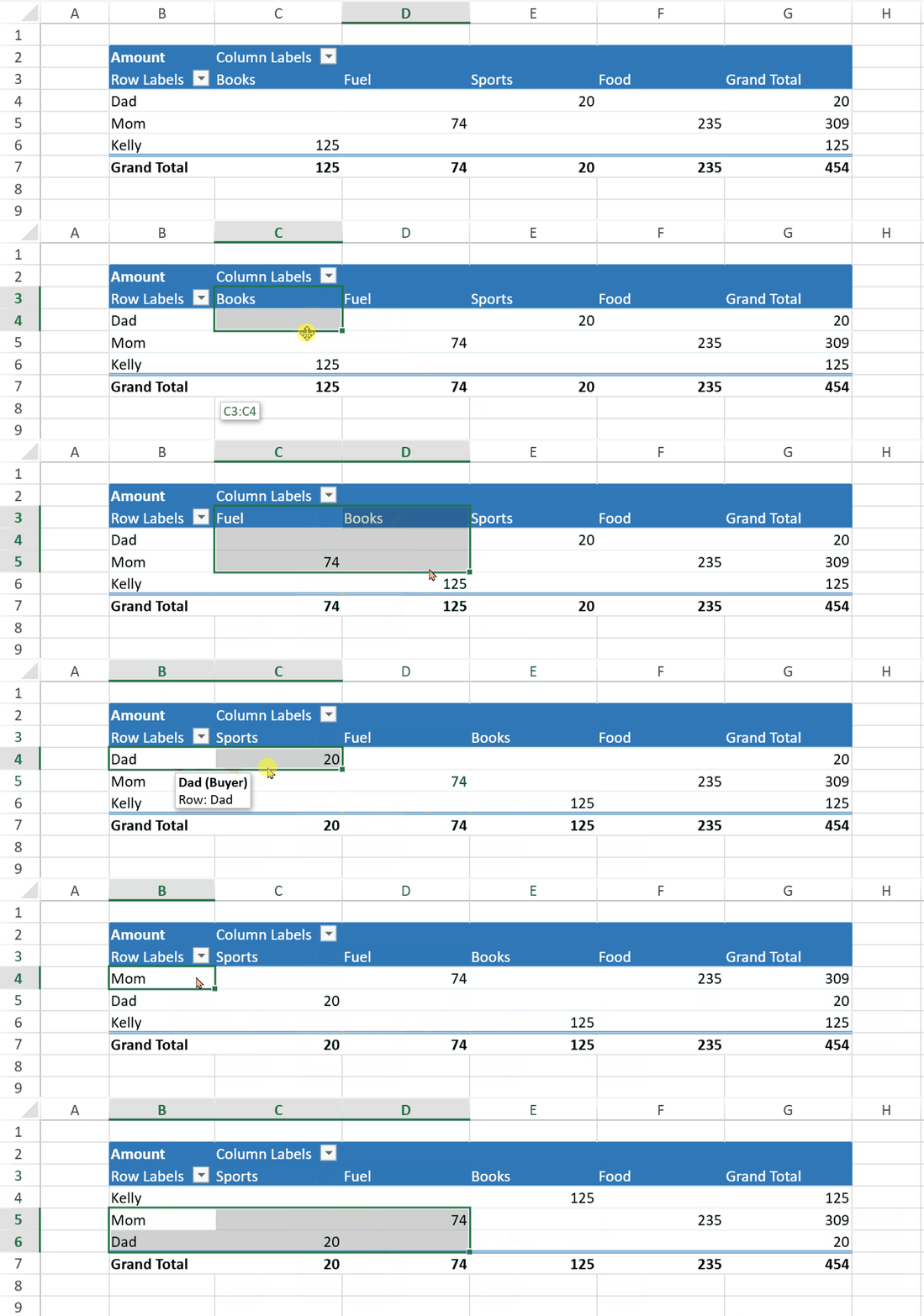 |
| Header with Entire Value Ranges | 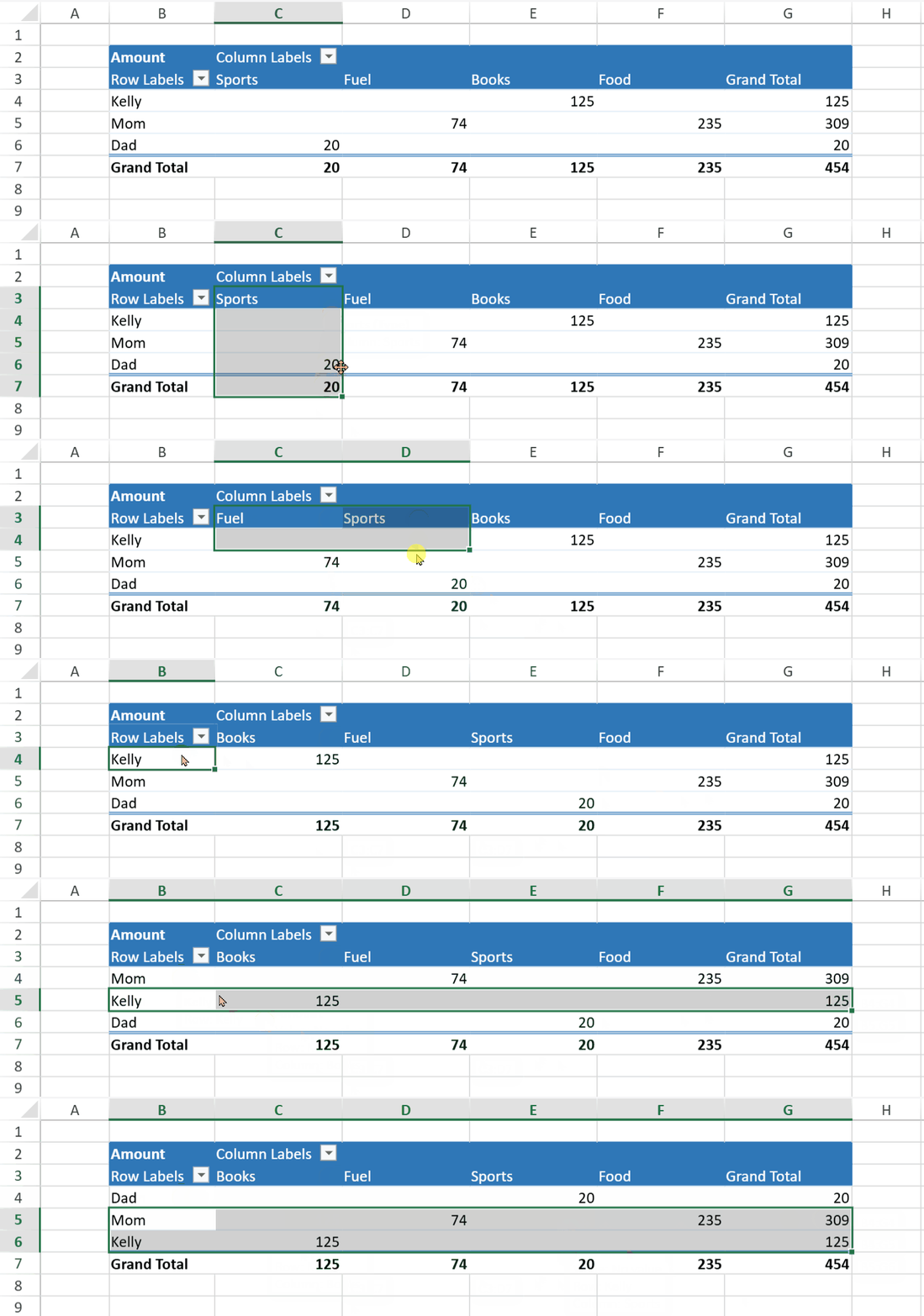 |
| Clicking Field Header to Select Entire Range | 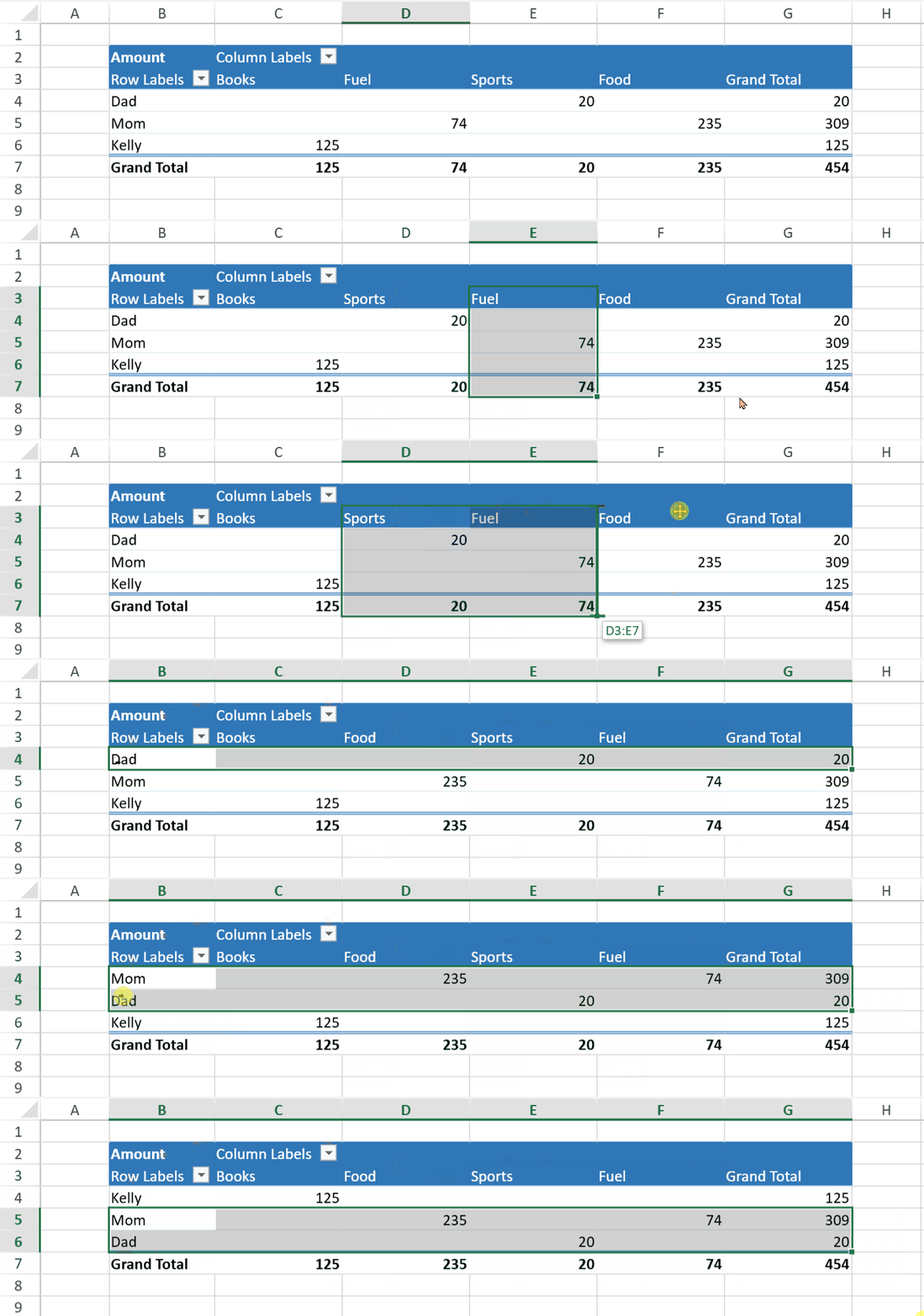 |
>type=note
> **Note:**
> Only the above four selection modes support drag‑and‑drop. Other selection modes are not supported.
**How to Drag and Drop**
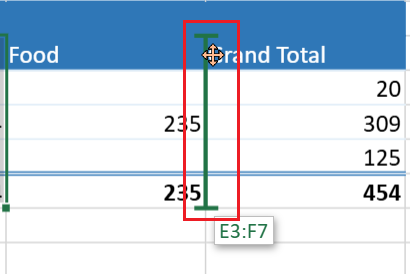
1. **Start a drag operation**
* Move the cursor to the border of a selected Pivot Field.
* When the cursor changes to a move icon, press and hold the mouse button to begin dragging.
* A **drag indicator** appears to show the potential insertion position.
2. **Move and position the field**
* **Column Fields:**
If the cursor moves beyond half the width of the target column, the indicator shows insertion on the right; otherwise, on the left.
* **Row Fields:**
If the cursor moves beyond half the height of the target row, the indicator shows insertion below; otherwise, above.
* **Parent Fields:**
When dragging a parent Pivot Field, child fields are automatically skipped to maintain structural integrity.
3. **Drop the field**
* Release the mouse button to insert the selected Pivot Field(s) into the new position.
>type=note
> **Note:**
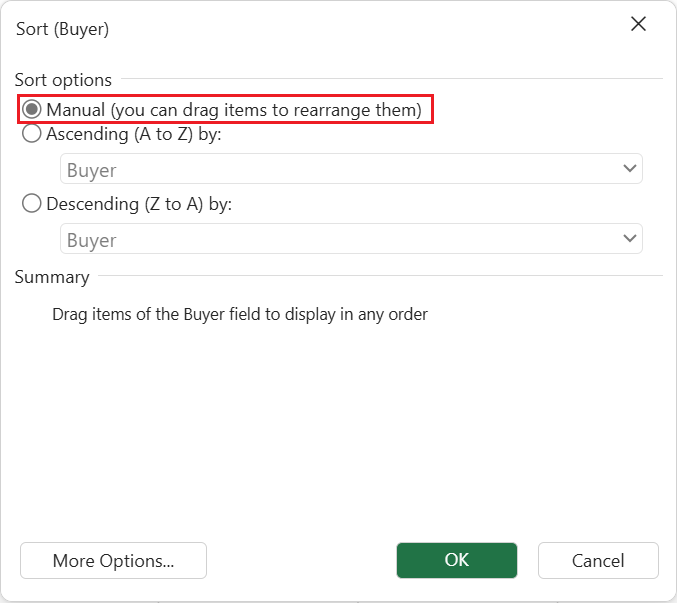
> After manual rearrangement, opening the **Sort Options** dialog will show that the sorting mode is set to **Manual**.
>type=note
> **Note:** When a Dimension Subtotal cell is dragged, SpreadJS moves the entire item block instead of only the subtotal line. The Dimension Subtotal function order remains fixed after the item block is moved. For more information, see [Dimension Subtotals](/spreadjs/docs/v19/features/pivot-table/dimension-subtotals).
**Unsupported Cases**
Drag‑and‑drop is **not supported** in the following situations:
* Dragging after selecting an entire worksheet column or row.
* Attempting to drag multiple identical sub‑Pivot Fields under different parent fields.
## Design Notes and Restrictions
**Sorting Precedence and Interaction**
Automatic sorting (`autoSortState = true`) has higher priority than the shared custom list, ensuring consistent order for dynamically changing datasets.
When auto‑sort is active, `PivotTableManager.customList` is ignored. The shared list takes effect only when `autoSort` is off and `sortType` is `asc` or `desc`.
**Scope and Persistence**
The worksheet‑shared `customList` does not propagate across workbooks. It is not automatically written to `Workbook.options.customList`, nor included during Excel import/export. This prevents unintended order carry‑over when multiple PivotTables coexist.
**Behavior of Custom Sort Lists**
`customSortList` uses case‑insensitive matching.
* If the list covers all field items → the list defines the complete order.
* If partial → listed elements appear first (for ascending) or last (for descending, reversed), and non‑listed items remain in original relative order.
These lists affect only fields in ascending/descending modes, and only when auto‑sort is disabled.
**Value‑Based Sorting Integration**
When a field is sorted by value (`sortValueFieldName` specified), the label order in `getItemsByField(sorted=true)` reflects the internal label order determined by the latest label‑based sort. This keeps display order consistent across value‑driven updates.
**Failure Recovery**
If a `customSortCallback` throws an error or produces inconsistent comparisons, the pivot falls back to label order to maintain predictable sorting and UI stability.