# Text to Columns
A tutorial showing how to convert simple text or sentences into separate columns in the SpreadJS Designer Component with UI
## Content
Text to Columns is used to convert simple text or sentences having multiple words into separate columns. It enables us to get the tabular structure of data using a suitable delimiter or column width option.
SpreadJS Designer provides the **Text to Columns** ribbon button in the "Data Tools" group of the "Data" tab.
# Steps to Convert Text to Columns
## Using Delimiters
This method splits the text using the present delimiter in a cell or range. You can define your delimiter as well. Only one character is considered a delimiter.
Follow the steps below to convert the sample text "a,b,c,d" using the comma delimiter.
1. Select a cell or rows of cells where you would convert the text into columns.
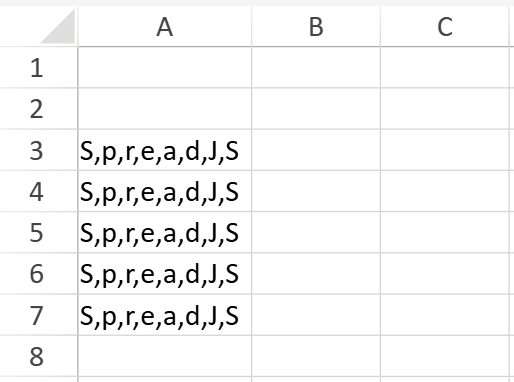
2. Click on the "Data" tab to select the **"Text to Columns"** ribbon button from the "Data Tools" group.

The "Convert Text to Columns Wizard" window opens up.
3. Select the **Delimited** option from the "Original data type" section as shown in the below image.
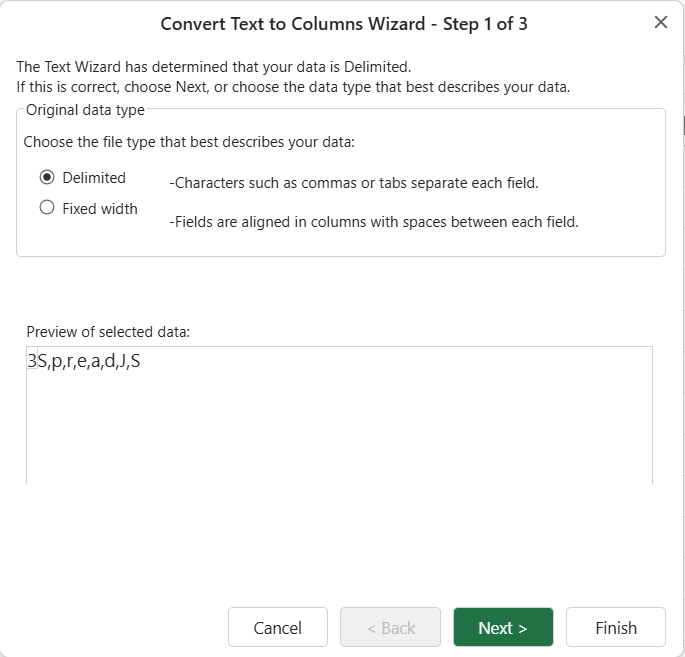
Click on Next to open the "Convert Text to Columns Wizard- Step 2 of 3" window.
4. Select the delimiter from the pre-defined list of delimiters or you can enter your delimiter by specifying the desired character in the "Other" option.
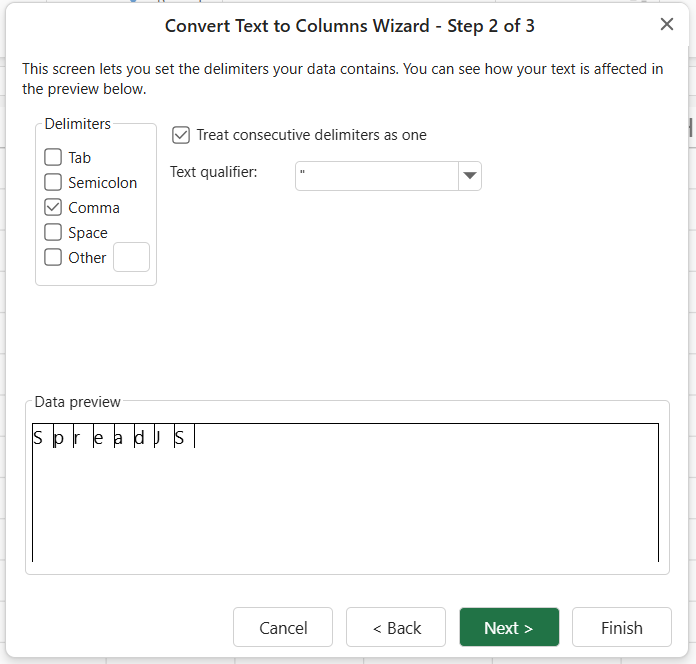
> The delimiter in the **""** or **''** will be ignored.
>
> Check **"Treat consecutive delimiters as one"** option to allow if multiple characters **";;;;"** are specified, they will be treated as one **";"** only.
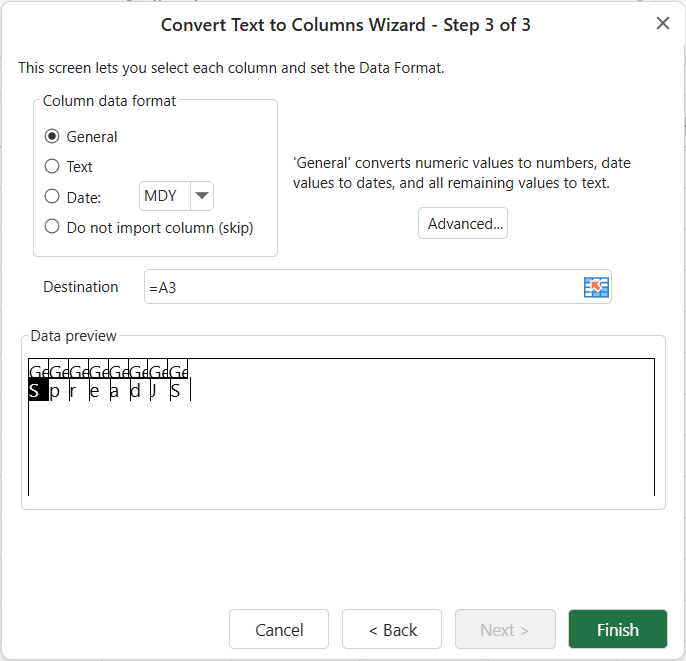
5. Click on Next to open the "Convert Text to Columns wizard-Step 3 of 3" window. Now, set the Data format for each column.
You can select the destination for the text. The default destination is the original cell.
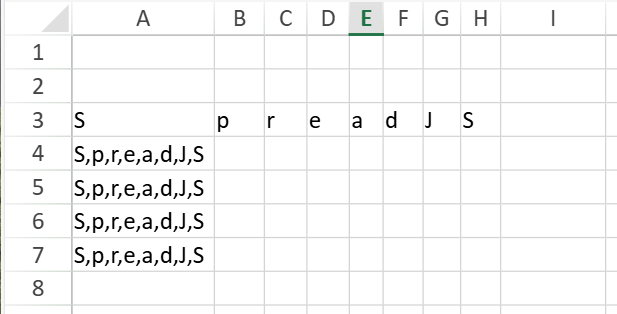
6. Click on Finish to convert the text of the cell into columns.
## Using Fixed Widths
This method splits the text using a fixed width between the text. You can set column breaks to separate the text into columns.
1. Select a cell or rows of cells where you want to convert the text into columns.
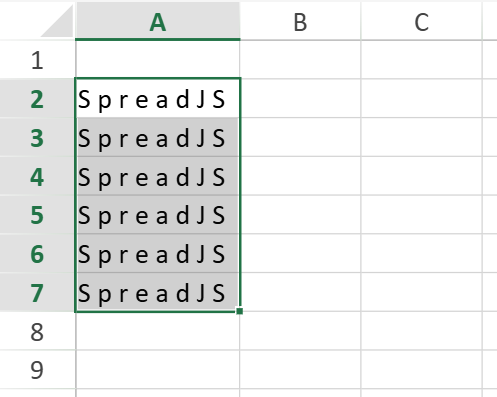
2. Click on the "Data" tab to select the **"Text to Columns"** ribbon button from the "Data Tools" group.

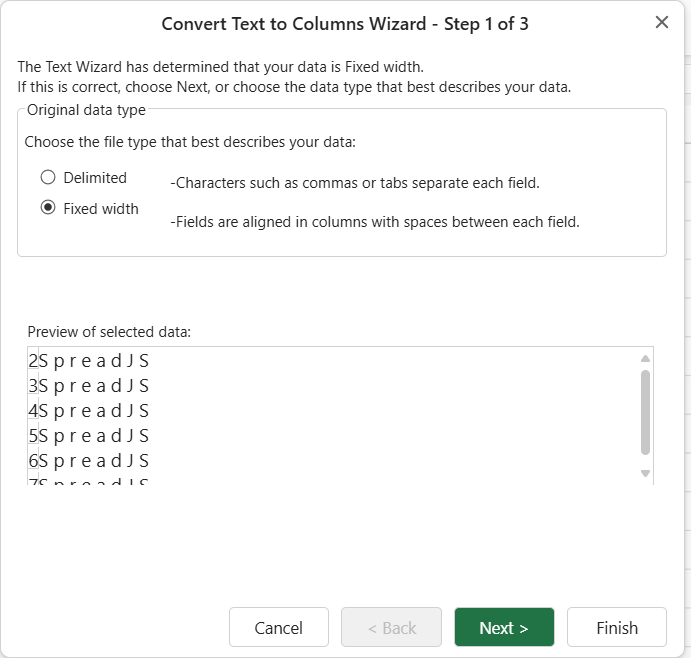
3. "Convert Text to Columns wizard- Step 1 of 3" window opens. Select **Fixed width** option from the "Original data type" section as shown below image.
Click on Next to open the "Convert Text to Columns Wizard- Step 2 of 3" window.
4. Create fixed-width column breaks using the instructions mentioned on the window.
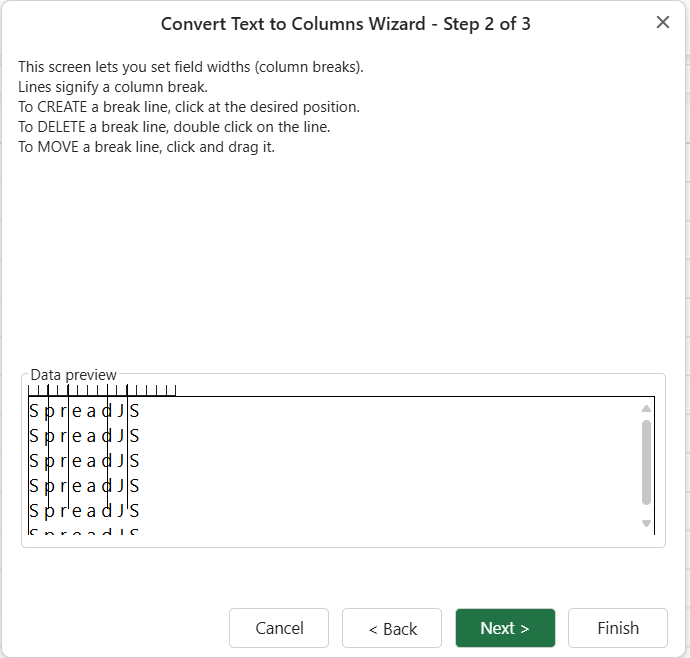
Click on Next to open the "Convert Text to Columns wizard-Step 3 of 3" window.
5. Set the Data format for each column.
You can select the destination for the text. The default destination is the original cell.
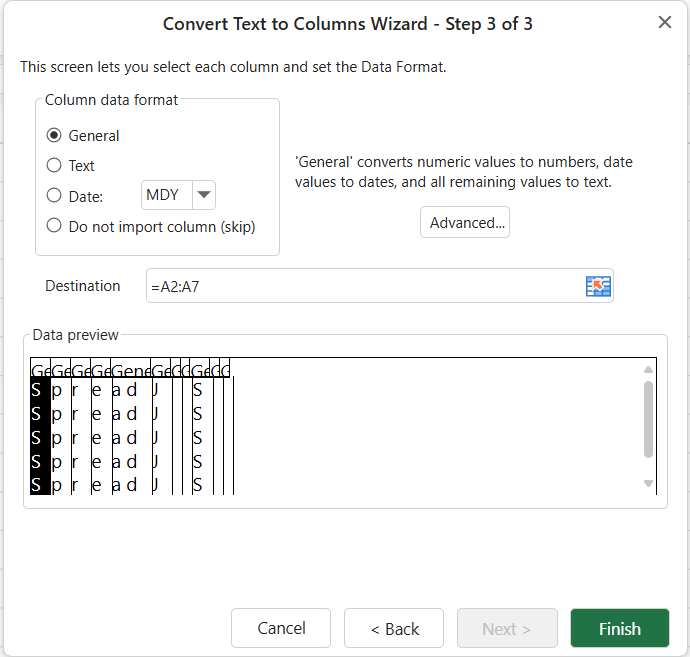
6. Click on Finish to convert the text of the cell into columns.
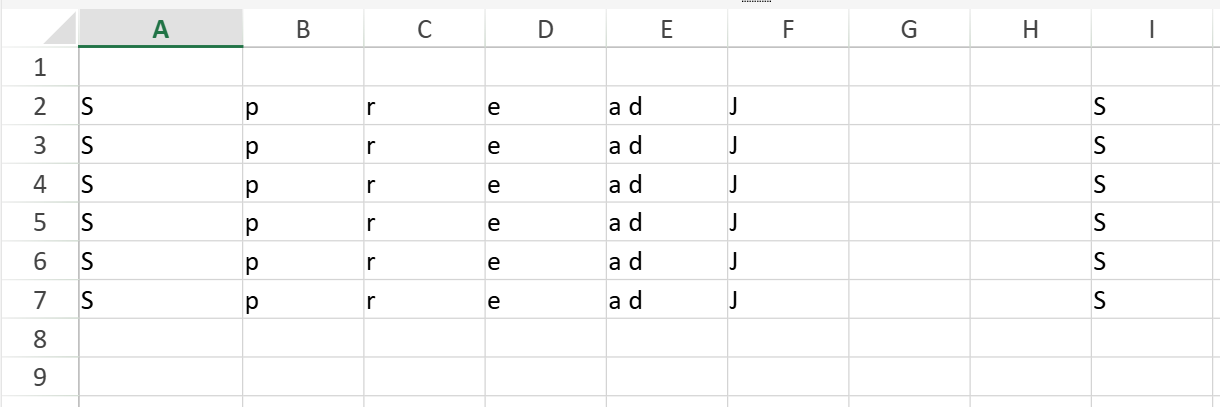
## Invalid Selections
1. If the selected cell or range of cells has no data, the following warning message appears.
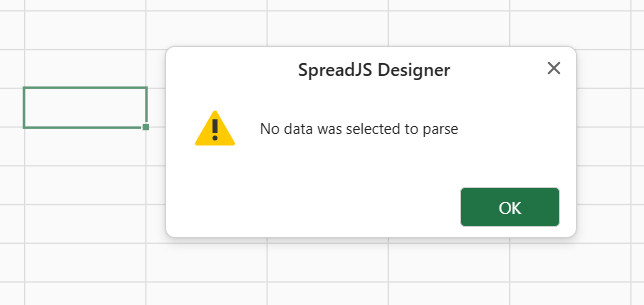
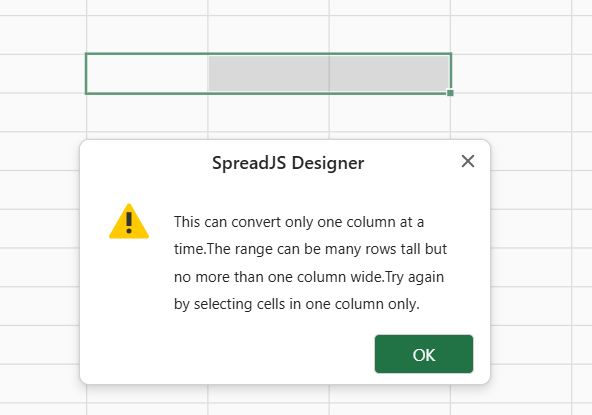
2. If multiple ranges of cells or columns are selected, the following warning message appears.
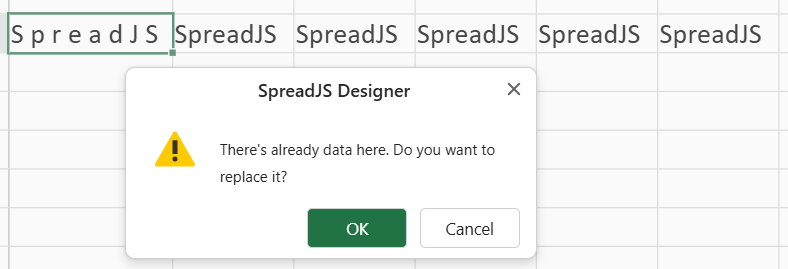
3. If the destination column already includes data, the following warning message appears.