# Styles
A tutorial showing how to work with styles for cells and ranges in SpreadJS, including named styles, flags, and code samples
## Content
You can create a style in SpreadJS that can be applied to a cell, cell range, rows, columns, or a sheet using the **Style** object. You can also create your own named style that uses a **Style** object. The style can contain settings such as borders, colors, and fonts.
The cell style is a composite of settings that are applied based on priority. The style in the cell has the highest priority. The style of the row the cell is in is next, then the column the cell is in, and then the default style of the sheet.
Style objects can be assigned using the **setStyle** and **setStyleName** methods for cells and cell ranges. You can also specify an entire row or entire column by using the -1 value.
## Set Style for a Cell
You can create a style and apply it to a cell in a spreadsheet using the [setStyle](/spreadjs/api/v18/classes/GC.Spread.Sheets.Worksheet#setStyle) method.
For example, you can define a style consisting of red background color and a different style of line border. Apply the style to worksheet cells as shown in the image below.
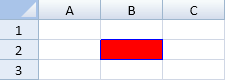
The following code sample uses the **setStyle** method to assign a style to a cell.
```javascript
var style = new GC.Spread.Sheets.Style();
style.backColor = "red";
style.borderLeft = new GC.Spread.Sheets.LineBorder("blue",GC.Spread.Sheets.LineStyle.medium);
style.borderTop = new GC.Spread.Sheets.LineBorder("blue",GC.Spread.Sheets.LineStyle.medium);
style.borderRight = new GC.Spread.Sheets.LineBorder("blue",GC.Spread.Sheets.LineStyle.medium);
style.borderBottom = new GC.Spread.Sheets.LineBorder("blue",GC.Spread.Sheets.LineStyle.medium);
activeSheet.setStyle(1,1,style,GC.Spread.Sheets.SheetArea.viewport);
//row
//activeSheet.setStyle(1,-1,style,GC.Spread.Sheets.SheetArea.viewport);
//column
//activeSheet.setStyle(-1,2,style,GC.Spread.Sheets.SheetArea.viewport);
```
## Set Default Style
You can specify a default style for the cells in a spreadsheet by using the **setDefaultStyle** method. All the cells follow the same style as defined by the setDefaultStyle method.
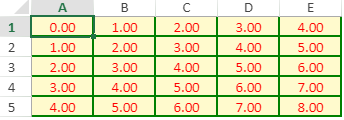
The following code sample uses the [setDefaultStyle](/spreadjs/api/v18/classes/GC.Spread.Sheets.Worksheet#setDefaultStyle) method.
```javascript
//setDefaultStyle
activeSheet.setRowCount(5, GC.Spread.Sheets.SheetArea.viewport);
activeSheet.setColumnCount(5, GC.Spread.Sheets.SheetArea.viewport);
//Set the default styles.
var defaultStyle = new GC.Spread.Sheets.Style();
defaultStyle.backColor = "LemonChiffon";
defaultStyle.foreColor = "Red";
defaultStyle.formatter = "0.00";
defaultStyle.hAlign = GC.Spread.Sheets.HorizontalAlign.center;
defaultStyle.borderLeft = new GC.Spread.Sheets.LineBorder("Green",GC.Spread.Sheets.LineStyle.medium);
defaultStyle.borderTop = new GC.Spread.Sheets.LineBorder("Green",GC.Spread.Sheets.LineStyle.medium);
defaultStyle.borderRight = new GC.Spread.Sheets.LineBorder("Green",GC.Spread.Sheets.LineStyle.medium);
defaultStyle.borderBottom = new GC.Spread.Sheets.LineBorder("Green",GC.Spread.Sheets.LineStyle.medium);
activeSheet.setDefaultStyle(defaultStyle, GC.Spread.Sheets.SheetArea.viewport);
var rowCount = activeSheet.getRowCount();
var colCount = activeSheet.getColumnCount();
for(var i = 0; i < rowCount; i++){
for(var j = 0; j < colCount; j++){
activeSheet.setValue(i, j, i+j, GC.Spread.Sheets.SheetArea.viewport);
}
}
```
## Set Style for a Range
You can specify a style and apply it to a cell range using the CellRange's [setStyle](/spreadjs/api/v18/classes/GC.Spread.Sheets.CellRange#setStyle) method. For example, the following image shows two different styles set on the cell range.
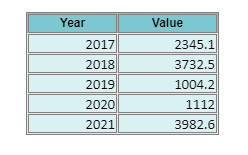
The following code sample shows how to set styles in a cell range.
```javascript
// use setStyle method on cellRange
let style1 = new GC.Spread.Sheets.Style();
style1.formatter = "#,##0.00";
style1.backColor = "rgb(124,200,208)";
style1.hAlign = GC.Spread.Sheets.HorizontalAlign.center;
style1.font = "bold 12px sans-serif";
style1.borderLeft = new GC.Spread.Sheets.LineBorder("gray", GC.Spread.Sheets.LineStyle.double);
style1.borderTop = new GC.Spread.Sheets.LineBorder("gray", GC.Spread.Sheets.LineStyle.double);
style1.borderRight = new GC.Spread.Sheets.LineBorder("gray", GC.Spread.Sheets.LineStyle.double);
style1.borderBottom = new GC.Spread.Sheets.LineBorder("gray", GC.Spread.Sheets.LineStyle.double);
activeSheet.getRange("I2:J2").setStyle(style1);
let style2 = new GC.Spread.Sheets.Style();
style2.backColor = "rgb(218, 241, 243)";
style2.borderLeft = new GC.Spread.Sheets.LineBorder("gray", GC.Spread.Sheets.LineStyle.double);
style2.borderTop = new GC.Spread.Sheets.LineBorder("gray", GC.Spread.Sheets.LineStyle.double);
style2.borderRight = new GC.Spread.Sheets.LineBorder("gray", GC.Spread.Sheets.LineStyle.double);
style2.borderBottom = new GC.Spread.Sheets.LineBorder("gray", GC.Spread.Sheets.LineStyle.double);
activeSheet.getRange("I3:J7").setStyle(style2);
```
## Set Named Style
You can create your own named style and add it to the sheet or the spread with the [addNamedStyle](/spreadjs/api/v18/classes/GC.Spread.Sheets.Worksheet#addNamedStyle) method. You can change the style settings or remove the named style. Use the **setStyleName** method from [Worksheet](/spreadjs/api/v18/classes/GC.Spread.Sheets.Worksheet) or [CellRange](/spreadjs/api/v18/classes/GC.Spread.Sheets.CellRange) class to use the style on a cell or a cell range. Use -1 to specify an entire row or entire column.
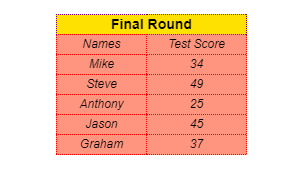
Named styles are useful if a style is used many times or in many cells. Use a named style with a JSON data source or Excel import and export since less data is used.
The following code sample uses named styles to set styles for the table header and the table data.
```javascript
// use setStyleName method on cell
let styleCell = new GC.Spread.Sheets.Style();
styleCell.name = "header_style";
styleCell.font = "bold 14px sans-serif";
styleCell.hAlign = GC.Spread.Sheets.HorizontalAlign.center;
styleCell.backColor = "rgb(255, 225, 0)";
styleCell.borderLeft = new GC.Spread.Sheets.LineBorder("purple", GC.Spread.Sheets.LineStyle.hair);
styleCell.borderTop = new GC.Spread.Sheets.LineBorder("purple", GC.Spread.Sheets.LineStyle.hair);
styleCell.borderRight = new GC.Spread.Sheets.LineBorder("purple", GC.Spread.Sheets.LineStyle.hair);
styleCell.borderBottom = new GC.Spread.Sheets.LineBorder("purple", GC.Spread.Sheets.LineStyle.hair);
activeSheet.addNamedStyle(styleCell);
activeSheet.setStyleName(1, 1, "header_style");
activeSheet.setStyleName(1, 2, "header_style");
// use setStyleName method on cell range
let style = new GC.Spread.Sheets.Style();
style.name = "score_style";
style.font = "italic 12px sans-serif";
style.hAlign = GC.Spread.Sheets.HorizontalAlign.center;
style.backColor = "rgb(255,149,126)";
style.borderLeft = new GC.Spread.Sheets.LineBorder("red", GC.Spread.Sheets.LineStyle.hair);
style.borderTop = new GC.Spread.Sheets.LineBorder("red", GC.Spread.Sheets.LineStyle.hair);
style.borderRight = new GC.Spread.Sheets.LineBorder("red", GC.Spread.Sheets.LineStyle.hair);
style.borderBottom = new GC.Spread.Sheets.LineBorder("red", GC.Spread.Sheets.LineStyle.hair);
activeSheet.addNamedStyle(style);
activeSheet.getRange("B3:C8").setStyleName("score_style");
```
You can also set apply flags that help to handle the effect of different properties in the defined named styles.
The following table shows all the available apply flags available in [GC.Spread.Sheets.Style](/spreadjs/api/v18/classes/GC.Spread.Sheets.Style) and the properties affected for namedStyle:
| **Apply Flag** | **Properties Affected** |
| ---------- | ------------------- |
| `applyNumberFormat` | `formatter` |
| `applyFont` | `foreColor`
`font`
`themeFont`
`textDecoration` |
| `applyFill` | `backColor` |
| `applyBorder` | `borderLeft`
`boderRight`
`borderTop`
`borderBottom`
`diagonalDown`
`diagonalUp` |
| `applyAlignment` | `vAlign`
`hAlign`
`textIndent`
`wordWrap`
`isVerticalText`
`shrinkToFit`
`textOrientation` |
| `applyProtection` | `locked` |
The default value of apply flags behaves equally as being true. These properties will be saved in exported JSON if the value is defined for namedStyle.
Note that the apply flags are not used to apply more than one namedStyle to a cell. The following code sample shows that the `applyFill` flag is set to false, and hence the backColor of the B1 cell will not be changed to "red".
```javascript
var sheet = spread.getActiveSheet();
var style = new GC.Spread.Sheets.Style();
style.name = "test";
style.backColor = "red";
style.formatter = "yyyy/mm/dd";
style.hAlign = GC.Spread.Sheets.HorizontalAlign.center;
style.applyFill = false;
spread.addNamedStyle(style);
// do something.
sheet.setStyleName(0, 1, "test");
// another usage.
sheet.setStyle(0, 0, "test");
```