# How to Import and Export Excel XLSX Using React
Learn how to import and export Excel XLSX files using React.
## Content
This tutorial shows how to import and export Excel XLSX files in a React application using **[SpreadJS](https://developer.mescius.com/spreadjs "https://developer.mescius.com/spreadjs")**[, a React spreadsheet component](https://developer.mescius.com/spreadjs/react-spreadsheet-components "https://developer.mescius.com/spreadjs/react-spreadsheet-components"). You’ll learn how to set up a React project, add a spreadsheet component, and enable Excel import/export.
**Try Out an Import and Export Sample**
***
## Set Up the React Spreadsheet Project
To start, we have a simple React application using Vite. We will mainly be working with the App.jsx file.
Install the required npm packages:
```auto
npm install @mescius/spread-sheets
npm install @mescius/spread-sheets-io
npm install @mescius/spread-sheets-react
npm install file-saver
```
* [@mescius/spread-sheets](https://www.npmjs.com/package/@mescius/spread-sheets "https://www.npmjs.com/package/@mescius/spread-sheets"){:target="_blank"} – base SpreadJS library
* [@mescius/spread-sheets-io](https://www.npmjs.com/package/@mescius/spread-sheets-io "https://www.npmjs.com/package/@mescius/spread-sheets-io"){:target="_blank"} – Excel import/export
* [@mescius/spread-sheets-react](https://www.npmjs.com/package/@mescius/spread-sheets-react "https://www.npmjs.com/package/@mescius/spread-sheets-react"){:target="_blank"} – React spreadsheet components
* [file-saver](https://www.npmjs.com/package/file-saver "https://www.npmjs.com/package/file-saver"){:target="_blank"} – lets users save files locally
Import the JavaScript (and CSS) modules into our src/App.jsx file:
```auto
import { SpreadSheets, Worksheet } from '@mescius/spread-sheets-react';
import * as GC from '@mescius/spread-sheets';
import '@mescius/spread-sheets-io';
import { saveAs } from 'file-saver';
import '@mescius/spread-sheets/styles/gc.spread.sheets.excel2013white.css';
```
In the JSX markup, add the SpreadJS workbook component:
```auto
initSpread(spread)}>
```
In App function, declare the needed state variables and the `initSpread` handler to populate the `spread`state variable when the SpreadJS instance is initialized.
```auto
const [spread, setSpread] = useState(null);
const [hostStyle, setHostStyle] = useState({
width: '100%',
height: '500px',
});
const [selectedFile, setSelectedFile] = useState(null);
const initSpread = function (spreadObj) {
setSpread(spreadObj);
};
```
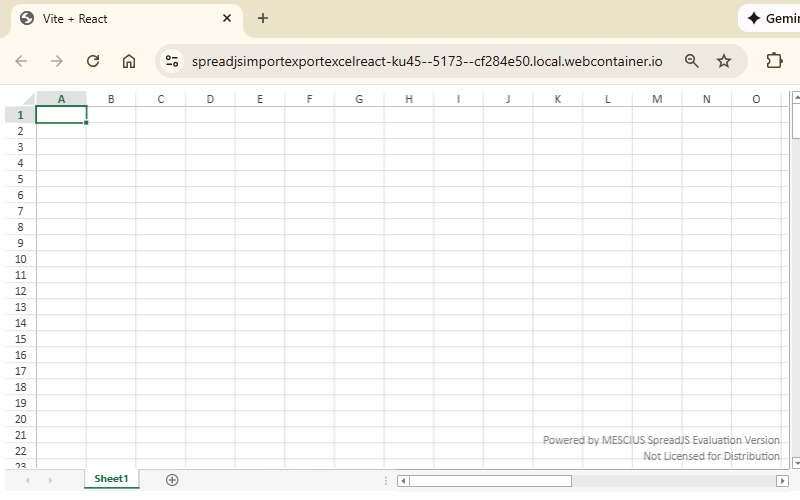
With the steps so far, the React app renders a basic spreadsheet.
***
## Add Excel Import Code to a React App
Add an input element and a button to allow users to select their Excel (XLSX) file. Set `accept=".xlsx"` so only Excel (.xlsx) files can be selected.
```auto
```
The input has a change event handler that updates the file variable to the most recently selected file. The file change handler is quite simple:
```auto
const handleFileChange = function (e) {
setSelectedFile(e.target.files[0]);
};
```
The button has a click handler that triggers the file import.
To make that work, add a function to import a file using spreads **[import](/spreadjs/api/classes/GC.Spread.Sheets.Workbook#import)**[ ](/spreadjs/api/classes/GC.Spread.Sheets.Workbook#import)method. These handlers are also added to the`App function` in src/App.jsx.
```auto
const handleOpenExcel = function () {
const file = selectedFile;
if (!file) {
return;
}
spread.import(file);
};
```
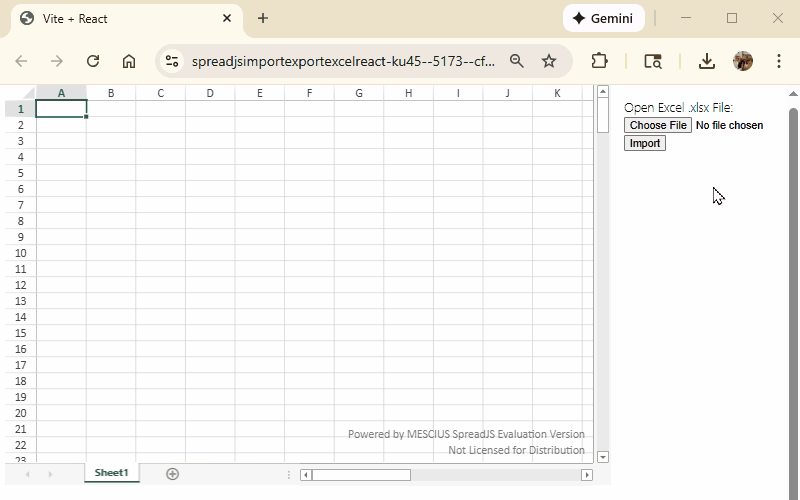
An Excel (.xlsx) file can now be imported and viewed in the React spreadsheet component like so:
***
## Add Excel Export Code to a React App
Add a button to export the file by invoking the Spreadsheet’s **[export](/spreadjs/api/classes/GC.Spread.Sheets.Workbook#export)**[ ](/spreadjs/api/classes/GC.Spread.Sheets.Workbook#export)method in its click event handler:
```auto
const handleSaveExcel = function () {
var fileName = 'Excel_Export.xlsx';
spread.export(
function (blob) {
// save blob to a file
saveAs(blob, fileName);
},
function (e) {
console.log(e);
},
{
fileType: GC.Spread.Sheets.FileType.excel,
}
);
};
```
The exported filename is hardcoded to be “Excel\_Export.xlsx” but could be made into an input element for users to choose themselves.
Add an Export File button that calls the `handleSaveExcel` function on click.
```auto
```
Users can now edit the spreadsheet within the React app and export it with the Export File button. The exported file opens in Excel with all changes preserved.
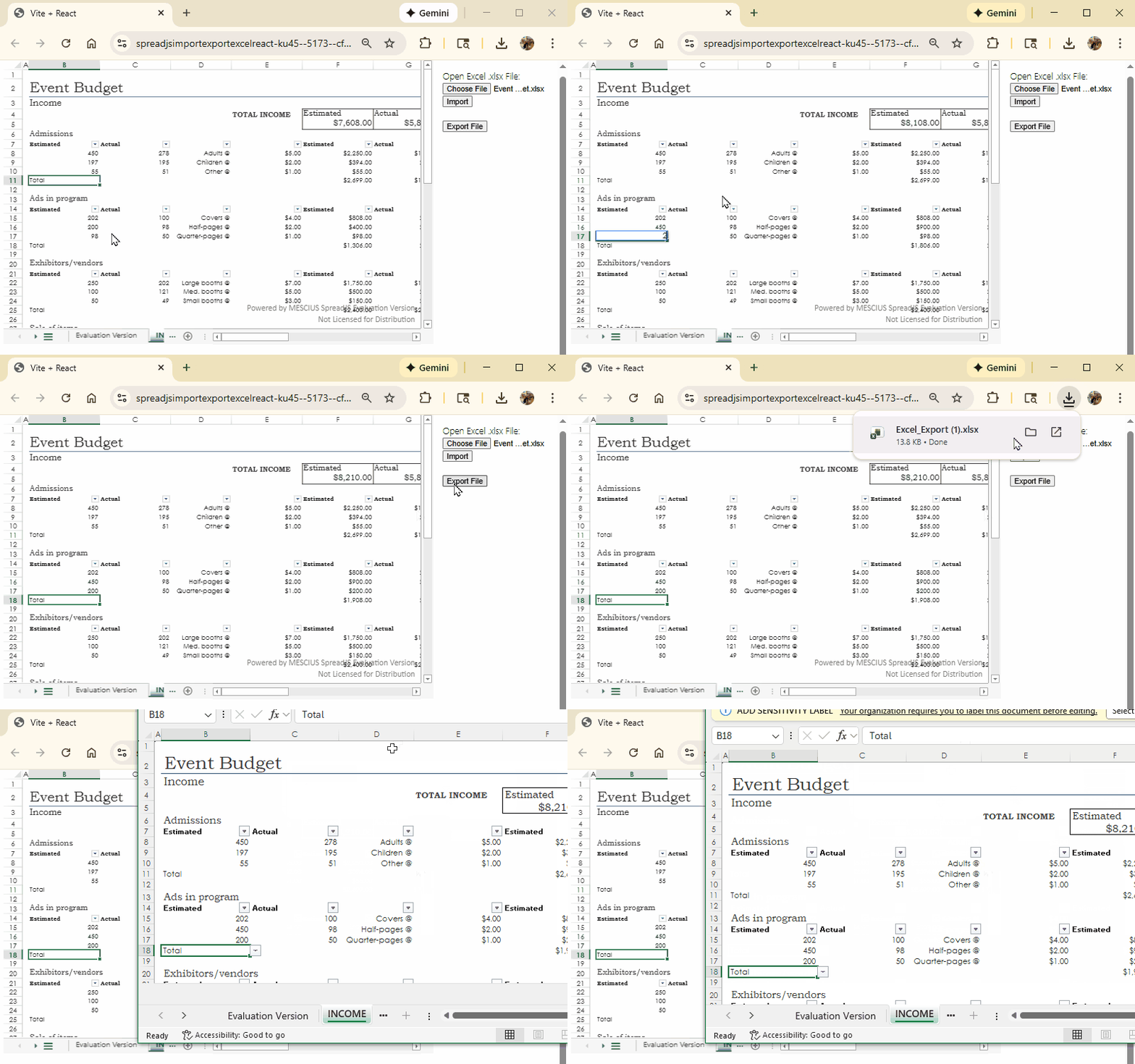
This is just one example of how you can use SpreadJS React spreadsheets to add data to your Excel files and then export them back to Excel with simple JavaScript code.
***
### Include Extra Features
If you want to import and export Excel files with Charts, Shapes and PivotTables, make sure to include those optional add-on modules for SpreadJS ([@mescius/spread-sheets-charts](https://www.npmjs.com/package/@mescius/spread-sheets-charts "https://www.npmjs.com/package/@mescius/spread-sheets-charts"){:target="_blank"}, [@mescius/spread-sheets-shapes](https://www.npmjs.com/package/@mescius/spread-sheets-shapes "https://www.npmjs.com/package/@mescius/spread-sheets-shapes"){:target="_blank"} and [@mescius/spread-sheets-pivot-addon](https://www.npmjs.com/package/@mescius/spread-sheets-pivot-addon "https://www.npmjs.com/package/@mescius/spread-sheets-pivot-addon"){:target="_blank"}).
***
### Import and Export Excel FAQs
**Do I need to have Excel installed for this import or export in React to work?**
No! SpreadJS is a stand-alone React component that can import and export Excel files without depending on Excel at all.
**Can my end users changes be included in the export?**
Yes! SpreadJS allows users to modify spreadsheets in an Excel-like experience. Those changes will be included when the spreadsheet is exported.
**What types of files can be imported or exported?**
SpreadJS supports import and export of .xlsx, .xlsm, .xltm file types. It can even import .csv files and has a custom SpreadJS (.sjs)file format for optimized performance and app development.
**Do you support Excel files with macros?**
The macros will not run, but Excel files with macros can be imported and exported without losing the macros. The macros simply will be ignored when the spreadsheet runs in SpreadJS. Note: most macro use cases can be replicated in custom JavaScript code using SpreadJS
### Next Steps
* [Download Local Tutorial React Sample App](https://drive.mescius.io/download?file=ExternalShare/SpreadJS/Samples/spreadjs-import-export-excel-react.zip "https://drive.mescius.io/download?file=ExternalShare/SpreadJS/Samples/spreadjs-import-export-excel-react.zip")
* [Check Out the Online Interactive React I/O Demo](https://developer.mescius.com/spreadjs/demos/features/spreadjs-file-format/overview/react "https://developer.mescius.com/spreadjs/demos/features/spreadjs-file-format/overview/react")