# Wizard
A tutorial showing how to the ReportSheet wizard in the SpreadJS Designer Component with UI to create ReportSheets
## Content
The wizard helps users to create reports with a simple setup in the Spread Designer Component.
To use this feature, follow the below-mentioned steps:
1. Click **INSERT** \> **ReportSheet** to open the **REPORT SHEET DESIGN** tab.
2. Click on the **Wizard** ribbon button.

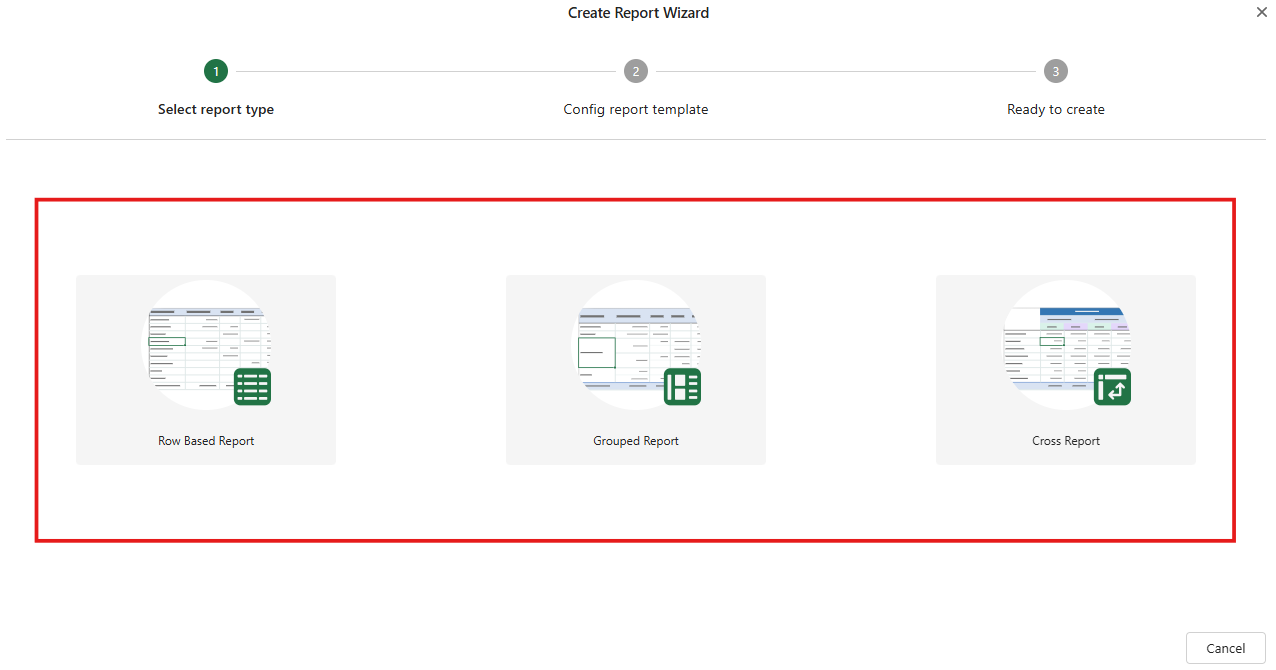
3. In the **Create Report Wizard** dialog, select the desired report type from the available options.
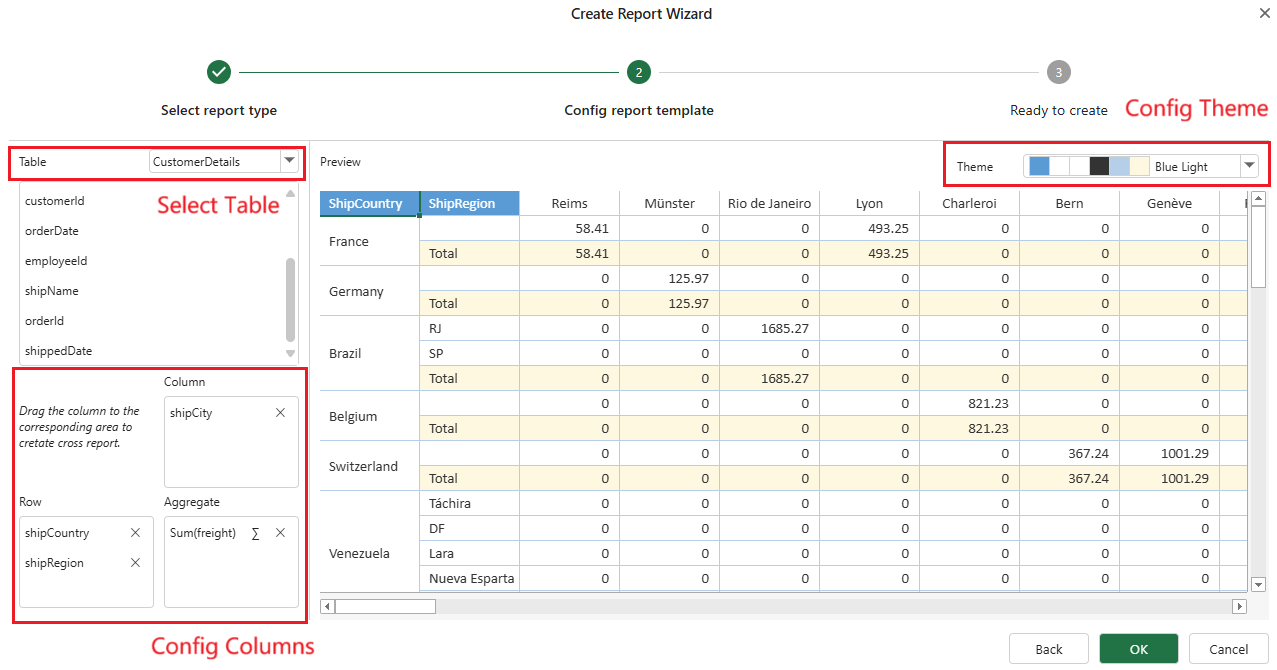
4. Customize the report template settings as needed.
You can select a table and then customize the columns and theme colors for the report.
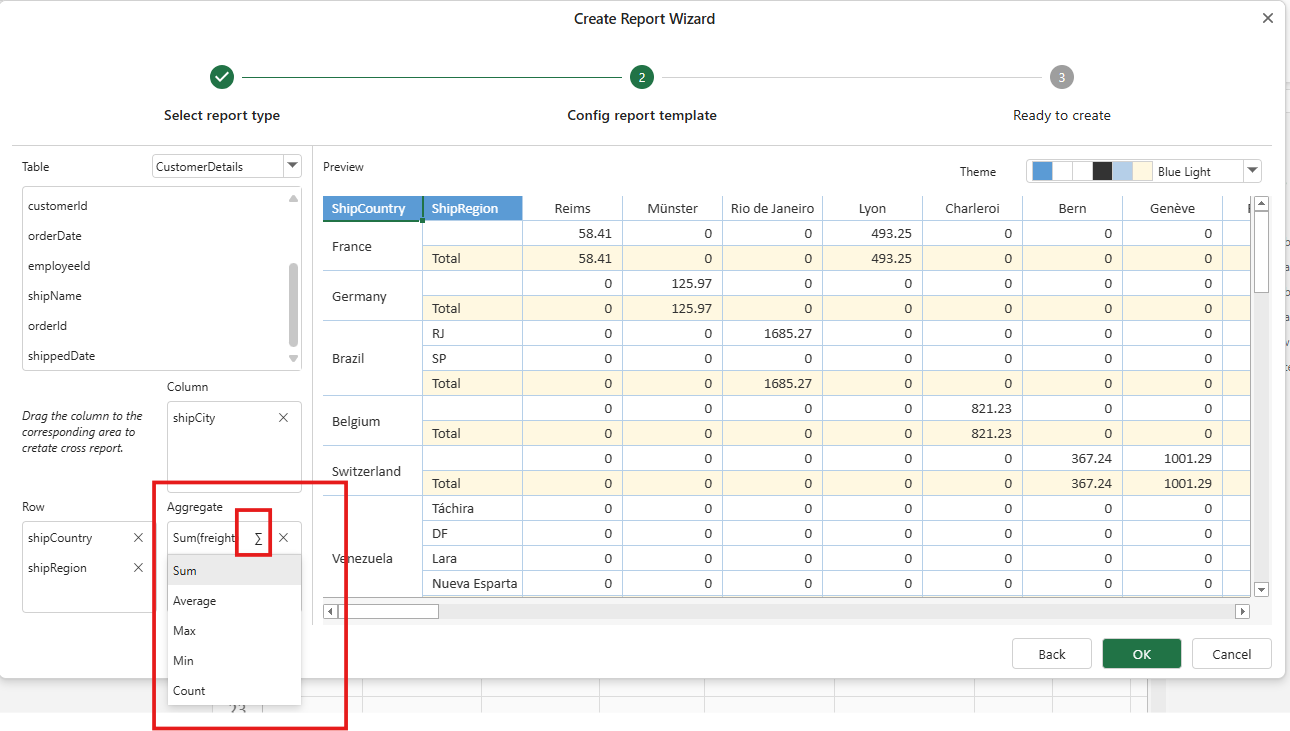
5. Change the aggregate function as needed by clicking theicon of the field. The available aggregate functions include **Sum**, **Average**, **Max**, **Min**, and **Count**, allowing you to customize the data calculation based on your specific requirements.
6. Click **OK** to create the report.
Note that if the selected table has a relationship with any other tables, the **Create Report Wizard** dialog will also display these tables to easily integrate relevant data into the report.
To configure the relationship, navigate to the **Data Source**, then select the table and column item. In the **Relationship** section of the selected column item, configure the relationship by providing the source and target items.
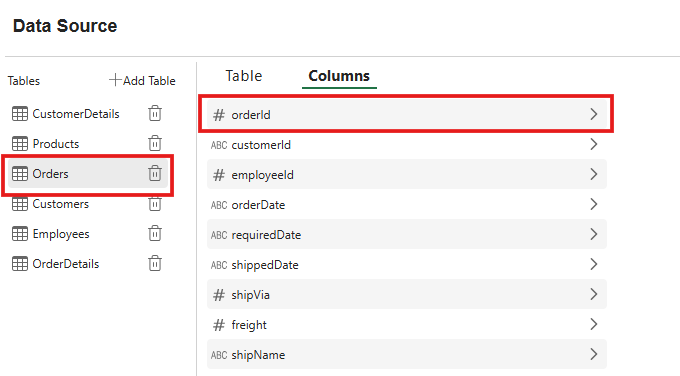
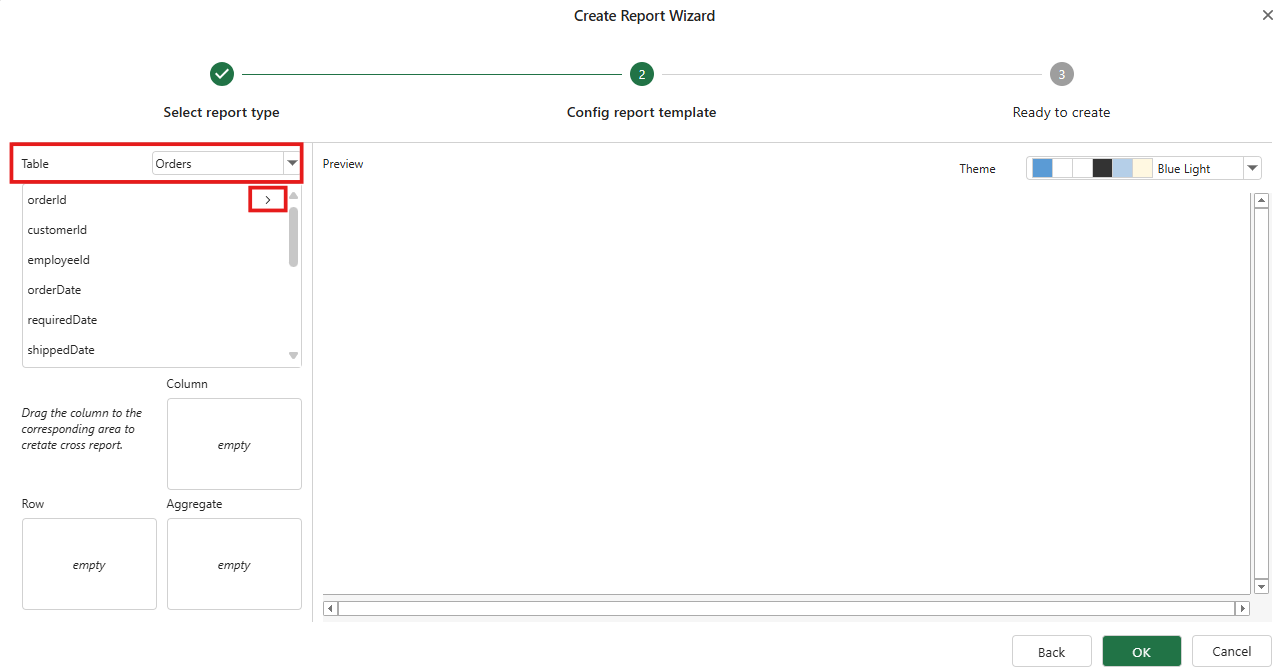
You can select the table from the **Table** dropdown list in the **Create Report Wizard** dialog. Note that an arrow will appear next to the column nodes where you have specified the relation. Click the arrow to expand the relationship column nodes and see the child nodes. When you select a column, the corresponding column will be added to the report.