# Quick Start

A quick start guide for the SpreadJS Designer Component, including UI and code examples for using it with a new or existing spreadsheet in different types of applications

## Content

The following quick start section will help you to use the SpreadJS Designer Component in your project with a new and an existing spreadsheet. You can download the latest script and CSS files for the Designer Component [here](https://developer.mescius.com/spreadjs/download). For more information on adding references, see the [Getting Started](/spreadjs/docs/spreadjs-designer-component/getting-started-designer) topic.

> **Note:** The Designer Component can only be used with the sheets component. To know how to work with the sheets component, see the [Quick Start](/spreadjs/docs/getstarted/quick-start) topic.

## Use Designer Component with a New Spreadsheet

### HTML Page

Follow the below steps to create an HTML page that will display the SpreadJS Designer Component along with a new spreadsheet.

1. Open ‘Notepad’ or your preferred code editor.
2. Add the following HTML syntax code to the file.

    ```HTML
    <!DOCTYPE html>
    <html>
    <head>
        <meta charset="utf-8" />
        <meta name="viewport" content="width=device-width, initial-scale=1.0" />
    </head>
    <body>
    </body>
    </html>
    ```
3. Add the following SpreadJS CSS and JS files inside the HEAD element tag.

    ```HTML
    <!--CSS files--> 
    <link rel="styleSheet" href="css/gc.spread.sheets.x.x.x.css" />
    
    <!--Script files-->
    <script src="scripts/gc.spread.sheets.all.x.x.x.min.js" type="text/javascript"></script>
    <script src="scripts/gc.spread.sheets.barcode.x.x.x.min.js" type="text/javascript"></script>
    <script src="scripts/gc.spread.sheets.shapes.x.x.x.min.js" type="text/javascript"></script>
    <script src="scripts/gc.spread.sheets.charts.x.x.x.min.js" type="text/javascript"></script>
    <script src="scripts/gc.spread.sheets.print.x.x.x.min.js" type="text/javascript"></script>
    <script src="scripts/gc.spread.sheets.pdf.x.x.x.min.js" type="text/javascript"></script>
    <script src="scripts/gc.spread.sheets.io.x.x.x.min.js" type="text/javascript"></script>
    <script src="scripts/gc.spread.calcengine.languagepackages.x.x.x.min.js" type="text/javascript"></script>
    ```

    Depending on your needs, you can include JS files here for different add-on features such as barcodes, pivot tables, tablesheets, ganttsheets, import/export, and so on.
<br>
4. Add the following Designer Component's CSS and JS files inside the HEAD element tag.

    ```HTML
    <!--CSS files--> 
    <link rel="styleSheet" href="css/gc.spread.sheets.designer.light.x.x.x.min.css" />
    
    <!--Script files-->
    <script src="scripts/gc.spread.sheets.designer.resource.en.x.x.x.min.js" type="text/javascript"></script>
    <script src="scripts/gc.spread.sheets.designer.all.x.x.x.min.js" type="text/javascript"></script>
    ```

    > **Note:** Spreadsheet references should be added above the Designer Component references. Moreover, the Designer Component resource file (*gc.spread.sheets.designer.resource.en.x.x.x.min.js*, in this case) must always be referenced before *gc.spread.sheets.designer.all.x.x.x.min.js*.
5. Include a DOM element as the container in the BODY element.

    ```HTML
    <body>
        <div id="designerHost" style="width:100%; height:1000px; border: 1px solid gray;"></div>
    </body>
    ```
6. Initialize the Designer Component inside the script element tag in the HEAD section. Also, set the license key for Designer Component and SpreadJS before initialization.

    ```JavaScript
    <script>
        //Set License Key
        //GC.Spread.Sheets.Designer.LicenseKey = "XXX";
        //GC.Spread.Sheets.LicenseKey = "XXXX";
    
        var designer = new GC.Spread.Sheets.Designer.Designer("designerHost");
    </script>
    ```

    The complete code in the HTML file will look like the below:

    ```HTML
    <!DOCTYPE html>
    <html>
    <head>
        <meta charset="utf-8" />
        <meta name="viewport" content="width=device-width, initial-scale=1.0" />
    
        <!--CSS files--> 
        <!--Spreadsheet CSS file--> 
        <link rel="styleSheet" href="css/gc.spread.sheets.x.x.x.css" />
        <!--Designer Component CSS file--> 
        <link rel="styleSheet" href="css/gc.spread.sheets.designer.light.x.x.x.min.css" />
    
        <!--Script files-->
        <!--Spreadsheet JS files--> 
        <script src="scripts/gc.spread.sheets.all.x.x.x.min.js" type="text/javascript"></script>
        <script src="scripts/gc.spread.sheets.barcode.x.x.x.min.js" type="text/javascript"></script>
        <script src="scripts/gc.spread.sheets.shapes.x.x.x.min.js" type="text/javascript"></script>
        <script src="scripts/gc.spread.sheets.charts.x.x.x.min.js" type="text/javascript"></script>
        <script src="scripts/gc.spread.sheets.print.x.x.x.min.js" type="text/javascript"></script>
        <script src="scripts/gc.spread.sheets.pdf.x.x.x.min.js" type="text/javascript"></script>
        <script src="scripts/gc.spread.sheets.io.x.x.x.min.js" type="text/javascript"></script>
        <script src="scripts/gc.spread.calcengine.languagepackages.x.x.x.min.js" type="text/javascript"></script>
    
        <!--Designer Component JS files--> 
        <script src="scripts/gc.spread.sheets.designer.resource.en.x.x.x.min.js" type="text/javascript"></script>
        <script src="scripts/gc.spread.sheets.designer.all.x.x.x.min.js" type="text/javascript"></script>
    
        <script>
            window.onload = function () {
    
                //Set License Key
                //GC.Spread.Sheets.Designer.LicenseKey = "XXX";
                //GC.Spread.Sheets.LicenseKey = "XXXX";
    
                var designer = new GC.Spread.Sheets.Designer.Designer("designerHost");
            }
        </script>
    </head>
    <body>
        <!--DOM element-->
        <div id="designerHost" style="width:100%; height:1000px;border: 1px solid gray;"></div>
    </body>
    </html>
    ```
7. Save it as an HTML file. For example, ‘index.html’
8. Create a new folder at the same location where you have saved the HTML file. Add the script and CSS files mentioned in steps 3 and 4 to that folder.
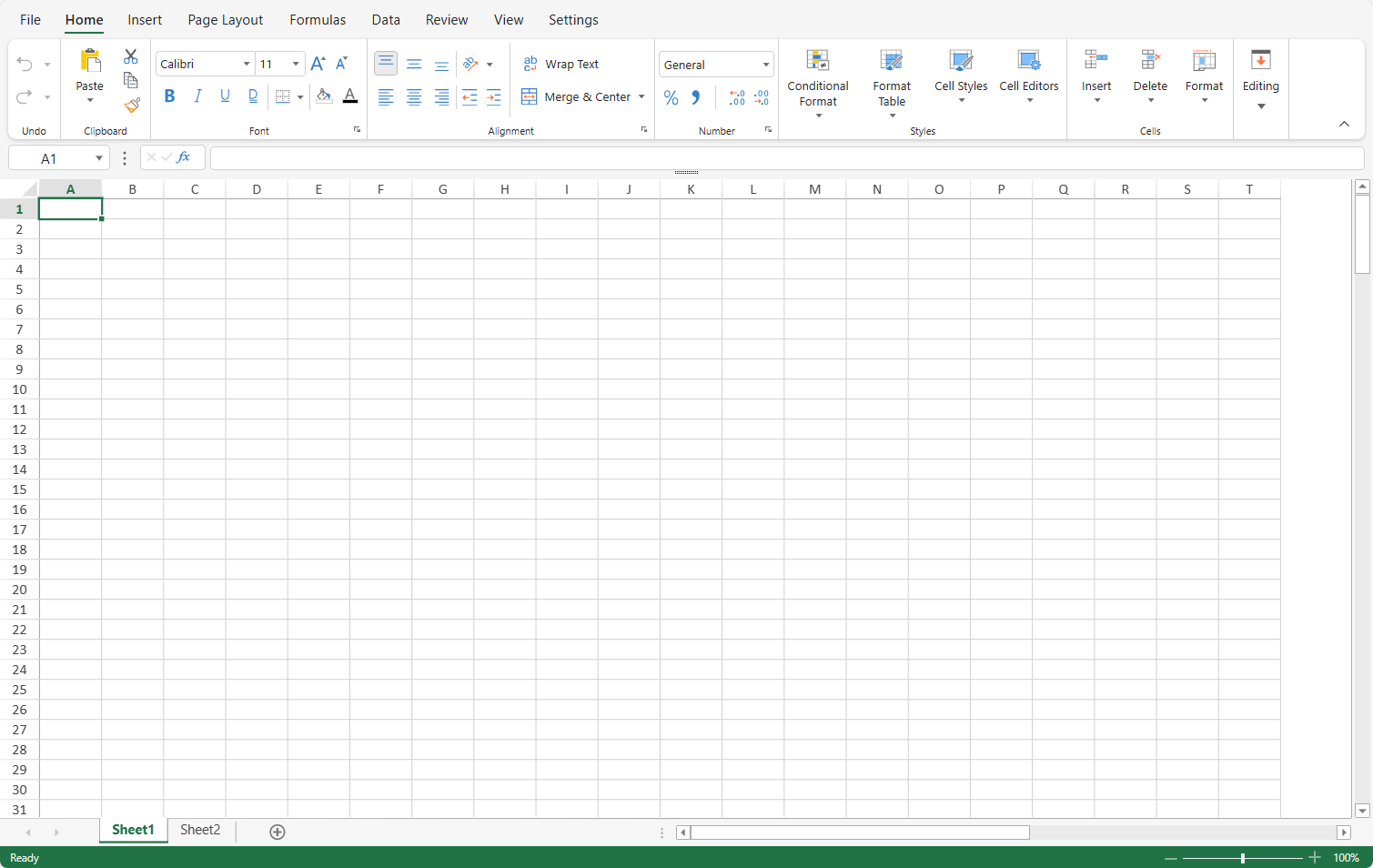
9. View the HTML file in the browser to observe the Designer Component with a new spreadsheet.
    ![image](https://cdn.mescius.io/document-site-files/images/b2223940-43c2-44cf-8eda-f5ab9acd84f0/image.52ad08.png?width=900)
<br>

## Use Designer Component with an Existing Spreadsheet

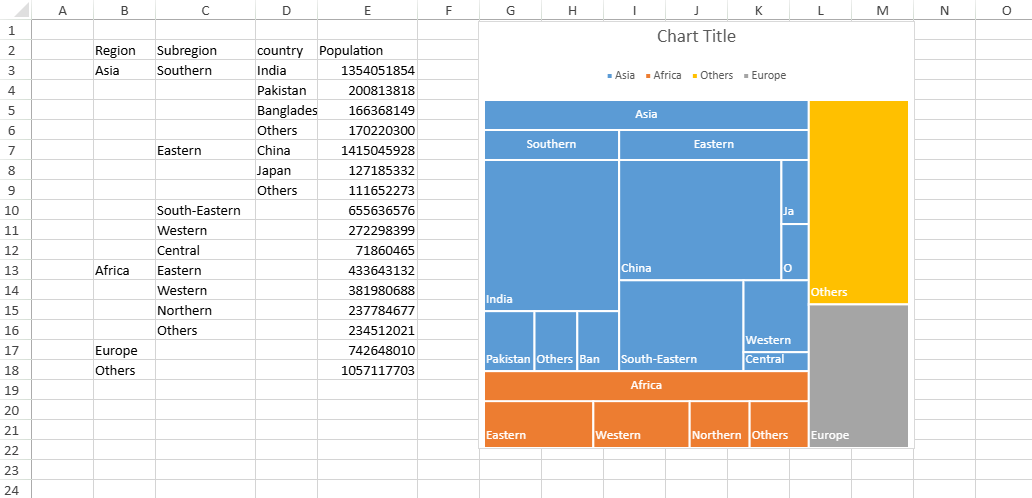
You can also use the Designer Component with any existing spreadsheet. For example, the below image shows a spreadsheet with a treemap chart and its data.
![2](https://cdn.mescius.io/document-site-files/images/7719ad0a-f083-46d7-aff6-f63e2e187c15/2.189879.png?width=900)
To use the Designer Component with the above spreadsheet, implement the below steps in your existing HTML file:

1. Include the Designer Component script and CSS file references.

    ```HTML
    <!--Designer Component CSS file--> 
    <link rel="styleSheet" href="css/gc.spread.sheets.designer.lignt.x.x.x.min.css" />
    
    <!--Designer Component script files-->
    <script src="scripts/gc.spread.sheets.designer.resource.en.x.x.x.min.js" type="text/javascript"></script>
    <script src="scripts/gc.spread.sheets.designer.all.x.x.x.min.js" type="text/javascript"></script>
    ```

    > **Note:** Spreadsheet references should be added above the Designer Component references as explained in above steps.
2. Pass the spreadsheet's variable as a parameter while initializing the Designer Component.

    ```JavaScript
    var designer = new GC.Spread.Sheets.Designer.Designer("designerHost", null, spread);
    ```
3. Include the Designer Component's DOM element along with the sheet DOM element.

    ```HTML
    <div id="designerHost" style="width:100%; height:1000px; border: 1px solid gray;"></div>
    ```

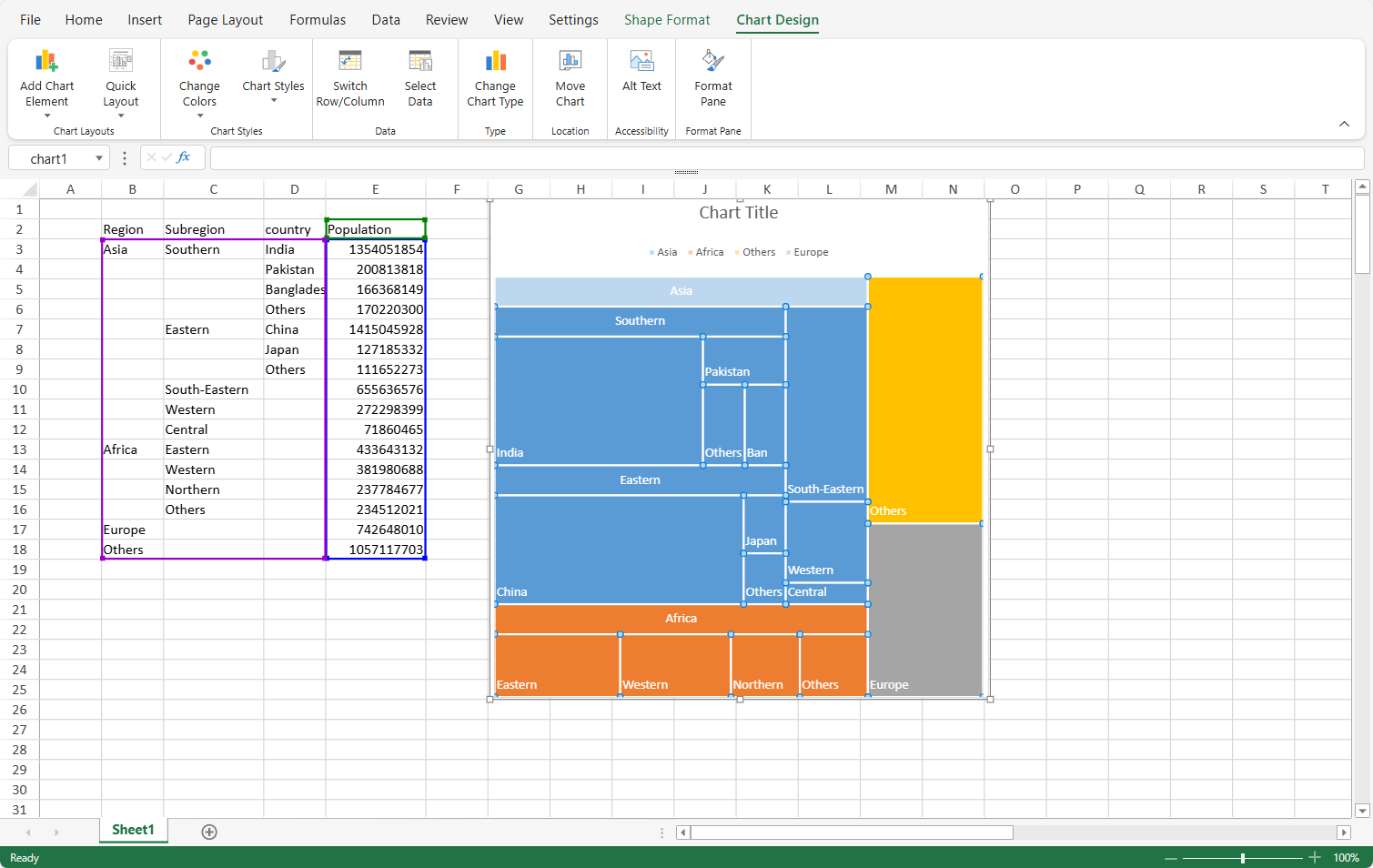
The complete code in the HTML file will look like the one below where the existing spreadsheet adds data and creates a treemap chart. This spreadsheet is further used with the designer component to perform any UI operation.

```HTML
<!DOCTYPE html>
<html>
<head>
    <meta charset="utf-8" />
    <meta name="viewport" content="width=device-width, initial-scale=1.0" />
    
    <!--CSS files--> 
    <link rel="styleSheet" href="css/gc.spread.sheets.x.x.x.css" />
    <!--Designer Component CSS file--> 
    <link rel="styleSheet" href="css/gc.spread.sheets.designer.lignt.x.x.x.min.css" />

    <!--Script files-->
    <script src="scripts/gc.spread.sheets.all.x.x.x.min.js" type="text/javascript"></script>  
    <script src="scripts/gc.spread.sheets.shapes.x.x.x.min.js" type="text/javascript"></script>  
    <script src="scripts/gc.spread.sheets.charts.x.x.x.min.js" type="text/javascript"></script>  
    <script src="scripts/gc.spread.sheets.print.x.x.x.min.js" type="text/javascript"></script>  
    <script src="scripts/gc.spread.sheets.barcode.x.x.x.min.js" type="text/javascript"></script>
    <script src="scripts/gc.spread.sheets.pdf.x.x.x.min.js" type="text/javascript"></script>
    <script src="scripts/gc.spread.sheets.io.x.x.x.min.js" type="text/javascript"></script>
    <script src="scripts/gc.spread.calcengine.languagepackages.x.x.x.min.js" type="text/javascript"></script>    

    <!--Designer Component JS files--> 
    <script src="scripts/gc.spread.sheets.designer.resource.en.x.x.x.min.js" type="text/javascript"></script>
    <script src="scripts/gc.spread.sheets.designer.all.x.x.x.min.js" type="text/javascript"></script>

    <script>
        window.onload = function () {
            // initialize Spread
            var designer = new GC.Spread.Sheets.Designer.Designer('ss');
            var spread = designer.getWorkbook();
            // Get the activesheet
            var sheet = spread.getSheet(0);
            // Set Column Width
            sheet.setColumnWidth(2, 100);
            sheet.setColumnWidth(4, 100);
            // Create Data Array
            var dataArray =
                [
                    ['Region', 'Subregion', 'country', 'Population'],
                    ['Asia', 'Southern', 'India', 1354051854],
                    [, , 'Pakistan', 200813818],
                    [, , 'Bangladesh', 166368149],
                    [, , 'Others', 170220300],
                    [, 'Eastern', 'China', 1415045928],
                    [, , 'Japan', 127185332],
                    [, , 'Others', 111652273],
                    [, 'South-Eastern', , 655636576],
                    [, 'Western', , 272298399],
                    [, 'Central', , 71860465],
                    ['Africa', 'Eastern', , 433643132],
                    [, 'Western', , 381980688],
                    [, 'Northern', , 237784677],
                    [, 'Others', , 234512021],
                    ['Europe', , , 742648010],
                    ['Others', , , 1057117703]
                ];
            // Set Array
            sheet.setArray(1, 1, dataArray);
            var treemapChart = sheet.charts.add('chart1',
            GC.Spread.Sheets.Charts.ChartType.treemap, 450, 0, 500, 500, "B2:E18");
            
            // Initialize designer components and use above created spread component
            var designer = new GC.Spread.Sheets.Designer.Designer("designerHost", null, spread);

        }
    </script>
</head>
<body>
    <div id="ss"></div>
    <!--DOM element for designer components-->
    <div id="designerHost" style="width:100%; height:1000px; border: 1px solid gray;"></div>
</body>
</html>
```

The above code will generate the below output:
![image](https://cdn.mescius.io/document-site-files/images/b2223940-43c2-44cf-8eda-f5ab9acd84f0/image.0ce222.png?width=900)