# Toolbar Ribbon
A tutorial showing how to work with the toolbar ribbon in the SpreadJS Designer Component, including the different modes, code examples, and UI
## Content
SpreadJS Designer Component provides two different ribbon modes as shown below:
**Default Ribbon Mode**

**Toolbar Ribbon Mode**

The toolbar ribbon mode is especially useful for mobile devices.
## Switch to Toolbar Ribbon Mode
SpreadJS Designer Component launches with the default ribbon mode. However, you can follow the steps from [Quick Start](/spreadjs/docs/spreadjs-designer-component/quick-start-designer) and switch to the toolbar ribbon mode by setting GC.Spread.Sheets.Designer.ToolbarModeConfig in the setConfig method as shown below.
```JavaScript
// Initialize designer component with default ribbon mode
var designer = new GC.Spread.Sheets.Designer.Designer('designerHost');
// Switch to toolbar ribbon mode
designer.setConfig(GC.Spread.Sheets.Designer.ToolBarModeConfig);
```
## Switch between Default and Toolbar Ribbon Mode
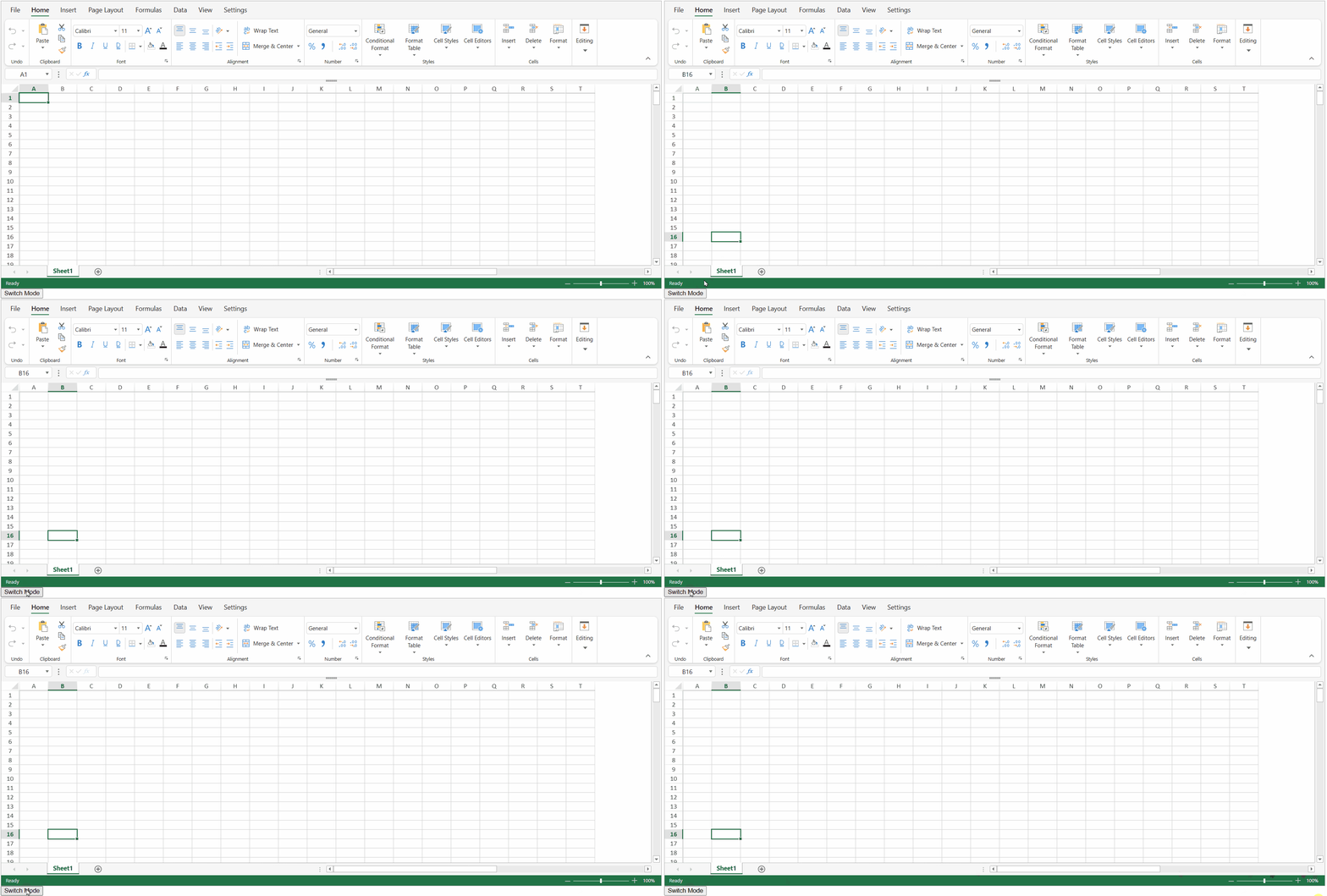
The following code sample shows how you can switch between the default ribbon mode and the toolbar ribbon mode.
```HTML
```
The below output will be generated:
## Set Ribbon Height in Toolbar Mode
You can set the ribbon height in the toolbar mode by using the `ribbonHeight` option in the toolbar config. The default and the recommended value of `ribbonHeight` for toolbar mode are 50.
The following code sample sets the ribbon height to 80.
```JavaScript
var designer = new GC.Spread.Sheets.Designer.Designer("designerHost");
var config = GC.Spread.Sheets.Designer.ToolBarModeConfig;
// Set the ribbon height
config.ribbon.ribbonHeight = 80;
// Set the customized config
designer.setConfig(config);
```
The below output will be generated:

> **Note:** The recommended ribbon height for the default ribbon mode is 115 or not defined. To retain the toolbar ribbon mode, the `ribbonHeight` should be set to less than 115.