# SpreadJS with Nuxt

How to use SpreadJS in a NuxtJS web application

## Content

SpreadJS works seamlessly with Nuxt 3 and Nuxt 4.
This tutorial shows how to integrate SpreadJS in a Nuxt project, configure it for client‑side rendering, and optionally enable the Designer Component for Excel‑like editing tools.

## Integrating SpreadJS in a Nuxt App

### Step 1: Set up the Nuxt project

You can use any existing Nuxt 3 or Nuxt 4 project.
If you want to start from a clean setup, run:

```bash
npm create nuxt@latest nuxt-with-spreadjs
cd nuxt-with-spreadjs
npm install
```

Then launch the app:

```bash
npm run dev
```

Once verified that the base Nuxt app runs (*http://localhost:3000*), you can start integrating SpreadJS.

### Step 2: Install and Configure SpreadJS

1. **Install the SpreadJS package**
    Create a folder called components, if it does not exist in the applications' root folder.

    ```bash
    npm install --save @mescius/spread-sheets-vue
    ```
2. **Add a SpreadJS component**
<br>
    In the `components` folder, create a file named `Spreadsheet.vue` and define the component as shown below.
    You can also enter your SpreadJS license key before initializing the control.

    ```html
    <template>
      <div>
        <gc-spread-sheets class="hostClass" @workbookInitialized="initSpread">
          <gc-worksheet> </gc-worksheet>
        </gc-spread-sheets>
      </div>
    </template>
    
    <script setup>
    import "@mescius/spread-sheets/styles/gc.spread.sheets.excel2016colorful.css";
    import { GcSpreadSheets, GcWorksheet } from "@mescius/spread-sheets-vue";
    import * as GC from "@mescius/spread-sheets";
    
    var data = [
      {
        jobTitleName: "Developer",
        preferredFullName: "Romin Irani",
        region: "CA",
        phoneNumber: "408-1234567",
      },
      {
        jobTitleName: "Developer",
        preferredFullName: "Neil Irani",
        region: "CA",
        phoneNumber: "408-1111111",
      },
      {
        jobTitleName: "Program Directory",
        preferredFullName: "Tom Hanks",
        region: "CA",
        phoneNumber: "408-2222222",
      },
    ];
    
    let initSpread = function (spread) {
      var sheet = spread.getSheet(0);
      sheet.setDataSource(data);
    };
    </script>
    <style scoped>
    .hostClass {
      width: 600px;
      height: 600px;
    }
    </style>
    ```
3. **Use the component in your main app**
<br>
    Replace the default content of `app.vue` with:

    ```html
    <template>
      <div>
          <h1>
              Adding Spreadsheets to a Jamstack Application
          </h1>
          <p>
              Nuxt.JS + SpreadJS Demo
          </p>
          <SpreadSheet />
      </div>
    </template>
    ```
4. **Update Nuxt config (optional)**

    ```html
    // https://nuxt.com/docs/api/configuration/nuxt-config
    export default defineNuxtConfig({
      //...
    
      ssr: false,
      components: true,
    })
    ```

> **Note:**
> SpreadJS relies on browser APIs and runs only on the client side. When using Nuxt in SSR mode, wrap the SpreadJS component in a \<client-only> tag or register it as a client-only plugin (e.g. plugins/spreadjs.client.ts).

### Step 3: Run and Verify the Integration

```bash
npm run dev
```

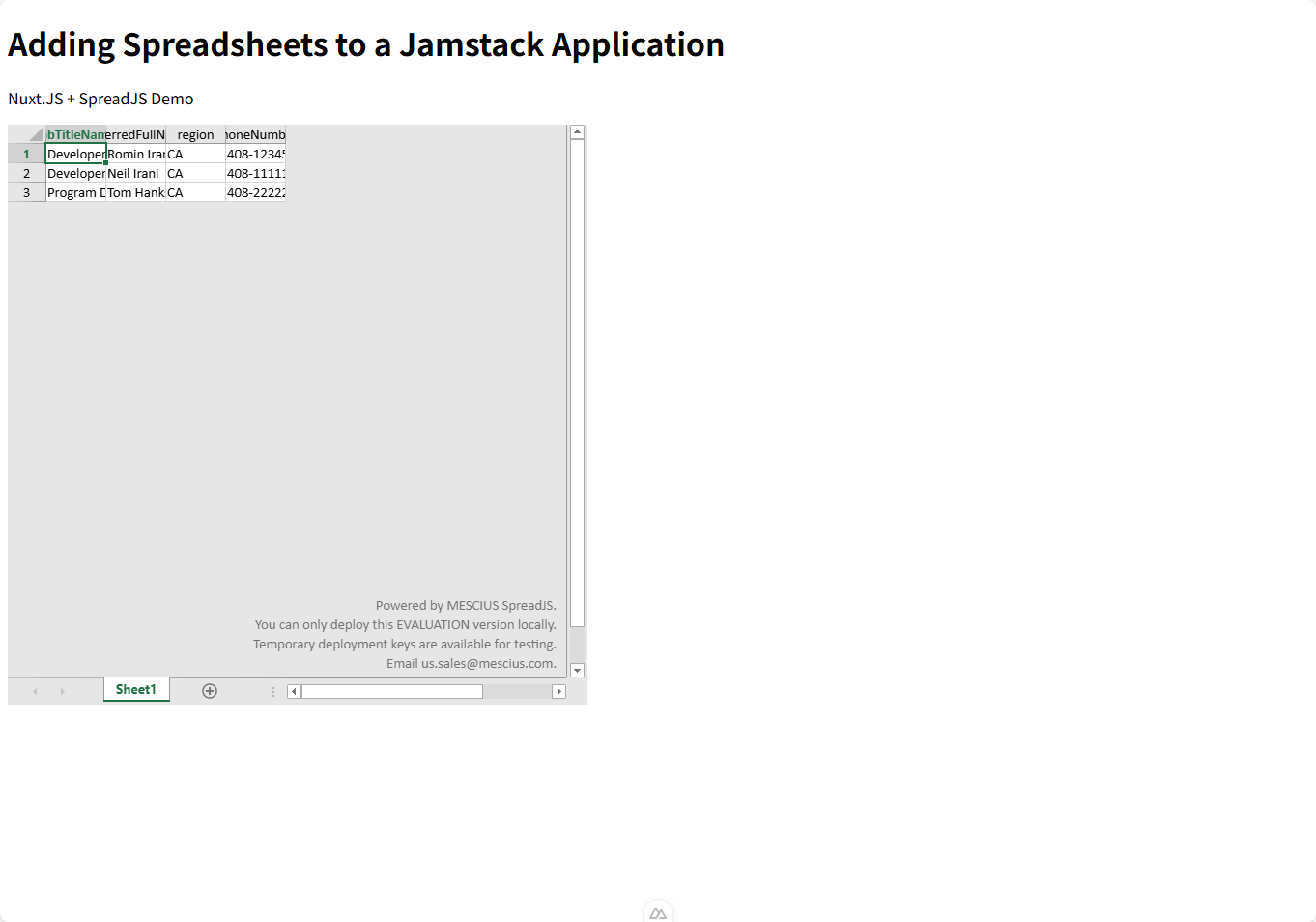
The app should be available at *http://localhost:3000*, rendering the SpreadJS component within the Nuxt app.
![image](https://cdn.mescius.io/document-site-files/images/b2223940-43c2-44cf-8eda-f5ab9acd84f0/image.1594d3.png?width=1000)

### Step 4 (Optional): Add the SpreadJS Designer Component

You can enhance the user interface by adding the Designer component, which provides Excel‑style formatting and editing commands. See [SpreadJS Designer Component](/spreadjs/docs/spreadjs-designer-component) for a detailed setup guide.

1. Install packages

    ```bash
    npm i --save @mescius/spread-sheets @mescius/spread-sheets-barcode @mescius/spread-sheets-charts @mescius/spread-sheets-datacharts-addon @mescius/spread-sheets-designer @mescius/spread-sheets-designer-resources-en @mescius/spread-sheets-designer-vue @mescius/spread-sheets-formula-panel @mescius/spread-sheets-ganttsheet @mescius/spread-sheets-io @mescius/spread-sheets-languagepackages @mescius/spread-sheets-pdf @mescius/spread-sheets-print @mescius/spread-sheets-pivot-addon @mescius/spread-sheets-reportsheet-addon @mescius/spread-sheets-shapes @mescius/spread-sheets-slicers @mescius/spread-sheets-tablesheet
    ```
2. Replace the default content of `Spreadsheet.vue` with:

    ```html
    <template>
      <div id="gc-designer-container">
        <gc-spread-sheets-designer
          :styleInfo="styleInfo"
          :config="config"
          :spreadOptions="spreadOptions"
          @designerInitialized="initDesigner"
        />
      </div>
    </template>
    
    <script setup>
    import "@mescius/spread-sheets/styles/gc.spread.sheets.excel2013white.css";
    import "@mescius/spread-sheets-designer/styles/gc.spread.sheets.designer.light.min.css";
    
    import "@mescius/spread-sheets-print";
    import "@mescius/spread-sheets-shapes";
    import "@mescius/spread-sheets-datacharts-addon";
    import "@mescius/spread-sheets-slicers";
    import "@mescius/spread-sheets-pivot-addon";
    import "@mescius/spread-sheets-tablesheet";
    import "@mescius/spread-sheets-ganttsheet";
    import "@mescius/spread-sheets-reportsheet-addon";
    import "@mescius/spread-sheets-formula-panel";
    import "@mescius/spread-sheets-io";
    import "@mescius/spread-sheets-designer-resources-en";
    
    import * as GCDesigner from "@mescius/spread-sheets-designer";
    import GcSpreadSheetsDesigner from "@mescius/spread-sheets-designer-vue";
    
    const styleInfo = { height: "85vh", width: "100%" };
    const config = GCDesigner.Spread.Sheets.Designer.DefaultConfig;
    const spreadOptions = { sheetCount: 2 };
    
    let designer = null;
    
    function initDesigner(value) {
      designer = value;
      console.log("Designer initialized:", designer);
    
      const spread = designer.getWorkbook();
      if (spread) {
        const sheet = spread.getSheet(0);
        sheet.setValue(0, 0, "Welcome to SpreadJS Designer!");
      }
    }
    </script>
    
    <style scoped>
    #gc-designer-container {
      width: 100%;
      height: 100%;
    }
    </style>
    ```
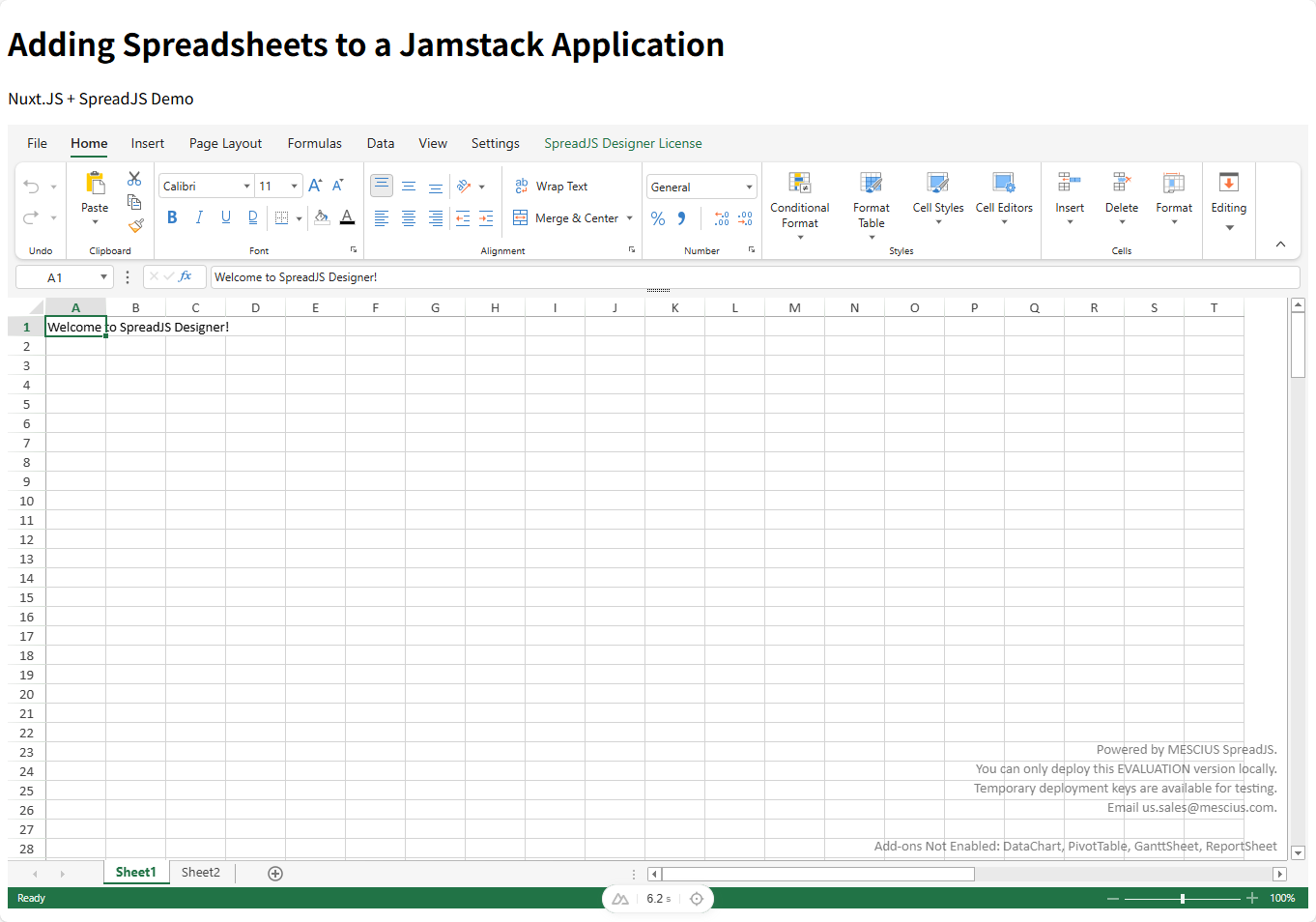
3. Run and Verify the Integration

    ```bash
    npm run dev
    ```
![image](https://cdn.mescius.io/document-site-files/images/b2223940-43c2-44cf-8eda-f5ab9acd84f0/image.f5fc87.png?width=1000)