# Zoom
A tutorial showing how the zoom functionality works in SpreadJS, including the zoom limit
## Content
SpreadJS allows you to perform zoom operations to zoom in or zoom out the viewport of a sheet. You can also set a particular zoom limit.
> **Note**:
>
> * The cell size and its contents will zoom in or out along with the viewport.
> * Borders, gridlines, freeze lines, split bars, and the selection indicator are not affected while zooming.
## Perform Zoom Operation
To perform zoom-in or zoom-out operations, you can use any of the following methods:
* Ctrl + Mousewheel
* Status bar's zoom indicator
* Two fingers zoom operation (on touch devices only)
* API member `sheet.zoom` (`zoomFactor`)
By using `sheet.zoom`(`zoomFactor`), you can set the zoom factor to any value between 0.1 and 4. The zoom operation is enabled by default. However, you can choose to disable it by setting **options.allowUserZoom** property to false.
**Using Code**
This example sets the **options.allowUserZoom** property.
```javascript
activeSheet.zoom(3);
```
## Set Zoom Limit
When a zoom operation is performed, **ViewZooming** and **ViewZoomed** events are triggered. These events can be used to intervene the zoom process and apply any operation, like setting the minimum or maximum zoom limit of a viewport.
**Using Code**
This example sets the minimum and maximum zoom limit of a spreadsheet's viewport by using **newZoomFactor** argument.
```javascript
// Limit zoom action by newZoomFactor argument
// set allowUserZoom to true
spread.options.allowUserZoom = true;
activeSheet.bind(GC.Spread.Sheets.Events.ViewZooming, function (e, info) {
if (info.newZoomFactor >= 2) {
info.newZoomFactor = 2; // the max zoom factor is 2
}
if (info.newZoomFactor < 1) {
info.newZoomFactor = 0.5; // the min zoom factor is 0.5
}
});
```
This example sets the maximum zoom limit of a spreadsheet's viewport by using **cancel** argument.
```javascript
//Limit zoom action by cancel argument
//set allowUserZoom to true
spread.options.allowUserZoom = true;
activeSheet.bind(GC.Spread.Sheets.Events.ViewZooming, function (e, info) {
if (info.newZoomFactor >= 2) {
info.cancel = true; // cancel this zooming action
}
});
```
## Using Designer
You can also perform zoom operations by using the SpreadJS Designer.
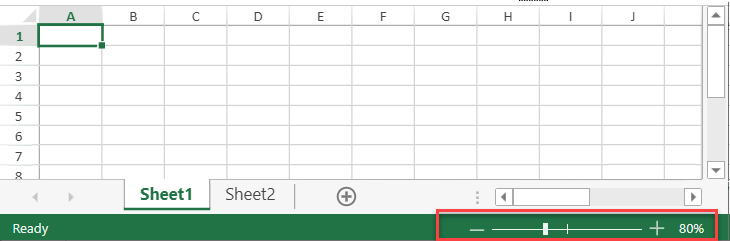
To quickly zoom in or zoom out the sheet's viewport, use the **Zoom** slider on the status bar and adjust the magnification level. You can click and drag the Zoom slider to the right or left to zoom in or zoom out. You can also use the – or + symbols to gradually zoom in or zoom out.
Another method of zooming in the SpreadJS Designer is by using the zoom options available in the **Zoom** group on the **View** tab.

This group has the following options:
* **Zoom**: Select the magnification level you want to use from the list.
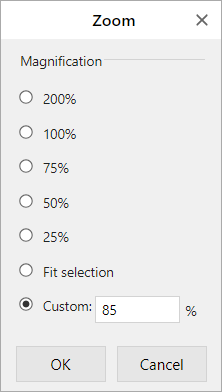
* **100%**: Select to view the sheet's viewport to 100% zoom of its original size.
* **Zoom to Selection**: Select to maximize the view of the selected cells only.