# Calculation Mode
An explanation of the calculation modes available in SpreadJS, including auto and manual, calculation types, calculation methods, and code snippets
## Content
## Calculation Mode
SpreadJS recalculates formulas when their dependent cells, values, or names change.
You can control this behavior using the `CalculationMode` option.
### CalculationMode Enumeration
`CalculationMode` is defined in `GC.Spread.Sheets.CalculationMode`.
| Value | Description |
| ----- | ----------- |
| `auto` (0) | All dirty cells are recalculated automatically when dependencies change. (Default) |
| `manual` (1) | Formulas are recalculated only when `spread.calculate()` is called. |
| `partial` (2) | All formulas except `SJS.TABLE` recalculate automatically. `SJS.TABLE` recalculates only when `spread.calculate()` is called. |
### Auto Mode (Default)
In `auto` mode:
* SpreadJS recalculates all dirty cells automatically.
* A cell is marked as dirty when its value or dependencies change.
* Recalculation occurs during operations such as cell input, copy, or paste.
This ensures worksheet results remain up to date at all times.
### Manual Mode
In `manual` mode:
* No formulas recalculate automatically.
* You must call `spread.calculate()` explicitly.
This mode is useful when:
* Working with large worksheets containing complex formulas.
* Performing batch updates.
* Avoiding intermediate recalculation during bulk operations.
#### Setting Manual Mode
```javascript
var spread = new GC.Spread.Sheets.Workbook("ss", { calculationMode: GC.Spread.Sheets.CalculationMode.manual });
```
Or:
```javascript
spread.options.calculationMode = GC.Spread.Sheets.CalculationMode.manual;
```
To recalculate:
```javascript
spread.calculate();
```
### Partial Mode
In `partial` mode:
* Standard formulas recalculate automatically.
* `SJS.TABLE` formulas do not recalculate automatically.
* `SJS.TABLE` updates only when `spread.calculate()` is called.
This mode is intended for scenarios involving large data tables where automatic recalculation of all simulations may affect performance.
Example:
```javascript
spread.options.calculationMode = GC.Spread.Sheets.CalculationMode.partial;
```
>type=note
> **Note:**
> The `CalculationMode` setting is preserved when exporting to Excel, where supported by the Excel file format.
## CalculationType Enumeration
The `spread.calculate()` method accepts a `CalculationType` value to control the scope of recalculation.
| Member | Description |
| ------ | ----------- |
| `all` | Marks all cells in the specified range as dirty and recalculates them. (Default) |
| `rebuild` | Rebuilds all formulas in the range and then recalculates them. |
| `minimal` | Marks formulas as dirty but does not mark volatile or circular reference cells as dirty. |
| `regular` | Recalculates volatile cells, circular reference cells, and dirty cells. |
## Behavior Differences: Auto vs Manual
The following table summarizes SpreadJS behavior when using different calculation modes with calculation control APIs.
| Used Formula | Automatic (Default mode) | Manual |
| ------------ | ------------------------ | ------ |
| suspendCalcService(true) | @cols=2:Disable the calculation engine and do not recalculate any cell. |
| resumeCalcService(false) | Enable the calculation engine and calculate volatile cells, circular reference cells, and dirty cells. | Enable the calculation engine and mark the volatile cells as dirty, but don’t calculate the dirty cells. |
| resumeCalcService(true) | Enable the calculation engine and calculate all cells. | Enable the calculation engine, mark all the cells as dirty, but don’t calculate the dirty cells. |
| resumeCalcService(false)
and
sheet.setFormula | Calculate the formulas and their dependencies. | Calculate the formulas. |
| resumeCalcService(false)
and
spread.calculate() | @cols=2:Calculate all formulas in all open worksheets. |
| resumeCalcService(false)
and
spread.calculate(GC.Spread.Sheets.CalculationType.regular) | @cols=2:Calculate all cells that are marked as dirty, that is, cells that are dependent on volatile or changing data, as well as cells that are programmatically marked as dirty. |
| resumeCalcService(false)
and
spread.calculate(GC.Spread.Sheets.CalculationType.rebuild) | @cols=2:Rebuild all formulas in the spread, then calculate them. |
| resumeCalcService(false)
and
spread.calculate(null, “Sheet1“) | Mark all formulas in Sheet 1 to dirty and then dirty dependencies out of the range.
Calculate all dirty cells. | Mark all formulas in Sheet 1 to dirty and then dirty dependencies out of the range.
Calculate dirty cells in Sheet 1.
Keep other cells in dirty state. |
>type=note
> **Note**: The `sheet.recalcAll()` method was deprecated in SpreadJS v16.2. Use `spread.calculate()` instead.
## Example: Using CalculationType
```javascript
spread.sheets[0].setFormula(0,0,"RAND()");
spread.sheets[0].setFormula(1,0,"=Sheet2!A1");
spread.sheets[0].setFormula(2,0,"=1+2");
spread.sheets[1].setFormula(0,0,"RAND()");
spread.sheets[1].setFormula(1,0,"=Sheet1!A1");
// All the cell is recalculated.
spread.calculate(); spread.calculate(GC.Spread.Sheets.CalculationType.regular);
// Sheet1!A1 Sheet2!A2 are evaluated to new number, and Sheet1!A2 Sheet1!A3 are evaluated.
spread.calculate(GC.Spread.Sheets.CalculationType.all, "Sheet1");
// Sheet1!A1 Sheet2!A2 are evaluated to new number.
spread.calculate(GC.Spread.Sheets.CalculationType.regular, "Sheet1!A1");
// No cells are evaluated.
spread.calculate(GC.Spread.Sheets.CalculationType.regular, "Sheet1!A2");
// Sheet1!A1 is evaluated to new number, Sheet1!A2 Sheet1!A3 are evaluated but don't changed, Sheet2!A2 keeps dirty in manual mode.
spread.calculate(GC.Spread.Sheets.CalculationType.all, "Sheet1");
// Sheet1!A1 is evaluated to new number, Sheet2!A2 keeps dirty in manual mode.
spread.calculate(GC.Spread.Sheets.CalculationType.regular, "Sheet1");
// Sheet2!A2 is evaluated because it is dirty.
spread.calculate(GC.Spread.Sheets.CalculationType.minimal);
```
## Using Calculation Mode in Designer
You can configure calculation options in SpreadJS Designer from:
FORMULAS → Calculation Options

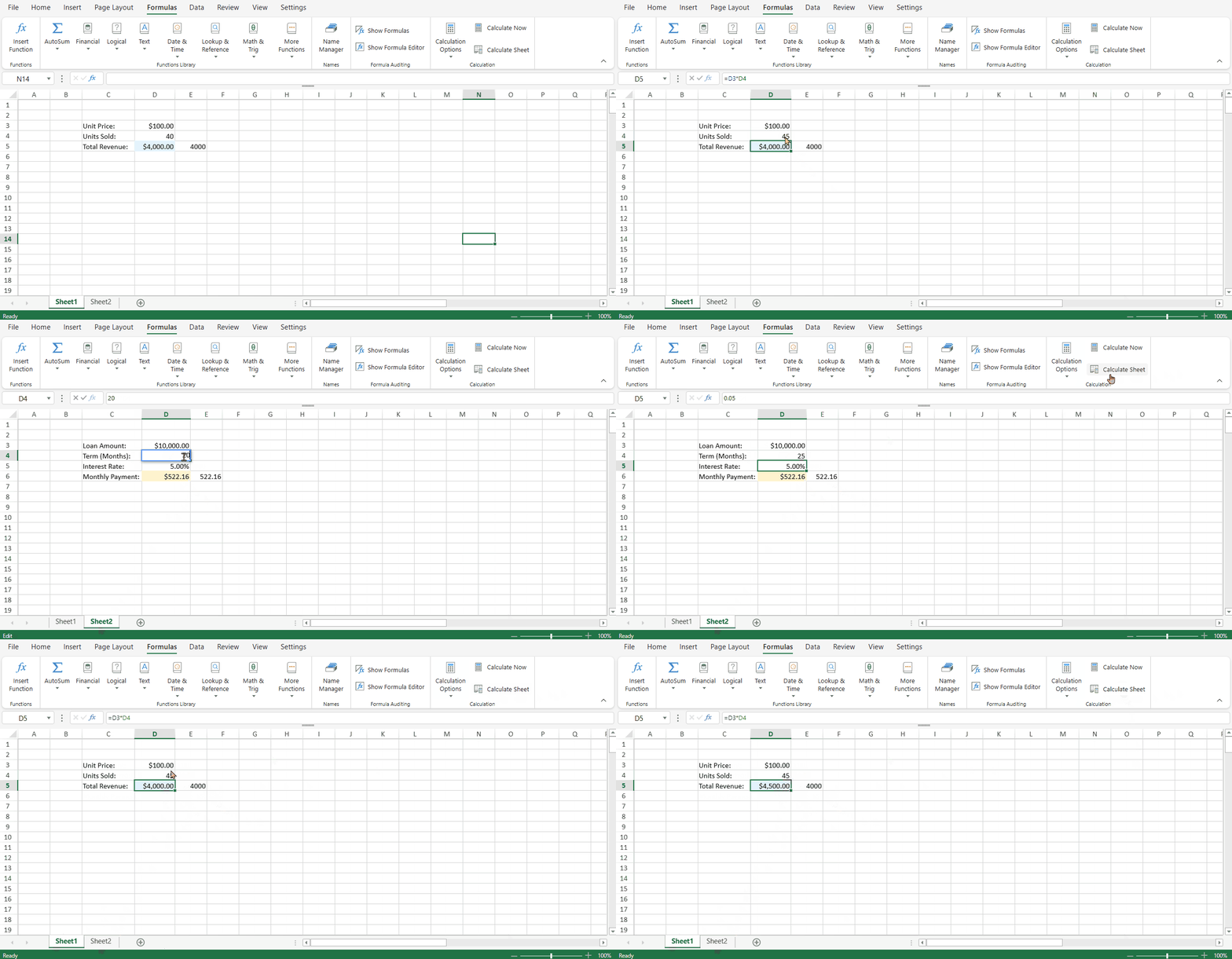
In the case of manual calculation mode, you need to select which section of the workbook you would like to be recalculated.
* Click the **Calculate Now** button to update changes across all open worksheets.
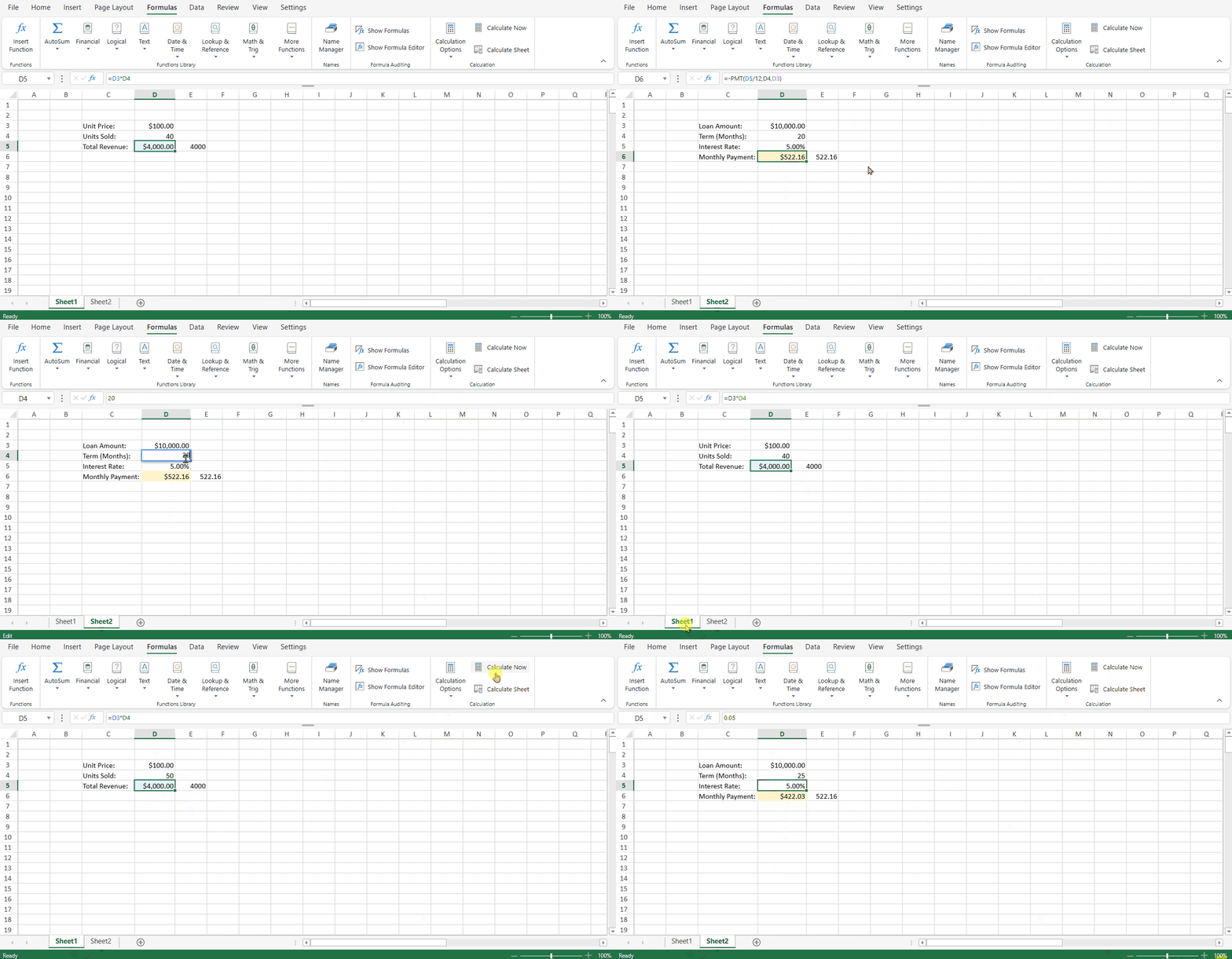
* Click the **Calculate Sheet** button if you only want the modifications to be reflected in the same worksheet.