# Paste Options
An explanation of the different pasting options available in SpreadJS, including the operation options and UI examples
## Content
SpreadJS provides multiple paste options in a spreadsheet. These options are available when you access the context menu by right clicking an active cell or a selected range.

| **Paste Option** | **Description** |
| ------------ | ----------- |
| Paste All | Pastes all the cell contents in the target region.
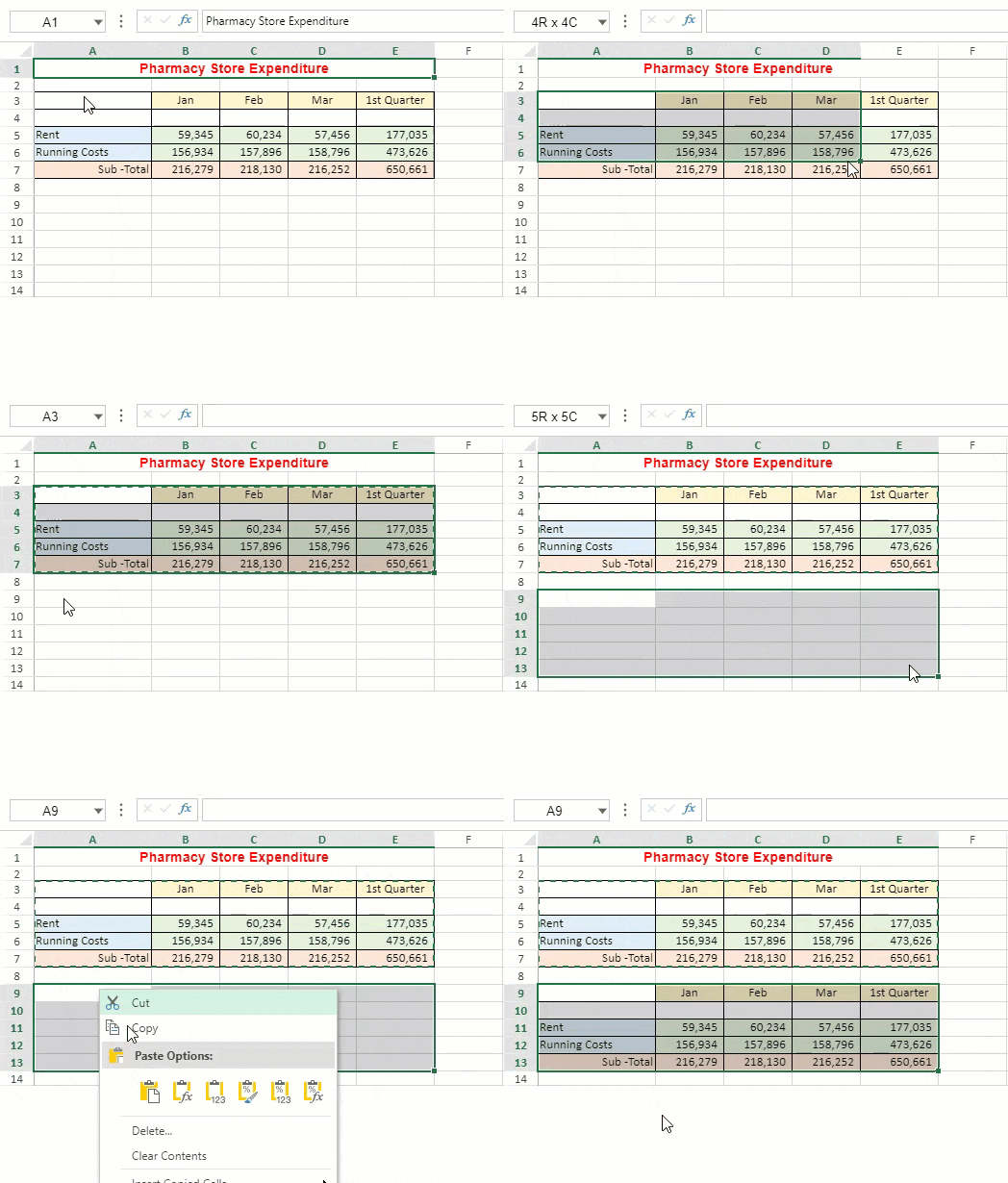 |
| Paste Formula | Pastes formula(s) without formatting in the target region.
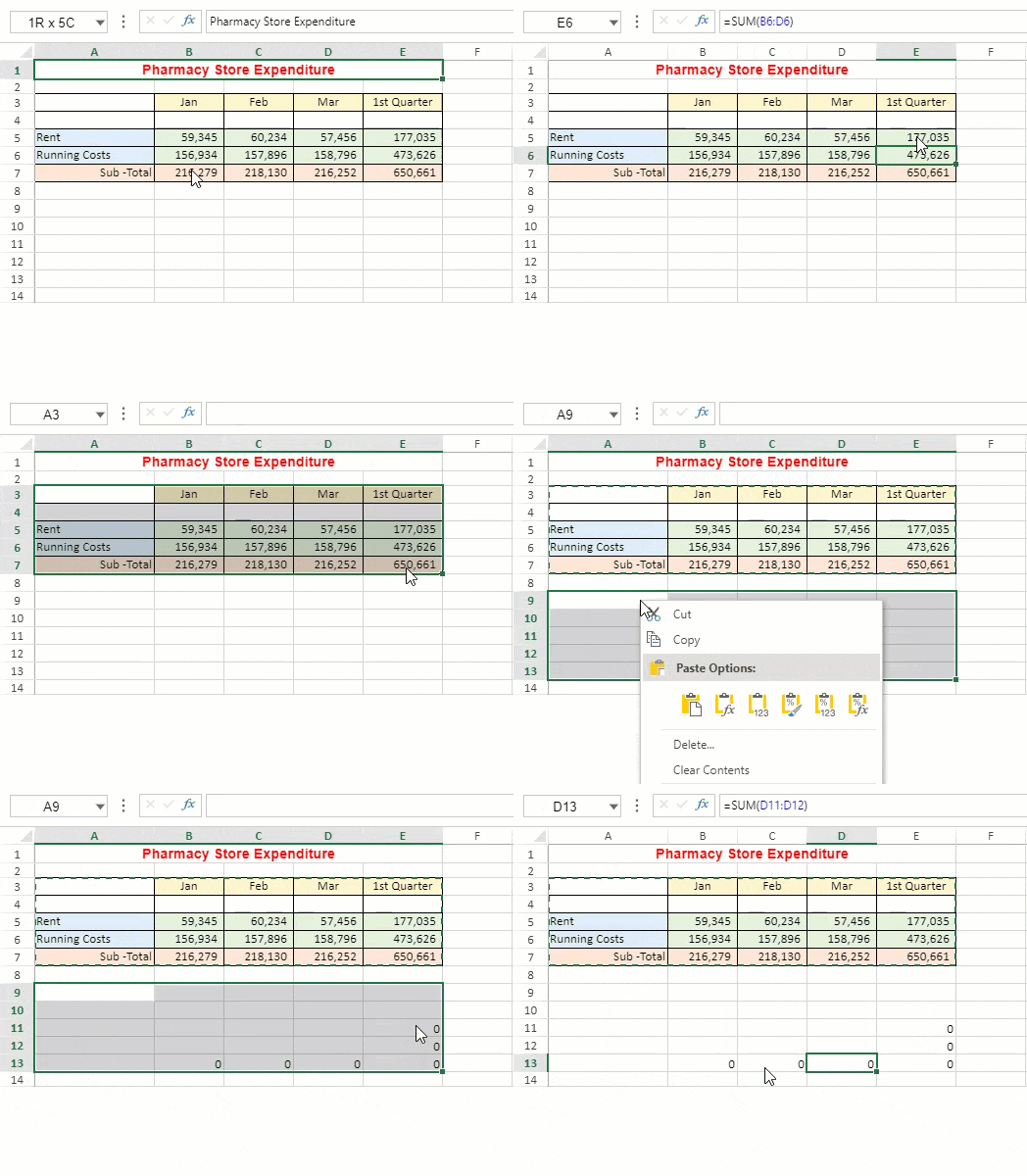 |
| Paste Value | Pastes formula results without formatting in the target region.
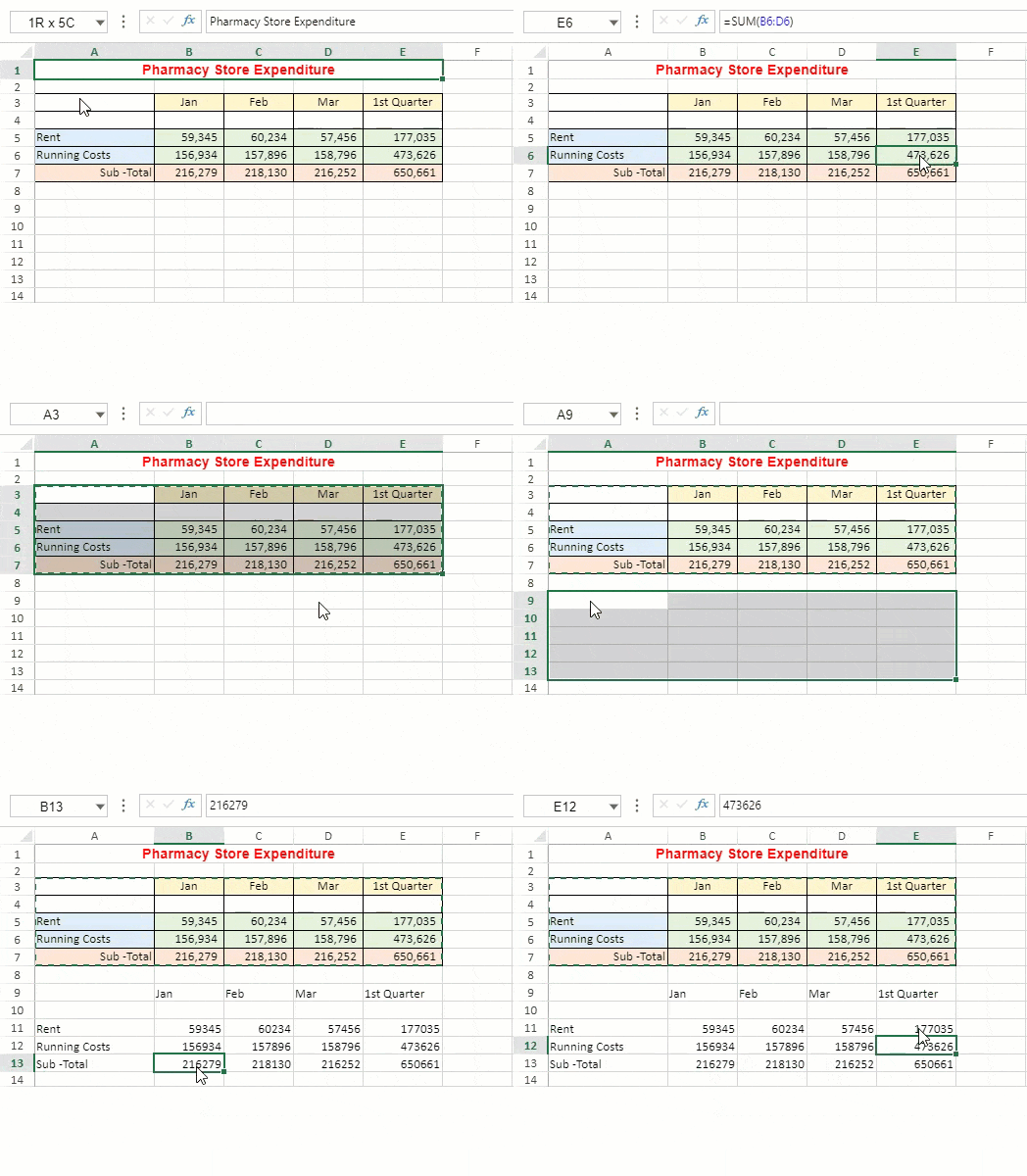 |
| Paste Formatting | Pastes only the formatting in the target region.
The pasted format is adjusted according to the size of the target region while pasting styles, spans, and conditional formats.
Note: Paste Formatting does not support 'Paste Skip Invisible Range'.
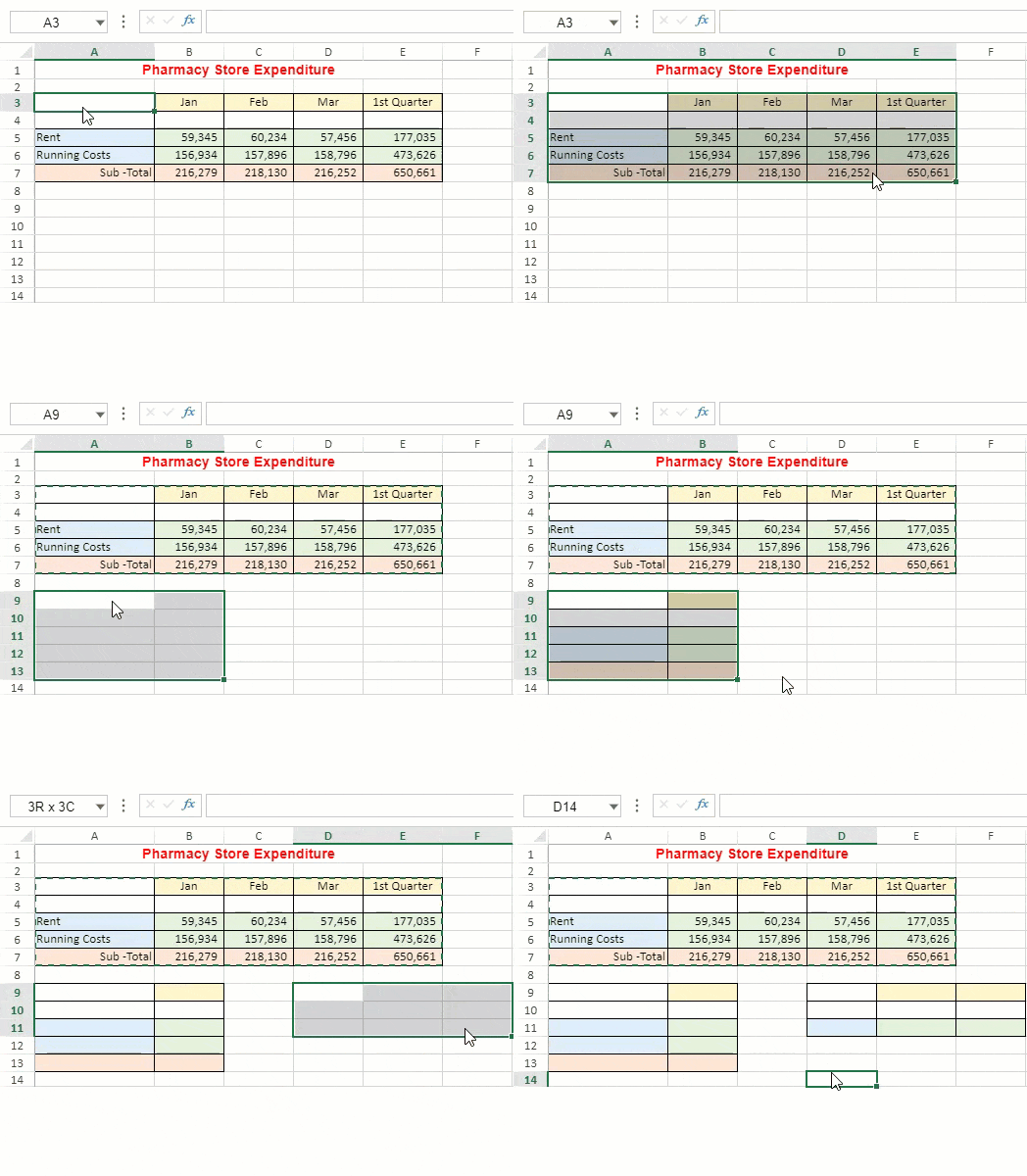 |
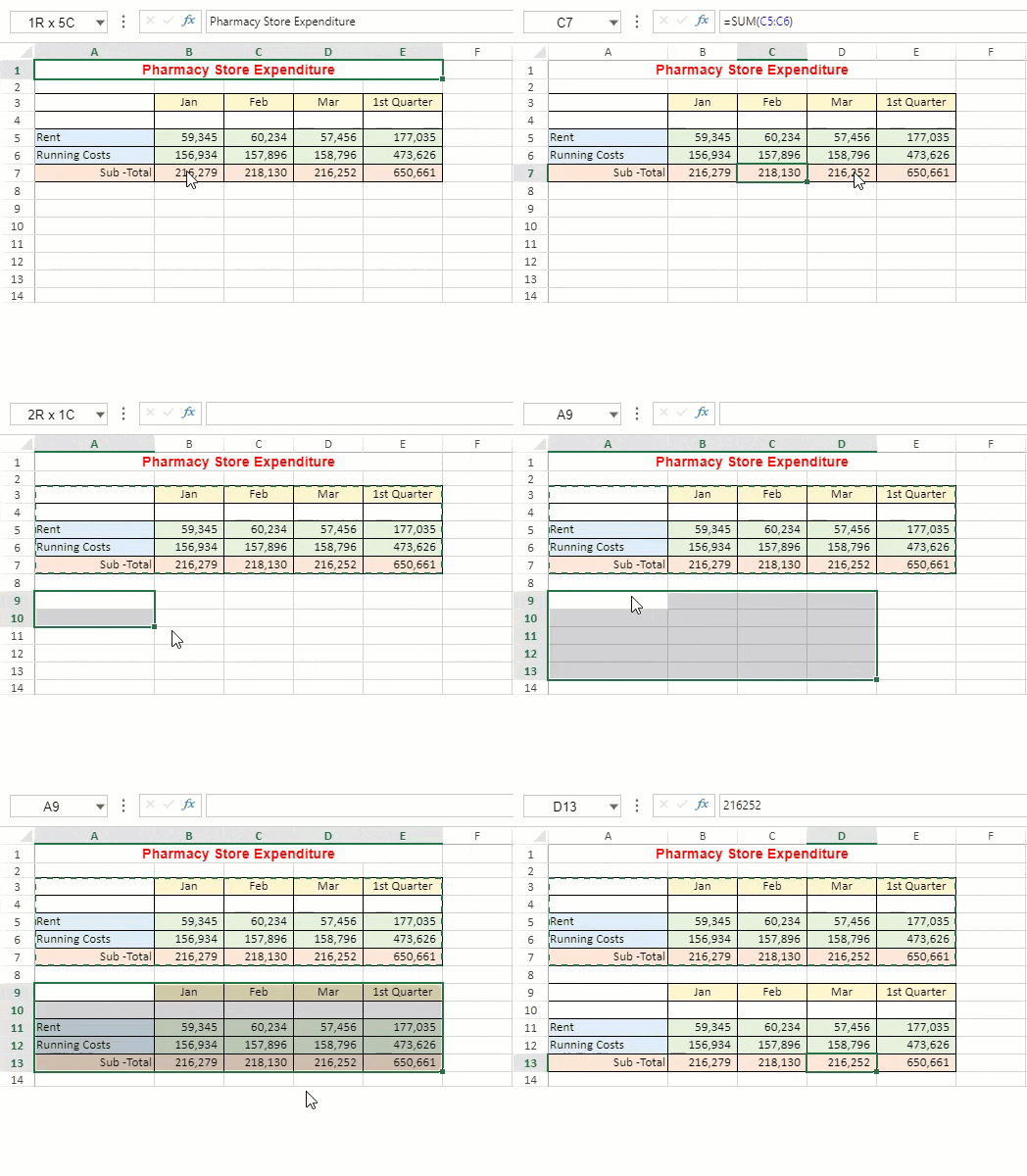
| Paste Values and Formatting | Pastes values and formatting in the target region.
 |
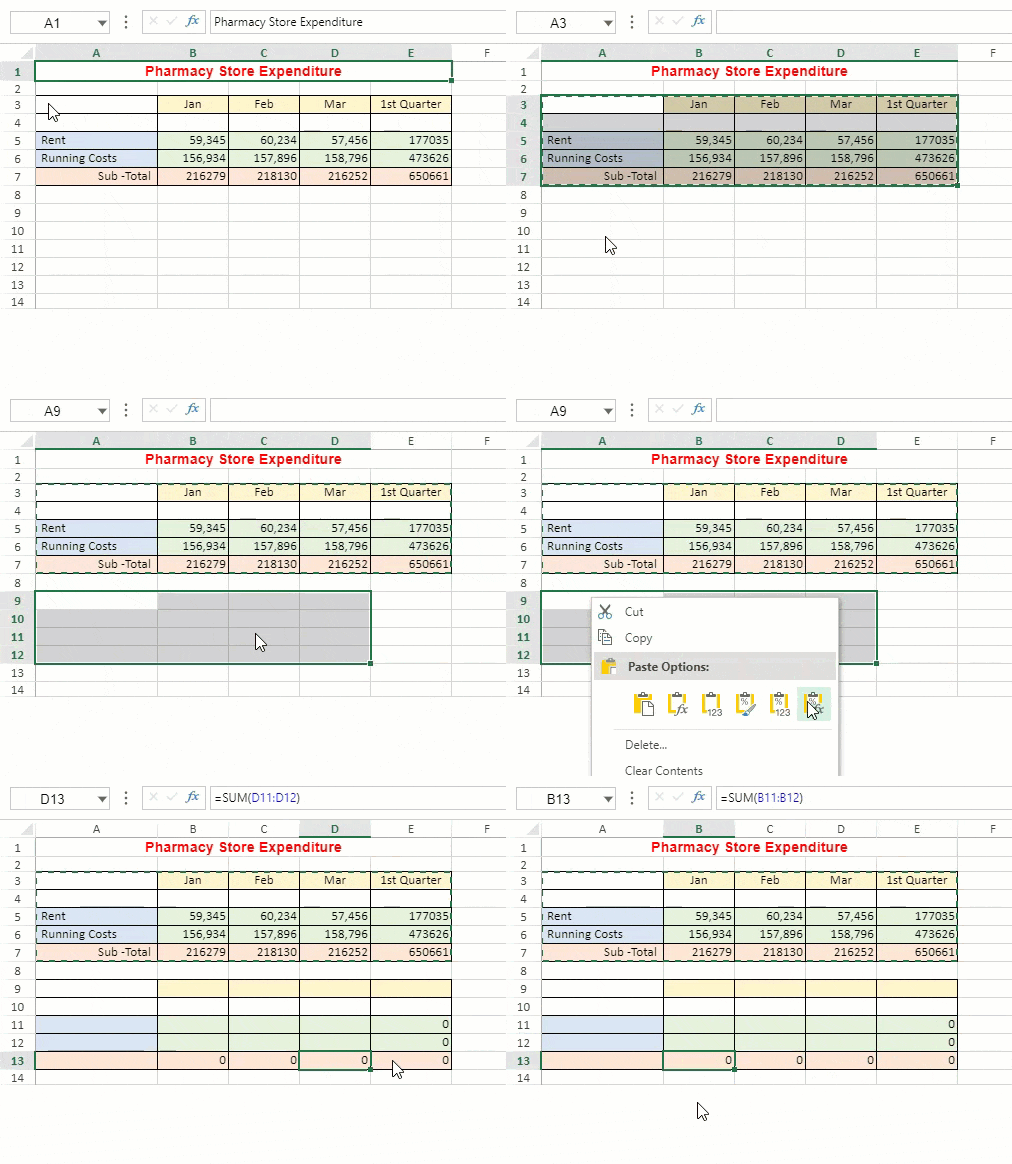
| Paste Formula and Formatting | Pastes formula(s) with formatting in the target region.
 |
| @cols=2:**Paste Special Option** |
| All except Borders | Pastes all cell contents applied to the copied cell, except borders.
 |
| Keep Source Column Widths | Pastes the width of one copied column or range of columns to another column or range of columns.
 |
| Transpose | Upon pasting, the content of copied cells is reoriented. Row data is copied into columns, and vice versa.
 |
| Paste Link | Refer to the source cells instead of the copied cell contents.
 |
| Paste Comments | Pastes only comments attached to the copied cell.
 |
| All Using Source Theme | Pastes all cell contents in the worksheet theme formatting that is applied to the copied data.
 |
| Validation | Pastes data validation rules for the copied cells to the paste area.
 |
| Skip Blanks | Avoids replacing values in your paste area when blank cells occur in the copy area.
 |
| Linked Picture
(Designer only) | A real-time dynamic snapshot of the copied range that copies images with a link to the original cells.
 |
| @cols=2:**Operation Option** |
| None | Specifies that no mathematical operation will be applied to the copied data.
 |
| Add | Adds the copied data to the data in the destination cell or range of cells.
 |
| Subtract | Subtracts the copied data from the data in the destination cell or range of cells.
 |
| Multiply | Multiplies the copied data with the data in the destination cell or range of cells.
 |
| Divide | Divides the copied data by the data in the destination cell or range of cells.
 |
| Transform | Transform the copied data with a custom single-parameter LAMBDA formula and specify how it is applied—by cell, by row, by column, or to the entire range.
 |
Use the shortcut keys **(Ctrl+Alt+V)** or select the "**Paste Special**" option from the context menu to display the “**Paste Special Options Dialog**”. In this dialog, you can view all paste options and customize the context menu paste option.
> **Note**:
>
> * Paste Special only supports copy and paste of data and doesn’t support cut and paste.
> * Paste Special only supports internal paste.
> * The **Operation** and **Paste Link** functions are dependent on calcEngine.
> Hence if calcEngine is not imported then the dialog hides these two functions, and the paste command does not work.
> * **Paste Dialog** doesn’t support “All merging conditional formats “
> * Paste Link does not support transform.
> * The Transform feature is designed to operate exclusively on **values**, with transformed results retaining only **style and value**. In all other scenarios, this functionality will be grayed out, indicating it is unavailable for operation.
> * When a transformation yields a dynamic array result, the output will spill across adjacent cells based on the maximum number of rows and columns generated across all transformations.
> * Regardless of whether the selected paste cell range is larger than the copied cell range, the result of the Transform operation remains consistent.
> * In the transform operation, after transforming the cells, blank cells will be skipped, and transposition will be performed on the existing results.