# Cell Alignment and Indentation
An explanation of the different types of cell alignment and indentation available in SpreadJS
## Content
SpreadJS provides flexible options for aligning and indenting text within cells.
Alignment and indentation can be set programmatically through the API (using methods such as `hAlign`, `vAlign`, and `textIndent`) or visually in the Designer.
These features give you full control over how cell content is positioned and displayed.
You can specify the horizontal alignment using the [hAlign](/spreadjs/api/classes/GC.Spread.Sheets.CellRange#halign) method.

| **Horizontal Alignment Type** | **Description** |
| ------------------------- | ----------- |
| General | Aligns text automatically based on cell content type. |
| Left | Aligns content to the left edge of the cell. |
| Center | Centers content horizontally within the cell. |
| Right | Aligns content to the right edge of the cell. |
| Center Across Selection | Centers content across the selected range without merging cells. |
| Distributed | Evenly distributes characters across the cell width. |
| Justify | Adjusts spacing so that text lines align with both left and right edges. |
You can specify the vertical alignment using the [vAlign](/spreadjs/api/classes/GC.Spread.Sheets.CellRange#vAlign) method.

| **Vertical Alignment Type** | **Description** |
| ----------------------- | ----------- |
| Top | Aligns content to the top edge of the cell. |
| Center | Centers content vertically within the cell. |
| Bottom | Aligns content to the bottom edge of the cell. |
| Justify | Adjusts line spacing so text fills the cell height evenly. |
|
## Center Across Selection Alignment
SpreadJS provides the "Center Across Selection" horizontal alignment which helps to center the contents of selected cells across columns without merging the cells. This type of horizontal alignment can be set using the **HorizontalAlign.centerContinuous** enumeration option.

The following table shows the different behavior observed when using the "Center Across Selection" horizontal alignment:
| Behavior | Example |
| -------- | ------- |
| When a range is set to the alignment, each cell will keep looking to the right for successive empty value cells, and finally place its contents in the center of all cells. | 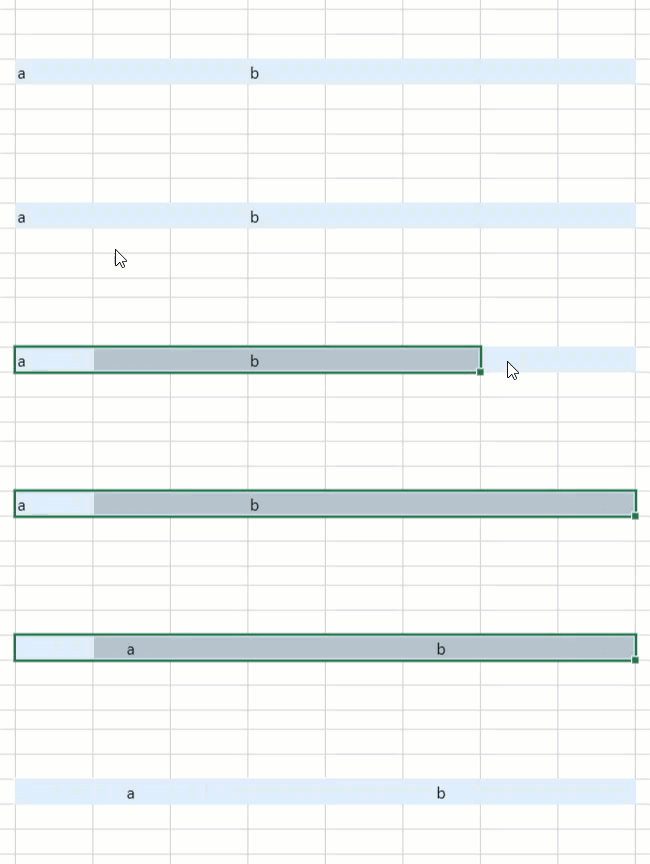 |
| If a value is entered into the selected range later, the selection and centering are updated to exclude that cell onward. |  |
| The selection always starts from the formatted cell. So if selection extends from the left of the cell, those cells are not included. |  |
| The centering is adjusted as columns are resized. |  |
The following code sample implements the "Center Across Selection" horizontal alignment in a worksheet.
```javascript
activeSheet.getCell(1,1).value("Center Across Selection");
activeSheet.getRange(1, 1, 1, 5, GC.Spread.Sheets.SheetArea.viewport).hAlign(GC.Spread.Sheets.HorizontalAlign.centerContinuous);
```
The "Center Across Selection" horizontal alignment interacts with other features of SpreadJS in the following ways:
* **Overflow** \- If the content in the "Center Across Selection" alignment exceeds the width of the selected range\, an overflow to both sides will be triggered\.
* **Wrap text** \- The row height property will force cells to wrap text within the boundaries of "Center Across Selection" regions\.
* **Shrink to fit** \- If the option is selected\, then the width property will be used to calculate the actual font size and fit the content in the selected range\.
* **Accounting number format** \- "Center Across Selection" does not directly center the text\, but stretches the symbols and values to the sides\.
* **Text indent** \- "Center Across Selection" will lock indent to 0\.
* **Orientation** \- "Center Across Selection" will lock orientation to 0\.
* **Merged cells** \- A merged cell can't use the center across selection style\. "Center Across Selection" will be replaced with "Center" if the cell is merged\.
## Distributed Horizontal Alignment
In SpreadJS, the **Distributed** horizontal alignment distributes the text evenly across the width of the cell. The Distributed option is the combination of center alignment and wrap text.
With **Distributed** horizontal alignment, each word in every line of text is aligned evenly across the width of the cell and both the left and right sides of the cell are padded when the indent value is applied.
Hence, when you apply the Distributed option along with the indent value, both margins are aligned with both edges of each line. This type of horizontal alignment can be set using the `HorizontalAlign.distributed` enumeration option.
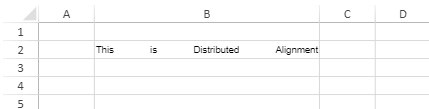
The following code sample implements the “Distributed” horizontal alignment in a worksheet.
```auto
style.hAlign = GC.Spread.Sheets.HorizontalAlign.distributed;
activeSheet.setStyle(1, 1, style, GC.Spread.Sheets.SheetArea.viewport);
activeSheet.getCell(1, 1).value("This is Distributed Alignment");
```
The “Distributed” horizontal alignment interacts with other features of SpreadJS in the following ways:
* **Wrap text**\- With "Distributed" aligned content\, the wrap text feature is automatically implemented\, so setting its value separately makes no difference\.
* **Shrink to fit** \- Distributed alignment deactivates this option\.
* **Text indent** \- In "Distributed" aligned content\, both the left and right sides of the cell are indented\.
* **Justify Last Line** \- Distributed alignment deactivates this option\.
* **Show Ellipsis** \- Distributed alignment deactivates this option\.
## Justify Alignment
The **Justify Alignment Feature** provides users with both **horizontal and vertical justify alignment**, ensuring that text is evenly distributed across the width and height of a cell.
By automatically enabling text wrapping and adjusting spacing between words and lines, justify alignment helps users achieve professional, neatly formatted documents with minimal manual adjustments.
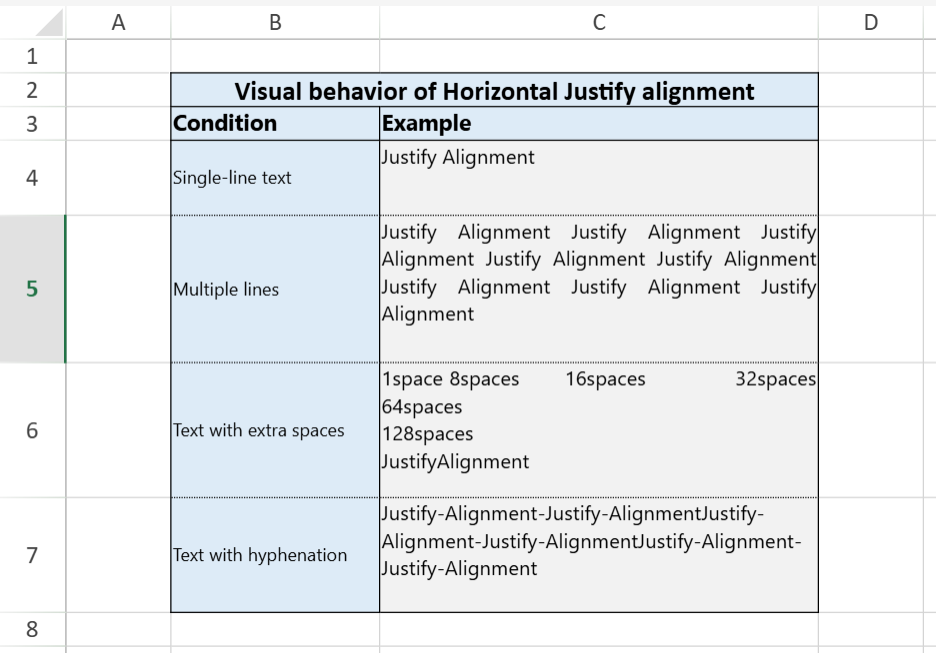
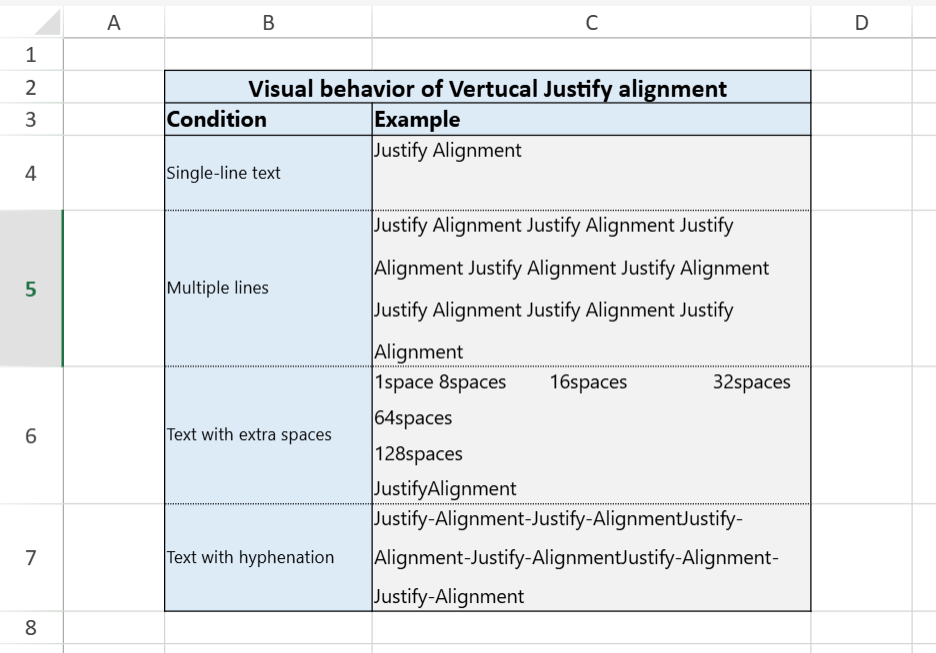
The following figure and table describe how the justification behaves horizontally and vertically in different layout conditions.

| **Text Direction** | **Behavior Description** | **Visual Example** |
| -------------- | -------------------- | -------------- |
| Horizontal | - Aligns the **first and last characters** of each line with the **left and right margins**, **except for the last line**.
- The **last line**, or a **single line of text**, is **left-aligned** by default.
- Automatically adjusts **word spacing** and, when necessary, **line spacing**, to evenly distribute text across the available cell width.
- Supports **hyphenation**, which can reduce excessive spacing between words.
|  |
| Vertical | - Aligns the **first line** with the **top margin** and the **last line** with the **bottom margin** of the cell.
- If there is only **one line of text**, it aligns to the **top edge** of the cell.
- When multiple lines exist, text lines are **evenly distributed** across the **cell height**.
|  |
**Usage Instructions**
```javascript
var style = new GC.Spread.Sheets.Style();
style.hAlign = GC.Spread.Sheets.HorizontalAlign.justify;
style.vAlign = GC.Spread.Sheets.VerticalAlign.justify;
activeSheet.setStyle(1, 1, style, GC.Spread.Sheets.SheetArea.viewport);
activeSheet.getCell(1, 1).value("Justified paragraph demonstration.");
```
The following table describes how the Justify alignment interacts with other layout features, such as automatic text wrapping, merged cells, and text orientation.
| **Related Feature** | **Interaction Details** |
| --------------- | ------------------- |
| Automatic Text Wrapping | - When Justify alignment is applied, the system automatically enables Wrap Text.
- Manual Wrap Text toggles are ignored while Justify alignment is active.
|
| Merged Cell Compatibility | The Justify alignment automatically adapts to the merged cell’s combined width and height, maintaining even text distribution across the enlarged area. |
| Text Orientation | - When text is rotated at **an arbitrary angle (< 0° or > 0°)**, Justify is ignored and the orientation governs alignment.
- **When rotated to –90° or 90°:**
- Horizontal Justify distributes text evenly across columns
- Vertical Justify distributes text evenly across rows.
- In rotated text mode, Justify behaves similarly to wrapped Top/Bottom or Left/Right alignment based on rotation.
|
| Shrink to Fit | - Shrink to Fit is not applied when the cell contains multiple lines.
- When Justify alignment is active, it overrides and disables Shrink to Fit, regardless of content.
|
| Show Ellipsis | The “Show Ellipsis” option is ignored when justify alignment is enabled. |
| Rich Text | - **Underline/Strikethrough**: Lines may break between words when justified.
- **Lists**: Indentation may not appear correctly under justify alignment.
- **Superscripts/Subscripts**: Both scale proportionally when justify alignment is applied.
|
| Indent | Indentation is ignored when horizontal alignment is set to Justify |
The following figures illustrate how Justify alignment behaves in merged cells and under different text orientations.


The following figure compares how Justify alignment affects rich text with different formatting types—including underlines, strikethroughs, lists, and superscripts/subscripts—against the default Top Left alignment.

## Using SpreadJS Designer
You can use alignment and indentation features by accessing the Alignment tab in the Format Cells window. Click the "HOME" tab > "Alignment" group > bottom right arrow button to open the "Format Cells" window.
