# Crop and Resize
## Content
DsImageViewer provides functionality to crop and resize an image through the Page tools plug-in. The Crop image() and Resize image() buttons appear in the second toolbar which displays on clicking the Page tools plug-in icon().
# Crop Image
DsImageViewer allows you to crop the image by specifying the top-left coordinates, height, and width of the image. These settings are available through the **Crop** toolbar, which appears upon clicking the Crop image button. The dialog also provides the **Custom aspect** dropdown, which automatically adjusts the height or width of the image when you specify one of them, thus giving you the desired aspect ratio of the cropped image. The **Cancel** button in the dialog lets you revert the image to its original size and closes the crop toolbar.
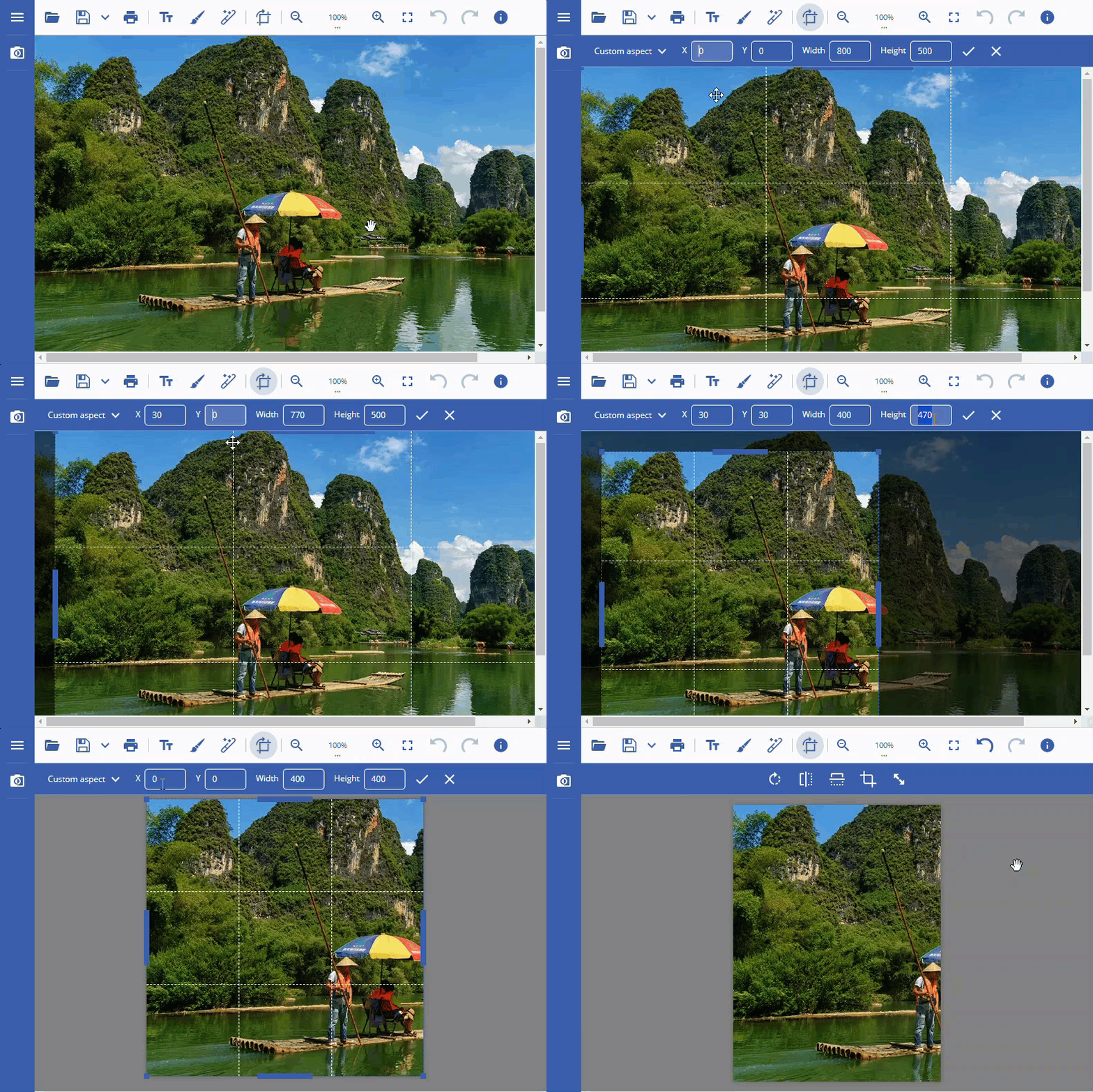
DsImageViewer also allows you to crop an image interactively. To crop an image interactively, you can drag the dotted edges of the image, which appear upon clicking the **Crop image** button.
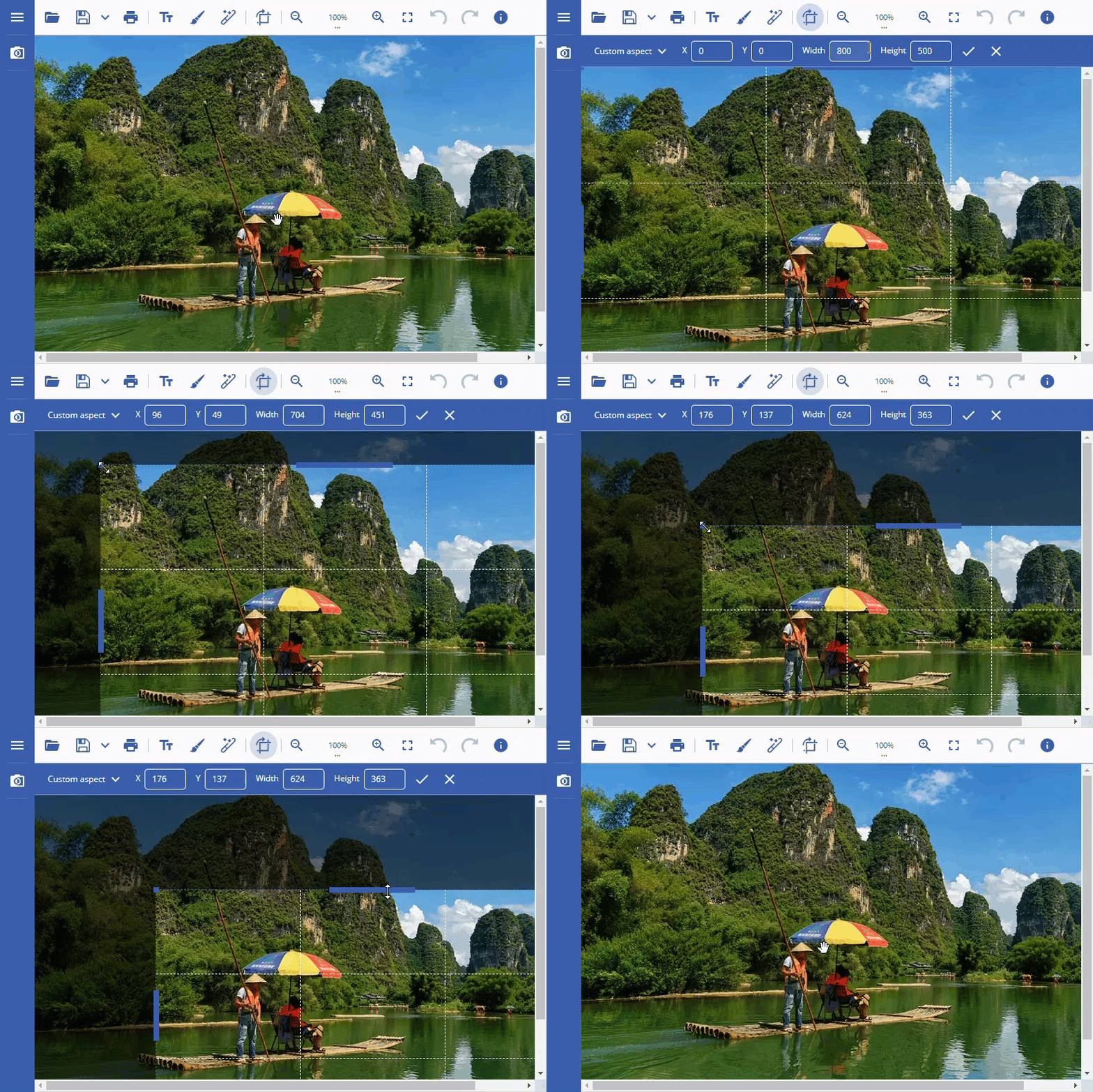
To crop the image through code, you can use [crop](https://developer.mescius.com/document-solutions/javascript-image-viewer/api/classes/PageToolsPlugin#crop) method of the [PageToolsPlugin](https://developer.mescius.com/document-solutions/javascript-image-viewer/api/classes/PageToolsPlugin) class. The method provides you options to set the xposition, yposition, height, width and aspect ratio of the image.
```javascript
function cropImage() {
viewer.findPlugin("pageTools").crop(100, 100, 400, 200).then(function (e) {
if (e) {
console.log("Image Cropped");
} else {
console.log("Image croping failed");
}
})
}
```
# Resize Image
To resize an image, you can click the **Resize image** button to open a **Resize** toolbar. This toolbar lets you set desired image measurements and provides a toggle button that allows you to keep the aspect ratio. The **Keep aspect** setting enables you to retain the ratio of an image's width to its height while resizing. When this setting is enabled and one of the dimensions is set, DsImageViewer automatically calculates the value of the other dimension based on the aspect ratio.
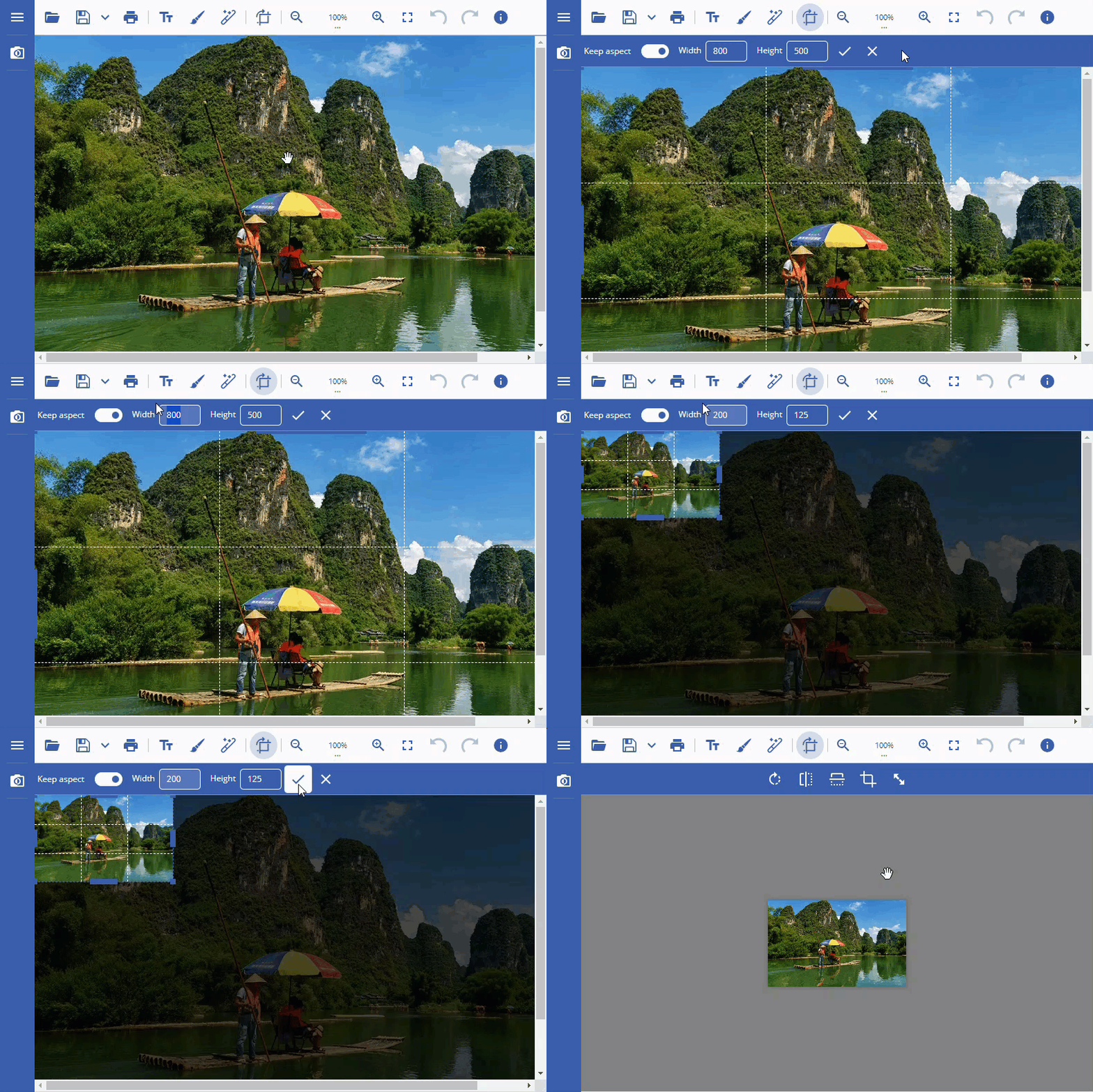
DsImageViewer also allows you to resize an image interactively. To resize an image interactively, you can drag the dotted edges of the image, which appear upon clicking the Resize image button.
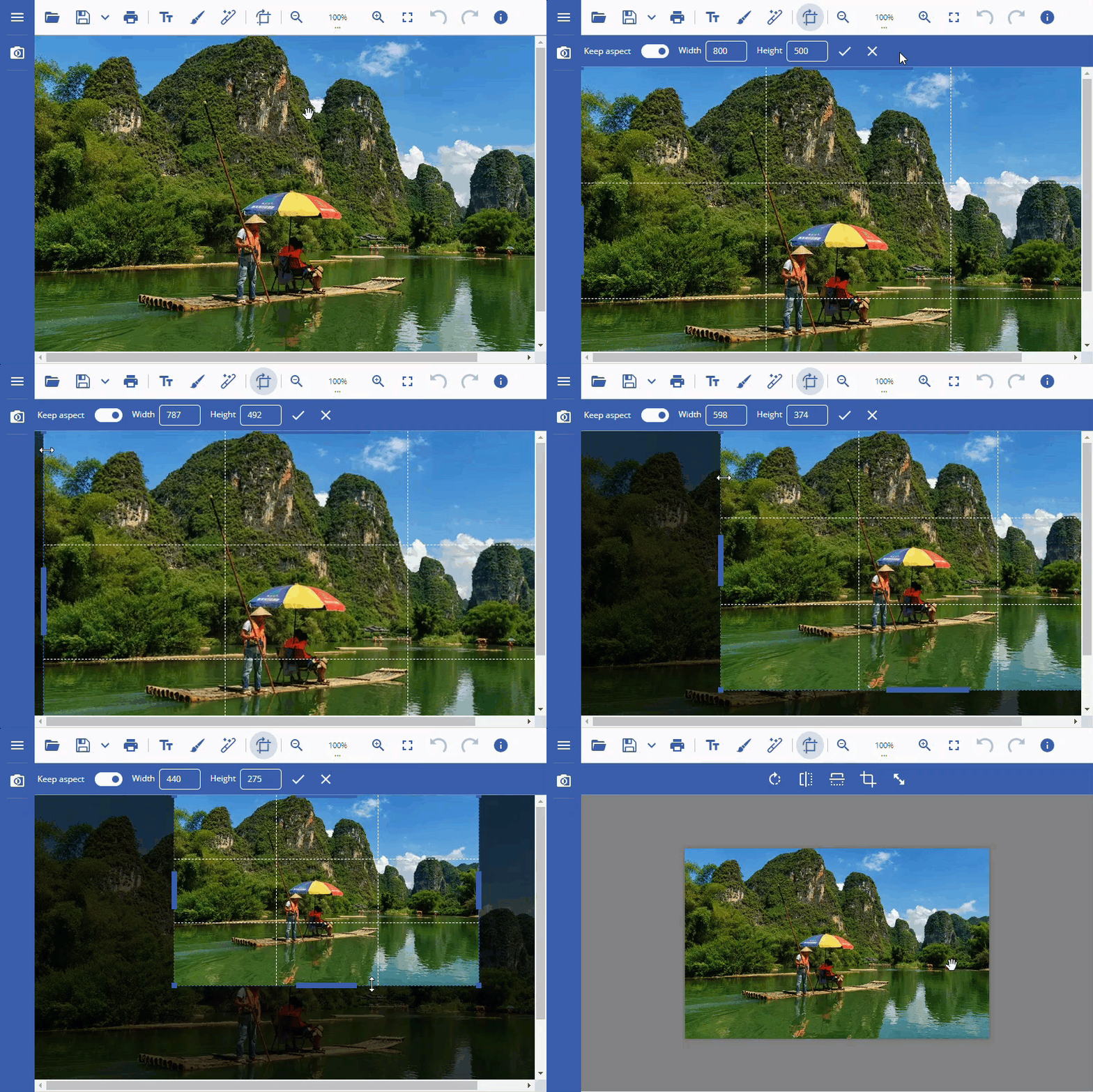
You can also resize the image through code by using [resize](https://developer.mescius.com/document-solutions/javascript-image-viewer/api/classes/PageToolsPlugin#resize) method of the [PageToolsPlugin](https://developer.mescius.com/document-solutions/javascript-image-viewer/api/classes/PageToolsPlugin) class. The method lets you specify the width, height and whether to maintain the original aspect ratio of the image or not.
```javascript
function resizeImage() {
viewer.findPlugin("pageTools").resize(600, 400, true).then(function (e) {
if (e) {
console.log("Image Resized");
} else {
console.log("Image resizing failed");
}
})
}
```
>type=note
> Note**:** The DsImageViewer control does not support editing of multi-frame and animation images such as .gif, .ico, .tiff, and .svg files.