# Quick Start: Configure DsDataViewer
## Content
The steps below describe how to create a simple ASP.NET Core web application that uses DsDataViewer to view data files.
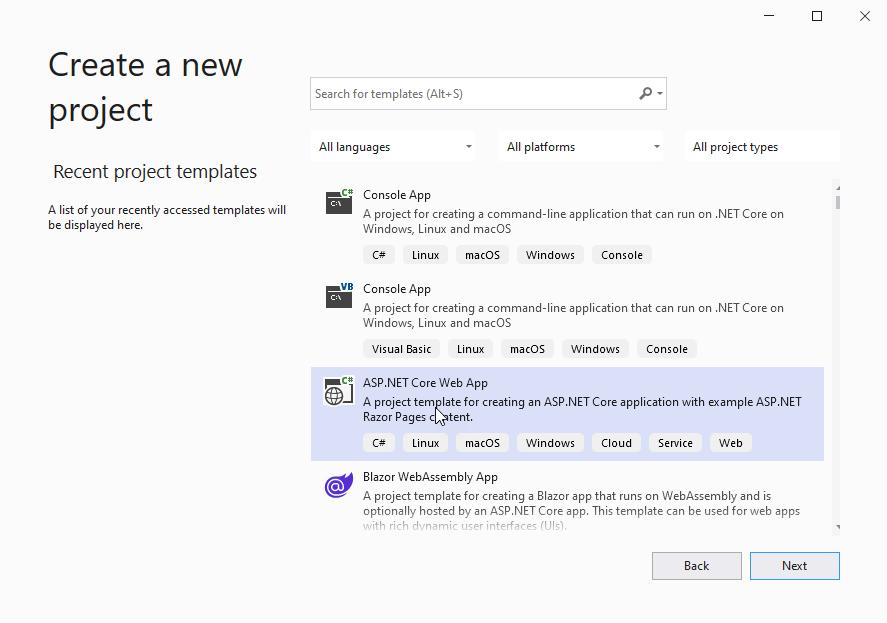
1. Open Microsoft Visual Studio and select **Create a new project \| ASP\.NET Core Web App** and name it. In this example, we have named it as “**DsDataViewerApp**”.
2. Open the project in File Explorer and locate the **wwwroot > lib** directory.
3. Right-click on **lib** folder and select **Open in Terminal**. Run the following command to install **DsDataViewer**.
`npm install @mescius/dsdataviewer`
4. Observe that **DsDataViewer** gets installed at following location:
`DsDataViewerApp\wwwroot\lib\node_modules\@mescius\dsdataviewer`
5. In Solution Explorer, right click **wwwroot** folder of the project and select **Add > New Item** to add a new HTML file named '**index.html**'.
6. To initialize **DsDataViewer**, add the following code to index.html.
```javascript
Document Solutions Data Viewer
```
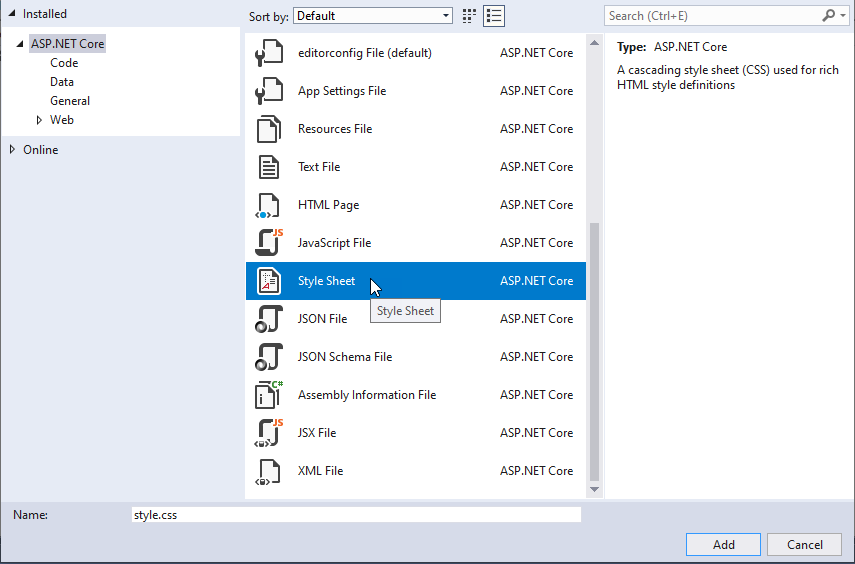
7. In Visual Studio, add a new stylesheet 'style.css' in wwwroot/css folder of the project and add following code.
```css
.dsdataviewer {
height: 100%;
}
```
8. To start the application with **index.html** by default, in **Program.cs** file, replace the default methods with following code.
```csharp
var builder = WebApplication.CreateBuilder(args);
// Add services to the container.
builder.Services.AddRazorPages();
var app = builder.Build();
// Configure the HTTP request pipeline.
if (!app.Environment.IsDevelopment())
{
app.UseExceptionHandler("/Error");
}
app.UseHttpsRedirection();
app.UseDefaultFiles();
app.UseStaticFiles();
app.UseRouting();
app.UseAuthorization();
app.MapRazorPages();
app.Run();
```
9. Build and run the application. A page displaying **DsDataViewer** opens in your default browser.
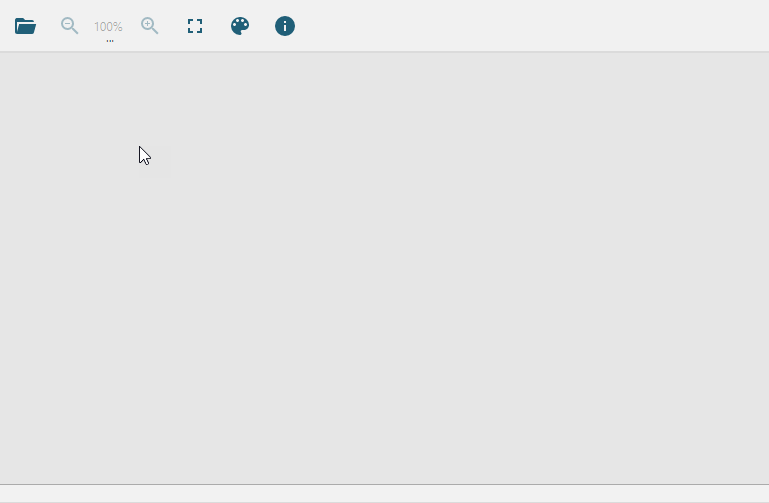
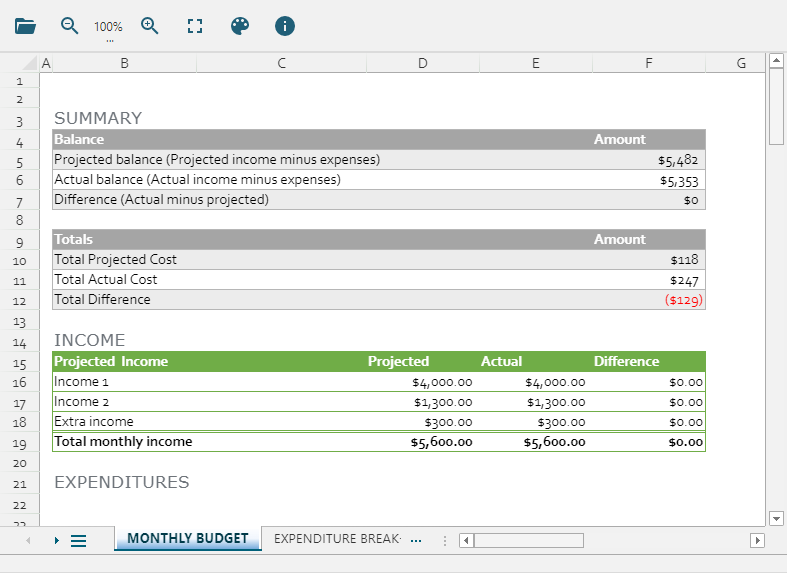
10. User can use **Open document** button() on the top-left of the DsDataViewer control to open a file.
For more information, see [Load a File](/document-solutions/javascript-data-viewer/docs/load-a-file).