# Export Barcodes
Barcodes can be exported to PDF documents. Learn more in DsExcel docs.
## Content
DsExcel provides support to export barcodes to PDF documents. For more information about supported barcodes and the sample code implementation to export them to PDF documents.
## Supported Barcode Types
DsExcel supports exporting the following barcode types to PDF:
* [QRCode](/document-solutions/java-excel-api/docs/online/v9.2/Features/barcodes/qrcode)
* [EAN-13](/document-solutions/java-excel-api/docs/online/v9.2/Features/barcodes/ean-13)
* [EAN-8](/document-solutions/java-excel-api/docs/online/v9.2/Features/barcodes/ean-8)
* [Codabar](/document-solutions/java-excel-api/docs/online/v9.2/Features/barcodes/codabar)
* [Code39](/document-solutions/java-excel-api/docs/online/v9.2/Features/barcodes/code39)
* [Code93](/document-solutions/java-excel-api/docs/online/v9.2/Features/barcodes/code93)
* [Code128](/document-solutions/java-excel-api/docs/online/v9.2/Features/barcodes/code128)
* [GS1- 128](/document-solutions/java-excel-api/docs/online/v9.2/Features/barcodes/gs1-128)
* [PDF417](/document-solutions/java-excel-api/docs/online/v9.2/Features/barcodes/pdf417)
* [Data Matrix](/document-solutions/java-excel-api/docs/online/v9.2/Features/barcodes/datamatrix)
## Export Barcodes to PDF
To export barcodes, add the required barcode formulas to worksheet cells and save the workbook to a PDF file. DsExcel calculates and renders the formulas in the PDF output.
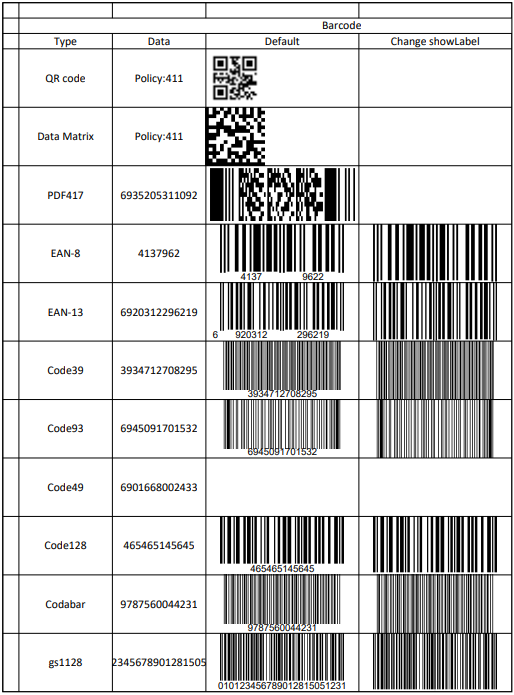
Refer to the following example code to export barcodes to PDF document.
```auto
// Create a new workbook.
Workbook workbook = new Workbook();
// Set worksheet layout and data.
IWorksheet worksheet = workbook.getWorksheets().get(0);
worksheet.getRange("A:A").setColumnWidth(2);
worksheet.getRange("B:C").setColumnWidth(15);
worksheet.getRange("D:G").setColumnWidth(25);
worksheet.getRange("4:14").setRowHeight(57);
worksheet.getRange("B3").setValue("Type");
worksheet.getRange("C3").setValue("Data");
worksheet.getRange("B2").setValue("Barcode");
worksheet.getRange("B2:G2").merge(true);
worksheet.getRange("D3:G3").setValue(new Object[][]{{"Default", "Change color", "Change showLable", "Change lablePosition"}});
worksheet.getPageSetup().setPrintTitleColumns("$A:$C");
worksheet.getRange("B4:C14").setHorizontalAlignment(HorizontalAlignment.Center);
worksheet.getRange("B4:C14").setVerticalAlignment(VerticalAlignment.Center);
worksheet.getRange("B2:G3").setHorizontalAlignment(HorizontalAlignment.Center);
worksheet.getRange("B2:G3").setVerticalAlignment(VerticalAlignment.Center);
worksheet.getRange("B4:C14").setValue(new Object[][]{
{"QR code", "Policy:411"},
{"Data Matrix", "Policy:411"},
{"PDF417", 6935205311092L},
{"EAN-8", 4137962},
{"EAN-13", 6920312296219L},
{"Code39", 3934712708295L},
{"Code93", 6945091701532L},
{"Code49", 6901668002433L},
{"Code128", 465465145645L},
{"Codabar", 9787560044231L},
{"gs1128", 235465143135L}
});
String[] types = {
"BC_QRCODE",
"BC_DataMatrix",
"BC_PDF417",
"BC_EAN8",
"BC_EAN13",
"BC_CODE39",
"BC_CODE93",
"BC_CODE49",
"BC_CODE128",
"BC_CODABAR",
"BC_GS1_128"};
worksheet.getPageSetup().setPrintGridlines(true);
// Use formula to add barcode.
for (int i = 0; i < types.length; i++) {
String columnD = "D" + (i + 4);
String columnE = "E" + (i + 4);
worksheet.getRange(columnD).setFormula("=" + types[i] + "(C" + (i + 4) + ")");
worksheet.getRange(columnE).setFormula("=" + types[i] + "(C" + (i + 4) + ",\"#fff\",\"#000\")");
}
for (int i = 3; i < types.length; i++) {
String columnD = "F" + (i + 4);
String columnE = "G" + (i + 4);
worksheet.getRange(columnD).setFormula("=" + types[i] + "(C" + (i + 4) + ",,,0)");
worksheet.getRange(columnE).setFormula("=" + types[i] + "(C" + (i + 4) + ",,,,\"top\")");
}
// Save to a pdf file.
workbook.save("ExportExcelBarcodesToPDF.pdf");
```
The output is shown in the figure below.
**Limitations**
The following table lists the parameters which are common to all barcode types but are not supported while exporting to PDF documents:
| **Common Properties** | **PDF Export** |
| ----------------- | ---------- |
| color | Not Supported |
| backgroundColor | Not Supported |
The following parameters in different barcode types have limited or no support while exporting to PDF documents, as is elaborated in the below table:
| **Barcode Type** | **Parameter** | **PDF Export** |
| ------------ | --------- | ---------- |
| @rows=3:QRcode | charSet | default "UTF8" |
| charCode
connection | Not Supported |
| model
version
mask | These parameters are calculated and set by the program. |
| @rows=2:DataMatrix | eccMode
ecc200SymbolSize
ecc200EndcodingMode | defult "ECC200" |
| ecc00\_140Symbole
structureAppend
structureNumber
fileIdentifier | Not Supported |
| PDF417 | compact | Not Supported |
| EAN-13 | addon
addOnLabelPosition | Not Supported |
| codabar | checkDigit
nwRatio | Not Supported |
| code39 | labelWithStartAndStopCharacter
checkDigit
nwRatio
fullASCII | Not Supported |
| code93 | checkDigit
fullASCII | Not Supported |
| code49 | @cols=2:This barcode is not supported |
| code128 | codeSet | Not Supported |
Some barcode types support various font options like fontFamily, fontWeight, fontStyle etc. The following font options have limited support as mentioned:
| **Font Options** | **PDF Export** |
| ------------ | ---------- |
| fontStyle | 'normal' and 'italic' |
| fontTextDecoration | 'normal' and 'underline' |