# Images
Images illustrate important information in a document and highlight points raised in the text. Learn how to add, get, edit, and delete an image using DsWord.
## Content
Images are generally used to illustrate important information in your document and highlight points raised in the text. In DsWord, an image or a picture element is represented by the [Picture](/document-solutions/dot-net-word-api/api/online/DS.Documents.Word/GrapeCity.Documents.Word.Picture.html) class which allows you to access all the image properties. DsWord allows you to add an image on a word document using [Add](/document-solutions/dot-net-word-api/api/online/DS.Documents.Word/GrapeCity.Documents.Word.PictureCollection.Add.html) method of the [PictureCollection](/document-solutions/dot-net-word-api/api/online/DS.Documents.Word/GrapeCity.Documents.Word.PictureCollection.html) class that represents a collection of picture elements.
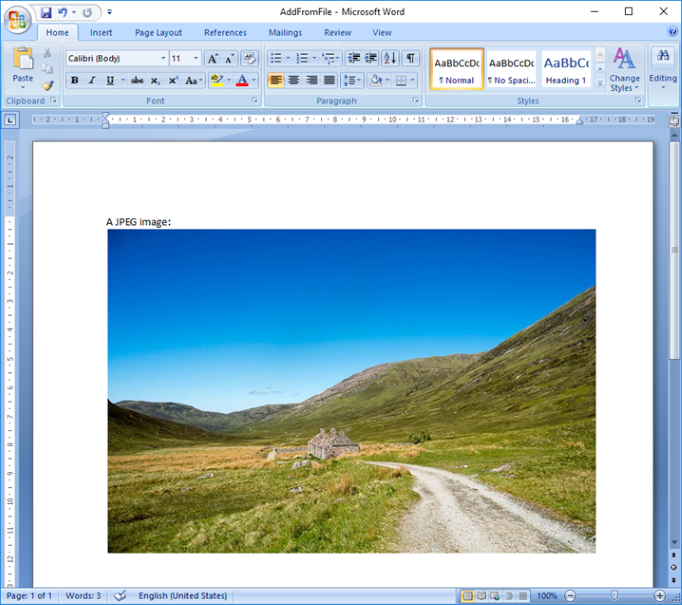
## Add Image from File
To add an image in a document from file:
1. Create a byte array from the image using the ReadAllBytes method.
2. Access the picture collection using [Pictures](/document-solutions/dot-net-word-api/api/online/DS.Documents.Word/GrapeCity.Documents.Word.RangeBase.Pictures.html) property of the [RangeBase](/document-solutions/dot-net-word-api/api/online/DS.Documents.Word/GrapeCity.Documents.Word.RangeBase.html) class.
3. Add image to the picture collection using **Add** method of the **PictureCollection** class, which accepts image as a byte array. For example, insert an image in the first paragraph.
4. Set properties of the image. For example, set the height and width of the image using [Height.Value](/document-solutions/dot-net-word-api/api/online/DS.Documents.Word/GrapeCity.Documents.Word.ShapeHeight.Value.html) and [Width.Value](/document-solutions/dot-net-word-api/api/online/DS.Documents.Word/GrapeCity.Documents.Word.ShapeWidth.Value.html) properties respectively.
```csharp
GcWordDocument doc = new GcWordDocument();
// Load picture data:
var picBytes = File.ReadAllBytes(Path.Combine("Resources", "Images", "road.jpg"));
//Add a paragraph
var pars = doc.Body.Sections.First.GetRange().Paragraphs;
pars.Add("A JPEG image:");
// Add picture, specifying its mime type:
var pic = pars.First.GetRange().Runs.First.GetRange().Pictures.Add(picBytes, "image/jpeg");
// Set picture size
pic.Size.Width.Value = 500;
pic.Size.Height.Value = 400;
//Save the document
doc.Save("AddFromFile.docx");
```
To add an image in a document with same size as the input image, you can use **System.Drawing.Image** namespace:
1. Load an image in a document and add it to the picture collection using [Add](/document-solutions/dot-net-word-api/api/online/DS.Documents.Word/GrapeCity.Documents.Word.PictureCollection.Add.html) method of the **PictureCollection** class.
2. Verify the size of original and added image by retrieving the value of **Height** and **Width** properties.
```csharp
using DrawingImage = System.Drawing.Image;
GcWordDocument doc = new GcWordDocument();
//Load image file
var fileName = Path.Combine(@"cat.png");
using (var image = DrawingImage.FromFile(fileName))
{
var pic = doc.Body.Paragraphs.Add("").GetRange().Runs.First.GetRange().Pictures.Add(image);
//Output: Original Image width is 400 and Added image width is 400
Console.WriteLine(String.Format(@"Original Image width is {0} and Added image width is {1}", image.Size.Width, pic.Size.Width.Value));
//Output: Original Image height is 300 and Added height is 300
Console.WriteLine(String.Format(@"Original Image height is {0} and Added height width is {1}", image.Size.Height, pic.Size.Height.Value));
doc.Save("ImageAdded.docx");
}
```
**Limitation**
The emf, wmf and ico file formats are not supported while adding images using System.Drawing.Image namespace.
Similarly, you can add an image in a document with same size as the input image using [Image](https://developer.mescius.com/document-solutions/dot-net-imaging-api/api/online/DS.Documents.Imaging/GrapeCity.Documents.Drawing.Image.html) class of [Grapecity.Documents.Drawing](https://developer.mescius.com/document-solutions/dot-net-imaging-api/api/online/DS.Documents.Imaging/GrapeCity.Documents.Drawing.html) namespace as shown below:
```csharp
using GcImage = GrapeCity.Documents.Drawing.Image;
GcWordDocument doc = new GcWordDocument();
//Load image file
var fileName = Path.Combine(@"cat.png");
using (var image = GcImage.FromFile(fileName))
{
var pic2 = doc.Body.Paragraphs.Add("").GetRange().Runs.First.GetRange().Pictures.Add(image);
//Output: Original Image width is 400 and Added image width is 400
Console.WriteLine(String.Format(@"Original Image width is {0} and Added image width is {1}", image2.Width, pic2.Size.Width.Value));
//Output: Original Image height is 300 and Added height is 300
Console.WriteLine(String.Format(@"Original Image height is {0} and Added height width is {1}", image2.Height, pic2.Size.Height.Value));
doc.Save("ImageAdded.docx");
}
```
**Limitation**
The emf and wmf file formats are not supported while adding images using GrapeCity.Documents.Drawing namespace.
## Add Image from Stream
To add an image in a document from memory stream:
1. Access a memory stream loaded with image data.
2. Convert the memory stream to byte array using the ToArray method.
3. Add the image to picture collection using **Add** method of the PictureCollection class, which accepts image as a byte array.
4. Set some properties of the image. For example, set **Height.Value** and **Width.Value** properties.
```csharp
//Load image to MemoryStream
MemoryStream ms = new MemoryStream();
System.Drawing.Image imageIn = System.Drawing.Image.FromFile(Path.Combine(
"Resources", "Images", "road.jpg"));
imageIn.Save(ms, imageIn.RawFormat);
//Convert MemoryStream to byte array
var picBytes = ms.ToArray();
//Add a paragraph
var pars = doc.Body.Sections.First.GetRange().Paragraphs;
pars.Add("A JPEG image:");
// Add picture, specifying its mime type:
var pic = pars.First.GetRange().Runs.First.GetRange().Pictures.Add(picBytes, "image/jpeg");
// Set picture size
pic.Size.Width.Value = 500;
pic.Size.Height.Value = 400;
//Save the document
doc.Save("AddFromStream.docx");
```
## Get Image
To get an image:
1. Access an image from the picture collection using Pictures property of the RangeBase class.
2. Get the image data using **ImageBytes** property of the [ImageData](/document-solutions/dot-net-word-api/api/online/DS.Documents.Word/GrapeCity.Documents.Word.ImageData.html) class.
3. Add the fetched image from the document to another document using [Add](/document-solutions/dot-net-word-api/api/online/DS.Documents.Word/GrapeCity.Documents.Word.PictureCollection.Add.html) method of the [PictureCollection](/document-solutions/dot-net-word-api/api/online/DS.Documents.Word/GrapeCity.Documents.Word.PictureCollection.html) class.
```csharp
doc.Load("AddFromFile.docx");
//Extract image from existing document
Picture oldpic = doc.Body.Paragraphs.First.GetRange().Runs.First.GetRange().Pictures[0];
byte[] picBytes = oldpic.ImageData.ImageBytes;
//Add extracted image from old document to new document
GcWordDocument testDocument = new GcWordDocument();
var pars = testDocument.Body.Sections.First.GetRange().Paragraphs;
pars.Add("An old JPEG image:");
// Add picture, specifying its mime type:
var pic = pars.First.GetRange().Runs.First.GetRange().Pictures.Add(picBytes, "image/jpeg");
// Set picture size
pic.Size.Width.Value = 500;
pic.Size.Height.Value = 400;
//Save the document
testDocument.Save("ExtractImage.docx");
```
## Edit Image
To edit an image:
1. Access the image from picture collection using **Pictures** property of the **RangeBase** class.
2. Change the properties of the image. For example, change the rotation properties such as [Angle](/document-solutions/dot-net-word-api/api/online/DS.Documents.Word/GrapeCity.Documents.Word.ShapeRotation.Angle.html) and [VerticalFlip](/document-solutions/dot-net-word-api/api/online/DS.Documents.Word/GrapeCity.Documents.Word.ShapeRotation.VerticalFlip.html) properties of the [ShapeRotation](/document-solutions/dot-net-word-api/api/online/DS.Documents.Word/GrapeCity.Documents.Word.ShapeRotation.html) class.
```csharp
doc.Load("AddFromFile.docx");
//Edit image from existing document
Picture pic = doc.Body.Paragraphs.First.GetRange().Runs.First.GetRange().Pictures[0];
//Set the rotation properties
pic.Rotation.Angle = 45;
pic.Rotation.VerticalFlip = true;
//Save the document
doc.Save("EditIma" +
"ge.docx");
```
## Delete Image
To delete an image from a document, access the image from the picture collection using Pictures property of the RangeBase class and delete it using the [Delete](/document-solutions/dot-net-word-api/api/online/DS.Documents.Word/GrapeCity.Documents.Word.ContentObject.Delete.html) method.
```csharp
doc.Load("AddFromFile.docx");
//Delete image from existing document
Picture pic = doc.Body.Paragraphs.First.GetRange().Runs.First.GetRange().Pictures[0];
pic.Delete();
//Save the document
doc.Save("DeleteImage.docx");
```
For more information on how to work with images in a Word document using DsWord, see [DsWord sample browser](https://developer.mescius.com/documents-api-word/demos/basics/content/picture-add/code-cs).