# Save PDF as Image
DsPdf is a Document Solutions product that offers a rich library to read, create, modify, and save PDF files without using any external tool.
## Content
PDF pages often contain important information, which can be used for Powerpoint presentations, webpages or word processing documents. In such cases, you might want to make small changes in the PDF pages. With DsPdf library, you can save PDF documents as high quality image files, without turning to online PDF-to-Image converter tools.
You can save a PDF document as an image by using the below methods:
## Using SaveAs methods
DsPdf library provides methods to save the entire PDF document or a specific range as an image. The user can provide the file names and call the [SaveAsBmp](/document-solutions/dot-net-pdf-api/api/online/DS.Documents.Pdf/GrapeCity.Documents.Pdf.GcPdfDocument.SaveAsBmp.html), [SaveAsPng](/document-solutions/dot-net-pdf-api/api/online/DS.Documents.Pdf/GrapeCity.Documents.Pdf.GcPdfDocument.SaveAsPng.html), [SaveAsGif](/document-solutions/dot-net-pdf-api/api/online/DS.Documents.Pdf/GrapeCity.Documents.Pdf.GcPdfDocument.SaveAsGif.html), [SaveAsJpeg](/document-solutions/dot-net-pdf-api/api/online/DS.Documents.Pdf/GrapeCity.Documents.Pdf.GcPdfDocument.SaveAsJpeg.html), and [SaveAsTiff](/document-solutions/dot-net-pdf-api/api/online/DS.Documents.Pdf/GrapeCity.Documents.Pdf.GcPdfDocument.SaveAsTiff.html) methods of the [GcPdfDocument](/document-solutions/dot-net-pdf-api/api/online/DS.Documents.Pdf/GrapeCity.Documents.Pdf.GcPdfDocument.html) class.
To save a PDF as an image, follow the steps given below:
1. Create an instance of GcPdfDocument class.
2. Load the PDF document using the [Load](/document-solutions/dot-net-pdf-api/api/online/DS.Documents.Pdf/GrapeCity.Documents.Pdf.GcPdfDocument.Load.html) method of GcPdfDocument class.
3. Call the **OutputRange** method to define the pages of the document that need to be saved.
4. Call the [SaveAsImageOptions](/document-solutions/dot-net-pdf-api/api/online/DS.Documents.Pdf/GrapeCity.Documents.Pdf.SaveAsImageOptions.html) method to save the image in different formats (JPEG, BMP, PNG and GIF).
```csharp
GcPdfDocument doc = new GcPdfDocument();
var fs = new FileStream(Path.Combine("Wetlands.pdf"), FileMode.Open, FileAccess.Read);
doc.Load(fs); //Load the document
//Create an output range object which defines which pages of the document should be saved
//If no output range is defined then all the pages of the document will be saved
OutputRange pageRange = new OutputRange(1, 2);
//Specify the options that should be used while saving the document's pages to image
SaveAsImageOptions op = new SaveAsImageOptions();
SaveAsImageOptions saveOptions = new SaveAsImageOptions()
{
BackColor = Color.LightCyan,
DrawAnnotations = false,
DrawFormFields = false,
Resolution = 100
};
doc.SaveAsJpeg("WetlandsImage{0}.jpeg", pageRange, saveOptions); //Saves the document pages as images in JPEG format
doc.SaveAsBmp("WetlandsImage{0}.bmp", pageRange, saveOptions); //Saves the document pages as images in BMP format
doc.SaveAsGif("WetlandsImage{0}.gif", pageRange, saveOptions); //Saves the document pages as images in GIF format
doc.SaveAsPng("WetlandsImage{0}.png", pageRange, saveOptions); //Saves the document pages as images in PNG format
```
DsPdf enables a user to save PDF pages as images by simply calling methods of the [Page](/document-solutions/dot-net-pdf-api/api/online/DS.Documents.Pdf/GrapeCity.Documents.Pdf.Page.html) class like [SaveAsBmp](/document-solutions/dot-net-pdf-api/api/online/DS.Documents.Pdf/GrapeCity.Documents.Pdf.Page.SaveAsBmp.html), [SaveAsPng](/document-solutions/dot-net-pdf-api/api/online/DS.Documents.Pdf/GrapeCity.Documents.Pdf.Page.SaveAsPng.html), [SaveAsGif](/document-solutions/dot-net-pdf-api/api/online/DS.Documents.Pdf/GrapeCity.Documents.Pdf.Page.SaveAsGif.html), [SaveAsTiff](/document-solutions/dot-net-pdf-api/api/online/DS.Documents.Pdf/GrapeCity.Documents.Pdf.Page.SaveAsTiff.html) and [SaveAsJpeg](/document-solutions/dot-net-pdf-api/api/online/DS.Documents.Pdf/GrapeCity.Documents.Pdf.Page.SaveAsJpeg.html) methods.
To save a PDF page directly as an image, follow the steps given below:
1. Create an instance of the GcPdfDocument class.
2. Load the PDF document.
3. Set [BackColor](/document-solutions/dot-net-pdf-api/api/online/DS.Documents.Pdf/GrapeCity.Documents.Pdf.SaveAsImageOptions.BackColor.html) and [Resolution](/document-solutions/dot-net-pdf-api/api/online/DS.Documents.Pdf/GrapeCity.Documents.Pdf.SaveAsImageOptions.Resolution.html) properties of the PDF page in [SaveAsImageOptions](/document-solutions/dot-net-pdf-api/api/online/DS.Documents.Pdf/GrapeCity.Documents.Pdf.SaveAsImageOptions.html) class.
4. Save the required page of the PDF document by invoking the appropriate method of Page class.
```csharp
GcPdfDocument doc = new GcPdfDocument();
var fs = new FileStream(Path.Combine("Wetlands.pdf"), FileMode.Open, FileAccess.Read);
doc.Load(fs); //Load the document
//Specify the options that should be used while saving the page to image
SaveAsImageOptions saveOptions = new SaveAsImageOptions()
{
BackColor = Color.LightCyan,
DrawAnnotations = false,
DrawFormFields = false,
Resolution = 100
};
//Saves the document's first page as an image to a file in JPEG format
doc.Pages[0].SaveAsJpeg("WetlandsImage.jpeg",saveOptions);
//Saves the document's first page as an image to a stream in JPEG format
MemoryStream stream = new MemoryStream();
doc.Pages[0].SaveAsJpeg(stream,saveOptions);
```
DsPdf library also provides [InterpolationMode](/document-solutions/dot-net-pdf-api/api/online/DS.Documents.Pdf/GrapeCity.Documents.Pdf.SaveAsImageOptions.InterpolationMode.html) property in the SaveAsImageOptions class, which is utilized to set interpolation mode while drawing bitmap images in PDF files or saving the PDF files as images; by default, it is NearestNeighbor.
Refer to the following example code to set InterpolationMode while saving the PDF file as images:
```csharp
class Program
{
GrapeCity.Documents.Pdf.GcPdfDocument Document;
GrapeCity.Documents.Pdf.GcPdfGraphics Graphics;
GrapeCity.Documents.Pdf.Page Page;
public const float Resolution = 25.4f;
public const float MM = 1;
public const float CM = MM * 10;
System.Drawing.SizeF PageSize;
System.Drawing.RectangleF TextRect;
static void Main(string[] args)
{
// Initialize GcPdfDocument.
var pdf = new GrapeCity.Documents.Pdf.GcPdfDocument();
// Draw page in PDF document.
new Program(pdf).DrawPage();
// Instantiate SaveAsImageOptions.
SaveAsImageOptions options = new SaveAsImageOptions();
// Set InterpolationMode to NearestNeighbor.
options.InterpolationMode = GrapeCity.Documents.Drawing.InterpolationMode.NearestNeighbor;
// Save PDF document.
pdf.Save("test.pdf");
// Save PDF document as BMP image with SaveAsImageOptions.
pdf.SaveAsBmp("test.bmp", null, options);
// Save PDF document as PNG image with SaveAsImageOptions.
pdf.SaveAsPng("test.png", null, options);
// Save PDF document as JPEG image with SaveAsImageOptions.
pdf.SaveAsJpeg("test.jpg", null, options);
}
Program(GrapeCity.Documents.Pdf.GcPdfDocument doc)
{
Document = doc;
}
// Configure page settings for PDF document.
void AddPage()
{
Page = Document.NewPage();
Page.PaperKind = GrapeCity.Documents.Common.PaperKind.A4;
Page.Landscape = false;
PageSize = Page.GetRenderSize(Resolution, Resolution);
Graphics = Page.Graphics;
Graphics.Resolution = Resolution;
TextRect = new System.Drawing.RectangleF(0, 0, PageSize.Width, PageSize.Height);
TextRect.Inflate(-2.5f * CM, -2.7f * CM);
Graphics.DrawRectangle(TextRect, new GrapeCity.Documents.Drawing.Pen(System.Drawing.Color.Green, 2f * MM));
}
// Draw image on Bitmap.
void DrawBitmap(System.Drawing.RectangleF rect)
{
var pngImage = GrapeCity.Documents.Drawing.Image.FromFile(@"..\..\..\qrcode.png");
Graphics.DrawImage(pngImage, rect, rect, GrapeCity.Documents.Drawing.ImageAlign.StretchImage);
}
// Draw page in PDF document.
void DrawPage()
{
AddPage();
DrawBitmap(new System.Drawing.RectangleF(5 * CM, 5 * CM, 10 * CM, 10 * CM));
}
}
```
> !type=note
> **Note:** The interpolation mode only affects the way bitmap images are drawn on a graphic, i.e., the result of [DrawImage](/document-solutions/dot-net-pdf-api/api/online/DS.Documents.Imaging/GrapeCity.Documents.Drawing.GcGraphics.DrawImage.html) method and bitmap image resizing. Interpolation mode does not affect any other graphics operations. In particular, if a PDF is saved to an image format, the only items affected by interpolation mode would be bitmap images embedded in the original PDF, if they exist.
## Save as SVG
In addition to above mentioned common image formats, DsPdf also lets you save the PDF pages as SVG or its compressed format SVGZ. You can use [SaveAsSvg](/document-solutions/dot-net-pdf-api/api/online/DS.Documents.Pdf/GrapeCity.Documents.Pdf.Page.SaveAsSvg.html) and [ToSvgz](/document-solutions/dot-net-pdf-api/api/online/DS.Documents.Pdf/GrapeCity.Documents.Pdf.Page.ToSvgz.html) methods of the [GrapeCity.Documents.Pdf.Page](/document-solutions/dot-net-pdf-api/api/online/DS.Documents.Pdf/GrapeCity.Documents.Pdf.Page.html) class to export an instance of pdf page to SVG file or stream(.svg) or a byte array(.svgz).
```csharp
var pdfDoc = new GcPdfDocument();
using (var fs = new FileStream("Test.pdf", FileMode.Open, FileAccess.Read, FileShare.Read))
{
pdfDoc.Load(fs);
var page = pdfDoc.Pages[0];
// Render a PDF page to the .svg file
page.SaveAsSvg("DsPDFRenderToSVG.svg", null,
new SaveAsImageOptions() { Zoom = 2f },
new XmlWriterSettings() { Indent = true });
// Render a PDF page to the byte array with compressed data in SVGZ format
var svgzData = page.ToSvgz(new SaveAsImageOptions() { Zoom = 1f });
File.WriteAllBytes("DsPDFRenderToSVGZ.svgz", svgzData);
}
```
**Limitation**
Text is always rendered as graphics [using paths](/document-solutions/dot-net-pdf-api/docs/online/Features/Images#createpath). Hence, resulting .svg files for text pages are large and it is not possible to select or copy text on the SVG images opened in the browsers.
## Render PDF pages on GcGraphics
DsPdf allows a user to render specific PDF pages, annotations or a mix of PDF pages to images. The user can draw PDF pages on the image graphics using [Draw](/document-solutions/dot-net-pdf-api/api/online/DS.Documents.Pdf/GrapeCity.Documents.Pdf.Page.Draw.html) method of the [Page](/document-solutions/dot-net-pdf-api/api/online/DS.Documents.Pdf/GrapeCity.Documents.Pdf.Page.html) class. If the PDF pages contain annotations, you can draw the PDF page annotations on the graphics object with [DrawAnnotations](/document-solutions/dot-net-pdf-api/api/online/DS.Documents.Pdf/GrapeCity.Documents.Pdf.Page.DrawAnnotations.html) method of the Page class. After drawing on the graphics object, the bitmap image can be saved in any image format by calling the [SaveAsPng](/document-solutions/dot-net-pdf-api/api/online/DS.Documents.Imaging/GrapeCity.Documents.Imaging.GcBitmap.SaveAsPng.html), [SaveAsJpeg](/document-solutions/dot-net-pdf-api/api/online/DS.Documents.Imaging/GrapeCity.Documents.Imaging.GcBitmap.SaveAsJpeg.html) or [SaveAsTiff](/document-solutions/dot-net-pdf-api/api/online/DS.Documents.Imaging/GrapeCity.Documents.Imaging.GcBitmap.SaveAsTiff.html) methods of the [GcBitmap](/document-solutions/dot-net-pdf-api/api/online/DS.Documents.Imaging/GrapeCity.Documents.Imaging.GcBitmap.html) class.
> !type=note
> **Note:** To implement this method, you will need the license for DsImaging library.
To save a PDF as an image, follow the steps given below:
1. Create an instance of [GcPdfDocument](/document-solutions/dot-net-pdf-api/api/online/DS.Documents.Pdf/GrapeCity.Documents.Pdf.GcPdfDocument.html) class.
2. Load any existing PDF file using the [Load](/document-solutions/dot-net-pdf-api/api/online/DS.Documents.Imaging/GrapeCity.Documents.Imaging.GcBitmap.Load.html) method.
3. Create an instance of GcBitmap class to render the PDF into an image.
4. Call the [Draw](/document-solutions/dot-net-pdf-api/api/online/DS.Documents.Pdf/GrapeCity.Documents.Pdf.Page.Draw.html) method of Page class to render the PDF file pages content with or without annotations and the [DrawAnnotations](/document-solutions/dot-net-pdf-api/api/online/DS.Documents.Pdf/GrapeCity.Documents.Pdf.Page.DrawAnnotations.html) method of Page class to render only the page annotations on the image graphics.
5. Save the rendered PDF page into the required image format by calling **SaveAsPng, SaveAsJpeg or SaveAsTiff** methods of the GcBitmap class.
The code snippet below illustrates how to save a PDF document as an image.
```csharp
GcPdfDocument doc = new GcPdfDocument();
doc.Load(new FileStream("SampleDoc.pdf", FileMode.Open, FileAccess.Read));
var page = doc.Pages[0];
var sz = page.Bounds;
GcBitmap bmp1 = new GcBitmap((int)(sz.Width + 0.5f), (int)(sz.Height + 0.5f), true);
using (GcGraphics g = bmp1.CreateGraphics(Color.White))
{
//render whole page content (including the annotations)
page.Draw(g, new RectangleF(0, 0, sz.Width, sz.Height));
}
GcBitmap bmp2 = new GcBitmap((int)(sz.Width + 0.5f), (int)(sz.Height + 0.5f), true);
using (GcGraphics g = bmp2.CreateGraphics(Color.White))
{
//render page content without annotations
page.Draw(g, new RectangleF(0, 0, sz.Width, sz.Height), false);
}
GcBitmap bmp3 = new GcBitmap((int)(sz.Width + 0.5f), (int)(sz.Height + 0.5f), true);
using (GcGraphics g = bmp3.CreateGraphics(Color.White))
{
//render only the page's annotations
page.DrawAnnotations(g, new RectangleF(0, 0, sz.Width, sz.Height));
}
/*Once the PDF page has been rendered on GcGraphics,
*then the rendered PDF page can be saved as an image in various image formats
*such as, JPEG, PNG, BMP, TIFF, and GIF.
*/
bmp1.SaveAsPng("WholePageContents.png");
bmp2.SaveAsJpeg("PageContentsWithoutAnnotations.jpeg");
bmp3.SaveAsTiff("PageAnnotations.tiff");
```
Apart from the above, you can also render text in PDF and save it as an image by enabling TrueType hinting instructions as explained below:
## Support for TrueType Hinting Instructions
DsPdf supports enabling TrueType hinting instructions while rendering text on **GcPdfGraphics** and saving it as an image.
Hinting instructions are included in some TrueType fonts which improve their look by reusing some glyph parts in different glyphs regardless of their font size. TrueType hinting instructions, in DsPdf, supports drawing CJK characters as combinations of other smaller glyph pieces which enhances their final look.
For fonts which include TrueType glyph hinting instructions, the **EnableHinting** property of the **Font** class is set to true, for the others it is set to False. Further, to apply the hinting instructions of the font, **EnableFontHinting** property of the **SaveAsImageOptions** class must be set to true (the default value).
However, if the **EnableHinting** property is explicitly set to false, then the hinting instructions cannot be enabled.
As the default value of both the properties is true, hence the hinting instructions are supported for any TrueType font which includes them.
| **Disabled Hinting Intructions** |
| ---------------------------- |
| 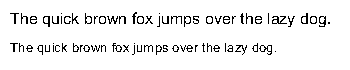 |
|  |
| **Enabled Hinting Intructions** |
| --------------------------- |
| 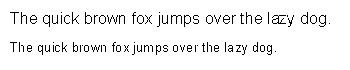 |
|  |
To enable TrueType hinting instructions for Chinese string:
1. Load a Chinese Font file.
2. Initialize the **GcPdfGraphics** class which represents a graphics object on a PDF page.
3. Define a Chinese string and configure **TextFormat** properties.
4. Draw the Chinese string.
5. Create an instance of **SaveAsImageOptions** class and use it to set the **EnableFontHinting** property to true .
6. Save the image.
```csharp
var font = Font.FromFile("kaiu.ttf");
GcPdfDocument doc = new GcPdfDocument();
{
GcPdfGraphics g = doc.NewPage().Graphics;
{
//Draw the string with hinting instructions set to true
string s1 = @"入秋空污警報!這幾招遠離PM2.5學起來";
//Define text formatting attributes
var tf1 = new TextFormat()
{
Font = font,
FontSize = 20,
};
g.DrawString(s1, tf1, new PointF(10, 110));
SaveAsImageOptions imgOptions = new SaveAsImageOptions();
imgOptions.EnableFontHinting = true;
doc.SaveAsPng("ChineseFontwithHintingInstructions1.png", null, imgOptions);
}
}
```
## Filter Annotations
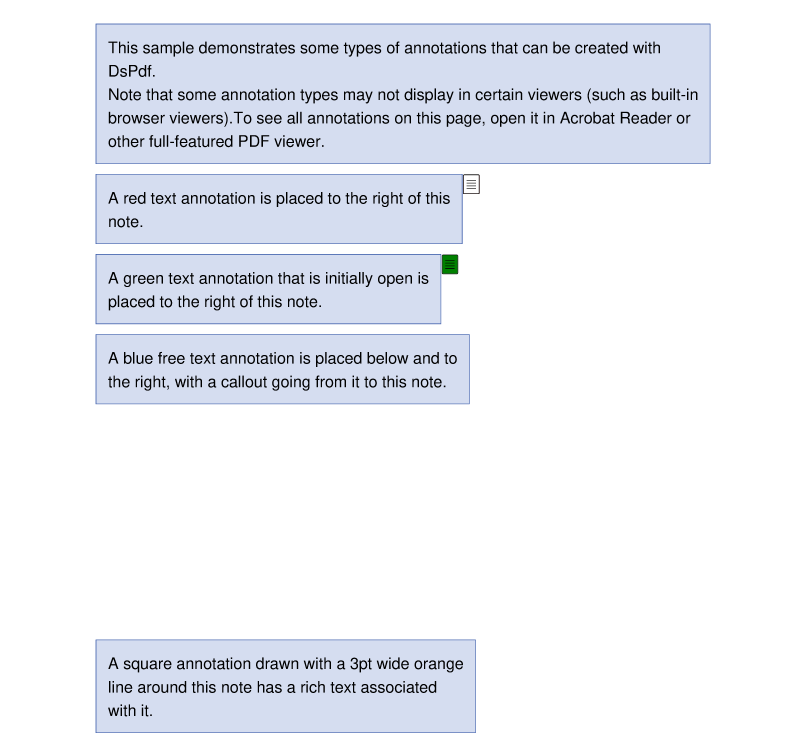
DsPdf allows you to control which annotations to render when saving a PDF as an image using [DrawAnnotationFilter](/document-solutions/dot-net-pdf-api/api/online/DS.Documents.Pdf/GrapeCity.Documents.Pdf.SaveAsImageOptions.DrawAnnotationFilter.html) property of SaveAsImageOptions class. This property assigns the [DrawAnnotationFilterCallback](/document-solutions/dot-net-pdf-api/api/online/DS.Documents.Pdf/GrapeCity.Documents.Pdf.SaveAsImageOptions.DrawAnnotationFilterCallback.html) method to determine which annotations to render.
```csharp
// Initialize GcPdfDocument.
var doc = new GcPdfDocument();
// Add new page.
var page = doc.NewPage();
// Initialize GcPdfGraphics.
var g = page.Graphics;
// Set user names for annotation authors.
var user1 = "Jaime Smith";
var user2 = "Jane Donahue";
// Set note width and gap.
var noteWidth = 72 * 4;
var gap = 8;
// Add note to the document.
var rc = Common.Util.AddNote(
"This sample demonstrates some types of annotations that can be created with DsPdf.\n" +
"Note that some annotation types may not display in certain viewers (such as built-in browser viewers)." +
"To see all annotations on this page, open it in Acrobat Reader or other full-featured PDF viewer.",
page);
// Add text annotation.
var ip = new PointF(rc.X, rc.Bottom + gap);
rc = Common.Util.AddNote(
"A red text annotation is placed to the right of this note.",
page, new RectangleF(ip.X, ip.Y, noteWidth, 100));
var textAnnot = new TextAnnotation()
{
UserName = user1,
Contents = "This is annotation 1, a red one.",
Rect = new RectangleF(rc.Right, rc.Top, 72 * 2, 72),
Color = Color.Red,
};
page.Annotations.Add(textAnnot);
// Add reply to previous annotation.
var textAnnotReply = new TextAnnotation()
{
UserName = user2,
Contents = "This is a reply to the first annotation.",
Rect = new RectangleF(rc.Right, rc.Top, 72 * 2, 72),
ReferenceAnnotation = textAnnot,
ReferenceType = AnnotationReferenceType.Reply,
};
page.Annotations.Add(textAnnotReply);
// Add an initially open text annotation.
ip = new PointF(rc.X, rc.Bottom + gap);
rc = Common.Util.AddNote(
"A green text annotation that is initially open is placed to the right of this note.",
page, new RectangleF(ip.X, ip.Y, noteWidth, 100));
var textAnnotOpen = new TextAnnotation()
{
Open = true,
UserName = user1,
Contents = "This is an initially open annotation (green).",
Rect = new RectangleF(rc.Right, rc.Top, 72 * 2, 72),
Color = Color.Green,
};
page.Annotations.Add(textAnnotOpen);
// Add free text annotation (shows directly on page).
ip = new PointF(rc.X, rc.Bottom + gap);
rc = Common.Util.AddNote(
"A blue free text annotation is placed below and to the right, with a callout going from it to this note.",
page, new RectangleF(ip.X, ip.Y, noteWidth, 100));
var freeAnnot = new FreeTextAnnotation()
{
Rect = new RectangleF(rc.Right + 18, rc.Bottom + 9, 72 * 2, 72),
CalloutLine = new PointF[]
{
new PointF(rc.Left + rc.Width / 2, rc.Bottom),
new PointF(rc.Left + rc.Width / 2, rc.Bottom + 9 + 36),
new PointF(rc.Right + 18, rc.Bottom + 9 + 36),
},
LineWidth = 1,
LineEndStyle = LineEndingStyle.OpenArrow,
LineDashPattern = new float[] { 8, 4 },
Contents = "This is a free text annotation with a callout line going to the note on the left.",
Color = Color.LightSkyBlue,
};
page.Annotations.Add(freeAnnot);
// Add another free text annotation, with some rich text inside.
ip = new PointF(rc.X, freeAnnot.Rect.Bottom + gap);
var freeRichAnnot = new FreeTextAnnotation()
{
Rect = new RectangleF(ip.X - 144, ip.Y, 72 * 5, 72),
LineWidth = 1,
Color = Color.LightSalmon,
RichText =
"This is another free text annotation, with Rich Text content.
" +
"Even though a free text annotation displays text directly on a page, " +
"as other annotations it can be placed outside the page's bounds.
"
};
page.Annotations.Add(freeRichAnnot);
// Add square annotation around a note.
ip = new PointF(rc.X, freeRichAnnot.Rect.Bottom + gap * 2);
rc = Common.Util.AddNote(
"A square annotation drawn with a 3pt wide orange line around this note has a rich text associated with it.",
page, new RectangleF(ip.X, ip.Y, noteWidth, 100));
rc.Inflate(8, 8);
var squareAnnot = new SquareAnnotation()
{
UserName = user2,
Rect = rc,
LineWidth = 3,
Color = Color.Orange,
RichText =
"This rich text is associated with the square annotation around a text note.
"
};
page.Annotations.Add(squareAnnot);
// Render TextAnnotation only.
SaveAsImageOptions options = new SaveAsImageOptions();
options.DrawAnnotationFilter = (GcPdfDocument d, Page p, AnnotationBase a, ref bool drawAnnotation) =>
{
drawAnnotation = a is TextAnnotation;
};
// Save dcoument in PNG format.
doc.SaveAsPng("TextAnnotationOnly.png", null, options);
```
> !type=note
> **Note:** Draw and DrawAnnotation methods accept SaveAsImageOptions.DrawAnnotationFilterCallback DrawAnnotationFilter as a parameter. The default value is null.
> !type=note
> **Note:** This example codes in this topic add content to the PDF document using a helper file named Util.cs. To run the example codes directly, download the file from
> [here](https://cdn.mescius.io/document-site-files/images/884d2bfb-301b-49bc-8d90-656c5b910507/files/util.cs).