# Load and View PDF Files in Vue
Learn how to load and view PDF files in a Vue3 application. Get started and see more from Document Solutions today.
## Content
This tutorial shows how to integrate the **Document Solutions for PDF Viewer (DsPdfViewer)** into a Vue 3 application. The DsPdfViewer lets users view and edit PDF files directly in the browser, including interactive PDF forms, and save modified documents on the client side. It supports all modern browsers and provides an efficient way to load and display PDF files in web applications.
If you want to follow along, feel free to [download the completed Vue 3 PDF Viewer sample project to explore the implementation](https://gccontent.blob.core.windows.net/gccontent/blogs/gcdocuments/20250514-Create-a-Vue-PDF-Viewer-app/pdf-viewer-app.zip "https://gccontent.blob.core.windows.net/gccontent/blogs/gcdocuments/20250514-Create-a-Vue-PDF-Viewer-app/pdf-viewer-app.zip"), or watch the video tutorial below:
## Prerequisites
Before you begin, make sure the following tools are installed:
* Node.js (download the latest version from the official Node.js site)
* NPM (included with Node.js)
* Vue CLI (create new projects using the built-in Vue scaffolding tool)
Once these are installed, you can begin creating your Vue project.
***
## Create a Vue 3 Project
Use the following command to create a new Vue application:
```auto
npm create vue@latest
```
During setup, you’ll be prompted to choose optional features such as TypeScript or testing support.
After the project is created, navigate to the folder and install the Document Solutions PDF Viewer package. You can also install Bootstrap for optional styling:
```auto
cd pdf-viewer-app
npm install @mescius/dspdfviewer
npm install bootstrap
```
When installation is complete, the required files will be available in: node\_modules/@mescius/dspdfviewer/
***
## Add the PDF Viewer Component to the Vue Application
Open the App.vue file and replace the default template with a single host element for the viewer:
```auto
```
Initialize the PDF Viewer inside the onMounted lifecycle hook.
Create a new instance of DsPdfViewer, set the worker source path, and call **[addDefaultPanels()](https://developer.mescius.com/document-solutions/javascript-pdf-viewer/api/classes/GcPdfViewer#adddefaultpanels "https://developer.mescius.com/document-solutions/javascript-pdf-viewer/api/classes/GcPdfViewer#adddefaultpanels")** to display the toolbar and navigation panels.
```auto
```
Add CSS styles to ensure the viewer fills the page.
Edit main.css with the following rules:
```auto
html, body, #app {
height: 100%;
margin: 0;
padding: 0;
}
#viewer {
height: 100%;
width: 100%;
}
```
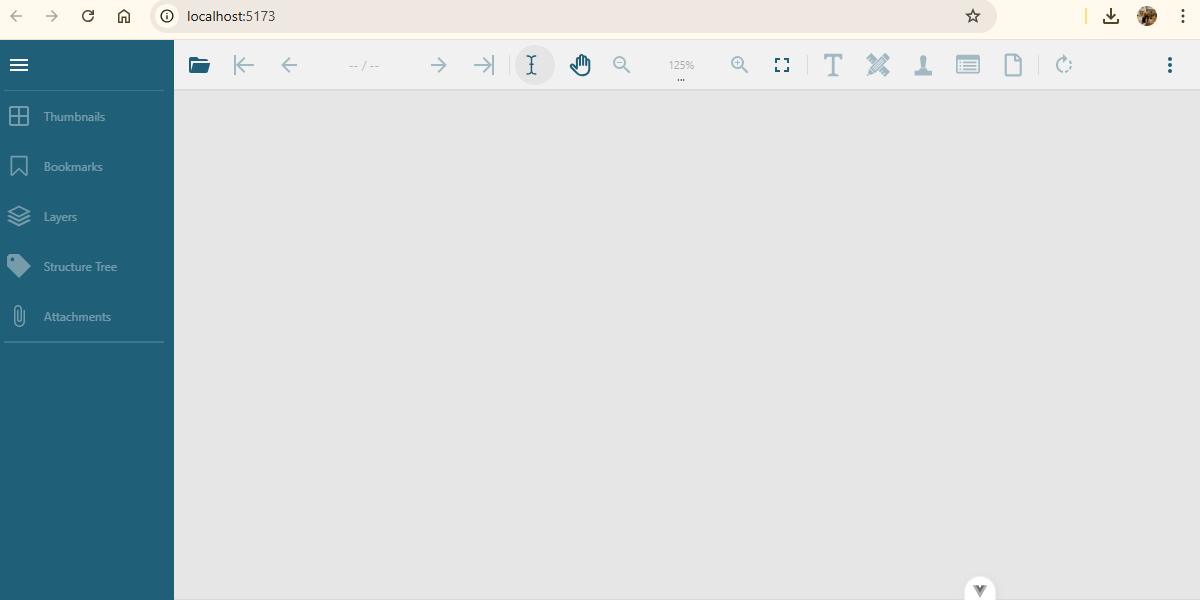
Run the Vue 3 project, and you’ll see the PDF Viewer display in the browser window with its default interface panels.
***
## Load a Local PDF File in a Vue Application
With the viewer running, you can now load a PDF stored locally in your project.
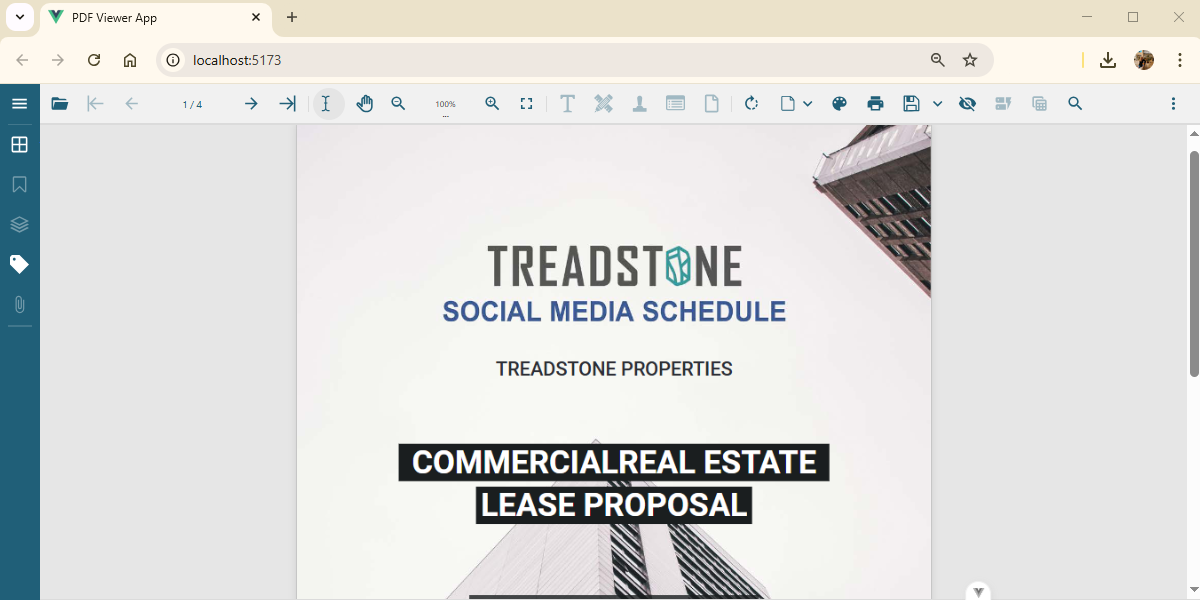
For this example, place a file named social\_media\_schedule.pdf in public/pdfs/.
To display the file, use the **[open()](https://developer.mescius.com/document-solutions/javascript-pdf-viewer/api/classes/DsPdfViewer#open "https://developer.mescius.com/document-solutions/javascript-pdf-viewer/api/classes/DsPdfViewer#open")** [method](https://developer.mescius.com/document-solutions/javascript-pdf-viewer/api/classes/DsPdfViewer#open "https://developer.mescius.com/document-solutions/javascript-pdf-viewer/api/classes/DsPdfViewer#open") of the viewer:
```auto
viewer.open("./public/pdfs/social_media_schedule.pdf");
```
When you run the app, the specified PDF file will load automatically in the DsPdfViewer.
You can also use the **[openLocalFile()](https://developer.mescius.com/document-solutions/javascript-pdf-viewer/api/classes/GcPdfViewer#openlocalfile "https://developer.mescius.com/document-solutions/javascript-pdf-viewer/api/classes/GcPdfViewer#openlocalfile")**[ method](https://developer.mescius.com/document-solutions/javascript-pdf-viewer/api/classes/GcPdfViewer#openlocalfile "https://developer.mescius.com/document-solutions/javascript-pdf-viewer/api/classes/GcPdfViewer#openlocalfile") to let users select a file through a native open-file dialog.
***
## Load a PDF from a URL in a Vue Application
You can also open PDFs hosted on the same domain as your Vue app.
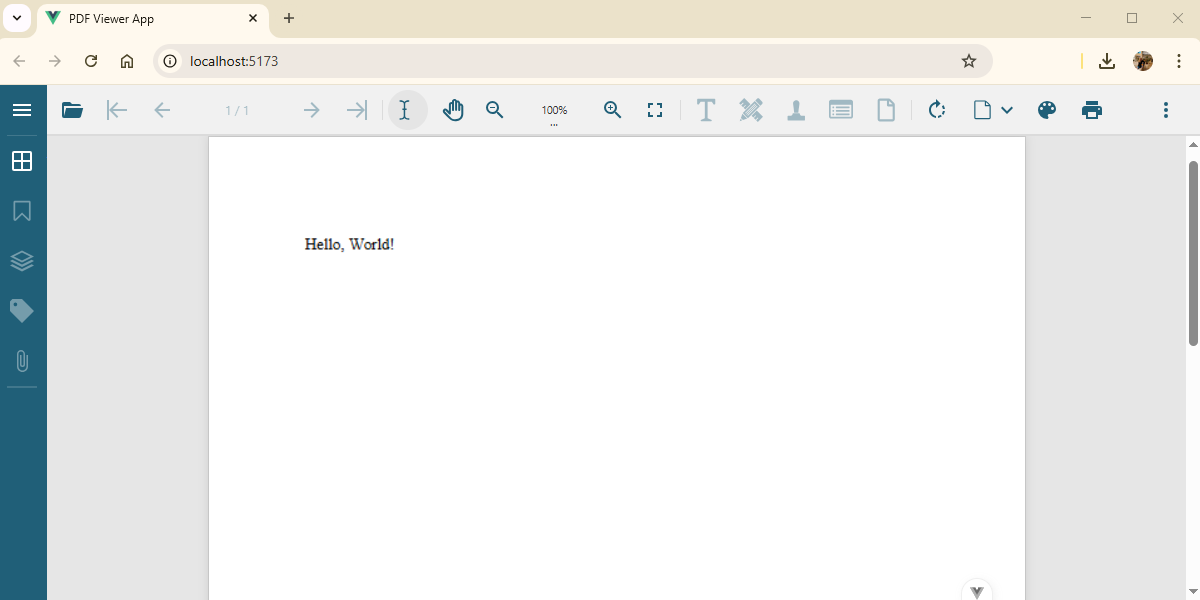
Use the same **[open()](https://developer.mescius.com/document-solutions/javascript-pdf-viewer/api/classes/GcPdfViewer#open "https://developer.mescius.com/document-solutions/javascript-pdf-viewer/api/classes/GcPdfViewer#open")**[ method](https://developer.mescius.com/document-solutions/javascript-pdf-viewer/api/classes/GcPdfViewer#open "https://developer.mescius.com/document-solutions/javascript-pdf-viewer/api/classes/GcPdfViewer#open") and provide the relative URL to the PDF:
```auto
viewer.open("/document-solutions/javascript-pdf-viewer/demos/product-bundles/assets/pdf/helloworld.pdf");
```
The viewer will download and render the file directly in the browser.
This method works for any PDF that resides within your web application’s domain.
***
## Load a PDF from Another Domain (Using a CORS Proxy) in a Vue Application
When loading a PDF from a different domain, browsers may block the request due to CORS (Cross-Origin Resource Sharing) restrictions.
To handle this, DsPdfViewer supports a **SupportApi** configuration, which uses an ASP.NET Core service as a proxy for loading and streaming remote PDF files.
### Create a CORS Proxy Endpoint
In your ASP.NET Core project, add a controller named CorsProxyController:
```auto
[ApiController]
[Route("[controller]")]
public class CorsProxyController : ControllerBase
{
private readonly IHttpClientFactory _httpClientFactory;
public CorsProxyController(IHttpClientFactory httpClientFactory) => _httpClientFactory = httpClientFactory;
[HttpGet]
public async Task Get(string url)
{
if (string.IsNullOrEmpty(url)) return BadRequest("Missing 'url' query parameter.");
var client = _httpClientFactory.CreateClient();
var response = await client.GetAsync(url);
if (!response.IsSuccessStatusCode) return StatusCode((int)response.StatusCode);
var stream = await response.Content.ReadAsStreamAsync();
var contentType = response.Content.Headers.ContentType?.ToString() ?? "application/pdf";
return File(stream, contentType);
}
}
```
Register the HTTP client in Program.cs:
```auto
builder.Services.AddHttpClient();
```
### Update the Vue Component to Use the Proxy
Once the proxy service is running, configure the supportApi object in your Vue viewer setup:
```auto
onMounted(() => {
const viewer = new DsPdfViewer("#viewer", {
workerSrc: "https://cdn.mescius.com/ds-pdfviewer/latest/dspdfviewer.worker.js",
restoreViewStateOnLoad: false,
supportApi: {
apiUrl: "https://localhost:7296",
token: "support-api-demo-net-core-token-2021",
webSocketUrl: false
}
});
viewer.addDefaultPanels();
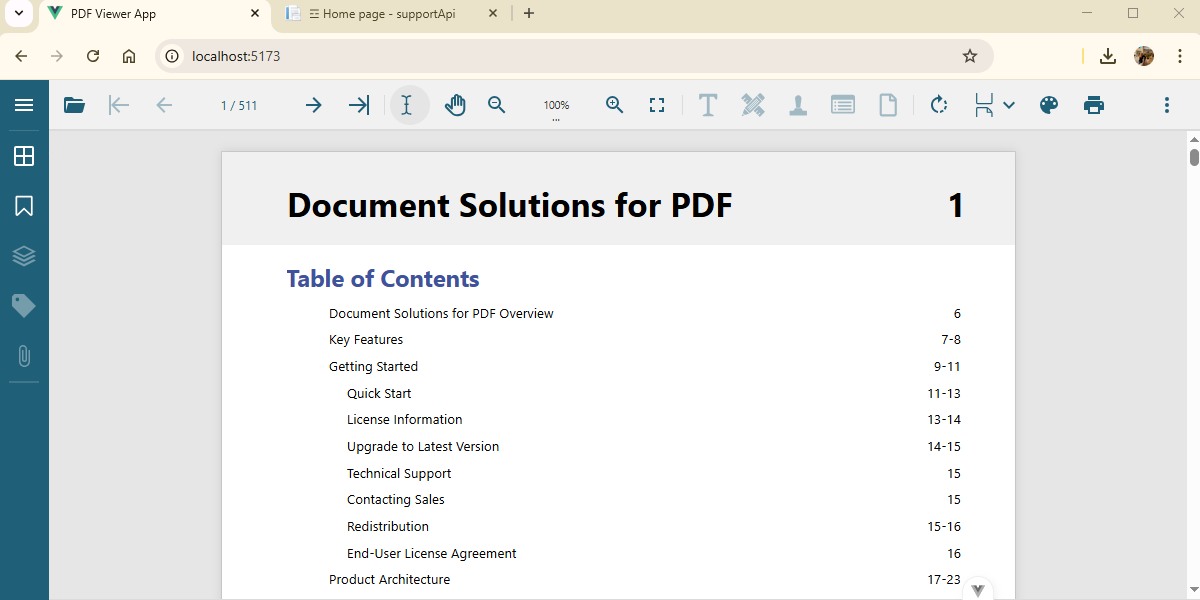
viewer.open("https://localhost:7296/CorsProxy?url=https://www.africau.edu/images/default/sample.pdf");
});
```
After these steps, your Vue app can securely open and render PDFs from external domains without encountering CORS errors.
***
## FAQ
**Why doesn’t my PDF load when using a URL from another domain?**
This is typically caused by browser CORS restrictions. To fix this, configure the **[supportApi](https://developer.mescius.com/document-solutions/javascript-pdf-viewer/api/classes/GcPdfViewer#supportapi)** option in DsPdfViewer to proxy remote file requests through your own server (for example, using an ASP.NET Core endpoint). This ensures cross-domain PDFs load securely without browser blocking.
**Can DsPdfViewer be used directly in a Vue 3 application without a backend?**
Yes. For local files or same-domain assets, no backend is required. You can use **[viewer.open()](https://developer.mescius.com/document-solutions/javascript-pdf-viewer/api/classes/GcPdfViewer#open)** to load project PDFs or **[viewer.openLocalFile()](https://developer.mescius.com/document-solutions/javascript-pdf-viewer/api/classes/GcPdfViewer#openlocalfile)** to allow user-selected files. A backend is only needed when loading files from external URLs that lack CORS headers.
**Does DsPdfViewer support editing or only viewing PDFs in Vue?**
DsPdfViewer supports both viewing and editing features. Users can fill out interactive forms, modify annotations, add comments, and save updated PDFs all directly in the browser without requiring server round-trips. Editing features require a **Professional DsPdfViewer license** and is not included in the standard DsPdfViewer license provided with every DsPdf license.
**How can I customize the appearance of the PDF Viewer in Vue?**
You can use the built-in API methods like **[addDefaultPanels()](https://developer.mescius.com/document-solutions/javascript-pdf-viewer/api/classes/GcPdfViewer#adddefaultpanels)** or **[updatePanel()](https://developer.mescius.com/document-solutions/dot-net-pdf-api/docs/online/pdfviewer/customize-pdf-viewer-toolbar#toggle-visibility-of-sidebar-buttons)** to customize toolbars and navigation areas. Additionally, apply CSS styles or Bootstrap classes to adjust layout, colors, and overall viewer appearance.
**Can DsPdfViewer for Vue work with other frameworks or standalone HTML pages?**
Absolutely. DsPdfViewer is framework-agnostic, meaning it works seamlessly in Vue, React, Angular, or plain JavaScript/HTML environments. The API usage and configuration remain consistent across frameworks.
***
## Next Steps
* [Try the online demos to see features like form filling, annotation, and client-side saving in action](https://developer.mescius.com/document-solutions/javascript-pdf-viewer/demos/ "https://developer.mescius.com/document-solutions/javascript-pdf-viewer/demos/").
* [Learn more about upgrading to the Professional DsPdfViewer by watching the benefits webinar here.](https://developer.mescius.com/webinars/document-solutions-for-pdf-professional-viewer)
* [Watch the full video tutorial associated with this page here](https://developer.mescius.com/videos/document-solutions/how-to-create-a-vue-pdf-viewer-application).