# Layers
DsPdf allows you to use layers or optional content in PDF documents using which you can see the specific content sections.
## Content
The layers (optional content) in a PDF document allow you to selectively view or hide the specific content sections. The main purpose of layers is to control the visibility of graphics objects rendered in a PDF document. A few examples where PDF layers can be particularly useful, are:
* PDF document containing multi-lingual content, each in different layers.
* PDF document containing animation that appears on a separate layer.
* License agreement in a PDF document which needs to be agreed upon before the content can be viewed.
* PDF document containing a watermark, which may not show onscreen but is always printed and exported to other applications.
* PDF document containing details over a product design.
DsPdf allows you to create layers, associate content (such as content stream, FormXObject and annotation) with different layers and set their properties. The **[OptionalContentProperties](/document-solutions/dot-net-pdf-api/api/online/DS.Documents.Pdf/GrapeCity.Documents.Pdf.Layers.OptionalContentProperties.html)**[ ](/document-solutions/dot-net-pdf-api/api/online/DS.Documents.Pdf/GrapeCity.Documents.Pdf.Layers.OptionalContentProperties.html)class provides various methods and properties which can be used to implement layers in PDF documents.
## Create Layers in a PDF document
To create layers in a PDF and draw on them:
1. Create and name layers by using the [AddLayer](/document-solutions/dot-net-pdf-api/api/online/DS.Documents.Pdf/GrapeCity.Documents.Pdf.Layers.OptionalContentProperties.AddLayer.html) method of [OptionalContentProperties](/document-solutions/dot-net-pdf-api/api/online/DS.Documents.Pdf/GrapeCity.Documents.Pdf.Layers.OptionalContentProperties.html) class.
2. To begin drawing on a specific layer, call the [BeginLayer](/document-solutions/dot-net-pdf-api/api/online/DS.Documents.Pdf/GrapeCity.Documents.Pdf.GcPdfGraphics.BeginLayer.html) method of GcPdfGraphics, specifying the target layer's name.
3. Add content to the layer by using any of the GcPdfGraphics' Draw\* methods (e.g. [DrawString](/document-solutions/dot-net-pdf-api/api/online/DS.Documents.Imaging/GrapeCity.Documents.Drawing.GcGraphics.DrawString.html)).
4. To end drawing on the current layer, call the [EndLayer](/document-solutions/dot-net-pdf-api/api/online/DS.Documents.Pdf/GrapeCity.Documents.Pdf.GcPdfGraphics.EndLayer.html) method of GcPdfGraphics.
5. Similarly, you can add content to other layers by using the BeginLayer/EndLayer methods and drawing on those other layers.
```csharp
GcPdfDocument doc = new GcPdfDocument();
doc.OptionalContent.AddLayer("Layer1");
doc.OptionalContent.AddLayer("Layer2");
var g = doc.NewPage().Graphics;
g.BeginLayer("Layer1");
g.DrawString("Layer1", new TextFormat() { Font = StandardFonts.Courier }, new PointF(10, 10));
g.EndLayer();
g.BeginLayer("Layer2");
g.DrawString("Layer2", new TextFormat() { Font = StandardFonts.Courier }, new PointF(10, 30));
g.EndLayer();
doc.Save("SimpleLayers.pdf");
```
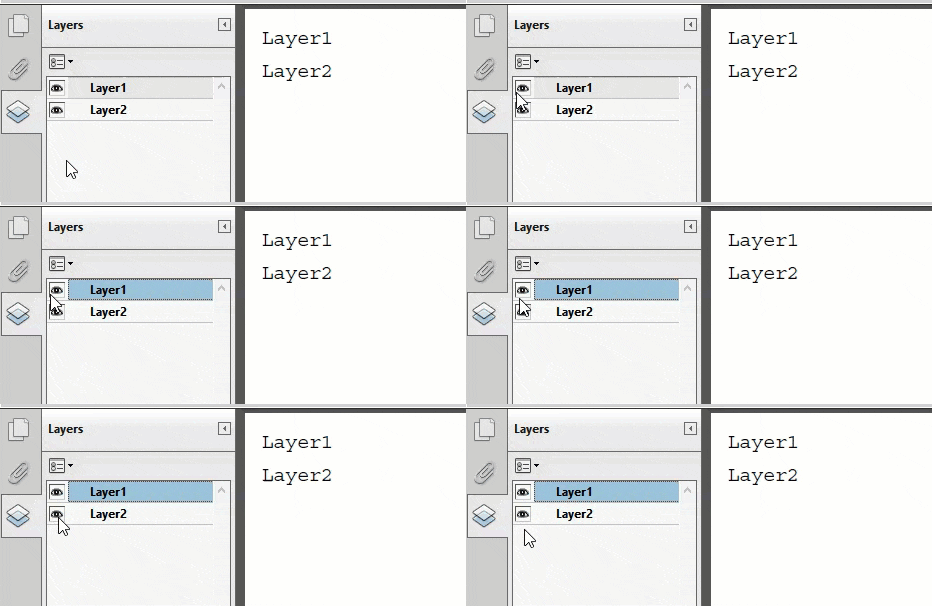
The output of above code example will look like:
## Create Layers and Associate FormXObject
A FormXObject can also be associated with a specific layer. The following code example demonstrates this:
1. Create layer or layers as described above, storing the reference to the created layer object returned by the [AddLayer](/document-solutions/dot-net-pdf-api/api/online/DS.Documents.Pdf/GrapeCity.Documents.Pdf.Layers.OptionalContentProperties.AddLayer.html) method.
2. Create a FormXObject (see [FormXObject](/document-solutions/dot-net-pdf-api/docs/online/Features/FormXObject)).
3. Set the [Layer ](/document-solutions/dot-net-pdf-api/api/online/DS.Documents.Pdf/GrapeCity.Documents.Pdf.Graphics.FormXObject.Layer.html)property of the [FormXObject](/document-solutions/dot-net-pdf-api/api/online/DS.Documents.Pdf/GrapeCity.Documents.Pdf.Graphics.FormXObject.html) to the layer you want the FormXObject to be associated with.
```csharp
GcPdfDocument doc = new GcPdfDocument();
var l1 = doc.OptionalContent.AddLayer("Layer1");
var l2 = doc.OptionalContent.AddLayer("Layer2");
var g = doc.NewPage().Graphics;
FormXObject fxo1 = new FormXObject(doc, new RectangleF(0, 0, 100, 100));
fxo1.Graphics.FillRectangle(new RectangleF(0, 0, 100, 100), Color.Blue);
fxo1.Graphics.DrawString(l1.Name, new TextFormat() { Font = StandardFonts.Courier }, new PointF(10, 10));
fxo1.Layer = l1;
FormXObject fxo2 = new FormXObject(doc, new RectangleF(0, 0, 100, 100));
fxo2.Graphics.DrawRectangle(new RectangleF(0, 0, 100, 100), Color.Blue, 4);
fxo2.Graphics.DrawString(l2.Name, new TextFormat() { Font = StandardFonts.Courier }, new PointF(10, 10));
fxo2.Layer = l2;
g.DrawForm(fxo1, new RectangleF(10, 10, 100, 100), null, ImageAlign.StretchImage);
g.DrawForm(fxo2, new RectangleF(150, 10, 100, 100), null, ImageAlign.StretchImage);
doc.Save("FormXObjectLayers.pdf");
```
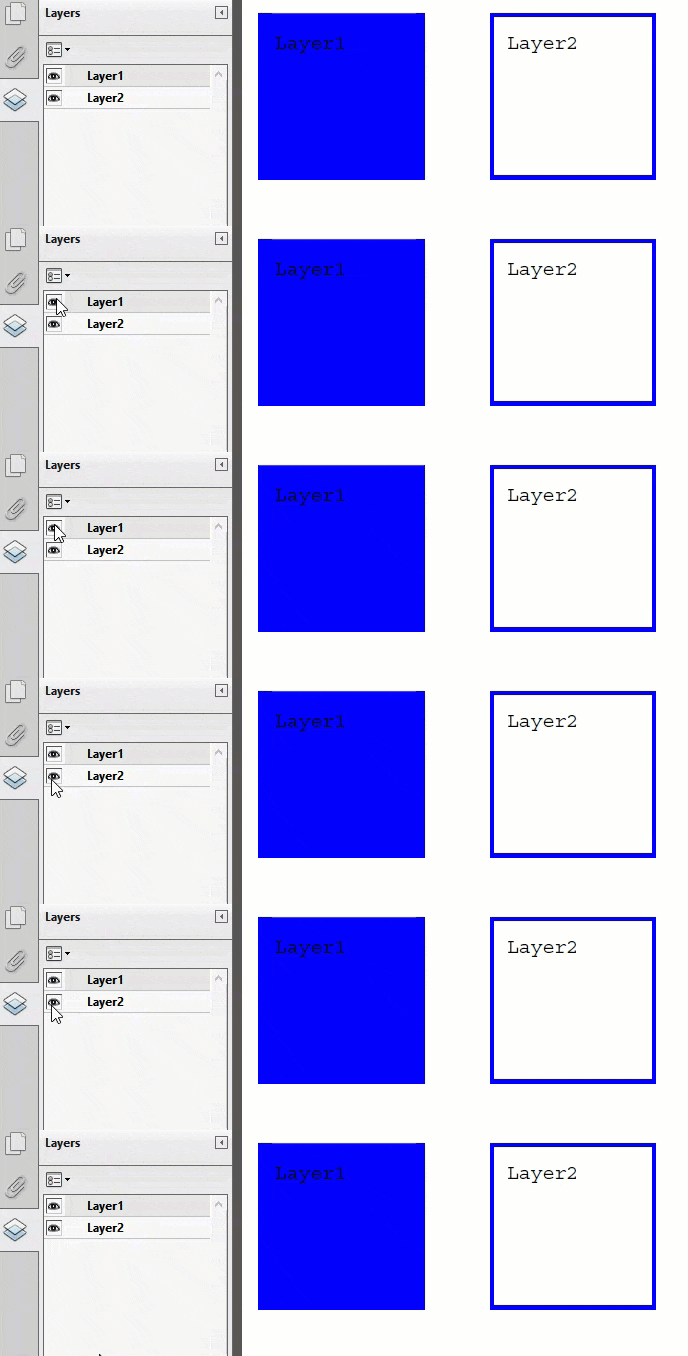
The output of above code example will look like:
## Create Layers and Associate Annotation
An annotation can also be associated with a specific layer. The below example code demonstrates this by setting the [Layer ](/document-solutions/dot-net-pdf-api/api/online/DS.Documents.Pdf/GrapeCity.Documents.Pdf.Annotations.AnnotationBase.Layer.html)property of the [AnnotationBase](/document-solutions/dot-net-pdf-api/api/online/DS.Documents.Pdf/GrapeCity.Documents.Pdf.Annotations.AnnotationBase.html) class to the desired layer.
```csharp
GcPdfDocument doc = new GcPdfDocument();
var l1 = doc.OptionalContent.AddLayer("Layer1");
var l2 = doc.OptionalContent.AddLayer("Layer2");
var p = doc.NewPage();
var ft = new FreeTextAnnotation();
ft.UserName = "UserName";
ft.Rect = new RectangleF(10, 10, 100, 100);
ft.Contents = $"Annotation from {l1.Name}";
ft.Layer = l1;
p.Annotations.Add(ft);
ft = new FreeTextAnnotation();
ft.UserName = "UserName";
ft.Rect = new RectangleF(150, 10, 100, 100);
ft.Contents = $"Annotation from {l2.Name}";
ft.Layer = l2;
p.Annotations.Add(ft);
doc.Save("AnnotationLayers.pdf");
```
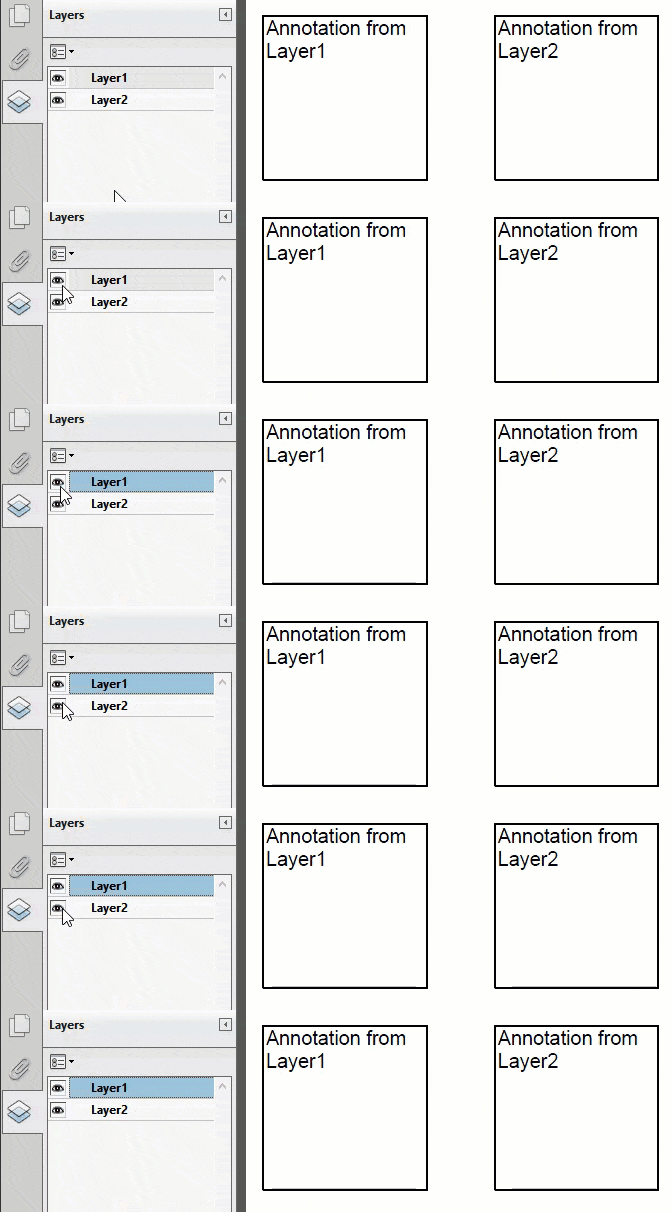
The output of above code example will look like:
## Set Layer Properties
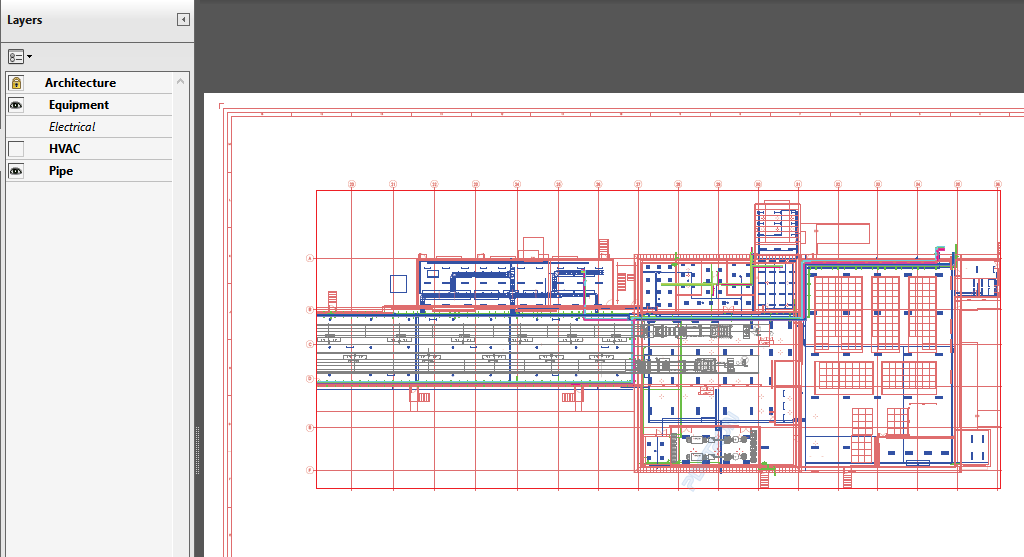
You can use the Set\* utility methods of the [OptionalContentProperties](/document-solutions/dot-net-pdf-api/api/online/DS.Documents.Pdf/GrapeCity.Documents.Pdf.Layers.OptionalContentProperties.html) class to change the various properties of different layers. The below example code demonstrates this:
```csharp
GcPdfDocument doc = new GcPdfDocument();
using (FileStream fs = new FileStream("construction_drawing-final.pdf", FileMode.Open))
{
doc.Load(fs);
doc.OptionalContent.SetLayerLocked("Architecture", true);
doc.OptionalContent.SetLayerInitialViewState("Equipment", LayerInitialViewState.VisibleWhenOn);
doc.OptionalContent.Groups.FindByName("Electrical").Intent = new string[] { "Design" };
doc.OptionalContent.SetLayerDefaultState("HVAC", false);
doc.OptionalContent.SetLayerPrintState("Pipe", LayerPrintState.Never);
doc.Save("SetLayerProperties.pdf");
}
```
The output of above code example will look like:
>type=note
> **Note:** DsPdfViewer lets you enable the layers panel which can be used to hide or display the PDF layers. For more information, see [Enable Layers Panel](/document-solutions/dot-net-pdf-api/docs/online/pdfviewer/view-pdf/viewerfeatures/view_pdf_elements#enablepanel).
## Perform PDF Operations on Layer
In DsPdf, you can perform a particular PDF operation such as searching text, extracting text or drawing annotation on the specified layer. This can be achieved by using the [ViewState](/document-solutions/dot-net-pdf-api/api/online/DS.Documents.Pdf/GrapeCity.Documents.Pdf.Layers.ViewState.html) class which allows to define environment settings and fetches the state of layer in the environment. To perform an operation on a specific layer, you can pass an instance of this class to method corresponding to that operation.
For instance, following sample code shows how to search a text in the specified layer of PDF document.
```csharp
void FindInLayer(GcPdfDocument doc, string layer, string text, Color highlight)
{
// Create a view state with just the specified layer visible:
var viewState = new ViewState(doc);
viewState.SetLayersUIStateExcept(false, layer);
viewState.SetLayersUIState(true, layer);
// Create a FindTextParams using our custom view state
// so that the search is limited to the specified layer only:
var ftp = new FindTextParams(text, false, false, viewState, 72f, 72f, true, true);
// Find all occurrences of the search text:
var finds = doc.FindText(ftp, OutputRange.All);
// Highlight all occurrences on the specified layer only:
foreach (var find in finds)
foreach (var ql in find.Bounds)
{
var g = doc.Pages[find.PageIndex].Graphics;
g.BeginLayer(layer);
doc.Pages[find.PageIndex].Graphics.FillPolygon(ql, highlight);
g.EndLayer();
}
}
```
## Remove Layer and Associated Content
While dealing with multi-layer PDF documents, sometimes you might want to choose whether or not to delete the associated content while removing a layer. DsPdf provides [OptionalContent.RemoveLayers](/document-solutions/dot-net-pdf-api/api/online/DS.Documents.Pdf/GrapeCity.Documents.Pdf.Layers.OptionalContentProperties.RemoveLayers.html) method which lets you choose whether to remove content associated with the layer while removing it. The method accepts **removeContent** property and array of the [OptionalContentGroup](/document-solutions/dot-net-pdf-api/api/online/DS.Documents.Pdf/GrapeCity.Documents.Pdf.Layers.OptionalContentGroup.html) objects as its parameters. To remove the content associated to a layer, you can also use [Page.RemoveLayersContent](/document-solutions/dot-net-pdf-api/api/online/DS.Documents.Pdf/GrapeCity.Documents.Pdf.Page.RemoveLayersContent.html) method.
```csharp
// Remove all layers except the last one with their content:
var layers = doc.OptionalContent.Groups.Take(doc.OptionalContent.Groups.Count - 1).ToArray();
doc.OptionalContent.RemoveLayers(true, layers);
// Remove the single remaining layer, leaving its content in place:
doc.OptionalContent.RemoveLayer(doc.OptionalContent.Groups[0]);
```
**Limitation**
DsPdf does not support layers when rendering the PDF document, meaning that there is no ability to hide layers. The complete content is rendered regardless of whether it belongs to any layer or not.