# Actions
## Content
DsPdf provides multiple actions, which enhance interactivity within a document. This allows users to trigger specific behaviors when interacting with links, document outlines, and other elements.
## ActionURI
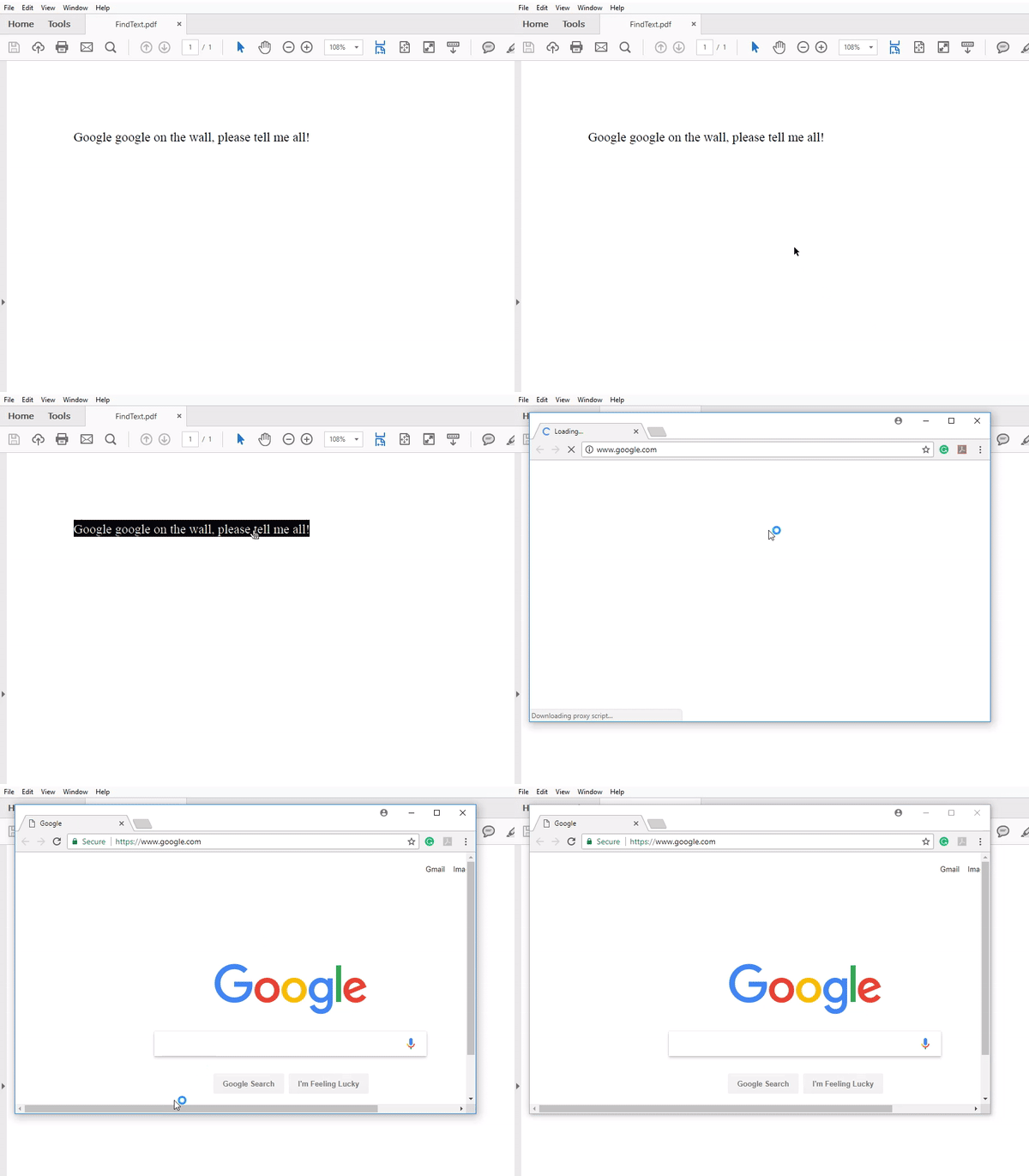
URI action allows you to create a hyperlink in the PDF document in order to navigate to a specific URI. DsPdf provides the [ActionURI](/document-solutions/dot-net-pdf-api/api/online/DS.Documents.Pdf/GrapeCity.Documents.Pdf.Actions.ActionURI.html) class and its properties that enable you to define this action type in a PDF document.
The following code links a text to Google’s official site using ActionURI object.
```csharp
public int CreatePDF(Stream stream)
{
var doc = new GcPdfDocument();
var page = doc.NewPage();
var g = page.Graphics;
// Draw some text that will represent the link:
var tf = new TextFormat() { Font = StandardFonts.Times, FontSize = 14 };
var tl = g.CreateTextLayout();
tl.MarginAll = 72;
tl.Append("Google google on the wall, please tell me all!", tf);
tl.PerformLayout(true);
g.DrawTextLayout(tl, PointF.Empty);
// Add a link associated with the text area:
page.Annotations.Add(new LinkAnnotation(tl.ContentRectangle, new ActionURI("http://www.google.com")));
// Done:
doc.Save(stream);
return doc.Pages.Count;
}
```
## ActionSound
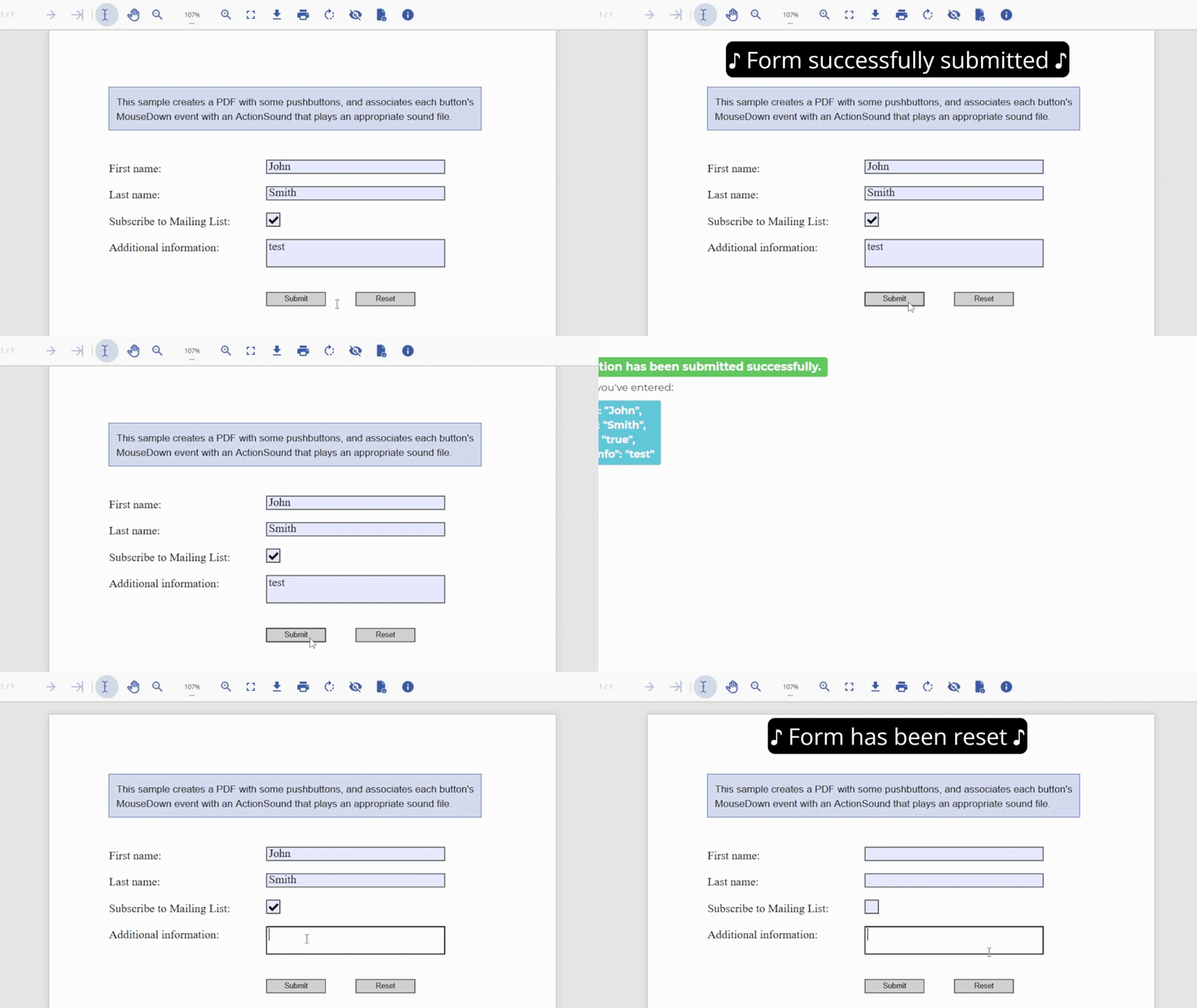
Sound action is an interactive feature that plays an audio file when interacting with a PDF document. You can interact by clicking a button, hovering over an area, or other user-triggered events in the document. DsPdf provides [ActionSound](/document-solutions/dot-net-pdf-api/api/online/DS.Documents.Pdf/GrapeCity.Documents.Pdf.Actions.ActionSound.html) class and its properties that enable you to define this action type in a PDF document.
The following code demonstrates a form that plays sound effects when its buttons Submit and Reset are clicked.
```csharp
public int CreatePDF(Stream stream)
{
var doc = new GcPdfDocument();
var page = doc.NewPage();
var rc = Common.Util.AddNote(
"This sample creates a PDF with some pushbuttons, and associates each button's " +
"MouseDown event with an ActionSound that plays an appropriate sound file." +
"Note that if you download this sample you will need to update the submission URL so that it points to a valid server.",
page);
var g = page.Graphics;
var tf = new TextFormat() { Font = StandardFonts.Times, FontSize = 14 };
var ip = new PointF(72, rc.Bottom + 36);
float fldOffset = 72 * 2 + 46;
float fldHeight = tf.FontSize * 1.2f;
float dY = 32;
// Text field:
g.DrawString("First name:", tf, ip);
var fldFirstName = new TextField() { Name = "FirstName", Value = "John" };
fldFirstName.Widget.Page = page;
fldFirstName.Widget.Rect = new RectangleF(ip.X + fldOffset, ip.Y, 72 * 3, fldHeight);
fldFirstName.Widget.DefaultAppearance.Font = tf.Font;
fldFirstName.Widget.DefaultAppearance.FontSize = tf.FontSize;
doc.AcroForm.Fields.Add(fldFirstName);
ip.Y += dY;
// Text field:
g.DrawString("Last name:", tf, ip);
var fldLastName = new TextField() { Name = "LastName", Value = "Smith" };
fldLastName.Widget.Page = page;
fldLastName.Widget.Rect = new RectangleF(ip.X + fldOffset, ip.Y, 72 * 3, fldHeight);
fldLastName.Widget.DefaultAppearance.Font = tf.Font;
fldLastName.Widget.DefaultAppearance.FontSize = tf.FontSize;
doc.AcroForm.Fields.Add(fldLastName);
ip.Y += dY;
// Checkbox:
g.DrawString("Subscribe to Mailing List:", tf, ip);
var fldCheckbox = new CheckBoxField() { Name = "Subscribe", Checked = true };
fldCheckbox.Widget.Page = page;
fldCheckbox.Widget.Rect = new RectangleF(ip.X + fldOffset, ip.Y, fldHeight, fldHeight);
doc.AcroForm.Fields.Add(fldCheckbox);
ip.Y += dY;
// Multiline TextBox:
g.DrawString("Additional information:", tf, ip);
var fldAdditionalInfo = new TextField() { Name = "AdditionalInfo", Multiline = true };
fldAdditionalInfo.Widget.Page = page;
fldAdditionalInfo.Widget.Rect = new RectangleF(ip.X + fldOffset, ip.Y, 72 * 3, fldHeight * 2);
fldAdditionalInfo.Widget.DefaultAppearance.Font = tf.Font;
fldAdditionalInfo.Widget.DefaultAppearance.FontSize = tf.FontSize;
doc.AcroForm.Fields.Add(fldAdditionalInfo);
ip.Y += dY * 2;
// Submit form button:
var btnSubmit = new PushButtonField();
btnSubmit.Widget.Rect = new RectangleF(ip.X + fldOffset, ip.Y, 72, fldHeight);
btnSubmit.Widget.ButtonAppearance.Caption = "Submit";
btnSubmit.Widget.Highlighting = HighlightingMode.Invert;
btnSubmit.Widget.Page = page;
// The URL for the submission:
btnSubmit.Widget.Activate = new ActionSubmitForm("/Samples/HandleFormSubmitFields");
btnSubmit.Widget.Events.MouseDown = new ActionSound(SoundObject.FromFile(Path.Combine("Resources", "Sounds", "form-submitted.wav")));
doc.AcroForm.Fields.Add(btnSubmit);
// Reset form button:
var btnReset = new PushButtonField();
btnReset.Widget.Rect = new RectangleF(ip.X + fldOffset + 72 * 1.5f, ip.Y, 72, fldHeight);
btnReset.Widget.ButtonAppearance.Caption = "Reset";
btnReset.Widget.Highlighting = HighlightingMode.Invert;
btnReset.Widget.Page = page;
btnReset.Widget.Activate = new ActionResetForm();
btnReset.Widget.Events.MouseDown = new ActionSound(SoundObject.FromFile(Path.Combine("Resources", "Sounds", "form-reset.wav")));
doc.AcroForm.Fields.Add(btnReset);
ip.Y += dY;
// Done:
doc.Save(stream);
return doc.Pages.Count;
}
```
**Limitations**
Adobe Acrobat ignores Volume property of ActionSound class.
## ActionJavaScript
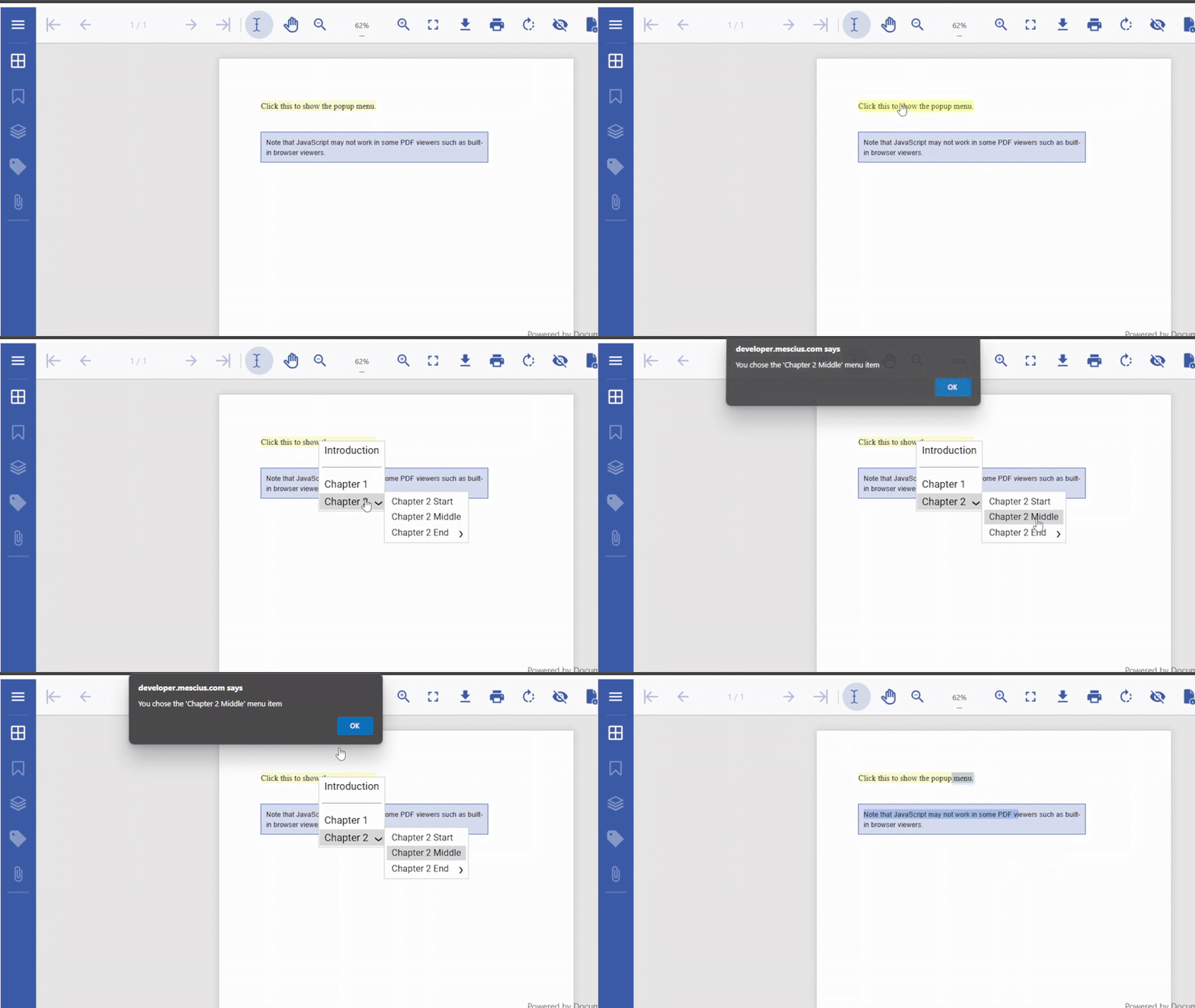
JavaScript action allows you to run a snippet of JavaScript code that is embedded in the PDF document. You can run the JavaScript code simply by opening the document or other triggering events. DsPdf provides the [ActionJavaScript](/document-solutions/dot-net-pdf-api/api/online/DS.Documents.Pdf/GrapeCity.Documents.Pdf.Actions.ActionJavaScript.html) class and its properties that enable you to define this action type in a PDF document.
The following code demonstrates some text that runs JavaScript code when clicked. The script displays a popup menu with multiple options and alerts the option that the user picked.
```csharp
public class JavaScriptAction
{
const string js =
"var cChoice = app.popUpMenu(\"Introduction\", \" - \", \"Chapter 1\",\r\n" +
"[ \"Chapter 2\", \"Chapter 2 Start\", \"Chapter 2 Middle\",\r\n" +
"[\"Chapter 2 End\", \"The End\"]]);\r\n" +
"app.alert(\"You chose the '\" + cChoice + \"' menu item\");";
public int CreatePDF(Stream stream)
{
var doc = new GcPdfDocument();
var g = doc.NewPage().Graphics;
var jsAction = new ActionJavaScript(js);
var tf = new TextFormat()
{
Font = StandardFonts.Times,
FontSize = 14
};
// Draw the link string in a rectangle:
var text = "Click this to show the popup menu.";
var rect = new RectangleF(new PointF(72, 72), g.MeasureString(text, tf));
g.FillRectangle(rect, Color.LightGoldenrodYellow);
g.DrawString(text, tf, rect);
var result = new LinkAnnotation(rect, jsAction);
doc.Pages.Last.Annotations.Add(result);
// Add warning about this possibly not working in a browser:
Common.Util.AddNote(
"Note that JavaScript may not work in some PDF viewers such as built-in browser viewers.",
doc.Pages.Last, new RectangleF(rect.X, rect.Bottom + 36, 400, 400));
// Done:
doc.Save(stream);
return doc.Pages.Count;
}
}
```
>type=note
> **Note:** DsPdf now supports document-level javascripts, having added a new [GcPdfDocument.JavaScripts](https://developer.mescius.com/document-solutions/dot-net-pdf-api/api/online/DS.Documents.Pdf/GrapeCity.Documents.Pdf.GcPdfDocument.JavaScripts.html) property. Script execution is not yet supported but will be available in future releases.
**Limitations**
JavaScript may not work in some PDF viewers (e.g. built-in browser viewers).
## ActionSubmitForm
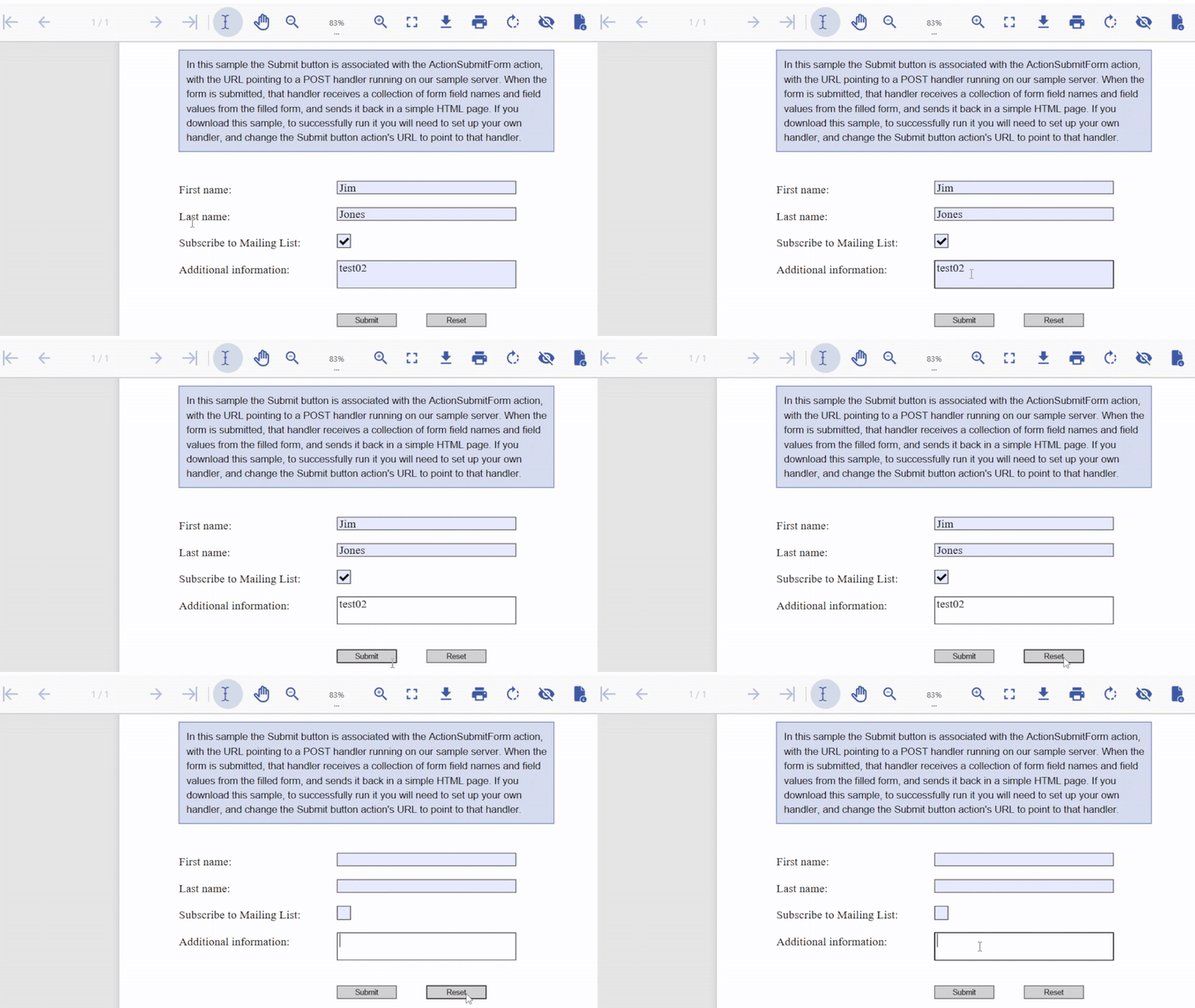
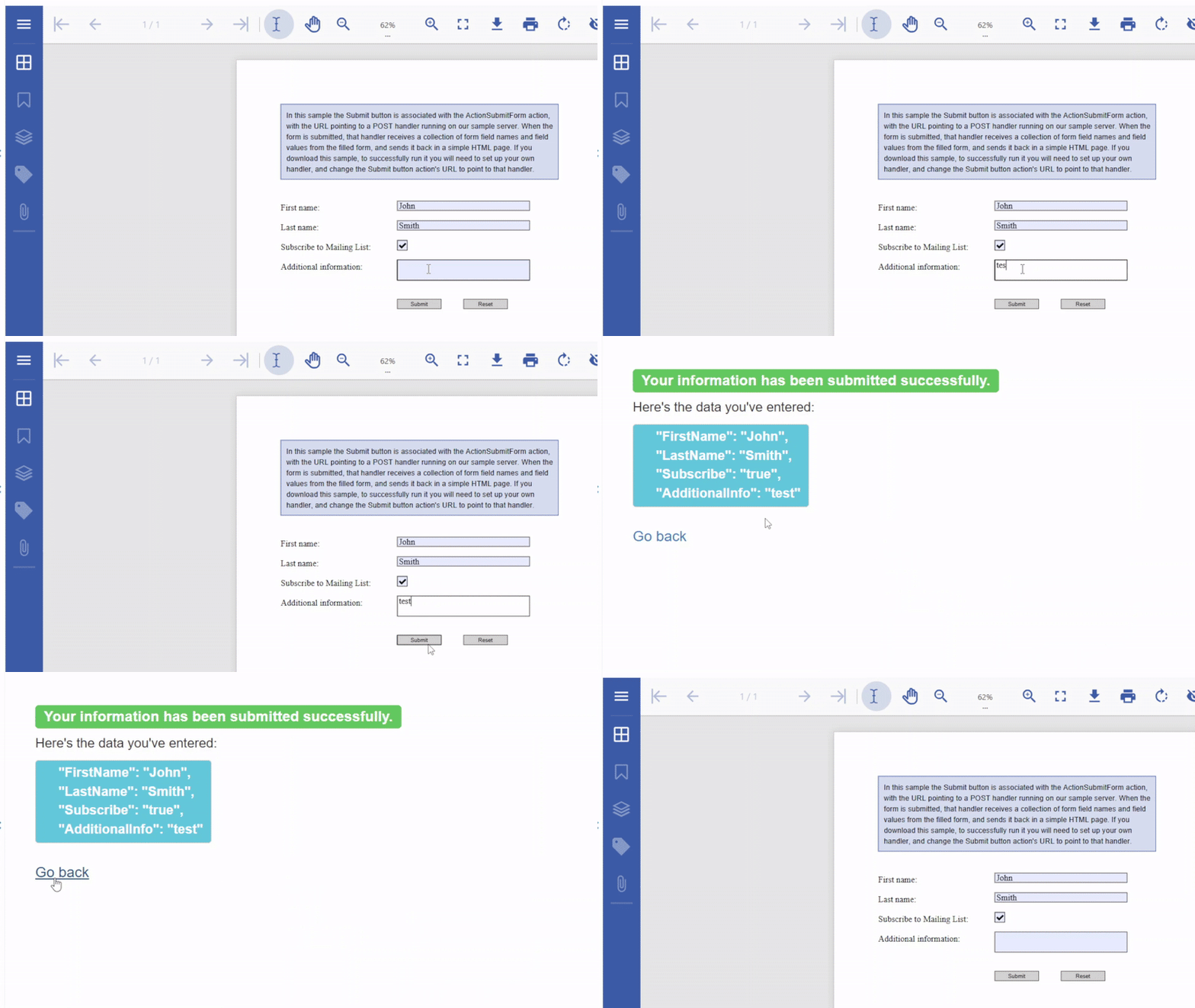
SubmitForm action is a feature that allow you to submit interactive form fields to a specified uniform resource locator (URL). This is presumably the address of a Web server that will process these fields and send back a response. DsPdf uses the [ActionSubmitForm](/document-solutions/dot-net-pdf-api/api/online/DS.Documents.Pdf/GrapeCity.Documents.Pdf.Actions.ActionSubmitForm.html) class and its properties that enable you to define this action type in a PDF document.
The following code demonstrates a form that when submitted, sends the data to a sample server. The server receives it and sends the data back in a simple HTML page, displaying the form field names and their respective values.
```csharp
public int CreatePDF(Stream stream)
{
var doc = new GcPdfDocument();
var page = doc.NewPage();
var rc = Common.Util.AddNote(
"In this sample the Submit button is associated with the ActionSubmitForm action, " +
"with the URL pointing to a POST handler running on our sample server. " +
"When the form is submitted, that handler receives a collection of form field names " +
"and field values from the filled form, and sends it back in a simple HTML page. " +
"If you download this sample, to successfully run it you will need to set up your own " +
"handler, and change the Submit button action's URL to point to that handler.",
page);
var g = page.Graphics;
var tf = new TextFormat() { Font = StandardFonts.Times, FontSize = 14 };
var ip = new PointF(72, rc.Bottom + 36);
float fldOffset = 72 * 2 + 46;
float fldHeight = tf.FontSize * 1.2f;
float dY = 32;
// Text field:
g.DrawString("First name:", tf, ip);
var fldFirstName = new TextField() { Name = "FirstName", Value = "John" };
fldFirstName.Widget.Page = page;
fldFirstName.Widget.Rect = new RectangleF(ip.X + fldOffset, ip.Y, 72 * 3, fldHeight);
fldFirstName.Widget.DefaultAppearance.Font = tf.Font;
fldFirstName.Widget.DefaultAppearance.FontSize = tf.FontSize;
doc.AcroForm.Fields.Add(fldFirstName);
ip.Y += dY;
// Text field:
g.DrawString("Last name:", tf, ip);
var fldLastName = new TextField() { Name = "LastName", Value = "Smith" };
fldLastName.Widget.Page = page;
fldLastName.Widget.Rect = new RectangleF(ip.X + fldOffset, ip.Y, 72 * 3, fldHeight);
fldLastName.Widget.DefaultAppearance.Font = tf.Font;
fldLastName.Widget.DefaultAppearance.FontSize = tf.FontSize;
doc.AcroForm.Fields.Add(fldLastName);
ip.Y += dY;
// Checkbox:
g.DrawString("Subscribe to Mailing List:", tf, ip);
var fldCheckbox = new CheckBoxField() { Name = "Subscribe", Checked = true };
fldCheckbox.Widget.Page = page;
fldCheckbox.Widget.Rect = new RectangleF(ip.X + fldOffset, ip.Y, fldHeight, fldHeight);
doc.AcroForm.Fields.Add(fldCheckbox);
ip.Y += dY;
// Multiline TextBox:
g.DrawString("Additional information:", tf, ip);
var fldAdditionalInfo = new TextField() { Name = "AdditionalInfo", Multiline = true };
fldAdditionalInfo.Widget.Page = page;
fldAdditionalInfo.Widget.Rect = new RectangleF(ip.X + fldOffset, ip.Y, 72 * 3, fldHeight * 2);
fldAdditionalInfo.Widget.DefaultAppearance.Font = tf.Font;
fldAdditionalInfo.Widget.DefaultAppearance.FontSize = tf.FontSize;
doc.AcroForm.Fields.Add(fldAdditionalInfo);
ip.Y += dY * 2;
// Submit form button:
var btnSubmit = new PushButtonField();
btnSubmit.Widget.Rect = new RectangleF(ip.X + fldOffset, ip.Y, 72, fldHeight);
btnSubmit.Widget.ButtonAppearance.Caption = "Submit";
btnSubmit.Widget.Highlighting = HighlightingMode.Invert;
btnSubmit.Widget.Page = page;
// The URL for the submission:
btnSubmit.Widget.Activate = new ActionSubmitForm("/Samples/HandleFormSubmitFields");
doc.AcroForm.Fields.Add(btnSubmit);
// Done:
doc.Save(stream);
return doc.Pages.Count;
}
```
## ActionResetForm
ResetForm action you users to reset interactive form fields to their default values. If no default value is defined for a field, its value is cleared. For fields that can have no value (such as PushButtonField), the action has no effect. DsPdf uses the [ActionResetForm](/document-solutions/dot-net-pdf-api/api/online/DS.Documents.Pdf/GrapeCity.Documents.Pdf.Actions.ActionResetForm.html) class and its properties that enable you to define this action type in a PDF document.
The following code demonstrates a form with a reset button that resets the form fields to their default values when clicked.
```csharp
public int CreatePDF(Stream stream)
{
var doc = new GcPdfDocument();
var page = doc.NewPage();
var rc = Common.Util.AddNote(
"In this sample the Reset button is associated with the ActionResetForm action." +
"If no default value is defined for a field, its value is cleared.", page);
var g = page.Graphics;
var tf = new TextFormat() { Font = StandardFonts.Times, FontSize = 14 };
var ip = new PointF(72, rc.Bottom + 36);
float fldOffset = 72 * 2 + 46;
float fldHeight = tf.FontSize * 1.2f;
float dY = 32;
// Text field:
g.DrawString("First name:", tf, ip);
var fldFirstName = new TextField() { Name = "FirstName", Value = "John" };
fldFirstName.Widget.Page = page;
fldFirstName.Widget.Rect = new RectangleF(ip.X + fldOffset, ip.Y, 72 * 3, fldHeight);
fldFirstName.Widget.DefaultAppearance.Font = tf.Font;
fldFirstName.Widget.DefaultAppearance.FontSize = tf.FontSize;
doc.AcroForm.Fields.Add(fldFirstName);
ip.Y += dY;
// Text field:
g.DrawString("Last name:", tf, ip);
var fldLastName = new TextField() { Name = "LastName", Value = "Smith" };
fldLastName.Widget.Page = page;
fldLastName.Widget.Rect = new RectangleF(ip.X + fldOffset, ip.Y, 72 * 3, fldHeight);
fldLastName.Widget.DefaultAppearance.Font = tf.Font;
fldLastName.Widget.DefaultAppearance.FontSize = tf.FontSize;
doc.AcroForm.Fields.Add(fldLastName);
ip.Y += dY;
// Checkbox:
g.DrawString("Subscribe to Mailing List:", tf, ip);
var fldCheckbox = new CheckBoxField() { Name = "Subscribe", Checked = true };
fldCheckbox.Widget.Page = page;
fldCheckbox.Widget.Rect = new RectangleF(ip.X + fldOffset, ip.Y, fldHeight, fldHeight);
doc.AcroForm.Fields.Add(fldCheckbox);
ip.Y += dY;
// Multiline TextBox:
g.DrawString("Additional information:", tf, ip);
var fldAdditionalInfo = new TextField() { Name = "AdditionalInfo", Multiline = true };
fldAdditionalInfo.Widget.Page = page;
fldAdditionalInfo.Widget.Rect = new RectangleF(ip.X + fldOffset, ip.Y, 72 * 3, fldHeight * 2);
fldAdditionalInfo.Widget.DefaultAppearance.Font = tf.Font;
fldAdditionalInfo.Widget.DefaultAppearance.FontSize = tf.FontSize;
doc.AcroForm.Fields.Add(fldAdditionalInfo);
ip.Y += dY * 2;
// Reset form button:
var btnReset = new PushButtonField();
btnReset.Widget.Rect = new RectangleF(ip.X + fldOffset + 72 * 1.5f, ip.Y, 72, fldHeight);
btnReset.Widget.ButtonAppearance.Caption = "Reset";
btnReset.Widget.Highlighting = HighlightingMode.Invert;
btnReset.Widget.Page = page;
btnReset.Widget.Activate = new ActionResetForm();
doc.AcroForm.Fields.Add(btnReset);
ip.Y += dY;
// Done:
doc.Save(stream);
return doc.Pages.Count;
}
```