# Filter
## Content
The Filter property ('F') allows you to set the type of filtering within the template. This property provides two types of filtering options: **Conditional** and **Slice** filters. You can use these filter options individually or in combination to filter data from the table. This property can filter data from single or multiple tables for report generation.
DsExcel supports Filter property only with regular data sources, such as System.Data.DataTable or ITableDataSource.
>type=note
> **Note:** You can apply filters to JSON data sources by creating a custom data table. For more information, refer to [Custom Data Table](/document-solutions/dot-net-excel-api/docs/online/templates/data-source-binding#CDT).
## Conditional Filter
Conditional Filter filters the data using operators and keywords such as **AND**, **OR**, **NOT**, **LIKE**, **REGEX**, and **NULL**. LIKE and REGEX keywords, as well as comparison operators, have the highest precedence and are evaluated first. For the remaining keywords, the priority is: NOT > AND > OR. Furthermore, using paired parentheses allows customization of the order of operations for these operators and keyword evaluations.
**Value:** Expression
F/Filter = (field1 > 1 AND field2 = 2 OR field3 <> 3)
The following table lists the operators, keywords and functions that Conditional Filter supports:
| **Operator/Keyword/Function** | **Operator/Keyword Supported** | **Sign** | **Description** |
| ------------------------- | -------------------------- | ---- | ----------- |
| @rows=6:**Operator** | Less than | < | Filters value less than the given value. |
| Less than or equal to | <= | Filters value less than or equal to the given value. |
| Greater than | > | Filters value greater than the given value. |
| Greater than or equal to | \>= | Filters value greater than or equal to the given value. |
| Equal to | = | Filters value equal to the given value. |
| Not equal to | <> | Filters value not equal to the given value. |
| @rows=6:**Keyword** | And | AND | A logical operator to combine multiple conditions in a query. It returns true if both conditions are true. For example: {{ds2.amount(F = (ds2.amount < 500 and ds2.age < 18))}} |
| Or | OR | A logical operator to combine multiple conditions in a query. It returns true if at least one of the conditions is true. For example: {{ds2.amount(F = (ds2.amount < 500 or ds2.age < 18))}} |
| Not | NOT | A logical operator to negate a condition in a query. It returns true if the condition is false, and false if the condition is true. For example: {{ds2.amount(F = (not ds2.amount < 500 or not ds2.age < 18))}} |
| Like | LIKE | A keyword for pattern matching operations. The following two wildcards are available to use in conjunction with the LIKE operator:- The asterisk sign \* represents zero, one, or multiple characters.
- The question sign ? represents a single character.
For example: {{ds2.name(F = (ds2.name like \\"\*wh?te?\\"))}}
Use \~\* and \~?, respectively, to match the character \* or ? Use \~\* and \~?, respectively, to match the character \* or ? with themselves. |
| Regex | REGEX | A keyword used to perform regular expression matching. |
| Null | NULL | A keyword used to filter records whose field values are null or not null. It can only be used with the = and <> operators. The NULL keyword is case-insensitive.
For example:- {{ds2.name(F = (ds2.name = NULL))}}
- {{ds2.name(F = (ds2.name <> NULL))}}
Use **= NULL** to return records whose field value is null, and use **<> NULL** to return records whose field value is not null. |
| **Function** | DATETIME | DATETIME | A function used to convert date/time string literals into DateTime values for use in template filter conditions. It supports Excel-compatible formats as well as other formats commonly used in databases. |
>type=note
> **Note:** The left operand in the filter condition must be the field in the current table, while the right operand can be any constant, field in the current table, or a reference field in another table.
**Example 1: Filter using Operator**
{{order.oid(F = (order.count > 10))}}
The below images show how the template generates a report by filtering orders whose sales count is greater than 10. You can also download the [Excel template layout](https://cdn.mescius.io/document-site-files/images/e333ad47-35da-43f9-a389-25433765f491/templates/filteroperator.xlsx) used in the below example.
| Sheet Type | Sample |
| ---------- | ------ |
| Template Sheet | 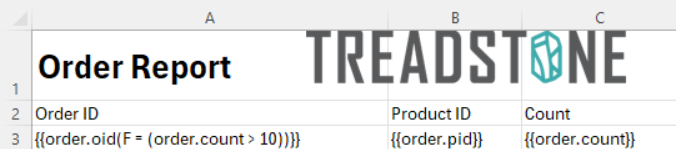 |
| Report Sheet | 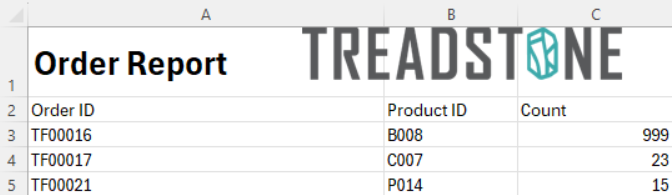 |
You can also view the [demo](https://developer.mescius.com/document-solutions/dot-net-excel-api/demos/filteroperator) to learn more about Fitler using Operator.
**Example 2: Filter using Keyword**.
{{order.oid(F = (order.cid ="C002" and order.pid = "W003"))}}
The below images show how the template generates a report by filtering orders where Customer ID is "C002" and Product ID is "W003." You can also download the [Excel template layout](https://cdn.mescius.io/document-site-files/images/e333ad47-35da-43f9-a389-25433765f491/templates/filterkeyword.xlsx) used in the below example.
| Sheet Type | Sample |
| ---------- | ------ |
| Template Sheet |  |
| Report Sheet |  |
You can also view the [demo](https://developer.mescius.com/document-solutions/dot-net-excel-api/demos/filterkeyword) to learn more about Fitler using AND Keyword.
**Example 3: Simple Multi-Source Report**
{{product.name(F=(product.pid = order.pid))}}
The below images show how the template generates a report by filtering Product Name using product IDs from different data tables. You can also download the [Excel template layout](https://cdn.mescius.io/document-site-files/images/e333ad47-35da-43f9-a389-25433765f491/templates/simplemultidatasource.xlsx) used in the below example.
| Sheet Type | Sample |
| ---------- | ------ |
| Template Sheet | 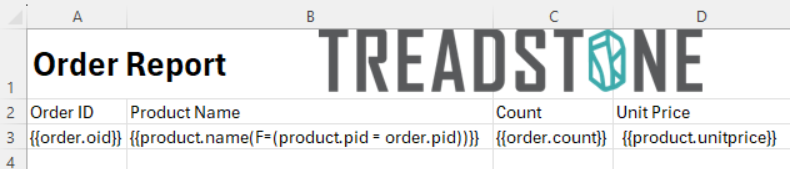 |
| Report Sheet | 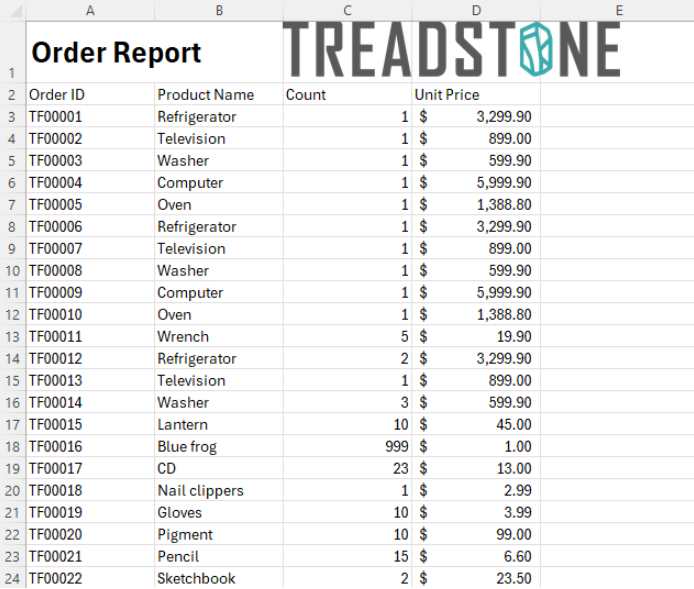 |
You can also view the [demo](https://developer.mescius.com/document-solutions/dot-net-excel-api/demos/simplemultidatasource) to learn more about Simple Multi-Source Report.
**Example 4: Complex Multi-Source Report**
| **Customer Name** | **Product Name** |
| ------------- | ------------ |
| {{customer.name(F=(customer.cid = order.cid))}} | {{product.name(F=(product.pid = order.pid))}} |
The below images show how the template generates a report by filtering Customer and Product names using customer and product IDs from different data tables. You can also download the [Excel template layout](https://cdn.mescius.io/document-site-files/images/e333ad47-35da-43f9-a389-25433765f491/templates/complexmultidatasource.xlsx) used in the below example.
| Sheet Type | Sample |
| ---------- | ------ |
| Template Sheet |  |
| Report Sheet | 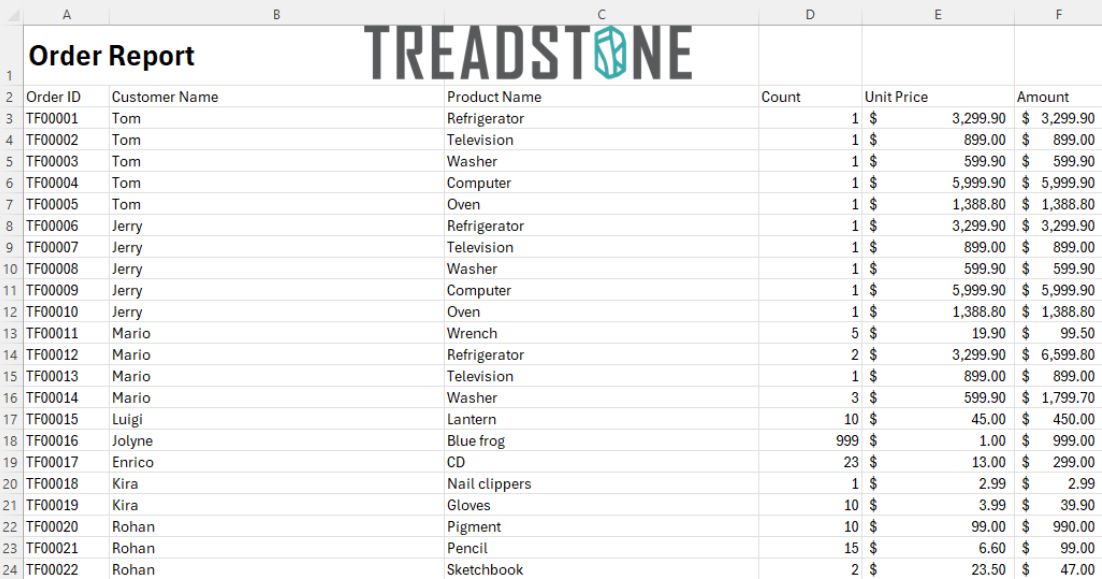 |
You can also view the [demo](https://developer.mescius.com/document-solutions/dot-net-excel-api/demos/complexmultidatasource) to learn more about Complex Multi-Source Report.
## Slice Filter
Slice Filter filters the data by taking data from one given index to another given index.
**Value:** Array
F/Filter = [start:stop:step]
The *start* refers to the index from which the filter will begin, whereas the *stop* refers to the end of the filter. You can also define a *step* that allows you to provide an interval between the indexes.
**Example: Slice Filter**
{{order.oid(F = [0:20:2])}}
The below images show how the template generates a report by filtering first twenty odd orders. You can also download the [Excel template layout](https://cdn.mescius.io/document-site-files/images/e333ad47-35da-43f9-a389-25433765f491/templates/slicefilter.xlsx) used in the below example.
| Sheet Type | Sample |
| ---------- | ------ |
| Template Sheet | 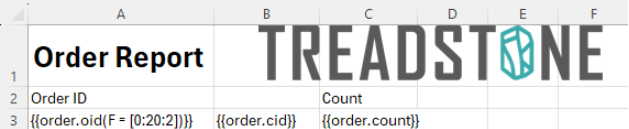 |
| Report Sheet | 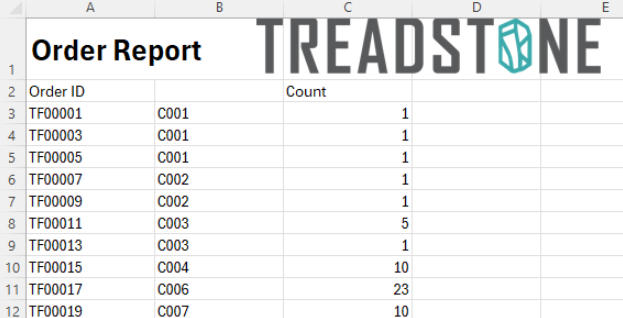 |
You can also view the [demo](https://developer.mescius.com/document-solutions/dot-net-excel-api/demos/slicefilter) to learn more about Slice Fitler.
**Example: Slice Filter Reverse Operation**
{{order.oid(F = [20:0:-2])}}
The below images show how the template generates a report by filtering the last twenty orders from index 20. You can also download the [Excel template layout](https://cdn.mescius.io/document-site-files/images/e333ad47-35da-43f9-a389-25433765f491/templates/slicefilterreverseoperation.xlsx) used in the below example.
| Sheet Type | Sample |
| ---------- | ------ |
| Template Sheet | 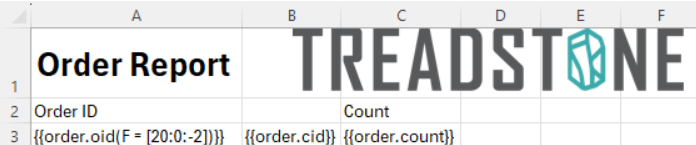 |
| Report Sheet | 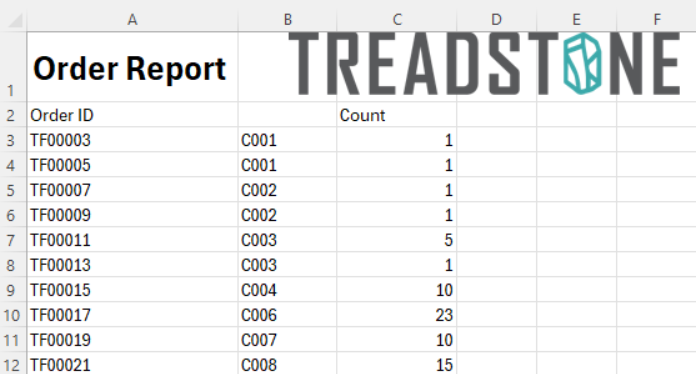 |
>type=note
> **Note:** When iterating from the end of the records (reverse operation), the result will be in the original order. It is a limitation of DsExcel.
## Combined Filter
You can use both the Conditional and Slice filters in combination to generate a report.
**Example: Combined Filter**
{{order.oid(F = (order.oid like "\*1?")[0:5])}}
The below images show how the template generates a report by first filtering the order ID that matches the expression "\*1?" and then selecting the first five records from the filtered results. You can also download the [Excel template layout](https://cdn.mescius.io/document-site-files/images/e333ad47-35da-43f9-a389-25433765f491/templates/combinedfilter.xlsx) used in the below example.
| Sheet Type | Sample |
| ---------- | ------ |
| Template Sheet | 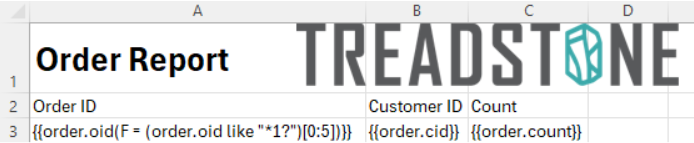 |
| Report Sheet | 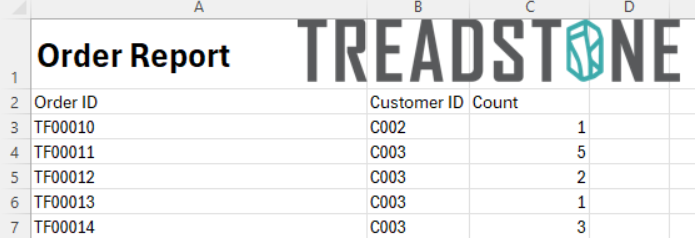 |
You can also view the [demo](https://developer.mescius.com/document-solutions/dot-net-excel-api/demos/combinedfilter) to learn more about Combined Filter.
>type=note
> **Note:** The slice filter and conditional filter can only appear zero or one time within a filter statement.
## Filter NULL Values
DsExcel .NET template filters support the NULL keyword to filter records based on whether a field value is NULL or non-null.
**Syntax:**
* Use **= NULL** to return records whose field value is NULL.
{{employee.name(F=(employee.department = NULL))}}
* Use **<> NULL** to return records whose field value is not NULL.
{{employee.name(F=(employee.department <> NULL))}}
>type=note
> **Note**:
>
> * Only the = and <> operators are supported with the NULL keyword. Other comparison operators (>, <, >=, <=) are not supported with the NULL keyword and will throw a template processing exception if used.
> * Filter keywords such as LIKE and REGEX operate on string values only and do not evaluate NULL values.
> * The NULL keyword is case-insensitive. For example, NULL, null, and Null are all valid.
**NULL Matching Rules**
The following table shows how DsExcel .NET evaluates NULL conditions in template filters:
| Data Source Value | Matches `= NULL` | Matches `<> NULL` |
| ----------------- | -------------- | --------------- |
| `DBNull.Value` | Yes | No |
| Native `null` | Yes | No |
| Empty string `""` | No | Yes |
| Any non-null value | No | Yes |
When implementing a custom [ITableDataSource](/document-solutions/dot-net-excel-api/api/online/DS.Documents.Excel/GrapeCity.Documents.Excel.ITableDataSource.html), ensure the [GetValue()](/document-solutions/dot-net-excel-api/api/online/DS.Documents.Excel/GrapeCity.Documents.Excel.ITableDataSource.GetValue.html) method returns DBNull.Value or native null for missing data. Only these values are recognized as NULL by the template filter engine. Other sentinel values—such as empty strings(`""`), the string `"null"`, or any custom placeholder object are not be matched by the = NULL filter. This behavior is consistent with SQL semantics.
**Combining NULL Filters**
You can combine NULL filters with other filter conditions using logical operators:
Using NOT(The following two expressions are equivalent):
* {{ds1.name(F=(NOT ds1.name = NULL))}}
* {{ds1.name(F=(ds1.name <> NULL))}}
Using AND / OR:
* {{ds1.name(F=(ds1.name <> NULL AND ds1.age > 18))}}
* {{ds1.name(F=(ds1.name = NULL OR ds1.salary < 50000))}}
**Examples**
The below images show how to filter NULL values in the template. You can also download the [FilterNullKeywordTemplate](https://cdn.mescius.io/document-site-files/attachments/6c089d65-4816-4591-8c0d-bb0bfb8c43df/FilterNullKeyword-20260320.cfa56e.xlsx) used in the below example.
| Sheet Type | Sample |
| ---------- | ------ |
| Template Sheet | 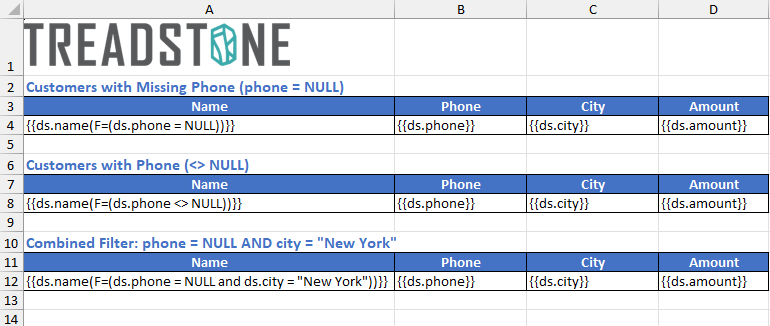 |
| Report Sheet | 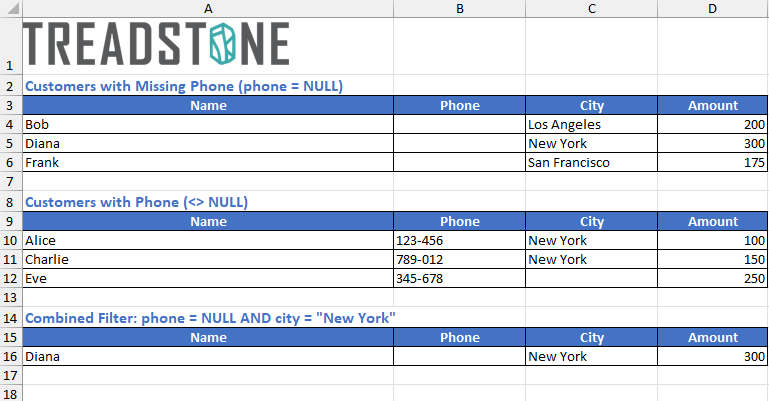 |
You can also view the [demo](https://developer.mescius.com/document-solutions/dot-net-excel-api/demos/filternullkeyword) to learn more about filtering NULL values.
## Filter Values with REGEX
The DsExcel .NET template filter supports the REGEX keyword for regular expression matching.
**Syntax**
{{ds1.name(F=(ds1.name REGEX "pattern"))}}
>type=note
> **Note**:
>
> * The REGEX keyword is case-insensitive. For example, REGEX, regex, Regex are all valid.
> * The right operand must be a string literal enclosed in double quotes, containing a valid regular expression pattern.
**REGEX Matching Rules**
* Invalid regex patterns will cause a template processing exception.
* Pattern matching uses the platform’s native regex engine (.NET System.Text.RegularExpressions). All regex behaviors, including case sensitivity, follow the platform’s default rules.
* It is recommended to use REGEX only with string types in the data source. Other types will be converted to strings using their `toString` method, which is generally not recommended. Use the appropriate operators or DATETIME functions for numbers or dates.
**Combining REGEX Filters**
REGEX can be combined with NOT, AND, OR, and parentheses. For example:
* {{ds1.name(F=(NOT ds1.name REGEX "pattern"))}}
* {{ds1.name(F=(ds1.name REGEX "^A" AND ds1.age > 18))}}
**REGEX Pattern Syntax and Escaping**
* The regex pattern itself should be written using standard regular expression syntax supported by the target platform's native regex engine.
* When using a template expression as a string literal in source code, follow the string escaping rules of your programming language. For example, the regex pattern for one or more digits is `\d+`.
* When writing directly in a template expression: {{product.pid(F=(product.name REGEX "\\d+"))}}.
* When writing in source code, escape backslashes and quotes as required: "{{product.pid(F=(product.name REGEX \\"\\\d+\\"))}}".
* To prevent ambiguity during lexical analysis, double quotes inside a regex string must be escaped as `\"`. If the template expression is inside a programming language string literal, follow that language's escaping rules as well. For example, in C#, `\"` should be written as `\\\"`.
**Examples**
* Filter products with names starting with "Laptop":
{{product.pid(F=(product.name REGEX "^Laptop"))}}
* Filter products whose SKU matches a year pattern (2024):
{{product.pid(F=(product.sku REGEX "2024-\\d{3}"))}}
* Combine REGEX with other conditions:
\{\{product\.pid\(F=\(product\.name REGEX "^\(Laptop\|Phone\)" AND NOT product\.sku REGEX "2023"))}}
* Full-string match using anchors:
{{product.pid(F=(product.name REGEX "^Laptop Pro 15$"))}}
* Case-insensitive matching using inline flag:
{{product.pid(F=(product.name REGEX "(?i)laptop"))}}
The below images show how the template generates a report by filtering products whose names begin with "Laptop". You can also download the [FilterRegexTemplate.xlsx](https://cdn.mescius.io/document-site-files/attachments/6c089d65-4816-4591-8c0d-bb0bfb8c43df/FilterRegex-20260407.c8d597.xlsx) used in the below example.
| Sheet Type | Sample |
| ---------- | ------ |
| Template Sheet | 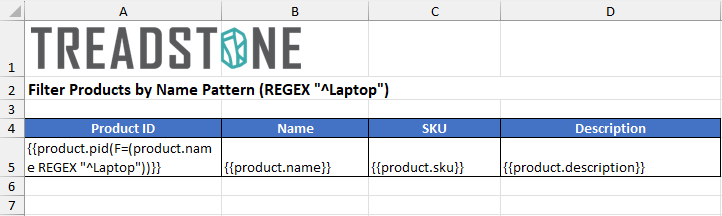 |
| Report Sheet | 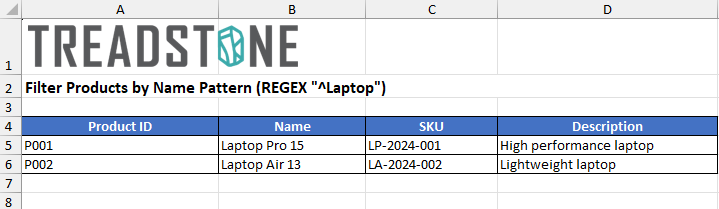 |
You can also view the [demo](https://developer.mescius.com/document-solutions/dot-net-excel-api/demos/filterregex) to learn more about Fitler using REGEX Keyword.
## Filter Date and Time Values
Template filters support date and time comparison through the DATETIME function. You can use DATETIME function in a template conditional filter to write date-based conditions, without needing to preprocess data in your application code.
**Syntax**
DATETIME("dateTimeString")
**Arguments**
| Argument | Description |
| -------- | ----------- |
| dateTimeString | [Required] A string representation of the date, time, or date+time value. Must be enclosed in double quotes. The function supports:- Accepts any Excel-compatible date/time format.
- Accepts additional formats commonly used in databases and programming that Excel does not natively support. This extended format support allows date values originating from databases, APIs, and log files — which frequently use ISO 8601 or high-precision formats — to be used directly in template filters without manual conversion.
- yyyy-MM-ddTHH:mm:ss
- yyyy-MM-ddTHH:mm:ss.fff
- yyyy-MM-ddTHH:mm:ssZ
- yyyy-MM-ddTHH:mm:ss±HH:mm
For formats with timezone information (`Z`, `+08:00`, etc.), the timezone/offset is parsed but ignored during comparison — only the local date/time components are used. |
>type=note
> **Note**:
>
> * The function name is case-insensitive (DATETIME, datetime, DateTime are all valid).
> * If `dateTimeString` cannot be parsed, a template processing exception is thrown.
**Comparison Rules**
* The template engine performs literal value comparison. It compares the date/time component values (year, month, day, hour, minute, second, millisecond) directly, without any timezone conversion. Comparison is performed internally by the engine using a deterministic component-by-component comparison
* For timezone-aware data source types such as DateTimeOffset, ZonedDateTime, and OffsetDateTime, the timezone or offset information is ignored during comparison. Only the local date and time components are used.
* When using a time-only DATETIME function literal, such as `DATETIME("09:15:00")`, with a date+time data source value, only the time components are compared. For example, both `2024-06-15 09:15:00` and `2024-06-16 09:15:00` will match, as the time part is `09:15:00`, while `2024-06-15 10:00:00` will not match.
* When using a date-only DATETIME function literal, such as `DATETIME("2024-06-15")`, with a date+time data source value, the time part of the literal defaults to `00:00:00.000`. As a result, only a value like `2024-06-15 00:00:00` will match, while `2024-06-15 09:15:00` will not match.
**Operator Behavior**
All comparison operators perform standard value comparison. No implicit range matching is applied, as `=` means exact equality. For example, `= DATETIME("2024-06-15")` matches data source values that are exactly `2024-06-15 00:00:00.000`. To match all records on a given day, use a range: `>= DATETIME("2024-06-15") AND < DATETIME("2024-06-16")`.
| Operator | Behavior |
| -------- | -------- |
| `=` | Exact equality comparison. |
| `<>` | Not equal. |
| `>`, `<`, `>=`, `<=` | Standard comparison. |
**Supported Data Types**
The template engine provides built-in support for the following commonly used date and time types.
* System.DateTime
* System.DateTimeOffset
* System.DateOnly
* System.TimeOnly
* System.TimeSpan
Unsupported custom date/time types will result in a template processing exception.
**NULL Interaction**
The DATETIME function and datetime comparison do not interact with the NULL keyword. Applying a DATETIME comparison to a NULL field value does not match (returns false). To filter NULL date values, use `= NULL` or `<> NULL` directly.
**Examples**
* Exact date/time match:
{{order.oid(F=(order.orderDate = DATETIME("2024-06-15 09:15:00")))}}
* Date range — all orders on June 15, 2024:
{{order.oid(F=(order.orderDate >= DATETIME("2024-06-15") AND order.orderDate < DATETIME("2024-06-16")))}}
{{order.oid(F=(order.orderDate >= DATETIME("2024-01-01") AND order.orderDate < DATETIME("2024-07-01")))}}
* ISO 8601 format:
{{order.oid(F=(order.orderDate >= DATETIME("2024-06-15T00:00:00")))}}
* Excel-compatible formats:
{{order.oid(F=(order.orderDate >= DATETIME("06/15/2024")))}}
{{order.oid(F=(order.orderDate >= DATETIME("Jun 15, 2024")))}}
* Time only — orders at or after 8:00 AM:
{{order.oid(F=(order.orderTime >= DATETIME("08:00")))}}
{{order.oid(F=(order.orderTime >= DATETIME("09:00") AND order.orderTime < DATETIME("17:00")))}}
* Combined with other conditions:
{{order.oid(F=(order.orderDate >= DATETIME("2024-01-01") AND order.amount > 500))}}
The below images show how to filter NULL values in the template. You can also download the [DateTimeFilterTemplate](https://cdn.mescius.io/document-site-files/attachments/6c089d65-4816-4591-8c0d-bb0bfb8c43df/DateTimeFilter-20260402.61c400.xlsx) used in the below example.
| Sheet Type | Sample |
| ---------- | ------ |
| Template Sheet | 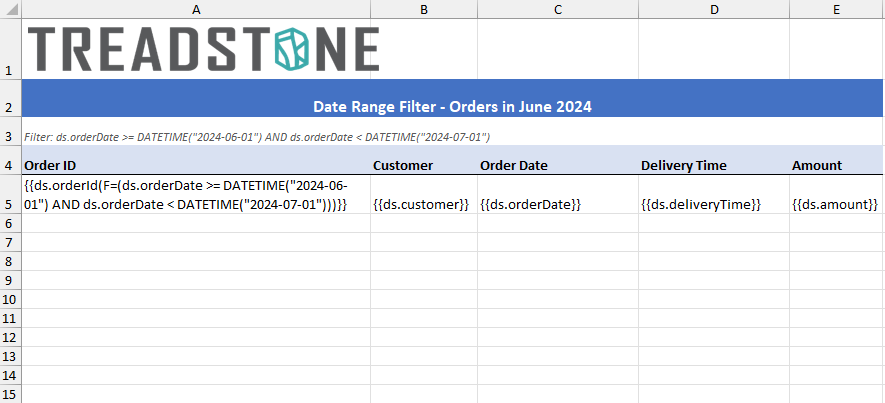 |
| Report Sheet | 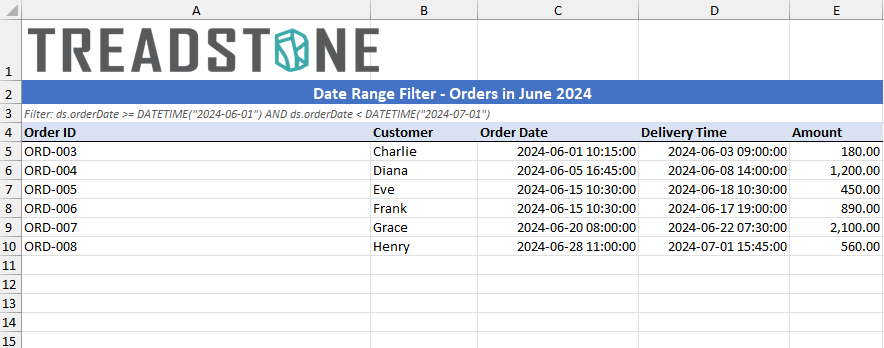 |
You can also view the [demo](https://developer.mescius.com/document-solutions/dot-net-excel-api/demos/datetimefilter) to learn more about filtering date and time values.