# Getting Started
This topic will get you started by listing up DsExcel system requirements and steps to add DsExcel references in your application.
## Content
## System Requirements
The DsExcel .NET packages are fully supported on Visual Studio 2017 or later for Windows, Visual Studio for MAC, and Visual Studio Code for Linux and are compatible with the following:
* .NET (5 and later) — including all current and future LTS and STS releases
* .NET Core 2.x and 3.x
* .NET Standard 2.x
* .NET Framework 4.6.2 or higher
## Dependencies
The following table lists the open-source library that is used in DsExcel .NET:
| **Name** | **Version** | **Description and Usage** |
| ---- | ------- | --------------------- |
| Newtonsoft.Json | 13.0.1 | Reads and writes JSON. It also Implements JSON DOM data binding. |
## Setting up an Application
DsExcel .NET reference is available through NuGet, a Visual Studio extension that automatically adds libraries and references to your project. To work with DsExcel .NET, you need to have following references in your application:
| **Reference** | **Purpose** |
| --------- | ------- |
| [DS.Documents.Excel](https://www.nuget.org/packages/DS.Documents.Excel) | To use DsExcel in an application, you need to reference (install) just the DS.Documents.Excel package. It pulls in the required infrastructure packages. |
### Add reference to DsExcel .NET in your application
In order to use DsExcel .NET in a .NET Core, ASP.NET Core, .NET Framework application (any target that supports .NET Standard 2.0), install the NuGet packages in your application using the following steps:
#### VISUAL STUDIO FOR WINDOWS
##### To find and install the DS.Documents.Excel NuGet package
1. In **Solution Explorer**, right-click either **Dependencies** or a project and select **Manage NuGet Packages.**
2. In the **Browse** tab, select **nuget.org** from the **Package source** dropdown.
3. In the **Browse** tab, type "ds.documents" or "DS.Documents" in the search text box at the top and find the package "DS.Documents.Excel".
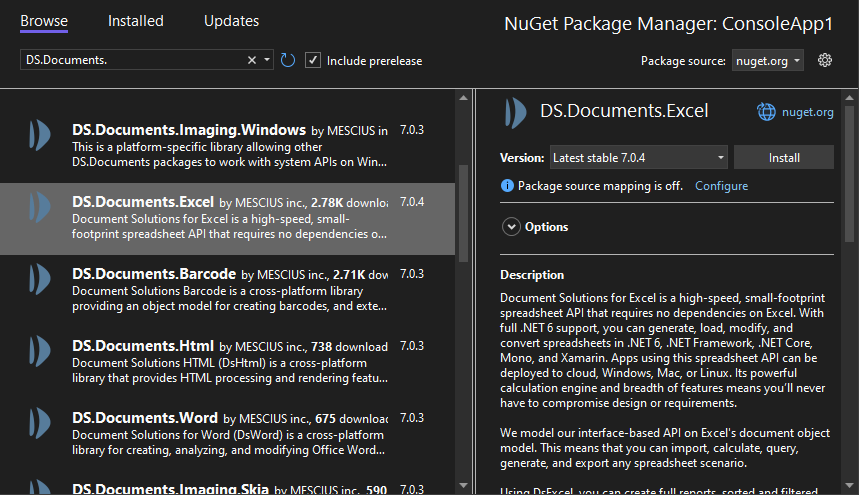
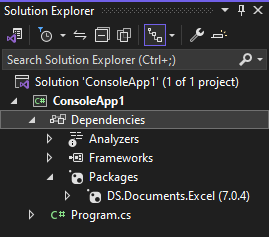
4. Click **Install** to install the **DS.Documents.Excel** package and its dependencies into the project. When the installation is complete, make sure you check the NuGet folder in your solution explorer and confirm whether or not the DS.Documents.Excel package is added to your project dependencies.
##### To manually create NuGet package source
In order to manually create Nuget feed source, you need to complete the following steps to add the Nuget feed URL to your Nuget settings in Visual Studio. Before you proceed with this step, make sure you first [download DsExcel from the website](https://developer.mescius.com/document-solutions/dot-net-excel-api/download) and put the DS.Documents.Excel nuget package in a local folder, for example - "D:\\Nupkg".
1. From the Tools menu, select **Nuget Package Manager \| Package Manager Settings\.** The **Options** dialog box appears.
2. In the left pane, select **Package Sources.**
3. Click the  button in the top right corner. A new source is added under **Available Package Sources**.
4. Set a **Name** for the new package source.
5. To add source in the **Source** field\*\*,\*\* click the ellipsis button next to the Source field to browse for the **Nupkg** folder.
6. After you select the **Nupkg** folder, click the **Update** button and finally click OK.
##### To install the DS.Documents.Excel package using command line interface
1. Open the CommandPrompt window on your Windows system.
2. Create a console application 'myApp' by using the command: dotnet new console -o myApp
3. Use the **cd** command to navigate to your project folder: cd myApp
4. Install DsExcel .NET NuGet package using the following command:
**dotnet add package DS.Documents.Excel**
##### To add DS.Documents.Excel package reference
DsExcel .NET is a cross-platform spreadsheet component that can be used on multiple platforms including Windows, Linux and Mac operating system.
In case you are creating an application using the Visual Studio, user can edit the **\*\*.csproj** file and a package reference as shown in the image below, where `x.x.x` refers to the specific version number of DsExcel you are using.
```xml
Exe
net6.0
```
After this step, follow the steps in the [Quick Start](/document-solutions/dot-net-excel-api/docs/online/getting-started/quick-start) section.
#### VISUAL STUDIO FOR MAC
1. Open Visual Studio for MAC.
2. Create any application (any target that supports .NET Standard 2.0).
3. In tree view on the left, right-click **Dependencies** and choose **Add Packages**.
4. In the Search panel, type "DS.Documents".
5. From the list of packages displayed in the left panel, select **DS.Documents.Excel** and click **Add Packages**.
6. Click **Accept**.
This automatically adds references of the package and its dependencies to your application. After this step, follow the steps in the [Quick Start](/document-solutions/dot-net-excel-api/docs/online/getting-started/quick-start) section.
#### VISUAL STUDIO FOR LINUX
1. Open Visual Studio Code.
2. Install **Nuget Package Manager** from **Extensions**.
3. Create a folder "MyApp" in your **Home** folder.
4. In the Terminal in Visual Studio Code, type "cd MyApp"
5. Type command "dotnet new console"
Observe: This creates a .NETCore application with MyApp.csproj file and Program.cs.
6. Press **Ctrl+P**. A command line opens at the top.
7. Type command: ""
Observe: "**Nuget Package Manager: Add Package**" option appears.
8. Click the above option.
9. Type "**Ds**" and press Enter.
Observe: Document Solutions packages get displayed in the dropdown.
10. Choose **DS.Documents.Excel**.
11. Type following command in the Terminal window: "dotnet restore"
This adds references of the package to your application. After this step, follow the steps in the [Quick Start](/document-solutions/dot-net-excel-api/docs/online/getting-started/quick-start) section.