# Digital Signatures
DsExcel allows you to work with digital signatures in a worksheet. Learn more in DsExcel docs.
## Content
Digital signatures are the proof of a document's authenticity. A digitally signed document assures that it has been created by the signer and has not been changed in any way.
DsExcel allows users to add digital signatures to Excel spreadsheets to make them authentic and easier to validate.
## Signature Lines
Signature lines act as a signature placeholder for digital signatures. They can be added to worksheet as signature line shapes which can be signed further.
### Add Signature Line
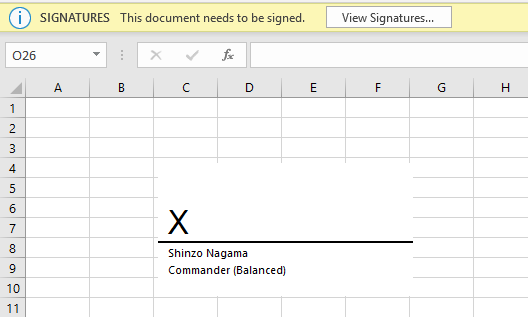
The **AddSignatureLine** method of **ISignatureSet** interface adds signature lines in a worksheet. You can also add information about the intended signer and instructions for the signer by using various properties of **ISignatureSetup** interface. When the workbook is opened again or sent to the intended signer as an Excel file, the signature line can be seen along with a notification that their signature is requested.
Refer to the following example code to add signature line in a worksheet.
```csharp
var workbook = new Workbook();
IWorksheet activeSheet = workbook.ActiveSheet;
//add signature line
ISignatureSetup setup = workbook.Signatures.AddSignatureLine(activeSheet, 100.0, 50.0).Setup;
setup.ShowSignDate = false;
setup.AllowComments = false;
setup.SigningInstructions = "Please check the content before signing.";
setup.SuggestedSigner = "Shinzo Nagama";
setup.SuggestedSignerEmail = "shinzo.nagama@ea.com";
setup.SuggestedSignerLine2 = "Commander (Balanced)";
//save to Excel file
workbook.Save("addsignaturelines.xlsx");
```
The below image shows the signature lines in Excel:
### Copy Signature Lines
You can copy a signature line to another range of worksheet or to another worksheet by using any of the below:
* Duplicate signature line - By using **Duplicate** method of **IShape** interface
* Copy signature line's cell range - By using **Copy** method of **IRange** interface
* Copy worksheet containing signature line - By using **Copy** method of **IWorksheet** interface
Refer to the following example code to copy a signature line to another range and another worksheet.
```csharp
//copy signature line to another range
IRange srcRange = activeSheet.Range["A1:I15"];
IRange destRange = activeSheet.Range["A16:I30"];
srcRange.Copy(destRange);
//duplicate signature line
signature.SignatureLineShape.Duplicate();
//copy signature line to another worksheet
activeSheet.Copy();
```
### Delete Signature Lines
You can delete a signature line by using any of the below:
* Delete signature line - By using **Delete** method of **ISignature** interface
* Delete shape associated with signature line - By using **Delete** method of **IShape** interface
Refer to the following example code to delete signature line in a worksheet.
```csharp
//create a new signature line and delete with Signature.Delete
ISignature signatureForTest = newSignatureLine();
signatureForTest.Delete();
//create a new signature line and delete with Shape.Delete
signatureForTest = newSignatureLine();
IShape signatureLineShape = signatureForTest.SignatureLineShape;
signatureLineShape.Delete();
```
### Move Signature Lines
Refer to the following example code to move signature lines to another range or a worksheet.
```csharp
//move signature line
signature.SignatureLineShape.Top += 100;
signature.SignatureLineShape.Left += 50;
```
### List Signature Lines
Refer to the following example code to list signature lines in a worksheet.
```csharp
//add first signature line
ISignature signatureShinzo = signatures.AddSignatureLine(
activeSheet, 100.0, 50.0);
ISignatureSetup setup1 = signatureShinzo.Setup;
setup1.ShowSignDate = false;
setup1.AllowComments = false;
setup1.SigningInstructions = "Please check the content before signing.";
setup1.SuggestedSigner = "Shinzo Nagama";
setup1.SuggestedSignerEmail = "shinzo.nagama@ea.com";
setup1.SuggestedSignerLine2 = "Commander (Balanced)";
//add second signature line
ISignature signatureKenji = signatures.AddSignatureLine(
activeSheet, 100.0, 350.0);
ISignatureSetup setup2 = signatureKenji.Setup;
setup2.ShowSignDate = true;
setup2.AllowComments = true;
setup2.SigningInstructions = "Please check the content before signing!";
setup2.SuggestedSigner = "Kenji Tenzai";
setup2.SuggestedSignerEmail = "kenji.tenzai@ea.com";
setup2.SuggestedSignerLine2 = "Commander (Mecha)";
//list signatures with indexes
for (var i = 0; i < signatures.Count; i++)
{
var signature = signatures[i];
//change SuggestedSigner
if (i == 0)
signature.Setup.SuggestedSigner = "Shinzo Nagama 123";
//change SuggestedSignerLine2
if (i == 1)
signature.Setup.SuggestedSignerLine2 = "Commander (Mecha 1234)";
}
```
The **SignatureLineShape** property in **ISignature** interface can be used while using signature line as a shape. Its members and their behavior is elaborated in the below table:
| **SignatureLineShape members** | **Get or Call** **Behavior** | **Set Behavior** |
| -------------------------- | -------------------- | ------------ |
| Adjustments | Supported | #N/A |
| Adjustments.Count | Supported | #N/A |
| Adjustments.Item | Not Supported | Not Supported |
| Adjustments.GetEnumerator | Not Supported | #N/A |
| AutoShapeType | Supported | Not Supported |
| BottomRightCell | Supported | #N/A |
| Chart | Not Supported | #N/A |
| Connector | Supported | #N/A |
| ConnectorFormat | Not Supported | #N/A |
| Fill | Not Supported | #N/A |
| GroupItems | Not Supported | #N/A |
| HasChart | Supported | #N/A |
| Hyperlink | Not Supported | #N/A |
| IsPrintable | Supported | Supported |
| Line | Not Supported | #N/A |
| Locked | Supported | Supported |
| Name | Supported | Supported |
| Parent | Supported | #N/A |
| ParentGroup | Not Supported | #N/A |
| PictureFormat | Supported | #N/A |
| PictureFormat.ColorType | Supported | Supported |
| PictureFormat.Brightness | Supported | Supported |
| PictureFormat.Contrast | Supported | Supported |
| PictureFormat.Crop | Not Supported | #N/A |
| PictureFormat.CropLeft, CropTop,
CropRight and CropBottom | Not Supported | Not Supported |
| Placement | Supported | Supported |
| Rotation | Supported | Not Supported |
| TextFrame | Not Supported | #N/A |
| ThreeD | Not Supported | #N/A |
| Title | Not Supported | Not Supported |
| TopLeftCell | Supported | #N/A |
| Left, Top, Right and Bottom | Supported | Supported |
| Type | Supported | Supported |
| Transparency | Not Supported | Not Supported |
| Ungroup | Not Supported | #N/A |
| Visible | Supported | Supported |
| ZOrderPosition | Supported | Supported |
The signature lines can also be exported to PDF documents. Refer [Export Signature Lines](/document-solutions/dot-net-excel-api/docs/online/ManageFileOperations/ExporttoaPDFFile/export-signature-lines).
## Add Digital Signatures
Digital signatures can be added to Excel spreadsheet by signing the signature lines using a signing certificate which proves signer's identity. Please follow the steps mentioned in [Generate Certificate document](https://cdn.mescius.io/document-site-files/images/e333ad47-35da-43f9-a389-25433765f491/templates/generate_certificate.docx) to generate the certificate file (.pfx).
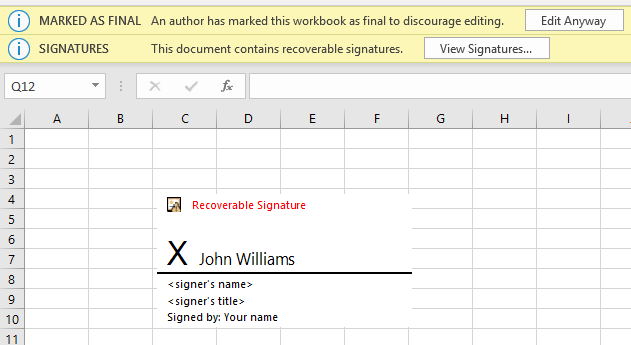
The **Sign** method of **ISignature** interface can be used to add digital signatures. In order to commit signatures, the workbook should be saved with xlsx or xlsm extension. A workbook containing digital signatures is 'marked as final' to discourage editing.
Refer to the following example code to add digital signatures in a worksheet.
```csharp
//create a new workbook
var workbook = new Workbook();
//add signature line
ISignature signature = workbook.Signatures.AddSignatureLine(
workbook.ActiveSheet, 100.0, 50.0);
ISignatureSetup setup = signature.Setup;
setup.ShowSignDate = true;
setup.AllowComments = true;
setup.SigningInstructions = "";
setup.SuggestedSigner = "";
setup.SuggestedSignerEmail = "example@microsoft.com";
setup.SuggestedSignerLine2 = "";
//add signature details
var details = new SignatureDetails
{
Address1 = "",
Address2 = "",
SignatureComments = "Final",
City = "",
StateOrProvince = "",
PostalCode = "",
CountryName = "",
ClaimedRole = "",
CommitmentTypeDescription = "Approved",
CommitmentTypeQualifier = "Final"
};
//initialize certificate
var cert = new X509Certificate2("DsExcelTest.pfx", "test@123");
signature.Sign(cert, "John Williams", details);
//save to an excel file to commit signatures
workbook.Save("digitalsignatures.xlsx");
```
The below image shows digital signature in Excel:
## Add Non Visible Signatures
You can also add invisible digital signatures to a workbook by using **AddNonVisibleSignature** method of **ISignatureSet** interface. The non visible digital signatures do not appear in any worksheet. However, they can be viewed by clicking ‘View Signatures’ dialog in Excel.
Refer to the following example code to add non visible signatures in a workbook.
```csharp
//create a new workbook
var workbook = new Workbook();
//add non visible signatures
ISignature signature = workbook.Signatures.AddNonVisibleSignature();
var details = new SignatureDetails
{
Address1 = "",
Address2 = "",
SignatureComments = "Final",
City = "",
StateOrProvince = "",
PostalCode = "",
CountryName = "",
ClaimedRole = "",
CommitmentTypeDescription = "Approved",
CommitmentTypeQualifier = "Final"
};
var cert = new X509Certificate2("DsExcelTest.pfx", "test@123");
signature.Sign(cert, details);
//save to an excel file
workbook.Save("nonvisiblesignatures.xlsx");
```
## Countersign Signatures
A digitally signed workbook becomes read-only. When it is opened again in DsExcel, its digital signatures must be preserved before closing it. To achieve this:
### Countersign the Workbook
A digitally signed workbook should be countersigned if it is opened and any modification is done to it. Otherwise, the existing signatures are removed after saving the workbook as xlsx or xlsm. The **Countersign** method of **ISignature** interface can be used to countersign a signature using the same certificate.
Refer to the following example code to open a digitally signed workbook and countersign it after modifying the worksheet.
```csharp
//open a digitally signed workbook
workbook.Open("signsignaturelines.xlsx");
//modify the worksheet
workbook.Worksheets[0].Range["A1"].Value = "Modified";
//countersign using same certificate
workbook.Signatures[0].Countersign(cert);
//save to an excel file
workbook.Save("countersign.xlsx");
```
### Open the Workbook in Digital Signature Only Mode
A digitally signed workbook can be opened in digital signature only mode by using **DigitalSignatureOnly** property in **XlsxOpenOptions** class. In this mode, you can perform the following operations while preserving existing signatures:
* Sign existing signature lines
* Remove signatures from signed signature lines
* Add and Remove non visible signatures
Refer to the following example code to open a digitally signed workbook in digital signature only mode and add non visible signatures to it.
```csharp
workbook.Open("signsignaturelines.xlsx");
//use DigitalSignatureOnly mode, because the workbook was already signed.
//if you don't open it with digital signature only mode,
//all existing signatures will be removed after saving the workbook.
XlsxOpenOptions openOption = new XlsxOpenOptions { DigitalSignatureOnly = true };
//add signature to this workbook
var signature = workbook.Signatures.AddNonVisibleSignature();
signature.Sign(cert, details);
//commit signatures
workbook.Save("AddNonVisibleSignatureToSignedWorkbook.xlsx");
```
## Verify Digital Signatures
DsExcel allows you to verify digital signatures by using **IsValid** property of **ISignature** interface. You can also extract the results of certificate verification by using **X509ChainStatusFlags** enumeration.
Refer to the following example code to verify digital signatures in a signed workbook.
```csharp
//create a new workbook
var workbook = new Workbook();
workbook.Open("digitalsignatures.xlsx");
ISignatureSet signatures = workbook.Signatures;
bool signed = false;
bool valid = false;
X509Certificate2 certificate = null;
// Verify signature
foreach (var signature in signatures)
{
if (signature.IsSigned)
{
signed = true;
certificate = signature.Details.SignatureCertificate;
valid = signature.IsValid;
break;
}
}
// Verify certificate
if (certificate != null)
{
var status = X509ChainStatusFlags.NoError;
// build the certificate chain
var chain = new X509Chain();
bool certValid = chain.Build(certificate);
// inspect the results
if (!certValid)
{
var chainStatus = chain.ChainStatus;
for (var i = 0; i < chainStatus.Length; i++)
{
status |= chainStatus[i].Status;
}
}
// Extract the certificate verification result
var isCertificateExpired = status.HasFlag(X509ChainStatusFlags.NotTimeValid);
var isCertificateRevoked = status.HasFlag(X509ChainStatusFlags.Revoked);
var isCertificateUntrusted = status.HasFlag(X509ChainStatusFlags.UntrustedRoot);
Console.WriteLine("Expired:" + isCertificateExpired);
Console.WriteLine("Revoked:" + isCertificateRevoked);
Console.WriteLine("UnTrusted:" + isCertificateUntrusted);
}
```
## Remove Digital Signatures
DsExcel allows you to remove digital signatures from a signed signature line by using **Delete** method of **ISignature** interface. The signature line is retained but can be deleted separately (as explained above).
Refer to the following example code to delete digital signatures from signed signature line in a workbook.
```csharp
//create a new workbook
var workbook = new Workbook();
// This file contains 1 signed signature line and
// a not signed signature line.
workbook.Open("signsignaturelines.xlsx");
//use DigitalSignatureOnly mode, because the workbook was already signed
XlsxOpenOptions openOption = new XlsxOpenOptions { DigitalSignatureOnly = true };
//remove signature of signed signature line
foreach (var signature in workbook.Signatures)
{
if (signature.IsSignatureLine && signature.IsSigned)
{
//remove digital signature.
//the signature line will not be removed from the SignatureSet
//in digital signature only mode.
//because signature lines are shapes
signature.Delete();
break;
}
}
//commit signatures
workbook.Save("deletesignaturefromsignatureline.xlsx");
```
> !type=note
> **Note:** The signature formats observed in this feature have been tested with following versions:
> **Target Office version**
> The office version used to observe file structures when developing this feature is Office 365, build 16.0.12228.
> This version can be observed by using SignatureDetails.ApplicationVersion property.
> **Minimum Office version**
> The minimum Office version required to open the signed workbook is Office 2013.
## Limitations
* Only Microsoft Office signature lines are supported.
* Only PFX certificates are supported.
* When signing a workbook, .NET Framework 4.6.2 or higher is required if the private key is DSA. ECDSA is not supported.
* Emf image files are not supported. Hence, when exporting signature lines, the signature image is skipped if it is in emf format. The preview images are also emf images. Hence, placeholder preview images are exported instead.
* The DigitalSignatureOnly mode generates corrupted workbooks if .NET Core 2.x framework is used. The workaround is to fix the generated workbook with zip archive libraries or tools (Do NOT use System.IO.Packaging.Package or System.IO.Compression.ZipArchive, because this problem is caused by these classes). However, this issue does not exist on .NET Framework or .NET Core 3.x .