# Import Data

DsExcel is a Document Solutions product that offers a comprehensive library to create, manipulate, convert, and share Microsoft Excel-compatible spreadsheets.

## Content

Sometimes, you may need to import data from an object collection or a data table to a range to create a new spreadsheet or report. DsExcel enables you to import data from various data sources using [ImportData](/document-solutions/dot-net-excel-api/api/online/DS.Documents.Excel/GrapeCity.Documents.Excel.IRange.ImportData.html) method of [IRange](/document-solutions/dot-net-excel-api/api/online/DS.Documents.Excel/GrapeCity.Documents.Excel.IRange.html) interface. With ImportData method, you can import the following types of data sources:

* Element Types
    * Primitive types: SByte, Byte, Int16, UInt16, Int32, UInt32, Int64, UInt64, Single, Double, Decimal, Boolean, DateTime, TimeSpan, or CalcError.
    * Nullable primitives: string or Nullable{T} where T is a primitive type.
    * Custom objects: objects that have properties to be mapped to cell values.
    * IReadOnlyDictionary{TKey, TValue} or IDictionary{TKey, TValue} or IDictionary where the key is a string: It will be treated as a collection of property names and values.
    * DataRow or DataRowView.
* Collection Types
    * Flat (non-jagged, 1D in total) IEnumerable. For example, DataView.
    * Jagged (2D in total) IEnumerable or IEnumerable{t} where the element type of the inner collection is primitive or nullable primitive.
    * 2D array where the element type is primitive or nullable primitive.

DsExcel provides the ImportData method with the following overloads to import data from an object collection or a data table to a range:

| **Overload** | **Parameter** | **Description** |
| -------- | --------- | ----------- |
| @rows=2:ImportData(IEnumerable items, DataImportOptions options = null) | items | The items to import, which can be:<ul><li>Element Types<ul><li>Primitive types: SByte, Byte, Int16, UInt16, Int32, UInt32, Int64, UInt64, Single, Double, Decimal, Boolean, DateTime, TimeSpan, or CalcError.</li><li>Nullable primitives: string or Nullable{T} where T is a primitive type.</li><li>Custom objects: objects that have properties to be mapped to cell values.</li><li>IReadOnlyDictionary{TKey, TValue} or IDictionary{TKey, TValue} or IDictionary where the key is a string: It will be treated as a collection of property names and values.</li><li>DataRow or DataRowView.</li></ul></li><li>Collection Types<ul><li>Flat (non-jagged, 1D in total) IEnumerable. For example, DataView.</li><li>Jagged (2D in total) IEnumerable or IEnumerable{t} where the element type of the inner collection is primitive or nullable primitive.</li><li>2D array where the element type is primitive or nullable primitive.</li></ul></li></ul> |
| <span style="color: rgb(33, 37, 41); font-family: Montserrat, Gotham SSm A, Gotham SSm B, Open Sans, Segoe UI, Helvetica Neue, Helvetica, Arial, sans-serif; font-size: 16px; font-style: normal; font-variant-ligatures: normal; font-variant-caps: normal; font-weight: 400; letter-spacing: normal; orphans: 2; text-align: start; text-indent: 0px; text-transform: none; widows: 2; word-spacing: 0px; -webkit-text-stroke-width: 0px; white-space: normal; background-color: rgb(255, 255, 255); text-decoration-thickness: initial; text-decoration-style: initial; text-decoration-color: initial; display: inline !important; float: none;">options</span> | <span style="color: rgb(33, 37, 41); font-family: Montserrat, Gotham SSm A, Gotham SSm B, Open Sans, Segoe UI, Helvetica Neue, Helvetica, Arial, sans-serif; font-size: 16px; font-style: normal; font-variant-ligatures: normal; font-variant-caps: normal; font-weight: 400; letter-spacing: normal; orphans: 2; text-align: start; text-indent: 0px; text-transform: none; widows: 2; word-spacing: 0px; -webkit-text-stroke-width: 0px; white-space: normal; background-color: rgb(255, 255, 255); text-decoration-thickness: initial; text-decoration-style: initial; text-decoration-color: initial; display: inline !important; float: none;">The import options.</span> |
| @rows=2:ImportData(DataTable table, DataImportOptions options = null) | table | The table to import, which can be:<ul><li>Column Types<ul><li>Primitive types: SByte, Byte, Int16, UInt16, Int32, UInt32, Int64, UInt64, Single, Double, Decimal, Boolean, DateTime, TimeSpan, or CalcError.</li><li>Nullable primitives: string or Nullable{T} where T is a primitive type.</li></ul></li></ul> |
| options | The import options. |

**options** parameter of ImportData method accepts the following import options that are accessible through [DataImportOptions](/document-solutions/dot-net-excel-api/api/online/DS.Documents.Excel/GrapeCity.Documents.Excel.DataImportOptions.html) class, which enable you to choose how to import data from object collections or data tables to a range:

| **Import Option** | **Description** |
| ------------- | ----------- |
| InsufficientSpaceHandling Property | This property determines how to handle insufficient space when importing data. |
| IncludeColumnHeader Property | This property determines whether to include the column header as the first row when importing data. |
| ColumnsSelector Property | This property selects columns to import. The default behavior is to import all columns. |
| ItemTypeProvider Property | This property gets item type from the specified **System.Collections.IEnumerable**. The type is used to auto-generate columns. The default behavior is to try to get the item type from the generic type parameter, then try to get the type of the first item. |

> !type=note
> **Note:** DsExcel recommends adhering to the following when importing data to the range:
>
> * Use generic type where possible.
> * Use the delegate-based columns selector for custom objects in AOT projects.
> * Use a 2D array instead of a jagged array where possible.
> * Cache a LINQ result into a list or array if the result is not very long.
> * Keep the length of jagged arrays the same where possible.
> * Make sure to not use duck typing unless you have no choice.
> * Make sure to not attempt to import an asynchronous data source unless async continuations run on the original thread.
> * Make sure to not use covariance in array types unless you have no choice.

> !type=note
> **Note:** DsExcel recommends writing an option builder to keep the code clean. For more information, see [Builder pattern](https://en.wikipedia.org/wiki/Builder_pattern).

## Import Simple Enumerable Vertically

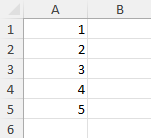
Refer to the following example code to import simple enumerable vertically to the worksheet:

```csharp
// Create a new workbook.
var workbook = new Workbook();

// Access first worksheet.
var worksheet = workbook.Worksheets[0];

// Add 1-D array of doubles.
var doubleData = new double[] { 1, 2, 3, 4, 5 };

// Import array vertically.
worksheet.Range["A1:A5"].ImportData(doubleData);

// Save the workbook.
workbook.Save("ImportSimpleEnumerableVertically.xlsx");
```
![](https://cdn.mescius.io/document-site-files/images/e333ad47-35da-43f9-a389-25433765f491/images/import-simple-enumerable-vertically.png)

## Import Simple Enumerable Horizontally

Refer to the following example code to import simple enumerable horizontally to the worksheet:

```csharp
// Create a new workbook.
var workbook = new Workbook();

// Access first worksheet.
var worksheet = workbook.Worksheets[0];

// Add 1-D array of doubles.
var doubleData = new double[] { 1, 2, 3, 4, 5 };

// Import array horizontally.
worksheet.Range["A1:E1"].ImportData(doubleData);

// Save the workbook.
workbook.Save("ImportSimpleEnumerableHorizontally.xlsx");
```

![](https://cdn.mescius.io/document-site-files/images/e333ad47-35da-43f9-a389-25433765f491/images/import-simple-enumerable-horizontally.png)

## Import 1D Data

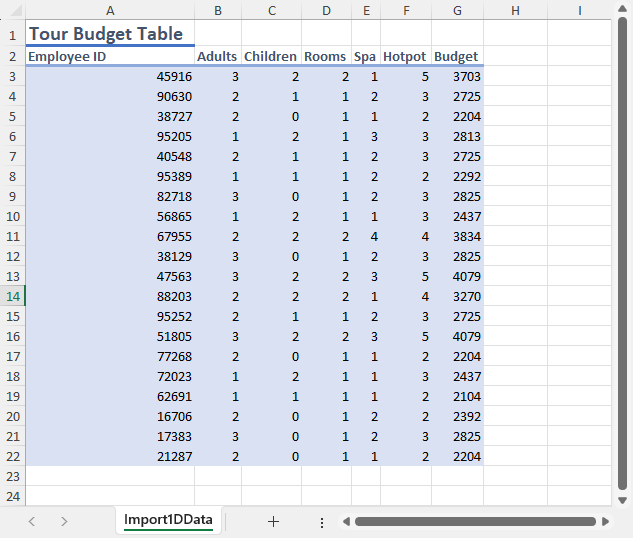
Refer to the following example code to import 1D data to the worksheet:

```csharp
// Create a new workbook.
var workbook = new Workbook();

// Set workbook culture to English (US).
workbook.Culture = CultureInfo.GetCultureInfo("en-US");
var sheet1 = workbook.Worksheets["Sheet1"];
sheet1.Name = "Import1DData";
            
// Set values to the range.
sheet1.Range["A1"].Value = "Tour Budget Table";

// Import 1D array horizontally when the range is not vertical.
var titles = new[] { "Employee ID", "Adults", "Children", "Rooms", "Spa", "Hotpot", "Budget" };
sheet1.Range["A2:G2"].ImportData(titles);

// Generate test data. You can set the seed value of the random number generator to get the same data.
var rnd = new Random(1234);
const int rowCount = 20;
var uids = Enumerable.Repeat(0, rowCount).Select(i => rnd.Next(10000, 99999)).ToArray();
var adults = Enumerable.Repeat(0, rowCount).Select(i => rnd.Next(1, 4)).ToArray();
var children = Enumerable.Repeat(0, rowCount).Select(i => rnd.Next(0, 3)).ToArray();
var rooms = adults.Zip(children, (adult, child) => (adult + child) / 2).ToList();
var spa = adults.Zip(children, (adult, child) => Math.Ceiling((adult + child) * rnd.NextDouble())).ToArray();
var hotpot = adults.Zip(children, (adult, child) => adult + child).ToArray();

const int budgetBase = 750;
var budget =
    from i in Enumerable.Range(0, rowCount)
    let adult = adults[i]
    let child = children[i]
    let room = rooms[i]
    let sp = spa[i]
    let hot = hotpot[i]
    select adult * 200 + child * 100 + room * 400 + sp * 188 + hot * 233 + budgetBase;

// Import data by columns.
/* "rooms" is a list. It can also be imported like 1D arrays.
   "budget" is a LINQ result. It can also be imported like 1D arrays. */
var columns = new IEnumerable[] { uids, adults, children, rooms, spa, hotpot, budget };
for (int i = 0; i < columns.Length; i++)
{
    // 1D array/list will be imported vertically if the range is vertical.
    sheet1.Range[2, i, 2, 1].ImportData(columns[i]);
}

// Set range style.
sheet1.Range[1, 0, 1, 7].Style = workbook.Styles["Heading 3"];
sheet1.Range[2, 0, rowCount, 7].Style = workbook.Styles["20% - Accent1"];
sheet1.Range[1, 0, 1, 7].EntireColumn.AutoFit();
sheet1.Range["A1"].Style = workbook.Styles["Heading 1"];
sheet1.Range["1:2"].AutoFit();

// Save the workbook.
workbook.Save("Import1DData.xlsx");
```
![](https://cdn.mescius.io/document-site-files/images/e333ad47-35da-43f9-a389-25433765f491/images/import-1d-data.png)

## Import 2D Data

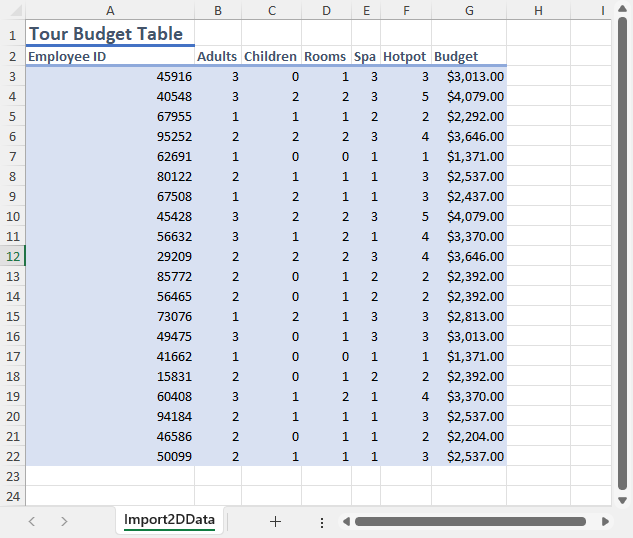
Refer to the following example code to import 2D data to the worksheet:

```csharp
// Create a new workbook.
var workbook = new Workbook();

// Set workbook culture to English (US).
workbook.Culture = CultureInfo.GetCultureInfo("en-US");
var sheet1 = workbook.Worksheets["Sheet1"];
sheet1.Name = "Import2DData";
sheet1.Range["A1"].Value = "Tour Budget Table";

// Import titles with 2D array.
var titles = new string[,] { { "Employee ID", "Adults", "Children", "Rooms", "Spa", "Hotpot", "Budget" } };
sheet1.Range["A2"].ImportData(titles);

// Generate test data. You can set the seed value of the random number generator to get the same data.
var rnd = new Random(1234);
const int rowCount = 20;

// Import data from 2D arrays. This code is similar to using Range.Value.
var numbers = new double[rowCount, 7];
for (int i = 0; i < rowCount; i++)
{
    int employeeId = rnd.Next(10000, 99999);
    int adults = rnd.Next(1, 4);
    int children = rnd.Next(0, 3);
    int rooms = (adults + children) / 2;
    double spa = Math.Ceiling((adults + children) * rnd.NextDouble());
    int hotpot = adults + children;
    double budget = adults * 200 + children * 100 + rooms * 400 + spa * 188 + hotpot * 233 + 750;

    numbers[i, 0] = employeeId;
    numbers[i, 1] = adults;
    numbers[i, 2] = children;
    numbers[i, 3] = rooms;
    numbers[i, 4] = spa;
    numbers[i, 5] = hotpot;
    numbers[i, 6] = budget;
}
var result = sheet1.Range["A3"].ImportData(numbers);

// Set range style.
sheet1.Range[1, 0, 1, result.ColumnsImported].Style = workbook.Styles["Heading 3"];
sheet1.Range[2, 0, result.RowsImported, result.ColumnsImported].Style = workbook.Styles["20% - Accent1"];
sheet1.Range[1, 0, 1, result.ColumnsImported].EntireColumn.AutoFit();
sheet1.Range["A1"].Style = workbook.Styles["Heading 1"];
sheet1.Range["1:2"].AutoFit();
sheet1.Range[2, 6, result.RowsImported, 1].NumberFormat = "$#,##0.00";
sheet1.Range[2, 6, result.RowsImported, 1].EntireColumn.ColumnWidth = 10;

// Save the workbook.
workbook.Save("Import2DData.xlsx");
```
![](https://cdn.mescius.io/document-site-files/images/e333ad47-35da-43f9-a389-25433765f491/images/import-2d-data.png)

## Import Multidimensional Array

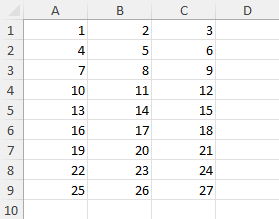
Refer to the following example code to import multidimensional array to the worksheet:

```csharp
// Create a new workbook.
            var workbook = new Workbook();

            // Access first worksheet.
            var worksheet = workbook.Worksheets[0];

            // Add multidimensional array.
            var doubleDataMt = new double[][,]
{
                new double [,] {
                    { 1, 2, 3 },
                    { 4, 5, 6 },
                    { 7, 8, 9 }
                },
                new double [,] {
                    { 10, 11, 12 },
                    { 13, 14, 15 },
                    { 16, 17, 18 }
                },
                new double [,] {
                    { 19, 20, 21 },
                    { 22, 23, 24 },
                    { 25, 26, 27 }
                }
            };

            // Import multidimensional array.
            int startRow = 0;
            foreach (var item in doubleDataMt)
            {
                // A worksheet does not support multi-dimensional arrays.
                // But you can import inner arrays one by one using the import result to perform layout.
                var imported = worksheet.Range[startRow, 0].ImportData(item);
                startRow += imported.RowsImported;
            }

            // Save the workbook.
            workbook.Save("ImportMultidimensionalArray.xlsx");
```
![](https://cdn.mescius.io/document-site-files/images/e333ad47-35da-43f9-a389-25433765f491/images/import-multidimensional-array.png)

## Import Jagged Arrays

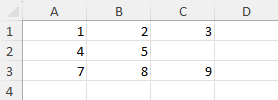
Refer to the following example code to import jagged array to the worksheet:

```csharp
// Create a new workbook.
            var workbook = new Workbook();

            // Access first worksheet.
            var worksheet = workbook.Worksheets[0];

            // Add jagged array.
            var doubleDataJagged = new double[][]
{
                new double[] { 1, 2, 3 },
                new double[] { 4, 5 },
                new double[] { 7, 8, 9 }
            };
            
            // Inner arrays can have different lengths.
            // But it's recommended to keep the length the same and use 2D arrays for better performance.
            worksheet.Range["A1"].ImportData(doubleDataJagged);

            // Save the workbook.
            workbook.Save("ImportJaggedArrays.xlsx");
```
![](https://cdn.mescius.io/document-site-files/images/e333ad47-35da-43f9-a389-25433765f491/images/import-jagged-array.png)

## Import Entity Data

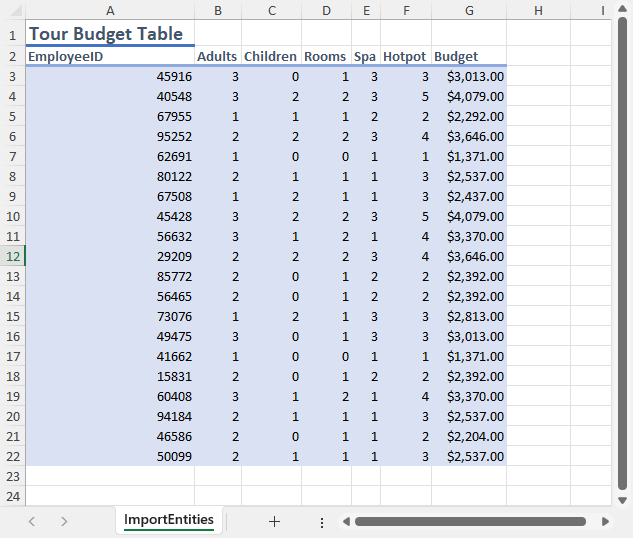
Refer to the following example code to import data from entities to the worksheet:

```csharp
class Program
{
    static void Main(string[] args)
    {
        // Create a new workbook.
        var workbook = new Workbook();

        // Set workbook culture to English (US).
        workbook.Culture = CultureInfo.GetCultureInfo("en-US");
        var sheet1 = workbook.Worksheets["Sheet1"];
        sheet1.Name = "ImportEntities";
        sheet1.Range["A1"].Value = "Tour Budget Table";

        // Generate test data. You can set the seed value of the random number generator to get the same data.
        var rnd = new Random(1234);
        const int rowCount = 20;

        // Create a list of TourBudget entities.
        var tourBudgets = new List<TourBudget>();

        for (int i = 0; i < rowCount; i++)
        {
            int employeeId = rnd.Next(10000, 99999);
            int adults = rnd.Next(1, 4);
            int children = rnd.Next(0, 3);
            int rooms = (adults + children) / 2;
            double spa = Math.Ceiling((adults + children) * rnd.NextDouble());
            int hotpot = adults + children;
            double budget = adults * 200 + children * 100 + rooms * 400 + spa * 188 + hotpot * 233 + 750;

            // Add entity to the list.
            tourBudgets.Add(new TourBudget
            {
                EmployeeID = employeeId,
                Adults = adults,
                Children = children,
                Rooms = rooms,
                Spa = spa,
                Hotpot = hotpot,
                Budget = budget
            });
        }

        // Import list into the worksheet.
        var result = sheet1.Range["A2"].ImportData(tourBudgets);

        // Set range style.
        sheet1.Range[1, 0, 1, result.ColumnsImported].Style = workbook.Styles["Heading 3"];
        sheet1.Range[2, 0, result.RowsImported - 1, result.ColumnsImported].Style = workbook.Styles["20% - Accent1"];
        sheet1.Range[1, 0, result.RowsImported, result.ColumnsImported].EntireColumn.AutoFit();
        sheet1.Range["A1"].Style = workbook.Styles["Heading 1"];
        sheet1.Range["1:2"].AutoFit();
        sheet1.Range[2, 6, result.RowsImported, 1].NumberFormat = "$#,##0.00";
        sheet1.Range[2, 6, result.RowsImported, 1].EntireColumn.ColumnWidth = 10;

        // Save the workbook.
        workbook.Save("ImportDataFromEntities.xlsx");

    }


}

// Create a class for the entities.
public class TourBudget
{
    public int EmployeeID { get; set; }
    public int Adults { get; set; }
    public int Children { get; set; }
    public int Rooms { get; set; }
    public double Spa { get; set; }
    public int Hotpot { get; set; }
    public double Budget { get; set; }
}
```
![](https://cdn.mescius.io/document-site-files/images/e333ad47-35da-43f9-a389-25433765f491/images/import-data-from-entities.png)

## Import Entity Data with Filter

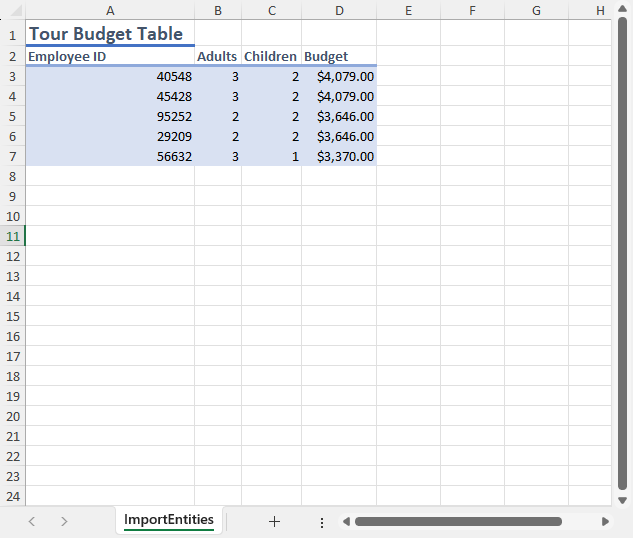
Refer to the following example code to import data from entities with selected rows and columns to the worksheet:

```csharp
class Program
{
    static void Main(string[] args)
    {
        // Create a new workbook.
        var workbook = new Workbook();

        // Set workbook culture to English (US).
        workbook.Culture = CultureInfo.GetCultureInfo("en-US");
        var sheet1 = workbook.Worksheets["Sheet1"];
        sheet1.Name = "ImportEntities";
        sheet1.Range["A1"].Value = "Tour Budget Table";

        // Generate test data. You can set the seed value of the random number generator to get the same data.
        var rnd = new Random(1234);
        const int rowCount = 20;

        // Create a list of TourBudget entities.
        var tourBudgets = new List<TourBudget>();

        for (int i = 0; i < rowCount; i++)
        {
            int employeeId = rnd.Next(10000, 99999);
            int adults = rnd.Next(1, 4);
            int children = rnd.Next(0, 3);
            int rooms = (adults + children) / 2;
            double spa = Math.Ceiling((adults + children) * rnd.NextDouble());
            int hotpot = adults + children;
            double budget = adults * 200 + children * 100 + rooms * 400 + spa * 188 + hotpot * 233 + 750;

            // Add entity to the list.
            tourBudgets.Add(new TourBudget
            {
                EmployeeID = employeeId,
                Adults = adults,
                Children = children,
                Rooms = rooms,
                Spa = spa,
                Hotpot = hotpot,
                Budget = budget
            });
        }

        // Order by budget from high to low and take top five rows.
        var top5 = tourBudgets.OrderByDescending(t => t.Budget).Take(5);

        // Import the query result into the worksheet.
        // Only show the employee ID, adults, children, and budget with custom column headers.
        var result = sheet1.Range["A2"].ImportData(top5, new DataImportOptions
        {
            ColumnsSelector = items =>
            {
                if (!(items is IEnumerable<TourBudget>)) return null;
                return new (string, Delegate)[]
                {
                ("Employee ID", new Func<TourBudget, int>(item => item.EmployeeID)),
                ("Adults", new Func<TourBudget, int>(item => item.Adults)),
                ("Children", new Func<TourBudget, int>(item => item.Children)),
                ("Budget", new Func<TourBudget, double>(item => item.Budget))
                };
            }
        });

        // Set range style.
        sheet1.Range[1, 0, 1, result.ColumnsImported].Style = workbook.Styles["Heading 3"];
        sheet1.Range[2, 0, result.RowsImported - 1, result.ColumnsImported].Style = workbook.Styles["20% - Accent1"];
        sheet1.Range[1, 0, result.RowsImported, result.ColumnsImported].EntireColumn.AutoFit();
        sheet1.Range["A1"].Style = workbook.Styles["Heading 1"];
        sheet1.Range["1:2"].AutoFit();
        sheet1.Range[2, 3, result.RowsImported, 1].NumberFormat = "$#,##0.00";
        sheet1.Range[2, 3, result.RowsImported, 1].EntireColumn.ColumnWidth = 10;

        // Save the workbook.
        workbook.Save("ImportDataFromEntitiesSelectRowsColumns.xlsx");
    }


}

// Create a class for the entities.
public class TourBudget
{
    public int EmployeeID { get; set; }
    public int Adults { get; set; }
    public int Children { get; set; }
    public int Rooms { get; set; }
    public double Spa { get; set; }
    public int Hotpot { get; set; }
    public double Budget { get; set; }
}
```
![](https://cdn.mescius.io/document-site-files/images/e333ad47-35da-43f9-a389-25433765f491/images/import-data-from-entities-rows-columns-selected.png)

## Import Entity Data with Option Builder

Refer to the following example code to import data from entities with selected rows and columns with a "Builder" design pattern to the worksheet:

```csharp
class Program
{
    static void Main(string[] args)
    {
        // Create a new workbook.
        var workbook = new Workbook();

        // Set workbook culture to English (US).
        workbook.Culture = CultureInfo.GetCultureInfo("en-US");
        var sheet1 = workbook.Worksheets["Sheet1"];
        sheet1.Name = "DataImportOptionsBuilder";
        sheet1.Range["A1"].Value = "GPU Performance Test Result";
        sheet1.Range["A1:B1"].Merge();
        sheet1.Range["A1:B1"].Style = workbook.Styles["Heading 1"];

        // Set test data.
        var frameRateResults = new FrameRateTestResult[]
        {
        new FrameRateTestResult { GpuName = "GeForce RTX 4090", FrameRate = 154.1, Workload = "1080p Ultra" },
        new FrameRateTestResult { GpuName = "Radeon RX 7900 XTX", FrameRate = 149.0, Workload = "1080p Ultra" },
        new FrameRateTestResult { GpuName = "GeForce RTX 4080 Super", FrameRate = 148.3, Workload = "1080p Ultra" },
        new FrameRateTestResult { GpuName = "Radeon RX 7900 XT", FrameRate = 143.9, Workload = "1080p Ultra" },
        new FrameRateTestResult { GpuName = "GeForce RTX 4090", FrameRate = 146.1, Workload = "1440p Ultra" },
        new FrameRateTestResult { GpuName = "Radeon RX 7900 XTX", FrameRate = 135.3, Workload = "1440p Ultra" },
        new FrameRateTestResult { GpuName = "GeForce RTX 4080 Super", FrameRate = 133.0, Workload = "1440p Ultra" },
        new FrameRateTestResult { GpuName = "Radeon RX 7900 XT", FrameRate = 125.9, Workload = "1440p Ultra" },
        new FrameRateTestResult { GpuName = "GeForce RTX 4090", FrameRate = 114.5, Workload = "4K Ultra" },
        new FrameRateTestResult { GpuName = "Radeon RX 7900 XTX", FrameRate = 95.1, Workload = "4K Ultra" },
        new FrameRateTestResult { GpuName = "GeForce RTX 4080 Super", FrameRate = 91.9, Workload = "4K Ultra" },
        new FrameRateTestResult { GpuName = "Radeon RX 7900 XT", FrameRate = 81.2, Workload = "4K Ultra" },
        };

        // Build options with DataImportOptionsBuilder. The code is easier to read and maintain.
        // Note that DataImportOptionsBuilder is a custom class in this example code. It is not part of the public API.
        double maxFrameRateOfGroup = 0;
        var importOptions = new DataImportOptionsBuilder()
            .HasColumnsSelector<FrameRateTestResult>(it => it
                .Bind("Graphics Card", item => item.GpuName)
                .Bind("Frame Rate", item => $"{item.FrameRate / maxFrameRateOfGroup:P1}({item.FrameRate:N1}fps)"))
            .Build();

        // Import grouped data and apply styles.
        int curRow = 2;

        // Group the frame rate results by workload.
        var groupedResults = frameRateResults.GroupBy(it => it.Workload);

        foreach (var group in groupedResults)
        {
            // Set group header.
            sheet1.Range[curRow, 0].Value = group.Key;
            sheet1.Range[curRow, 0].Style = workbook.Styles["Heading 2"];
            curRow++;

            // Sort data by frame rate from high to low and update the max frame rate.
            var sortedData = group.OrderByDescending(it => it.FrameRate);
            maxFrameRateOfGroup = group.Max(it => it.FrameRate);

            // Import data with options.
            DataImportResult result = sheet1.Range[curRow, 0].ImportData(sortedData, importOptions);

            // Use the import result to apply styles.
            sheet1.Range[curRow, 0, 1, result.ColumnsImported].Style = workbook.Styles["Accent1"];
            curRow += result.RowsImported + 1;
        }

        // Set range layout.
        var usedRange = sheet1.UsedRange;
        usedRange.EntireRow.AutoFit();
        usedRange.EntireColumn.AutoFit();

        // Save the workbook.
        workbook.Save("ImportDataFromEntitiesSelectRowsColumnsBuilder.xlsx");

    }


}

// Create a class for the entities.
public class FrameRateTestResult
{
    public string GpuName { get; set; }
    public double FrameRate { get; set; }
    public string Workload { get; set; }
}

// Create DataImportOptionsBuilder class for custom complex options.
public class DataImportOptionsBuilder
{
    private readonly List<Func<object, IEnumerable>> _columnsSelectors = new List<Func<object, IEnumerable>>();
    private bool _includeColumnsHeader = true;
    private InsufficientSpaceHandling _insufficientSpaceHandling;
    private readonly List<Func<IEnumerable, Type>> _itemTypeProviders = new List<Func<IEnumerable, Type>>();

    public DataImportOptionsBuilder HasColumnsSelector<TObject>(Action<ObjectColumnSelectorBuilder<TObject>> configureSelector)
    {
        var builder = new ObjectColumnSelectorBuilder<TObject>();
        configureSelector(builder);
        _columnsSelectors.Add(builder.Build());
        return this;
    }

    public DataImportOptionsBuilder HasColumnsSelector(Predicate<object> collectionCheck, params int[] indexes)
    {
        _columnsSelectors.Add(items => collectionCheck(items) ? indexes : null);
        return this;
    }

    public DataImportOptionsBuilder HasColumnsSelector(Predicate<object> collectionCheck, params string[] indexes)
    {
        _columnsSelectors.Add(items => collectionCheck(items) ? indexes : null);
        return this;
    }

    public DataImportOptionsBuilder HasColumnsSelector(Predicate<object> collectionCheck, params DataColumn[] indexes)
    {
        _columnsSelectors.Add(items => collectionCheck(items) ? indexes : null);
        return this;
    }

    public DataImportOptionsBuilder ExcludeColumnsHeader()
    {
        _includeColumnsHeader = false;
        return this;
    }

    public DataImportOptionsBuilder OnInsufficientSpace(InsufficientSpaceHandling handling)
    {
        _insufficientSpaceHandling = handling;
        return this;
    }

    public DataImportOptionsBuilder HasItemTypeProvider(Action<ItemTypeProviderBuilder> configureProvider)
    {
        var builder = new ItemTypeProviderBuilder();
        configureProvider(builder);
        _itemTypeProviders.Add(builder.Build());
        return this;
    }

    public DataImportOptions Build()
    {
        return new DataImportOptions
        {
            ColumnsSelector = _columnsSelectors.Count > 0
                ? new Func<object, IEnumerable>(obj => _columnsSelectors
                    .Select(selector => selector(obj))
                    .FirstOrDefault(result => result != null))
                : null,
            IncludeColumnsHeader = _includeColumnsHeader,
            InsufficientSpaceHandling = _insufficientSpaceHandling,
            ItemTypeProvider = _itemTypeProviders.Count > 0
                ? new Func<IEnumerable, Type>(obj => _itemTypeProviders
                    .Select(prov => prov(obj))
                    .FirstOrDefault(itemType => itemType != null))
                : null
        };
    }
}

public class ObjectColumnSelectorBuilder<T>
{
    private readonly List<(string, Delegate)> _items = new List<(string, Delegate)>();
    private readonly List<Delegate> _anonymous = new List<Delegate>();

    public ObjectColumnSelectorBuilder<T> Bind<TProperty>(string displayName, Func<T, TProperty> getter)
    {
        _items.Add((displayName, getter));
        return this;
    }

    public ObjectColumnSelectorBuilder<T> BindAnonymous<TProperty>(Func<T, TProperty> getter)
    {
        _anonymous.Add(getter);
        return this;
    }

    public Func<object, IEnumerable> Build()
    {
        return items => items is IEnumerable<T>
            ? _items.Count == 0 ? (IEnumerable)_anonymous : _items
            : null;
    }
}

public class ItemTypeProviderBuilder
{
    private readonly List<Func<IEnumerable, Type>> _itemTypeProvider = new List<Func<IEnumerable, Type>>();

    public ItemTypeProviderBuilder ProvideItemType(Func<IEnumerable, Type> itemTypeProvider)
    {
        _itemTypeProvider.Add(itemTypeProvider);
        return this;
    }

    public Func<IEnumerable, Type> Build()
    {
        return item => _itemTypeProvider
            .Select(prov => prov(item))
            .FirstOrDefault(it => it != null);
    }
}
```

![](https://cdn.mescius.io/document-site-files/images/e333ad47-35da-43f9-a389-25433765f491/images/import-data-from-entities-rows-columns-selected-builder.png)

## Import Data from Custom Objects

Refer to the following example code to import data from custom objects of weakly typed collections to the worksheet:

```csharp
internal class Program
{
    static void Main(string[] args)
    {
        // Create a new workbook.
        var workbook = new Workbook();

        // Access first worksheet.
        var worksheet = workbook.Worksheets[0];

        // Add Cat and Dog data.
        var cat1 = new Cat
        {
            Name = "Christopher",
            Age = 3,
            IsIndoor = true,
            FavoriteToy = "Feather Whip"
        };
        var cat2 = new Cat
        {
            Name = "Richter",
            Age = 2,
            IsIndoor = false,
            FavoriteToy = "Laser Pointer"
        };
        var dog1 = new Dog
        {
            Name = "Julius",
            Age = 5,
            IsTrained = true
        };
        var dog2 = new Dog
        {
            Name = "Leon",
            Age = 4,
            IsTrained = false
        };

        // Create an array list.
        var animals = new ArrayList { cat1, cat2, dog1, dog2 };

        // Import data from collection.
        worksheet.Range["A1"].ImportData(animals, new DataImportOptions
        {
            ItemTypeProvider = items =>
            {
                // The items are stored in a weakly-typed collection. 
                // The default type is taken from the first item, but it can be overridden.
                if (items.Cast<object>().FirstOrDefault() is Animal)
                {
                    return typeof(Animal);
                }
                return null;
            }
        });

        // Save the workbook.
        workbook.Save("ImportCustomObjectsfromWeaklyTypedCollection.xlsx");
    }
}

// Create Animal class.
class Animal
{
    public string Name { get; set; }
    public int Age { get; set; }
}

// Create Cat class that inherits Animal class.
class Cat : Animal
{
    public bool IsIndoor { get; set; }
    public string FavoriteToy { get; set; }
}

// Create Dog class that inherits Animal class.
class Dog : Animal
{
    public bool IsTrained { get; set; }
}
```

![](https://cdn.mescius.io/document-site-files/images/e333ad47-35da-43f9-a389-25433765f491/images/import-custom-objects-from-weakly-typed-collection.png)

## Import Data from Unknown Type of Custom Objects

Refer to the following example code to import data from an unknown type of custom objects (Duck Typing) to the worksheet:

```csharp
internal class Program
{
    static void Main(string[] args)
    {
        // Create a new workbook.
        var workbook = new Workbook();

        // Access first worksheet.
        var worksheet = workbook.Worksheets[0];

        // Add Cat and Dog data.
        var cat1 = new Cat
        {
            Name = "Christopher",
            Age = 3,
            IsIndoor = true,
            FavoriteToy = "Feather Whip"
        };
        var cat2 = new Cat
        {
            Name = "Richter",
            Age = 2,
            IsIndoor = false,
            FavoriteToy = "Laser Pointer"
        };
        var dog1 = new Dog
        {
            Name = "Julius",
            Age = 5,
            IsTrained = true
        };
        var dog2 = new Dog
        {
            Name = "Leon",
            Age = 4,
            IsTrained = false
        };

        // Create an array list.
        var animals = new ArrayList { cat1, cat2, dog1, dog2 };

        // Import data from collection.
        worksheet.Range["A1"].ImportData(animals, new DataImportOptions
        {
            ItemTypeProvider = items => typeof(object),
            ColumnsSelector = items =>
            {
                return new string[]
                {
        nameof(Animal.Name), nameof(Animal.Age),
        nameof(Cat.IsIndoor), nameof(Cat.FavoriteToy),
        nameof(Dog.IsTrained)
                };
            }
        });

        // Save the workbook.
        workbook.Save("ImportDatafromUnknownTypeofCustomObjectsDuckTyping.xlsx");
    }
}

// Create Animal class.
class Animal
{
    public string Name { get; set; }
    public int Age { get; set; }
}

// Create Cat class that inherits Animal class.
class Cat : Animal
{
    public bool IsIndoor { get; set; }
    public string FavoriteToy { get; set; }
}

// Create Dog class that inherits Animal class.
class Dog : Animal
{
    public bool IsTrained { get; set; }
}
```

![](https://cdn.mescius.io/document-site-files/images/e333ad47-35da-43f9-a389-25433765f491/images/import-data-from-unknown-type-of-custom-objects-duck-typing.png)

## Import Dynamic Objects

Refer to the following example code to import data from dynamic objects to the worksheet:

```csharp
// Create a new workbook.
var workbook = new Workbook();

// Access first worksheet.
var worksheet = workbook.Worksheets[0];

// Add a Dictionary.
var customers = new Dictionary<string, object>[]
{
    new Dictionary<string, object> { { "CustomerID", 1 }, { "Name", "John" }, { "CompanyName", "Arasaka"  }, { "Contact", "john240891@arasaka.co.jp"} },
    new Dictionary<string, object> { { "CustomerID", 2 }, { "Name", "Mary" }, { "CompanyName", "Militech" }, { "Contact", "mary327670@militech.com" } },
};

// Import data from Dictionary.
worksheet.Range["A1"].ImportData(customers,
    new DataImportOptions
    {
        ColumnsSelector = items =>
        {
            if (items is Dictionary<string, object>[])
            {
                // Dictionaries are treated as dynamic objects.
                // You need to provide column names to get a stable result,
                // because keys are unordered and values may absent.
                return new[] { "CustomerID", "Name", "CompanyName", "Contact" };
            }
            return null;
        }
    });

// Save the workbook.
workbook.Save("ImportDynamicObjects.xlsx");
```

![](https://cdn.mescius.io/document-site-files/images/e333ad47-35da-43f9-a389-25433765f491/images/import-dynamic-objects.png)

## Import Table Data

Refer to the following example code to import data from DataTable to the worksheet:

```csharp
// Create a new workbook.
var workbook = new Workbook();

// Set workbook culture to English (US).
workbook.Culture = CultureInfo.GetCultureInfo("en-US");
var sheet1 = workbook.Worksheets["Sheet1"];
sheet1.Name = "ImportDataTable";
sheet1.Range["A1"].Value = "Tour Budget Table";

// Create a DataTable and define its columns.
var dataTable = new DataTable();
dataTable.Columns.Add("EmployeeID", typeof(int)).AllowDBNull = false;
dataTable.Columns.Add("Adults", typeof(int)).AllowDBNull = false;
dataTable.Columns.Add("Children", typeof(int)).AllowDBNull = false;
dataTable.Columns.Add("Rooms", typeof(int)).AllowDBNull = false;
dataTable.Columns.Add("Spa", typeof(double)).AllowDBNull = false;
dataTable.Columns.Add("Hotpot", typeof(int)).AllowDBNull = false;
dataTable.Columns.Add("Budget", typeof(double)).AllowDBNull = false;

// Generate test data. You can set the seed value of the random number generator to get the same data.
var rnd = new Random(1234);
const int rowCount = 20;

for (int i = 0; i < rowCount; i++)
{
    int employeeId = rnd.Next(10000, 99999);
    int adults = rnd.Next(1, 4);
    int children = rnd.Next(0, 3);
    int rooms = (int)Math.Floor((adults + children) / 2.0);
    double spa = Math.Ceiling((adults + children) * rnd.NextDouble());
    int hotpot = adults + children;
    double budget = adults * 200 + children * 100 + rooms * 400 + spa * 188 + hotpot * 233 + 750;

    // Add rows to DataTable.
    dataTable.Rows.Add(employeeId, adults, children, rooms, spa, hotpot, budget);
}

// Import the DataTable into the worksheet.
var result = sheet1.Range["A2"].ImportData(dataTable);

// Set range style.
sheet1.Range[1, 0, 1, result.ColumnsImported].Style = workbook.Styles["Heading 3"];
sheet1.Range[2, 0, result.RowsImported - 1, result.ColumnsImported].Style = workbook.Styles["20% - Accent1"];
sheet1.Range[1, 0, result.RowsImported, result.ColumnsImported].EntireColumn.AutoFit();
sheet1.Range["A1"].Style = workbook.Styles["Heading 1"];
sheet1.Range["1:2"].AutoFit();
sheet1.Range[2, 6, result.RowsImported, 1].NumberFormat = "$#,##0.00";
sheet1.Range[2, 6, result.RowsImported, 1].EntireColumn.ColumnWidth = 10;

// Save the workbook.
workbook.Save("ImportDataTable.xlsx");
```

![](https://cdn.mescius.io/document-site-files/images/e333ad47-35da-43f9-a389-25433765f491/images/import-data-table.png)

## Import Data View

Refer to the following example code to import data from DataView to the worksheet:

```csharp
// Create a new workbook.
var workbook = new Workbook();

// Set workbook culture to English (US).
workbook.Culture = CultureInfo.GetCultureInfo("en-US");
var sheet1 = workbook.Worksheets["Sheet1"];
sheet1.Name = "ImportDataView";
sheet1.Range["A1"].Value = "Tour Budget Table";

// Create a DataTable and define its columns.
var dataTable = new DataTable();
dataTable.Columns.Add("EmployeeID", typeof(int)).AllowDBNull = false;
dataTable.Columns.Add("Adults", typeof(int)).AllowDBNull = false;
dataTable.Columns.Add("Children", typeof(int)).AllowDBNull = false;
dataTable.Columns.Add("Rooms", typeof(int)).AllowDBNull = false;
dataTable.Columns.Add("Spa", typeof(double)).AllowDBNull = false;
dataTable.Columns.Add("Hotpot", typeof(int)).AllowDBNull = false;
dataTable.Columns.Add("Budget", typeof(double)).AllowDBNull = false;

// Generate test data. You can set the seed value of the random number generator to get the same data.
var rnd = new Random(1234);
const int rowCount = 20;

for (int i = 0; i < rowCount; i++)
{
    int employeeId = rnd.Next(10000, 99999);
    int adults = rnd.Next(1, 4);
    int children = rnd.Next(0, 3);
    int rooms = (int)Math.Floor((adults + children) / 2.0);
    double spa = Math.Ceiling((adults + children) * rnd.NextDouble());
    int hotpot = adults + children;
    double budget = adults * 200 + children * 100 + rooms * 400 + spa * 188 + hotpot * 233 + 750;

    // Add rows to DataTable.
    dataTable.Rows.Add(employeeId, adults, children, rooms, spa, hotpot, budget);
}

// Add DataView.
DataView dataView = dataTable.DefaultView;

// Import the DataTable into the worksheet.
var result = sheet1.Range["A2"].ImportData(dataView);

// Set range style.
sheet1.Range[1, 0, 1, result.ColumnsImported].Style = workbook.Styles["Heading 3"];
sheet1.Range[2, 0, result.RowsImported - 1, result.ColumnsImported].Style = workbook.Styles["20% - Accent1"];
sheet1.Range[1, 0, result.RowsImported, result.ColumnsImported].EntireColumn.AutoFit();
sheet1.Range["A1"].Style = workbook.Styles["Heading 1"];
sheet1.Range["1:2"].AutoFit();
sheet1.Range[2, 6, result.RowsImported, 1].NumberFormat = "$#,##0.00";
sheet1.Range[2, 6, result.RowsImported, 1].EntireColumn.ColumnWidth = 10;

// Save the workbook.
workbook.Save("ImportDataView.xlsx");
```

![](https://cdn.mescius.io/document-site-files/images/e333ad47-35da-43f9-a389-25433765f491/images/import-data-view.png)

## Import Table Data with Selection

Refer to the following example code to import data from DataTable with selected rows and columns by DataView to the worksheet:

```csharp
// Create a new workbook.
var workbook = new Workbook();

// Set workbook culture to English (US).
workbook.Culture = CultureInfo.GetCultureInfo("en-US");
var sheet1 = workbook.Worksheets["Sheet1"];
sheet1.Name = "ImportDataTable";
sheet1.Range["A1"].Value = "Tour Budget Table";

// Create a DataTable and define its columns.
var dataTable = new DataTable();
dataTable.Columns.Add("EmployeeID", typeof(int)).AllowDBNull = false;
dataTable.Columns.Add("Adults", typeof(int)).AllowDBNull = false;
dataTable.Columns.Add("Children", typeof(int)).AllowDBNull = false;
dataTable.Columns.Add("Rooms", typeof(int)).AllowDBNull = false;
dataTable.Columns.Add("Spa", typeof(double)).AllowDBNull = false;
dataTable.Columns.Add("Hotpot", typeof(int)).AllowDBNull = false;
dataTable.Columns.Add("Budget", typeof(double)).AllowDBNull = false;

// Generate test data. You can set the seed value of the random number generator to get the same data.
var rnd = new Random(1234);
const int rowCount = 20;

for (int i = 0; i < rowCount; i++)
{
    int employeeId = rnd.Next(10000, 99999);
    int adults = rnd.Next(1, 4);
    int children = rnd.Next(0, 3);
    int rooms = (int)Math.Floor((adults + children) / 2.0);
    double spa = Math.Ceiling((adults + children) * rnd.NextDouble());
    int hotpot = adults + children;
    double budget = adults * 200 + children * 100 + rooms * 400 + spa * 188 + hotpot * 233 + 750;

    // Add rows to DataTable.
    dataTable.Rows.Add(employeeId, adults, children, rooms, spa, hotpot, budget);
}

// Import the DataTable into the worksheet.
/* Order by budget from high to low and take top five rows.
   Only show the Employee ID, Adults, Children, and Budget. */
var orderedView = new DataView(dataTable)
{
    Sort = "Budget DESC"
};

var first5 = orderedView.Cast<DataRowView>().Take(5);

var result = sheet1.Range["A2"].ImportData(first5,
    new DataImportOptions
    {
        ColumnsSelector = items =>
        {
            if (!(items is IEnumerable<DataRowView>)) return null;
            return new[] { "EmployeeID", "Adults", "Children", "Budget" };
        }
    });

// Set range style.
sheet1.Range[1, 0, 1, result.ColumnsImported].Style = workbook.Styles["Heading 3"];
sheet1.Range[2, 0, result.RowsImported - 1, result.ColumnsImported].Style = workbook.Styles["20% - Accent1"];
sheet1.Range[1, 0, result.RowsImported, result.ColumnsImported].EntireColumn.AutoFit();
sheet1.Range["A1"].Style = workbook.Styles["Heading 1"];
sheet1.Range["1:2"].AutoFit();
sheet1.Range[2, 3, result.RowsImported, 1].NumberFormat = "$#,##0.00";
sheet1.Range[2, 3, result.RowsImported, 1].EntireColumn.ColumnWidth = 10;

// Save the workbook.
workbook.Save("ImportDataTableSelectRowsColumns.xlsx");
```

![](https://cdn.mescius.io/document-site-files/images/e333ad47-35da-43f9-a389-25433765f491/images/import-data-table-rows-columns-selected.png)

## Insert Cells if Insufficient Space

Refer to the following example code to import data and insert a cell if space is insufficient:

```csharp
// Create a new workbook.
var workbook = new Workbook();

// Access first worksheet.
var worksheet = workbook.Worksheets[0];

// Add 1-D array of doubles.
var doubleData = new double[] { 1, 2, 3, 4, 5 };
            
// Add value at A5 to indicate Shift Down.
worksheet.Range["A5"].Value = "Shift Down";

// Import array with adding new cells to fit the data.
worksheet.Range["A1:A4"].ImportData(doubleData, new DataImportOptions
{
    InsufficientSpaceHandling = InsufficientSpaceHandling.InsertCells
});

// Save the workbook.
workbook.Save("InsertCellsIfInsufficientSpace.xlsx");
```

![](https://cdn.mescius.io/document-site-files/images/e333ad47-35da-43f9-a389-25433765f491/images/insert-cells-if-insufficient-space.png)

## Limit Fill Range of Data

Refer to the following example code to import data with a limited fill range:

```csharp
// Create a new workbook.
var workbook = new Workbook();

// Access first worksheet.
var worksheet = workbook.Worksheets[0];

// Add 1-D array of doubles.
var doubleData = new double[] { 1, 2, 3, 4, 5 };

// Add value at A5 to indicate Existing Data.
worksheet.Range["A5"].Value = "Existing Data";

// Import array with truncated data to fit the data.
worksheet.Range["A1:A4"].ImportData(doubleData, new DataImportOptions
{
    InsufficientSpaceHandling = InsufficientSpaceHandling.Truncate
});

// Save the workbook.
workbook.Save("LimitFillRangeofData.xlsx");
```

![](https://cdn.mescius.io/document-site-files/images/e333ad47-35da-43f9-a389-25433765f491/images/limit-fill-range-of-data.png)