# Quick Start
## Content
This quick start will guide you through the steps of adding FlexViewer control to the application, binding it with a document source, i.e., GcPdf, and loading the PDF in the FlexViewer control.
>type=note
> Note: To use GcPdf as the document source for your application, you need to install GcPdf NuGet package to add the GcPdf references to your application.
To achieve it, follow these steps:
1. [Add FlexViewer control](/componentone/docs/xamarin/online-forms/controls/flexvieweroverview/flexviewerquickstart#step-1-add-flexviewer-control)
2. [Bind FlexViewer with document source](/componentone/docs/xamarin/online-forms/controls/flexvieweroverview/flexviewerquickstart#step-2-bind-flexviewer-with-document-source)
3. [Load the PDF document](/componentone/docs/xamarin/online-forms/controls/flexvieweroverview/flexviewerquickstart#step-3-load-the-pdf-document)
4. [Run the Project](/componentone/docs/xamarin/online-forms/controls/flexvieweroverview/flexviewerquickstart#step-4-run-the-project)
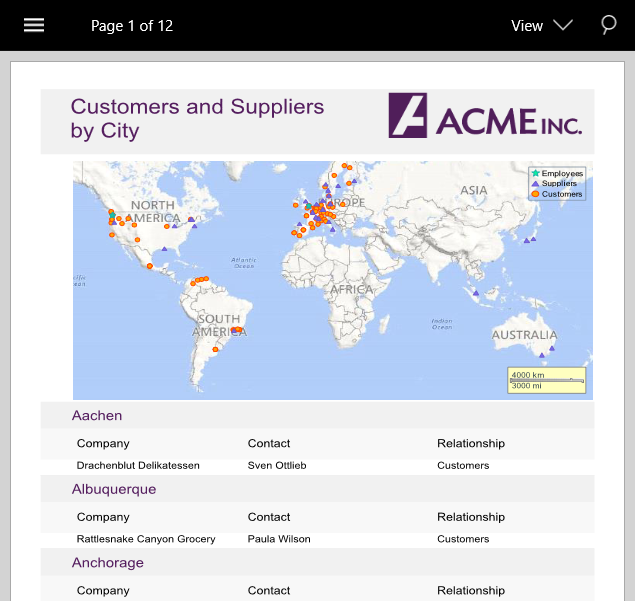
The following image shows how the FlexViewer control appears after completing the steps above.
****
### Step 1: Add FlexViewer control
1. Add a new content page (Name: `QuickStart.xaml`) to your Mobile App (Xamerin.Forms) and include references as shown below.
```xml
```
2\. Initialize the FlexViewer control by adding the following markup for the control between the \ \ tags\.
```auto
```xml
```
```
### Step 2: Bind FlexViewer with document source
1. Add the following references in the **QuickStart.xaml.cs** file.
```csharp
using Xamarin.Forms;
using Xamarin.Forms.Viewer;
```
2\. Add the following code to bind the FlexViewer control with the document source\. In this sample\, we have used GcPdf as the document source\.
```auto
```csharp
Assembly assembly;
//Bind FlexViewer control to the PDF
assembly = IntrospectionExtensions.GetTypeInfo(typeof(MainPage)).Assembly;
Stream stream = assembly.GetManifestResourceStream("App4.Resources.DefaultDocument.pdf");
```
```
### Step 3: Load the PDF document
Load the PDF document in the FlexViewer control using the following code. In this example, we have added a PDF document to the Resources folder to load it in the viewer.
```csharp
//Load PDF document to the viewer
flexViewer.LoadDocument(stream);
```
### Step 4: Run the Project
1. In the **Solution Explorer**, double click App.xaml.cs to open it.
2. Complete the following steps to display the FlexGrid control.
* **To return a Content Page**: In the class constructor App(), set the Forms XAML Page **QuickStart** as the MainPage.
The following code shows the class constructor App() after completing this step.
```csharp
public App()
{
// The root page of your application
MainPage = new QuickStart();
}
```
3. Some additional steps are required to run the iOS and UWP apps:
* **iOS App**:
1. In the **Solution Explorer**, double click AppDelegate.cs inside YourAppName.iOS project, to open it.
2. Add the following code to the FinishedLaunching() method.
```csharp
C1.Xamarin.Forms.Viewer.Platform.iOS.FlexViewerRenderer.Init();
```
* **UWP App**:
1. In the **Solution Explorer**, expand MainPage.xaml.
2. Double click MainPage.xaml.cs to open it.
3. Add the following code to the class constructor.
```csharp
C1.Xamarin.Forms.Viewer.Platform.UWP.FlexViewerRenderer.Init();
```
4. (Optional) In case you compile your UWP application in **Release** mode, you need to explicitly add the following code to the **OnLaunched** method in your **App.xaml.cs** to include the correct assemblies within your application.
```csharp
var assembliesToInclude = new List();
assembliesToInclude.Add(typeof(
C1.Xamarin.Forms.Viewer.Platform.UWP.FlexViewerRenderer).GetTypeInfo().Assembly);
assembliesToInclude.Add(typeof(C1.UWP.Viewer.FlexViewer).GetTypeInfo().Assembly);
Xamarin.Forms.Forms.Init(e, assembliesToInclude);
```
4. Press **F5** to run the project.