# Quick Start
## Content
This quick start will guide you through the steps of adding FlexViewer control to the application, binding it with a document source, i.e., GcPdf, and loading the PDF in the FlexViewer control.
> type=note
> Note: To use GcPdf as the document source for your application, you need to install GcPdf NuGet package to add the GcPdf references to your application.
To achieve it, follow these steps:
1. [Add FlexViewer control](/componentone/docs/xamarin/online-android/controls/flexvieweroverview/flexviewerquickstart#step-1-add-flexviewer-control)
2. [Load the PDF document](/componentone/docs/xamarin/online-android/controls/flexvieweroverview/flexviewerquickstart#step-2-load-the-pdf-document)
3. [Run the Project](/componentone/docs/xamarin/online-android/controls/flexvieweroverview/flexviewerquickstart#step-3-run-the-project)
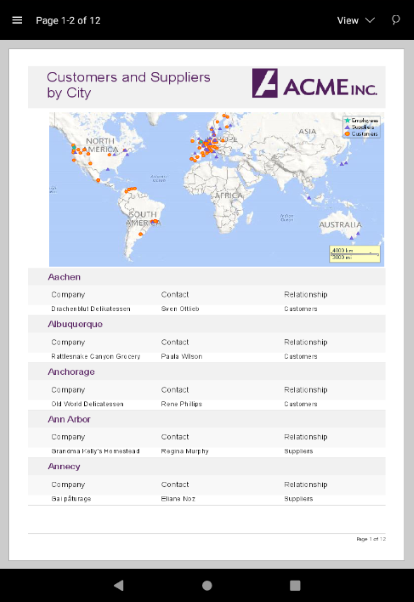
The following image shows how the FlexViewer control appears after completing the steps above.
### Step 1: Add FlexViewer control
In the **Solution Explorer**, open the activity\_main.axml file from the layout folder inside the Resources folder and replace its code with the following code:
```XML
```
Alternatively, you can drag a FlexPie control from the Toolbox within the custom control tab onto your layout surface in designer mode.
### Step 2: Load the PDF document
Load the PDF document in the FlexViewer control using the following code. In this example, we have added a PDF document to the Assets folder to load it in the viewer.
```csharp
//#region load
var flexViewer = FindViewById(Resource.Id.FlexViewer);
using (var stream = Assets.Open("DefaultDocument.pdf", Android.Content.Res.Access.Streaming))
{
using (var sr = new StreamReader(stream))
{
memoryStream = new MemoryStream();
sr.BaseStream.CopyTo(memoryStream);
flexViewer.LoadDocument(memoryStream);
}
}
```
### Step 3: Run the Project
Press **F5** to run the application.