# Toolbar Tab Item
## Content
The [C1ToolbarTablItem](/componentone/api/wpf/online-toolbar/dotnet-framework-api/C1.WPF.Toolbar.4.6.2/C1.WPF.Toolbar.C1ToolbarTabItem.html) represents a tab item on the **C1Toolbar**. The **C1ToolbarTabItems** are beneficial to use when you have substantial amounts of information to display on minimum window space.
The **C1ToolbarTabItem** divides the controls onto a separate page and shows one tab at a time.
A **C1ToolbarTabItem** can hold a collection of [C1ToolbarGroups](/componentone/api/wpf/online-toolbar/dotnet-framework-api/C1.WPF.Toolbar.4.6.2/C1.WPF.Toolbar.C1ToolbarGroup.html) which can contain [C1ToolbarButtons](/componentone/api/wpf/online-toolbar/dotnet-framework-api/C1.WPF.Toolbar.4.6.2/C1.WPF.Toolbar.C1ToolbarButton.html), [C1ToolbarToggleButtons](/componentone/api/wpf/online-toolbar/dotnet-framework-api/C1.WPF.Toolbar.4.6.2/C1.WPF.Toolbar.C1ToolbarToggleButton.html), [C1ToolbarDropDowns](/componentone/api/wpf/online-toolbar/dotnet-framework-api/C1.WPF.Toolbar.4.6.2/C1.WPF.Toolbar.C1ToolbarDropDown.html), and [C1ToolbarSplitButtons](/componentone/api/wpf/online-toolbar/dotnet-framework-api/C1.WPF.Toolbar.4.6.2/C1.WPF.Toolbar.C1ToolbarSplitButton.html).
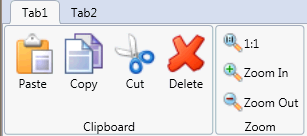
The following image displays two **C1ToolbarTabItem**s:
A **C1ToolbarTabItem** can be added to **C1Toolbar** via the **ToolbarItems** collection editor, through XAML, or programatically.
To add a **C1ToolbarTabItem** using the designer, complete the following:
1. Add a **C1Toolbar** control to your page.
2. Select the **C1Toolbar** control and click on the ellipsis button next to the **ToolbarItems** property in the **C1Toolbar** properties window. The **ToolbarItems** collection editor appears.
3. Select the **C1ToolbarTabItem** from the select item dropdown list and click **Add**. The **C1ToolbarTabItem** is added to the **C1Toolbar** control.
4. Set the **Header** property to **Tab 1**.
To add a **C1ToolbarTabItem** using XAML code, add the following:
```xml
```
**C1ToolBarGroups** can be added to the **C1ToolbarTabItem** via the **Groups** collection editor, through XAML, or programatically using the [C1ToolbarTabItem.Groups](/componentone/api/wpf/online-toolbar/dotnet-framework-api/C1.WPF.Toolbar.4.6.2/C1.WPF.Toolbar.C1ToolbarTabItem.Groups.html) property.
To add a **C1ToolbarGroup** to the **C1ToolbarTabItem** using the designer, complete the following:
1. Add a **C1Toolbar** control to your page.
2. Right-click on the **C1ToolbarTabItem** and select **Properties**. Click on the **ellipsis** button next to the **Groups** property in the **C1ToolbarTabItem** properties window. The **Groups** collection editor appears.
3. Click **Add** to add a **C1ToolbarGroup** to the **C1ToolbarTabItem**. The **C1ToolbarGroup** is added to the C1ToolbarTabItem.
4. Set the **Header** property to **Tab 1**.
To add a **C1ToolbarGroup** to a **C1ToolbarTabItem** using XAML code, add the following:
```xml
```
The **C1ToolBarTabItem** includes the following unique property:
| **Property** | **Definition** |
| --- | --- |
| [Groups](/componentone/api/wpf/online-toolbar/dotnet-framework-api/C1.WPF.Toolbar.4.6.2/C1.WPF.Toolbar.C1ToolbarTabItem.Groups.html) | Gets the collection of toolbar groups. |