# Part 1: Using the Command Library
## Content
WPF provides a library of predefined commands such as the following:
* Application Commands (Cut, Copy, and Paste)
* Navigation Commands (BrowseBack, BrowseForward)
* Media Commands (Play, Stop, Pause)
* Editing Commands
* Component Commands
Many WPF controls have built-in support for these commands so you can implement them without having to write code.
The following steps show how to implement some common clipboard commands using **C1Toolbar**.
1. Open or create a new WPF application.
2. Add two **RowDefinitions** to the default **Grid** element, giving the first row an automatic height, such as this:
```xml
```
3. Add a **C1Toolbar** to the fill the first row.
4. Paste the following XAML to fill **C1Toolba**r with some tabs, groups and buttons:
```xml
```
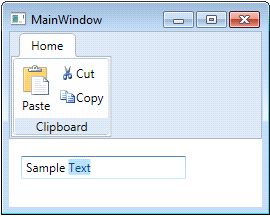
This markup creates a single tab containing a single group inside **C1Toolbar**. The **Clipboard** group contains three [C1ToolbarButtons](/componentone/api/wpf/online-toolbar/dotnet-framework-api/C1.WPF.Toolbar.4.6.2/C1.WPF.Toolbar.C1ToolbarButton.html) each assigned a common clipboard command from the WPF application command library. Notice the attached **IsFocusScope** property is set to **True** for **C1Toolbar**. This enables **C1Toolbar** to keep track of the focused element within its scope. Small and large images are also specified for the **C1ToolbarButtons**, although these are not required.
5. Add a **TextBox** control below **C1Toolbar**.
6. Run the application and notice that the common clipboard commands (Paste, Copy and Cut) work in the **TextBox** by clicking the **C1ToolbarButtons**.