# Step 3 of 3 Running the C1TileView Application
## Content
Now that you created a WPF or Silverlight application and customized the C1TileView control, you can run your application. To run your application and observe **TileView for WPF and Silverlight** run-time behavior, complete the following steps:
1. From the **Debug** menu, select **Start Debugging** to view your application at run time.
The application appears similar to the following:
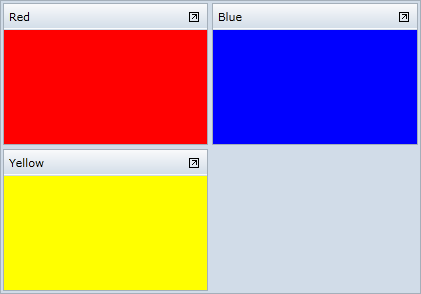
Notice that the **C1TileView** control appears with three C1TileViewItem objects.
2. Click the red item's header and drag it towards the blue item. The items trade places.
3. Click the maximize icon in the upper-right corner of the yellow item's header. Note that the other two items are minimized:
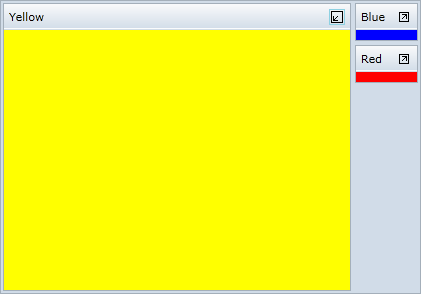
Congratulations! You completed the **TileView for WPF and Silverlight** quick start and created a simple WPF application, added and customized a **TileView** control, and viewed some of the run-time capabilities of the control.
## See Also
[Working with TileView for WPF and Silverlight](/componentone/docs/wpf/online-tilesview/WorkingwithTileViewforWPF)